What is Web Docs?
Web Docs is itris’ built-in e-signature solution that lets you create, send, and manage documents that require signatures. Whether you’re sending candidate contracts, client terms, or right-to-represent forms, everything stays within itris for a seamless workflow.
Creating Your Web Documents
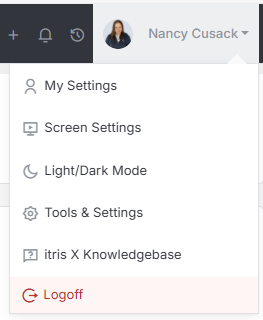
You’ll create all your Web Documents in Tools & Settings , which is accessed via the profile menu.
Within Tools & Settings under the Onboarding sub-menu you will find Web Documents.
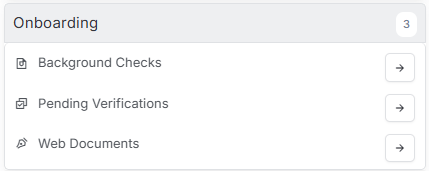
Please note access to this area also is permission based.
The settings available in the area are detailed below, once you are happy with your selection you will need to Save before navigating away.

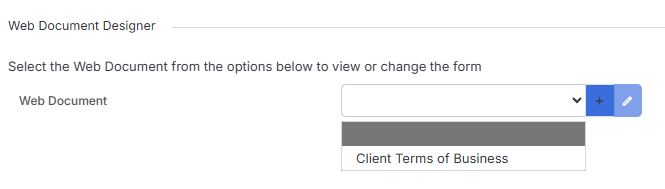
When setting up a new document, you have three options:
- Upload from a Word document (more on this below)
- Clone an existing document you’ve already created
- Create a new one directly within itris
Each document needs a few basic details: a name, title, type (like page size), and an Association. The Association is particularly important—it determines which tags you can use to merge data into your document (like candidate details, client information, etc.).
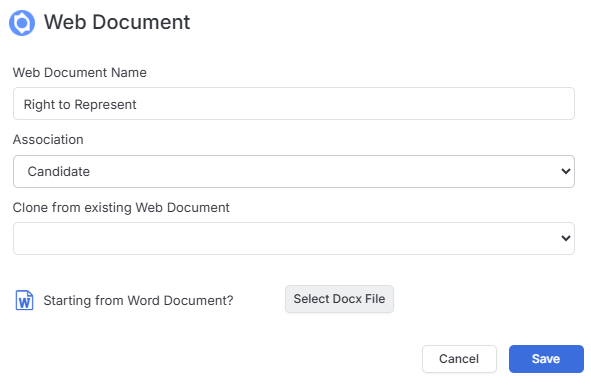
Creating from a Word Document
If you’ve already got documents prepared in Word, you can easily convert them into Web Documents. Just make sure your file is saved as a Microsoft Word (DOCX) file. If you’re working with an older DOC format, open it in Microsoft Word and re-save it as DOCX first.
When creating your new Web Document, you’ll see an option to “Select Docx File”. Once you’ve selected your file, itris will confirm the filename and size for you, and automatically populate the Web Document Name field (which you can edit if needed). Click Save, and your document will be converted and opened in the Web Document editor—ready for you to customize.
The Document Designer
This is where the magic happens. In the Document Designer, you can build and format your documents exactly how you need them. You can add tags for personalization, create tables, insert formatting, include hyperlinks, and more.
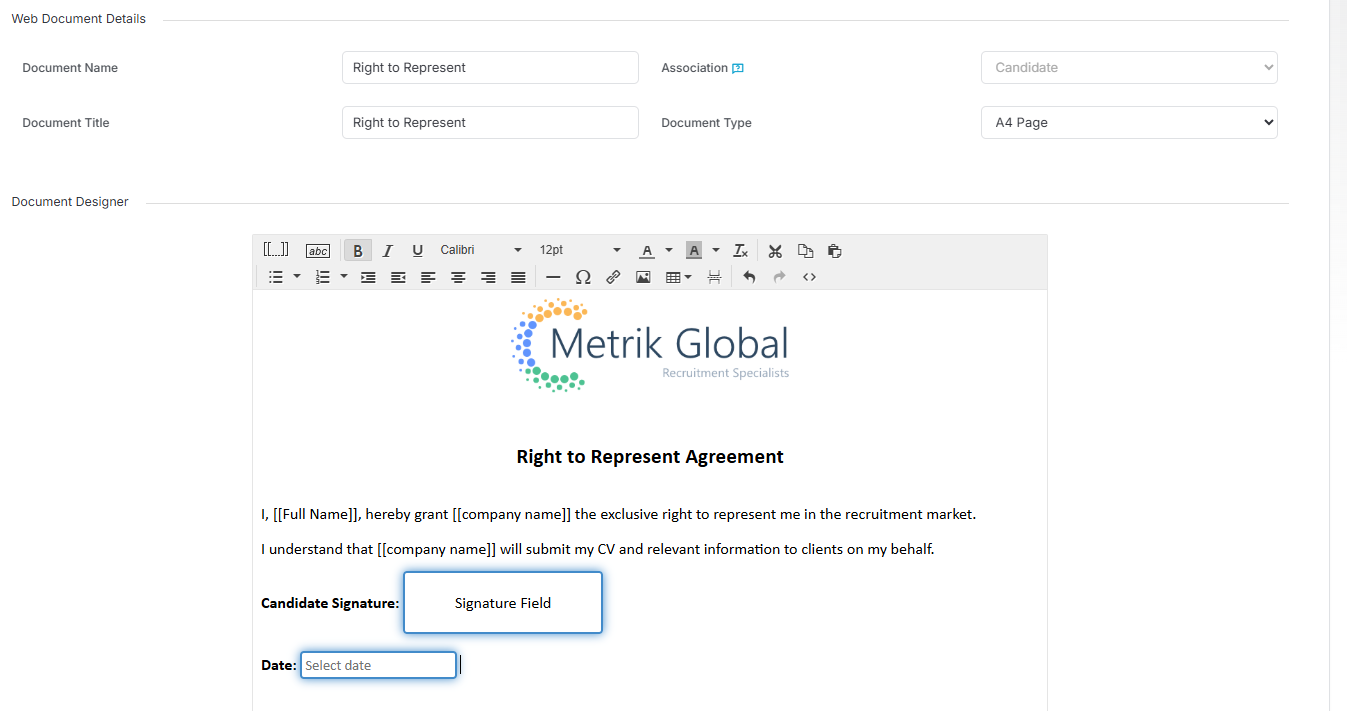
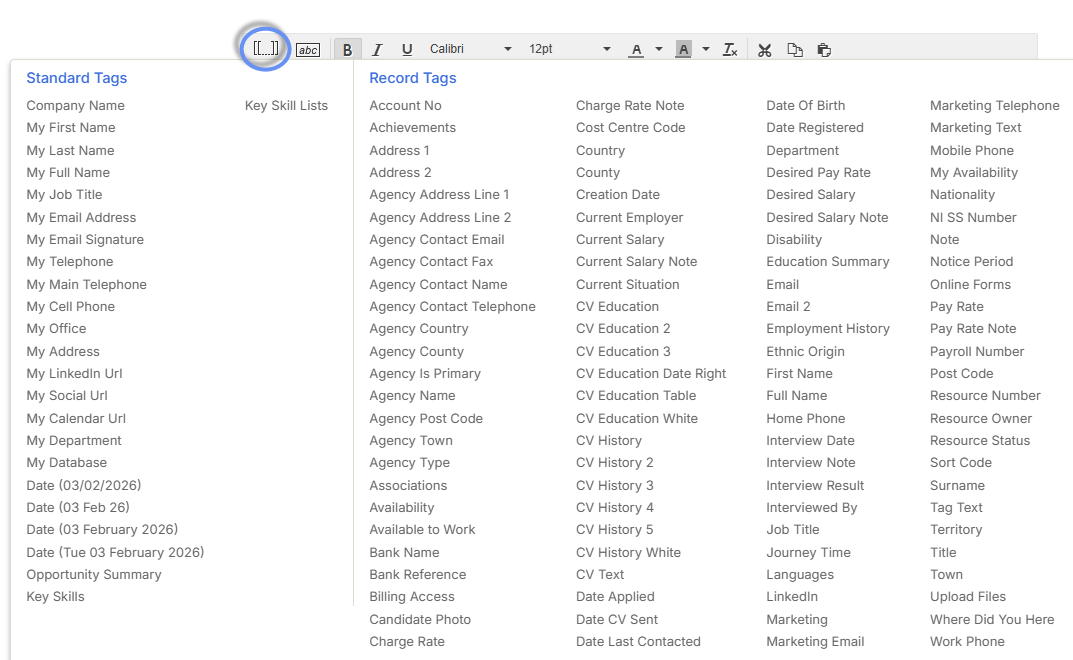
Tags are particularly powerful—they don’t just pull in data from Candidate and Client records, but also user data like your signature and current dates. This means your documents can be automatically personalized without manual input.
Note about images: If you’ve uploaded a Word document, images won’t automatically copy over. You’ll need to insert these from the Media Library.

Form Fields
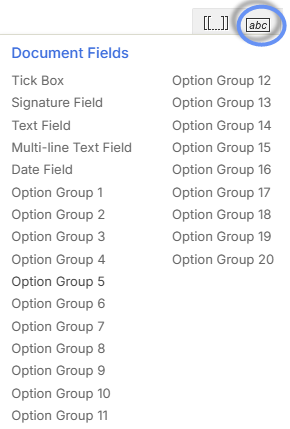
Form fields are the areas that recipients need to complete—like signature boxes. These are what make your documents interactive and ready for e-signature.
Sending a Web Document for Signature
Web Documents in itris support single signatures. If a signature field is included in your document, it will automatically be a required field. Once signed, documents are safely stored within the signer’s profile as a PDF.
Here’s how to send:
- From Action Menus on records or Record List Action buttons, select “Send a Form”
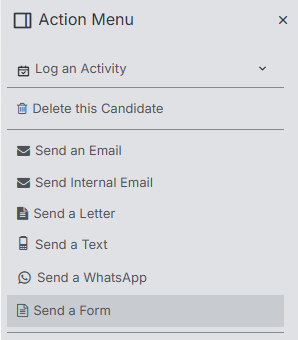
- You’ll see documents listed with the relevant association (for example, if you’re sending to a candidate, you’ll only see documents with a Candidate association)
- Click Prepare
- You can edit fields in advance if you want to pre-fill some information before sending
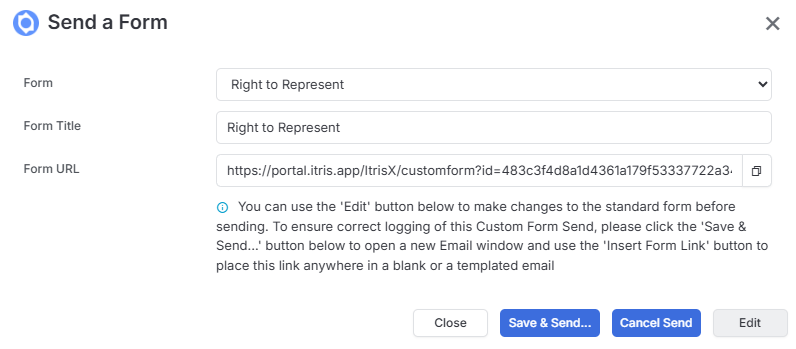
- Click Save and Send
- Choose an email template if you’d like to use one
- Make sure you “Insert the form link” into your email
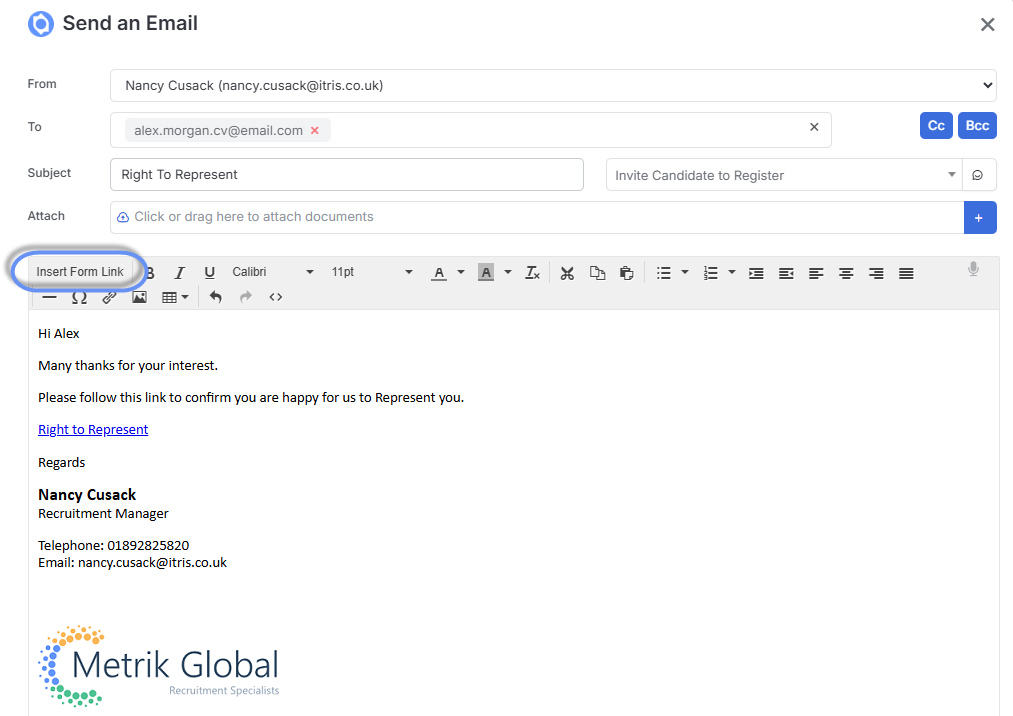
- Send the email
An activity will be automatically created on the relevant records to show that the form was sent, keeping your audit trail complete.
What Happens Next?
The recipient will receive your email with a link to the Web Document. They can:
- Fill out any required fields
- Add their signature
- Submit the document
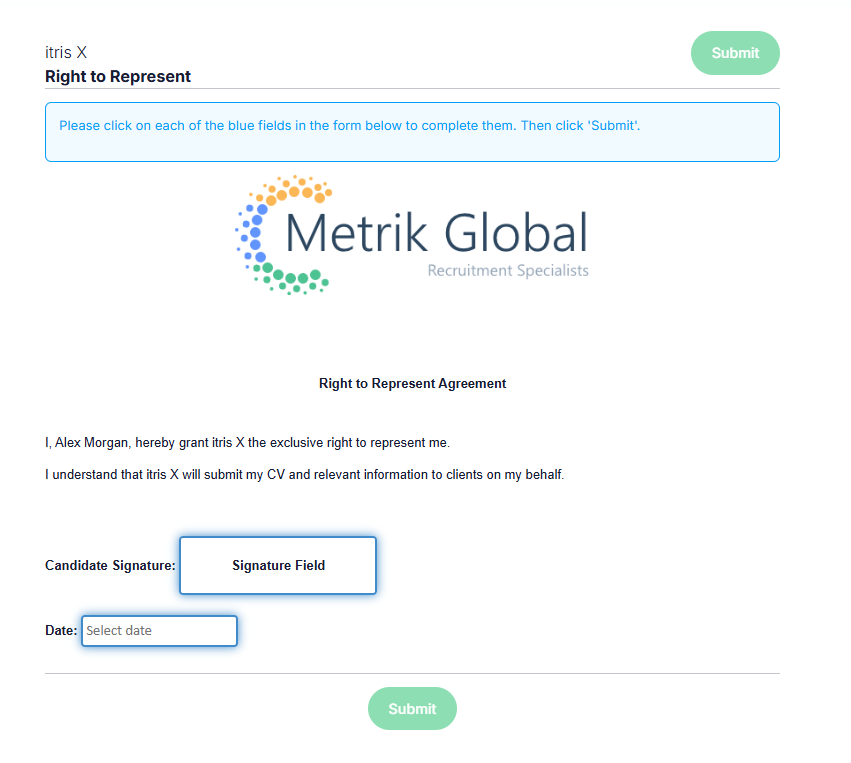
Once submitted, a copy is automatically sent to the recipient and the completed form is added to the person’s record in itris. Everything’s stored securely and easy to access whenever you need it.

Common Uses for Web Docs
Web Docs are perfect for any document that requires a signature or form completion, including:
- Client Terms of business
- Right to represent forms
- Candidate Contracts
The flexibility of the system means you can create templates for any document type your business needs, making the whole process faster and more professional.
Tracking Sent Web Documents
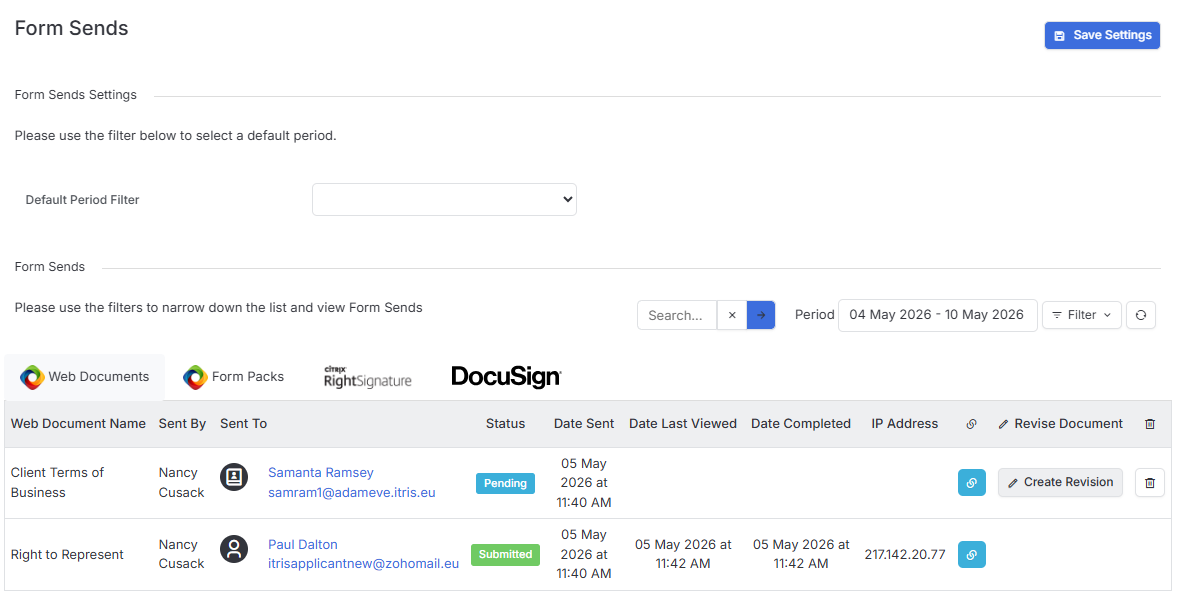
Sent Web Documents can be tracked via the Form sends block on the relevant record and via Tools and Settings > Collaboration > Form Sends.
Here you will be able to see the forms that have been sent and their statuses.