
Introduction
Within User Targets you can set Sales Targets, Revenue Targets and KPI Targets for each user.
Targets can be set via each Users record or via the User Targets area. For how to access the Users record to do this please see the article Tools & Settings | Users. Once on their record, the details as described in the sections below will apply.
KPI Targets can be added as Widgets to your Dashboards, and all Targets can be reported on (in turn those reports can also be added to your Dashboard). See the articles Dashboards and Reporting for more details.
To set and manage these options within the User Targets area of Tools & Settings, you will need to access the area via the profile menu.
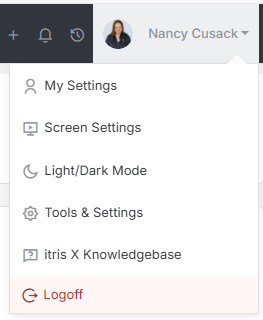
Within Tools & Settings under the Users sub-menu you will find User Targets.
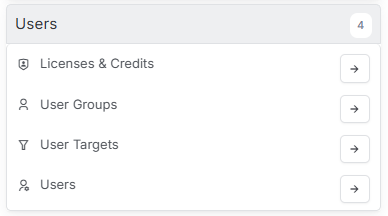
Please note access to this area is permission based, see the article Tools & Settings | User Groups for more details on permissions.
User Selection
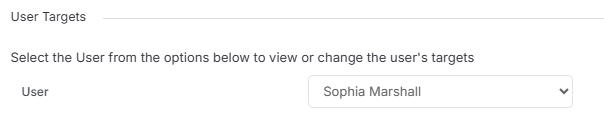
If setting Targets via the User Targets area (as opposed to via the Users area) you will first need to select the relevant user from the drop down.
Setting Sales & Revenue Targets
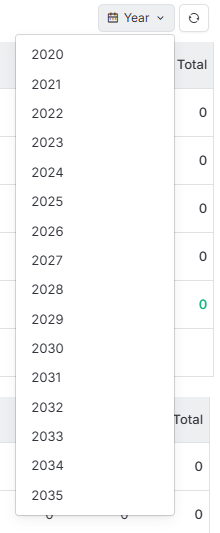
Before setting the Sales & Revenue Targets ensure you have the correct year selected, this option sits on the top right of the Sales Targets area.
Targets added under Sales will reference Permanent Placements taking the values from the jobs the placements are made against.
Targets added under Revenue are based on Products & Services added to job (that is won).
See the Job Record article for more details.
Sales Targets
To create Targets click the Set Targets button.

Here you can choose your start month, and the Target Period. If you want to set a different Target for each month you would set this as month, alternatively you can evenly split the Target over a Quarter, Half Year or Full Year.
The Target amount is the financial value, the volume equates the number of deals.
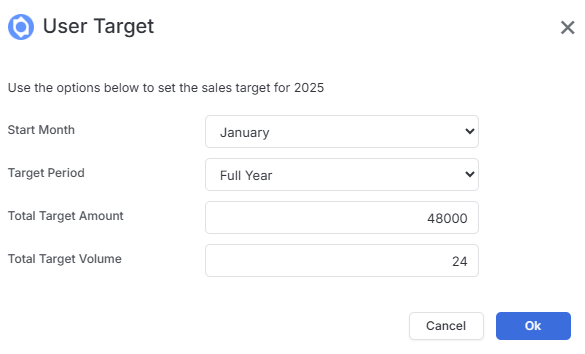
Once saved the values a added to the table and assuming activity has taken place start calculating the values.
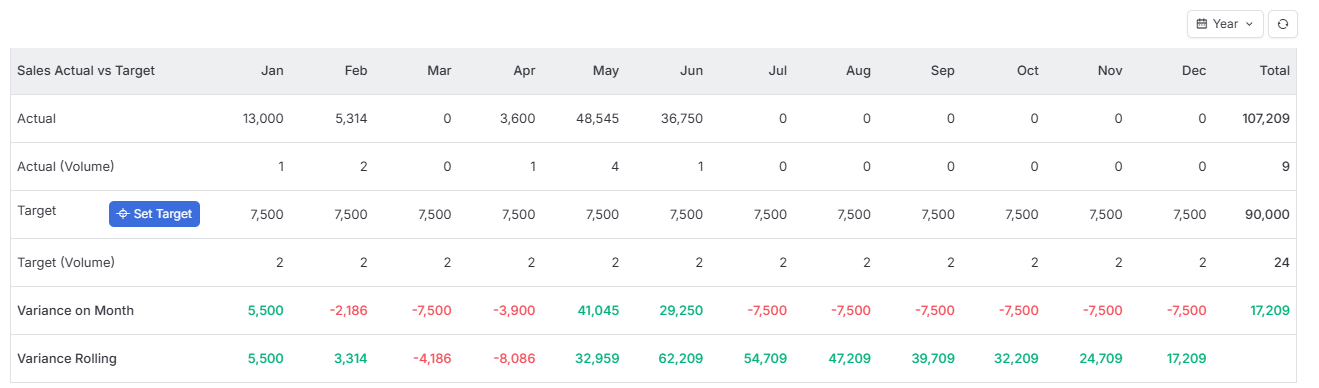
Variance on Month shows the difference between monthly target and actual for each individual month.
Variance Rolling shows the cumulative difference between your actual sales and targets from the beginning of the “Start month” (e.g. January) up to each month. For example, if you’re looking at the June row, it doesn’t just show how you performed in June alone - it shows your total performance from January through June combined. If you were £5,000 over target in the first quarter but £3,000 under target in the second quarter, your June “Variance Rolling” would show +£2,000.
Revenue Targets
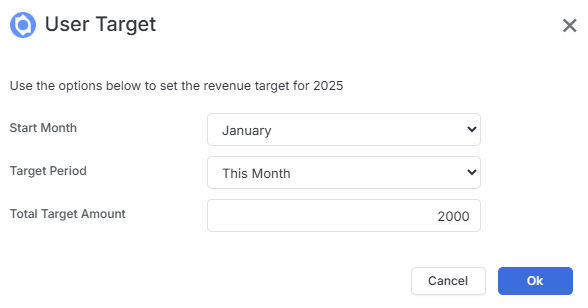
To create Targets click the Set Targets button.
When setting Revenue you will need to choose your start month, and the Target Period. If you want to set a different Target for each month you would set this as month, alternatively you can evenly split the Target over a Quarter, Half Year or Full Year.
You would then need to set the Target amount for that period.
Once saved the values a added to the table and assuming activity has taken place start calculating the values.
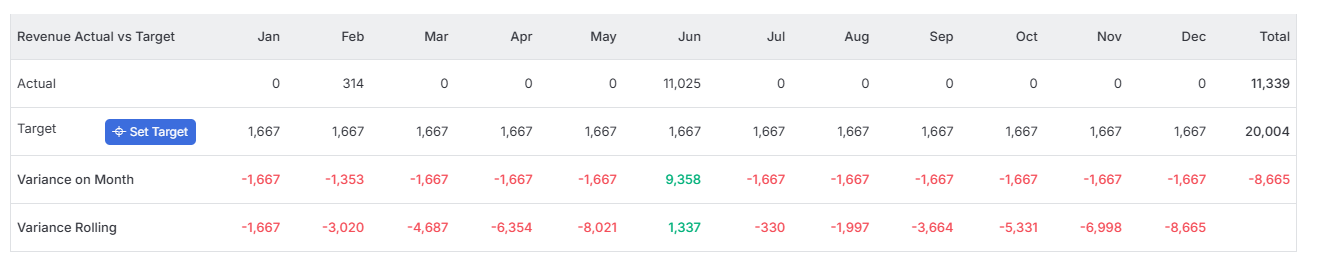
Variance on Month shows the difference between monthly target and actual for each individual month.
Variance Rolling shows the cumulative difference between your actual sales and targets from the beginning of the “Start month” (e.g. January) up to each month (see above explanation for Sales Targets for an example).
KPI’s
KPI Targets set here will be included in the KPI Widgets that you can add to your Dashboards.
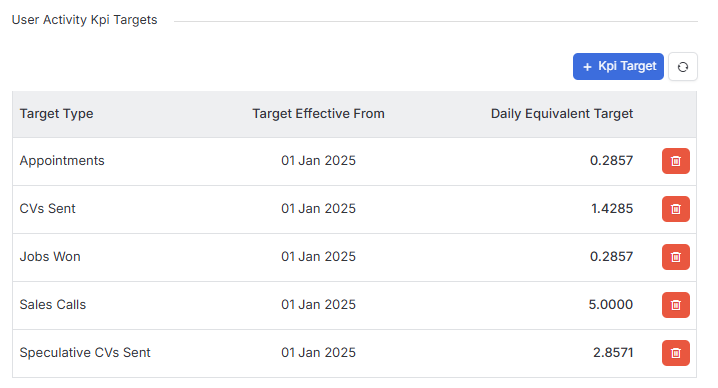
KPI’s can be set per day, week, fortnight, month, quarter or year.
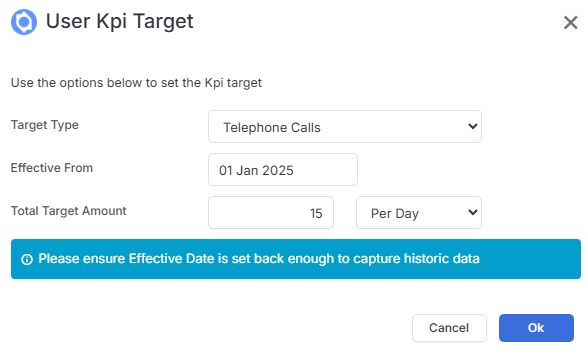
KPI’s can be set of a number of areas, including but not limited to: Activities (such as appointments & calls), various New Record creation, Submission workflow (e.g. CV’s Sent, Interviews) as well as Business Development activities such as Speculative CV’s.