Introduction
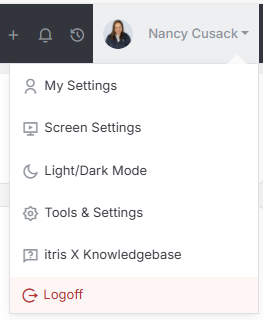
User Groups are created and managed within Tools & Settings, which is accessed via the profile menu.
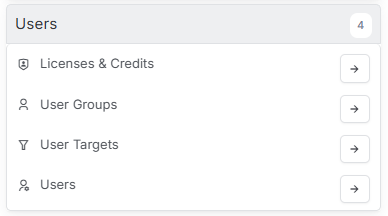
Within Tools & Settings under the Users sub-menu you will find User Groups.
Please note access to this area also is permission based.
The settings available in the area are detailed below, once you are happy with your selection you will need to save these settings before navigating away.
User Group Settings
In this section you can click the plus icon to create a new User Group, use the drop down to select an existing User Group to manage or delete a User Group. At the point of creating a new group you can also pick a Layout to assign (see the article Tools & Settings | Layout Designer for more details), this is required if users within this User Group are to view any records/data when they log in.
When creating a new User Group, you can clone an existing, saving you time in amending all the settings if they are going to be similar.

It is advised that at least one Admin User Group is created that has access to all settings, including user settings.
Examples of other User Groups you might create include: Recruiter, Finance, Compliance etc. Each of this may have different permissions and possibly different layouts.
General Settings
This area will display the User Group Name and Description, along with the Layout assigned to it.

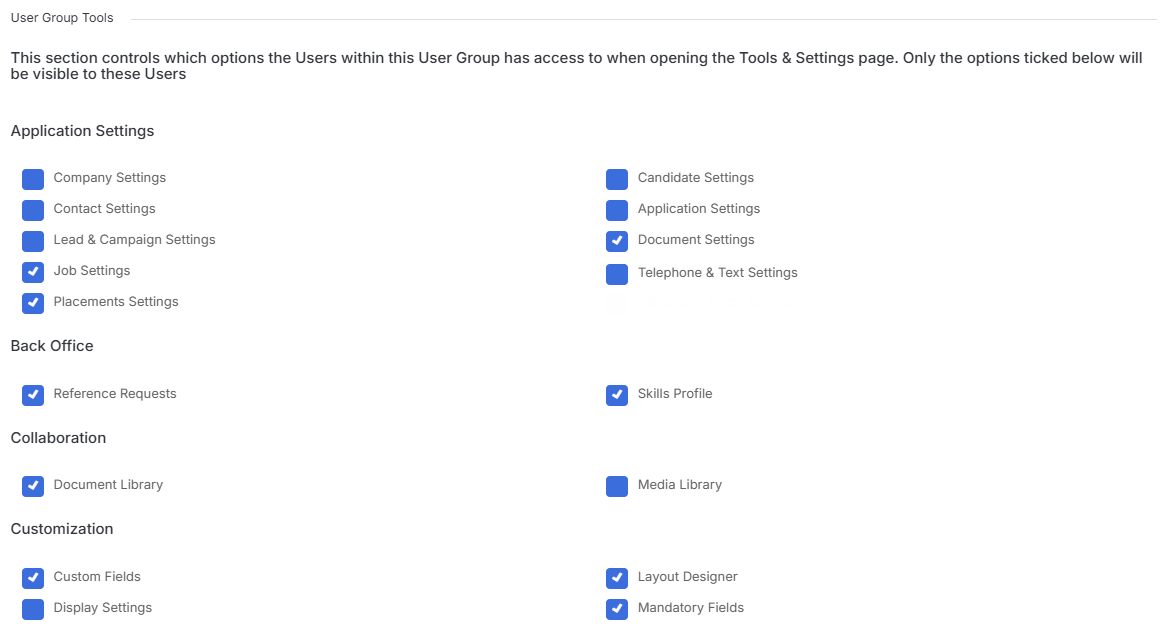
User Group Tools
Options in this section control what areas a user has access to within Tools & Settings, here are some key options to consider:
- Application settings - access to configuration areas within all parts of system, for example setting defaults for the different records types.
- Back Office - including creating and managing skills profiles.
- Collaboration - access to Media Library as this is where your company logos will be held.
- Customisation - the ability to create Custom Fields, manage Display settings, set Mandatory Data, create layouts in Layout Designer
- Financial - manage invoice settings
- Reporting - manage report settings such as Fiscal Year Start month
- Security - reinstating delete records.
- Templates -manage Job Description, Agency CV and Email templates
- Users - Assign/Remove user licences, set user targets, create user groups (e.g. the subject of this article), manage users.
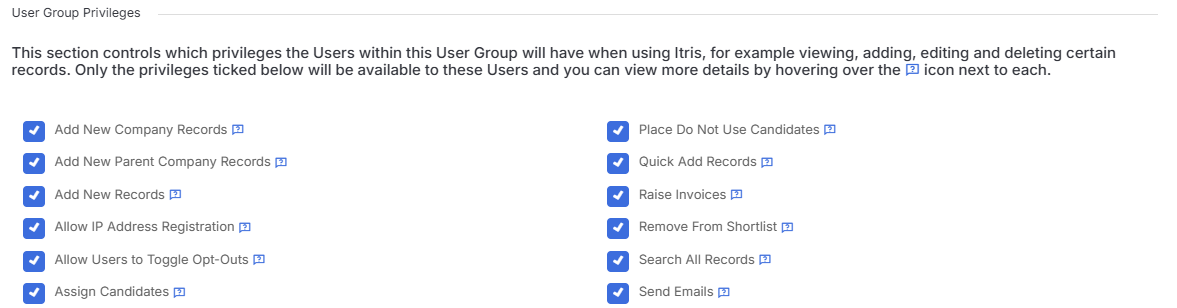
User Group Privileges
Within this area are the settings that control a users privileges when using itris X, for example the ability to view, add, edit and delete different record types. See the tool tips for explanations on each option.
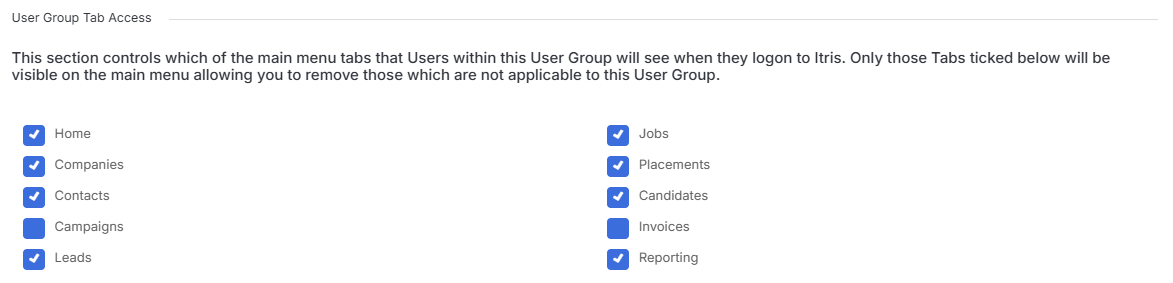
User Group Tab access
This section controls which of the main menu tabs that Users within this User Group.
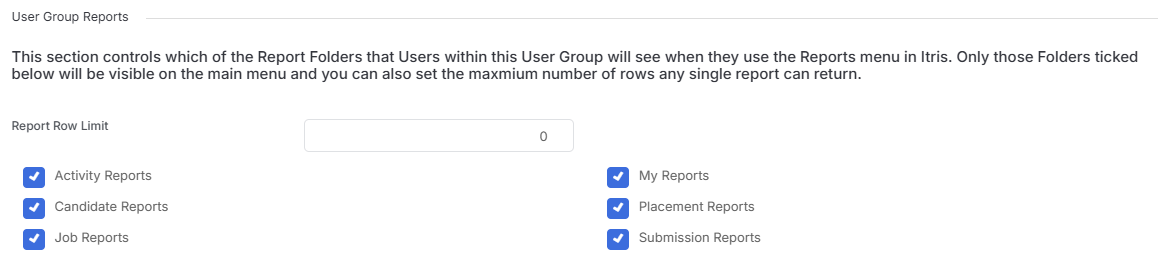
User Group Reports
This section controls which of the Report Folders that Users within this User Group will see when they use the Reports menu.