
Introduction
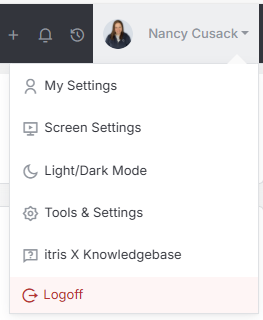
User Licences are created and managed within Tools & Settings, which is accessed via the profile menu.
Within Tools & Settings under the Users sub-menu you will find Licences & Credits.
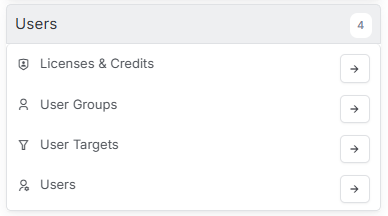
Please note access to this area is permission based, see the article Tools & Settings | User Groups for more details on permissions.
The settings available in the area are detailed below, once you are happy with your selection you will need to save these settings before navigating away.
Subscriptions
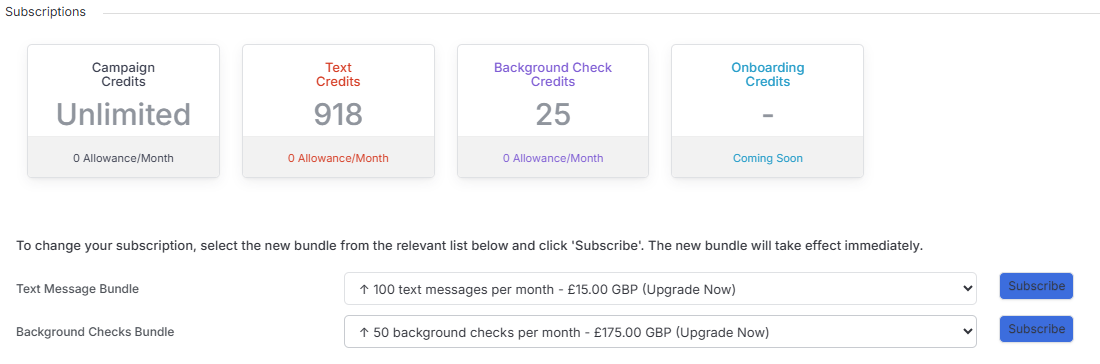
The Subscriptions area gives you a clear view of your available credits, lets you purchase more, and makes it easy to manage your subscriptions all in one place.
Just a heads-up — purchasing a subscription will initiate contract terms, so if you’d like more details before getting started, please don’t hesitate to get in touch with us.
Licences
This area shows you how many licences you have and how many users you have with a licence applied to them (each users will need a licence assigned to their user account in order to log in).
This list also shows you active users who don’t have a licence assigned to their account. See the Licenced User section below for how to assign licences to a user.

Licensed Users
Licensed Users show as list of all your Active users. A user will require a license to log in.
Licenses can be added or removed by clicking on the license flag, additionally a users access can be locked/unlocked here. These actions can also be completed from the users record, see the Tools & Settings | Users article for more details.
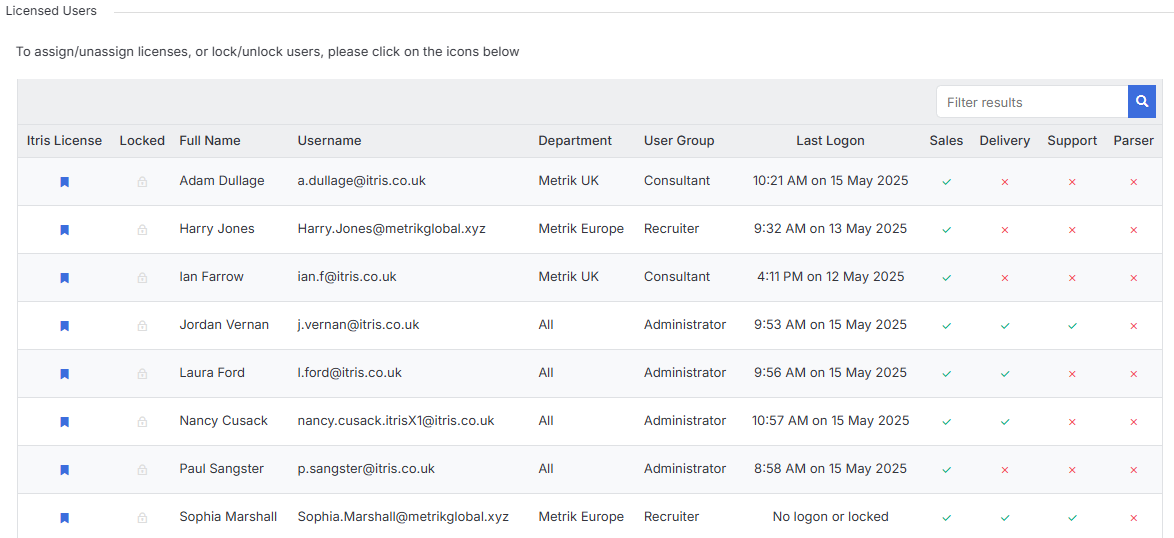
If all your licenses are in use, you will need to either acquire additional licenses, or remove a license from an existing user to enable you to assign it to another. Removing a license does not delete the user, however it will mean they are unable to log in.