
Introduction
User Email Signature Templates are managed within Tools & Settings, which is accessed via the profile menu.
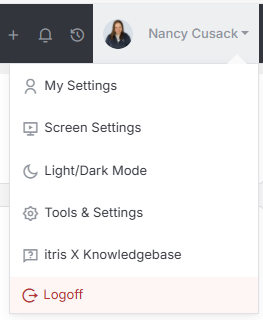
Within Tools & Settings under the Templates sub-menu you will find User Email Signature Templates.
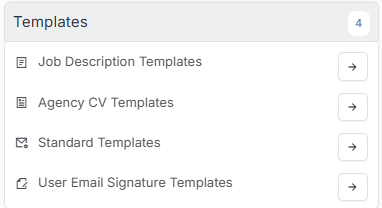
Please note access to this area is permission based, see the article Tools & Settings | User Groups for more details on permissions.
How to create User Email Signature Templates is detailed below and you can have as many templates as required. When creating or editing your templates, ensure you Save before navigating away.
Creating Email Signature Templates
Setting up email templates in itris is one of those features that can really transform how your recruitment communications look and feel. I’ve found it makes such a difference when your emails are consistent, branded, and personalised without having to manually type everything each time.
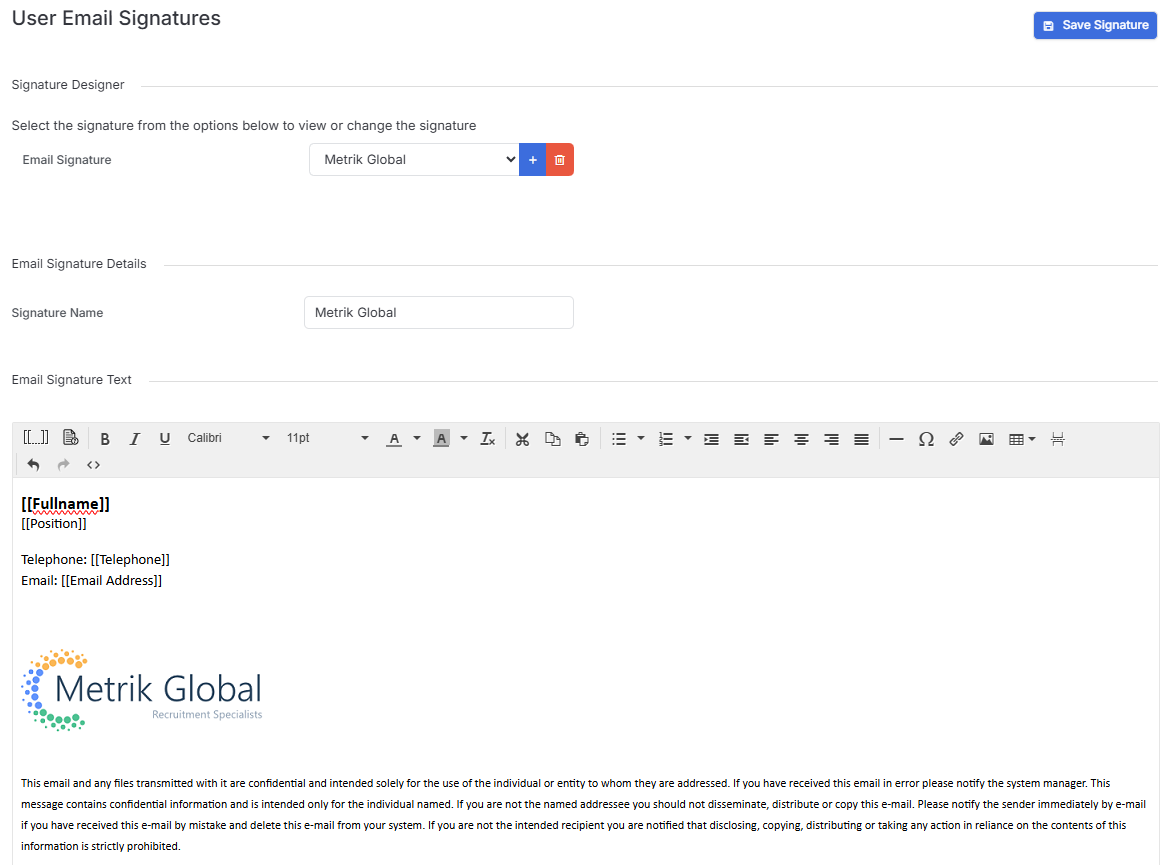
When you’re building your templates, you’ve got loads of flexibility with Tags and formatting.
You can create tables to structure your content nicely, which is particularly useful if you want to lay out information in a clean, organised way.
Adding images is straightforward, just insert them directly from your Media Library. I’d recommend saving your social media icons in the media library as well, so they’re always ready to use across different templates.
Here are a few tips for working with images:
- Resize them easily by either dragging the corners or clicking back onto the insert image icon to change the size manually
- Size them appropriately - I’ve found 100-150 pixels works well for most email elements
- Make them clickable by highlighting the image and adding a link (you can set these to open in a new window too)
A particularly helpful function is that when you’re creating a new template, you can Clone an existing template. This saves so much time when you want to create variations or build on something that’s already working well.
Personalisation with Tags
These templates use Tags to pull through personal details. The system can automatically grab information from each user’s My Settings area, including:
- Job title
- Name
- Telephone number
- Social media URLs
This means once you’ve set up the template structure, everyone’s emails will automatically include their personal details without any manual input.
How Users Access Templates
The system works on two levels for template selection.
In My Settings, users can pick which email template they want to use as their default. But there’s also an an option for this to be set in Tools & Settings Users area.