Introduction
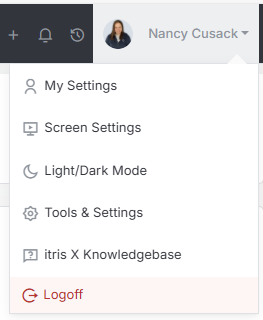
The Security Settings area is found within Tools & Settings, which is accessed via the profile menu.
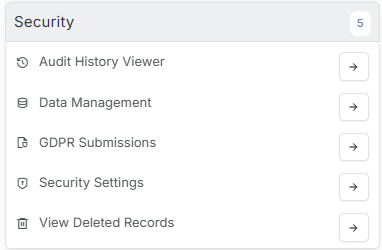
Within Tools & Settings under the Security sub-menu you will find Security Settings.
Please note access to this area is permission based, see the article Tools & Settings | User Groups for more details on permissions.
Managing Your GDPR Settings
When it comes to GDPR compliance, itris makes it straightforward for you to give candidates control over their personal data while keeping everything organized on your end. The GDPR settings area is where you’ll configure how candidates can manage their preferences and exercise their data rights.
Setting Up Your Candidate-Facing Statement
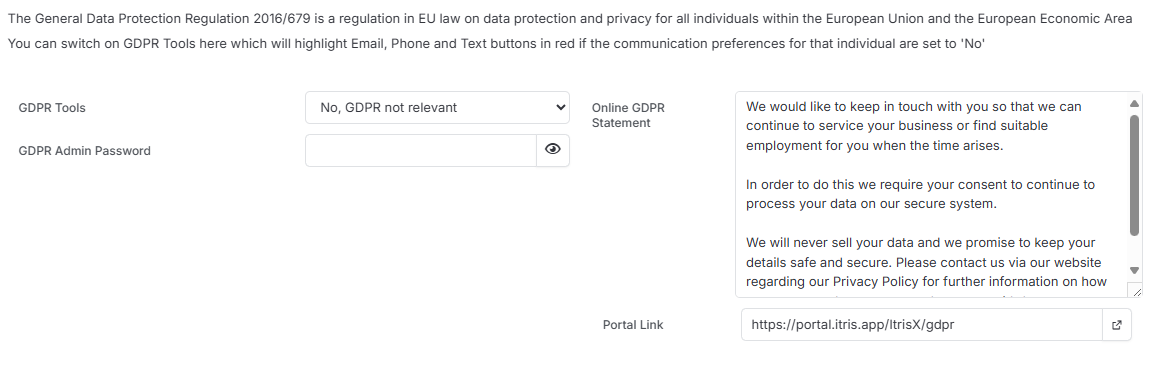
The first thing you’ll want to do is write the statement that candidates will see when they visit your GDPR webpage. This is your opportunity to explain in plain language what data you collect, how you use it, and what rights they have. Keep it clear and friendly – remember, this is often a candidate’s first impression of how you handle their privacy.
Activating the Functionality
You can choose whether the GDPR functionality is active or not, giving you full control over when candidates can access these features. Don’t worry about getting everything perfect right away – this will be set up for you during your initial onboarding process, so you’ll have support getting it configured properly.
Using Your GDPR Webpage
Once everything’s configured (normally during your onboarding with itris), you’ll have access to your unique GDPR webpage link. This is incredibly useful for:
- Including in email templates to candidates
- Embedding directly into your company website
- Sharing whenever someone asks about data preferences
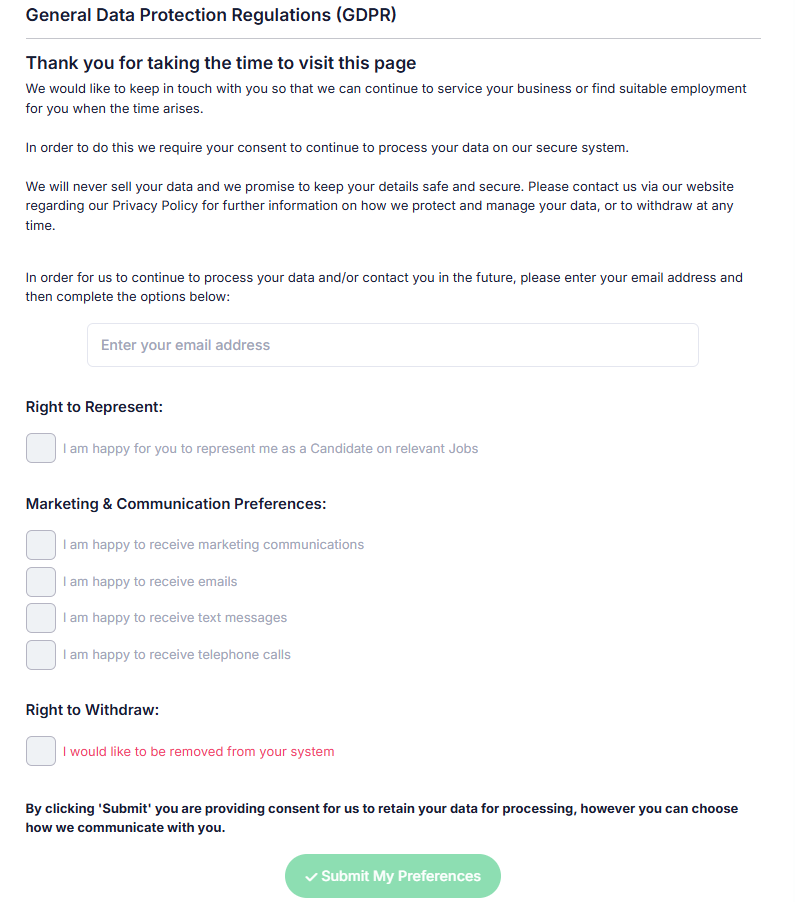
When candidates click this link, they’ll land on a simple form where they just need to input their email address. itris will use this to match them against their existing record in your system, then allow them to:
- Record their right to representation
- Update their marketing and communication preferences
- Submit a request to have their data deleted