
Introduction The GDPR Submissions area is found within Tools & Settings, which is accessed via the profile menu.
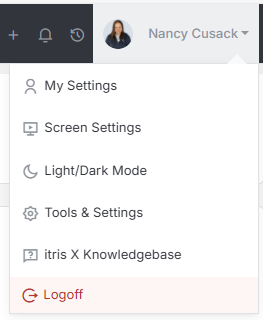
Within Tools & Settings under the Security sub-menu you will find GDPR Submissions.
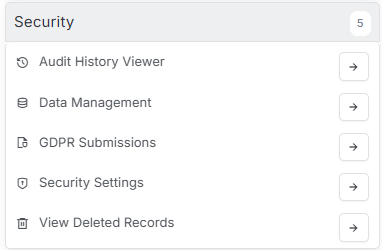
Please note access to this area is permission based, see the article Tools & Settings | User Groups for more details on permissions.
Managing GDPR Submissions
When it comes to staying GDPR compliant, itris makes it straightforward for you to handle candidate data preferences and requests. Here’s how the GDPR submissions list works to keep you organized and compliant.
GDPR Forms
You can send candidates an email containing a link to your GDPR form, where they’ll be able to set their marketing and communication preferences. This might include whether they’re happy to be contacted by phone, email, or text, if they want to receive marketing communications, and whether they confirm your right to represent them. Candidates can also use this form to withdraw from your system entirely if they choose to.
See the article Tools & Settings | Security Settings for details about the link to the GDPR form.
See the article Tools & Settings | Standard Templates for details about creating email templates in which to add the link.
Understanding the Submissions List
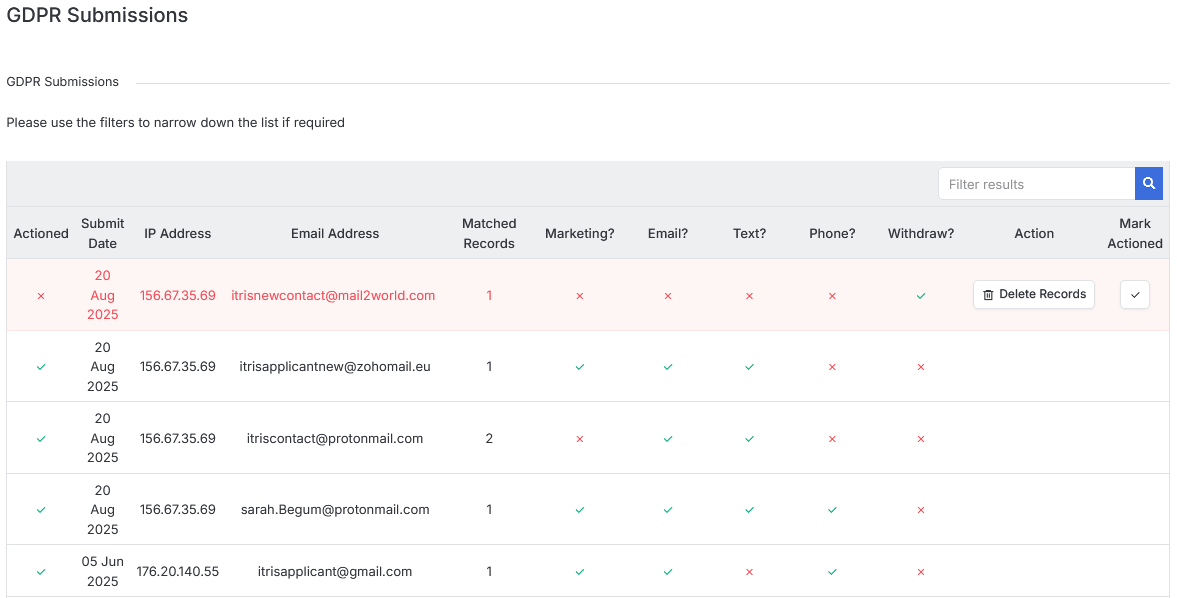
Once candidates complete their GDPR forms, their responses will appear in your GDPR submissions list. This gives you a clear overview of:
- All candidate responses in one convenient location
- Marketing preferences and communication choices
- Right to represent confirmations
- Any requests for data removal
Updating Candidate Records
The great thing about this system is that marketing responses and right to represent confirmations will automatically update the relevant fields on individual candidate records. This means you don’t need to manually transfer information - itris handles the heavy lifting for you.
Managing Deletion Requests
If a candidate requests to be removed from your system, you have a couple of options. You can either delete their record directly from the GDPR submissions list using the Delete Records button and then confirm the deletion using the Tick button under Mark Action. Alternatively, you can navigate to their individual record, delete it from there, and confirm the deletion within GDPR Submissions. Either way works perfectly fine - choose whichever feels more natural for your workflow.
Tracking Deleted Records
Don’t worry about losing track of what’s been deleted. Any records you’ve removed will appear in the “View deleted records” area within Tools & Settings, giving you a complete audit trail for compliance purposes.