Introduction
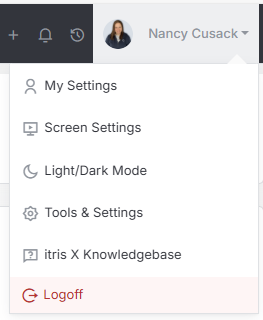
The Data Management area is found within Tools & Settings, which is accessed via the profile menu.
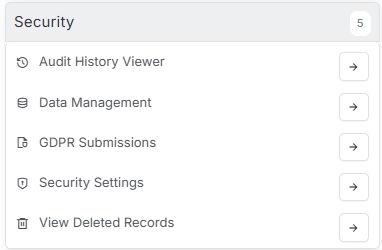
Within Tools & Settings under the Security sub-menu you will find Data Management.
Please note access to this area is permission based, see the article Tools & Settings | User Groups for more details on permissions.
The Data Management tool in itris is your go-to solution for keeping your recruitment database tidy and compliant. Whether you’re looking to clear out old records that are no longer valuable or ensuring you meet GDPR requirements, this tool makes the process straightforward and efficient.
Getting Started
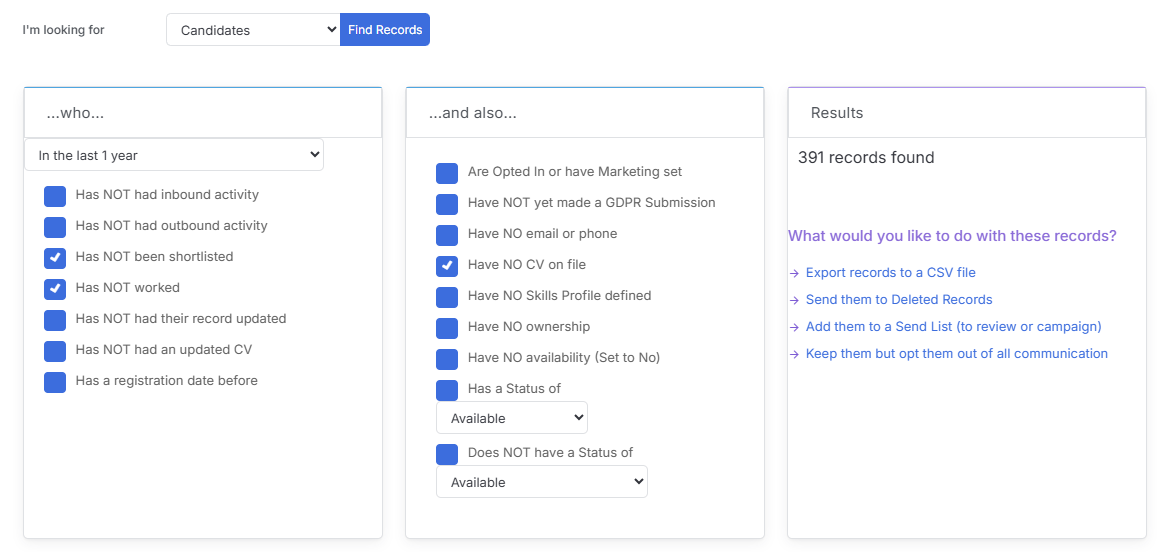
First, you’ll need to choose which type of records you want to work with – either contacts or candidates. This initial selection determines the specific criteria and options available to you.
Working with Contacts
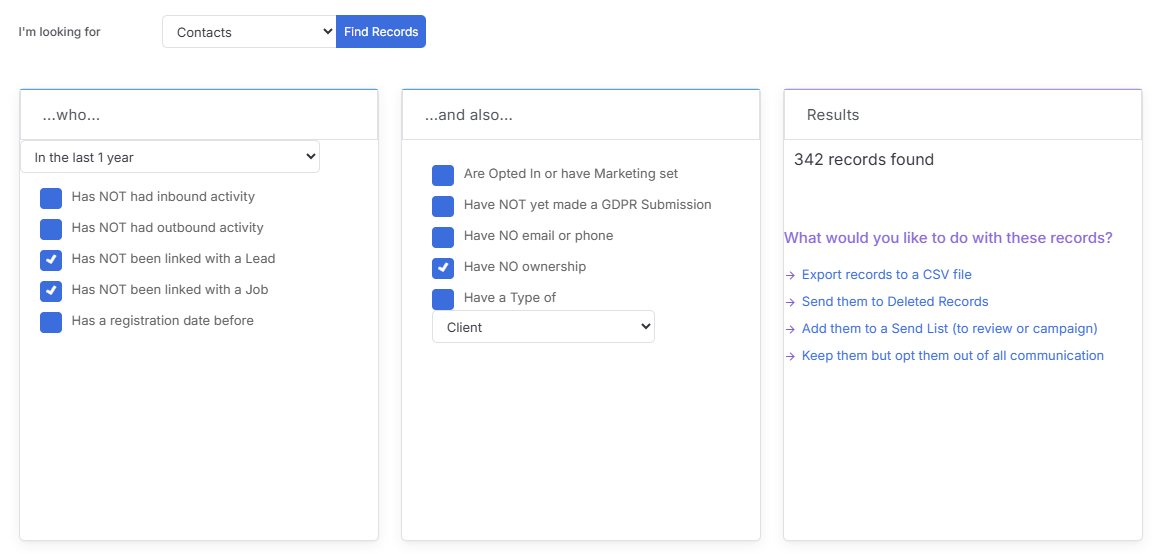
When you select contacts, you can set your desired time period and then dive into various criteria options:
- Activity-based filtering – find contacts based on their interaction history
- Lead and job connections – identify contacts linked (or not linked) to specific leads or jobs
- Communication preferences – filter by opt-in/opt-out status
- Contact information gaps – locate records missing email addresses or phone numbers
- Ownership status – find unassigned contacts
- Plus several other filtering options to help you pinpoint exactly what you’re looking for
Once you’ve set your criteria and clicked “Find Records,” you’ll see the total number of matching records.
From there, you have several action options: export the list for review, send records to deleted records, add them to a send list for campaigns, or opt them out of communications entirely.
Managing Candidates
The candidate workflow follows a similar pattern but with criteria tailored to candidate records:
- Activity tracking – filter based on candidate engagement
- Shortlisting history – identify candidates who have (or haven’t) been shortlisted
- Update history – find candidates based on when their records were last updated
- Communication preferences – manage opt-in/opt-out status
- Contact completeness – locate candidates missing key contact details
- CV availability – filter by whether candidates have uploaded CVs
- Ownership gaps – identify unassigned candidate records
- Plus several other filtering options to help you pinpoint exactly what you’re looking for
Once you’ve set your criteria and clicked “Find Records”, you’ll see the total number of matching records.
From there, you have several action options: export the list for review, send records to deleted records, add them to a send list for campaigns, or opt them out of communications entirely.