
Introduction
Layout Designer is housed within Tools & Settings, which is accessed via the profile menu.
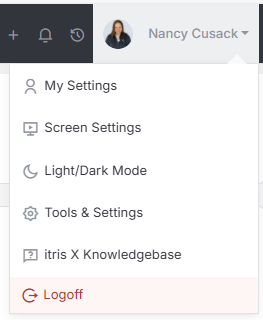
Within Tools & Settings under the Customization sub-menu you will find Layout Designer.
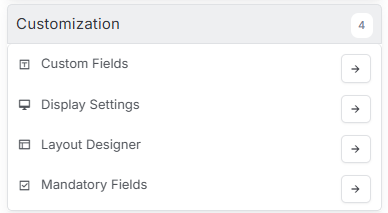
Please note access to this area is permission based, see the article Tools & Settings | User Groups for more details on permissions.
Changes you make are save immediately, though uses may need to refresh their screen to show any changes.
Using Layout Designer
Under the Layout Designer area you can select existing layouts to amend or edit the name of, and create new Layouts. When creating a new layout you may wish to duplicate an existing one, thereby not starting with a blank canvas.
Once Layouts are created the can be applied to User Groups, see the Tools & Settings | User Groups article for more details. Users who part of that User Group will see that assigned layout.

Once a layout is selected in the top drop down then the Record Screen you wish to amend the layout for can be selected, for example, Company, Contact, Job, Candidate, Placement screens.
In turn, the available/relevant Tabs and Record Blocks for that record type are displayed.
Tabs
Tabs can be renamed or deleted by hovering over then and selecting the edit icon.
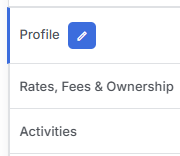
New/Additional Tabs can also be created.

Tabs can also be drag and dropped into your preferred order.
These options allow for to great flexibility on how you’d like each record type to appear.
Blocks
When a tab is selected the Record Blocks assigned to that tab will display to the right. Any Record Blocks that are not yet assigned to any tab will display under the Available Record Blocks tab.
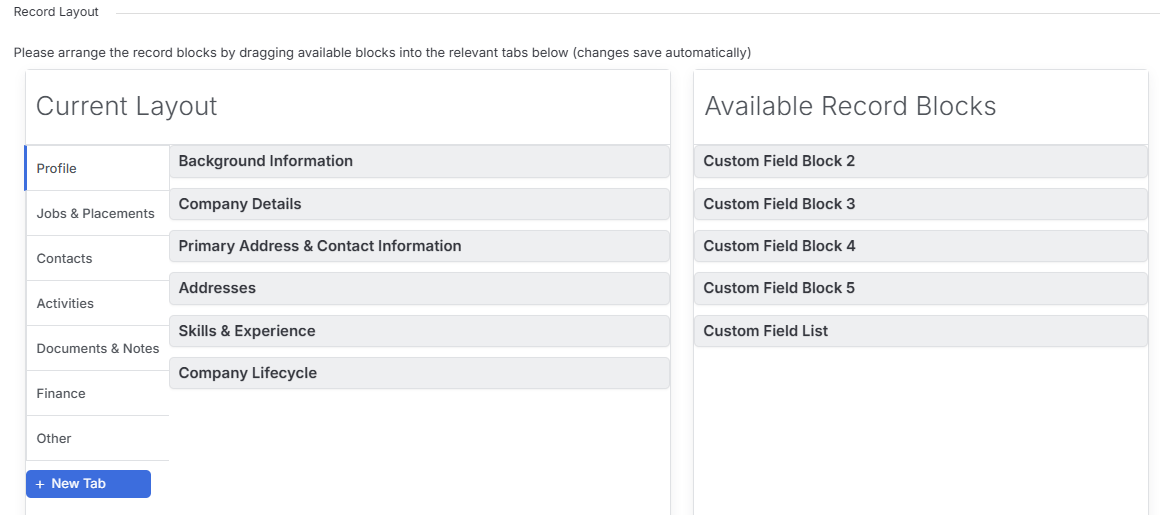
Blocks can be dragged into the selected tab, or back into the Available records block (for example to move to another tab).
Custom Field Blocks
In addition to the system Record Blocks, you are able to create your own Custom Field Blocks to which Custom Fields are added. This means you can create and display data beyond those fields available as standard on the record.
If your Custom Field Blocks are given a Block Name, this name will appear in the block on the record (not here in Custom Layout). Alternatively, if you’ve used Header Custom Fields within your Custom Field Block, these will appear in the block on the record.
Custom Fields and Custom Field Blocks are manged within the Custom Fields area of Tools & Settings, see the article Tools & Settings | Custom Fields for more details.