Introduction
Custom Fields are managed within Tools & Settings, which is accessed via the profile menu.
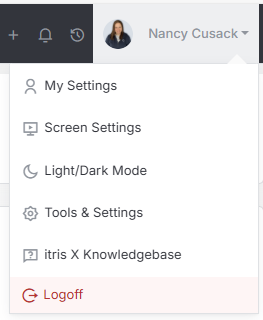
Within Tools & Settings under the Customization sub-menu you will find Custom Fields.
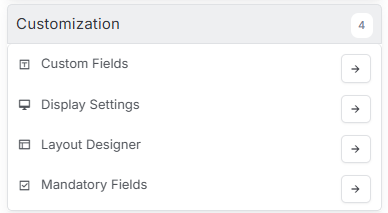
Please note access to this area is permission based, see the article Tools & Settings | User Groups for more details on permissions.
The settings available in the area are detailed below, once you are happy with your selection you will need to save these settings before navigating away.

Within this area are the following three sections:
- Custom Field Blocks
- Custom Fields
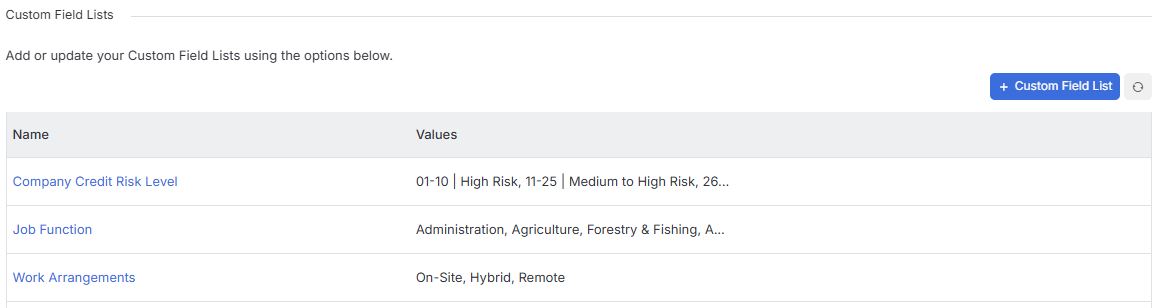
- Custom Field Lists
These area’s work together as follows:
- Custom Field blocks are created, into which Custom Fields can be added.
- Where you have Custom Fields that are of the type List or Multi-List, these lists are created under the Custom Field List area.
- Custom Blocks can then be assigned to specific Layouts, see the Tools & Settings | Layout Designer article for more details.
Custom Field Blocks
In addition to the system Record Blocks, you are able to create your own Custom Field Blocks to which Custom Fields are added. This means you can create and display data beyond those fields available as standard on the record.
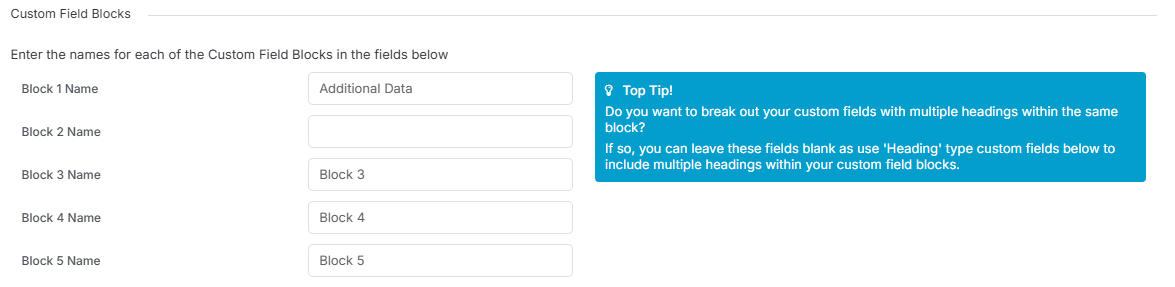
If your Custom Field Blocks are given a Block Name, this name will appear in the block on the record.
Alternatively, you can use Header Custom Fields (see below) within your Custom Field Block, which means you can leave the Block Names blank as the Header names will appear in the block on the record.
You can create up to 5 Custom Blocks, in turn these Blocks can be applied to different record types via Layouts, see the Tools & Settings | Layout Designer article for more details.
Custom Fields
Custom Fields are simply fields defined by you as an organisation to hold pieces of data of use to your organisation which itris does not accommodate.
Before creating a Custom Field you will need to choose which record type is it applicable to and the Custom Field Block to assign it to.
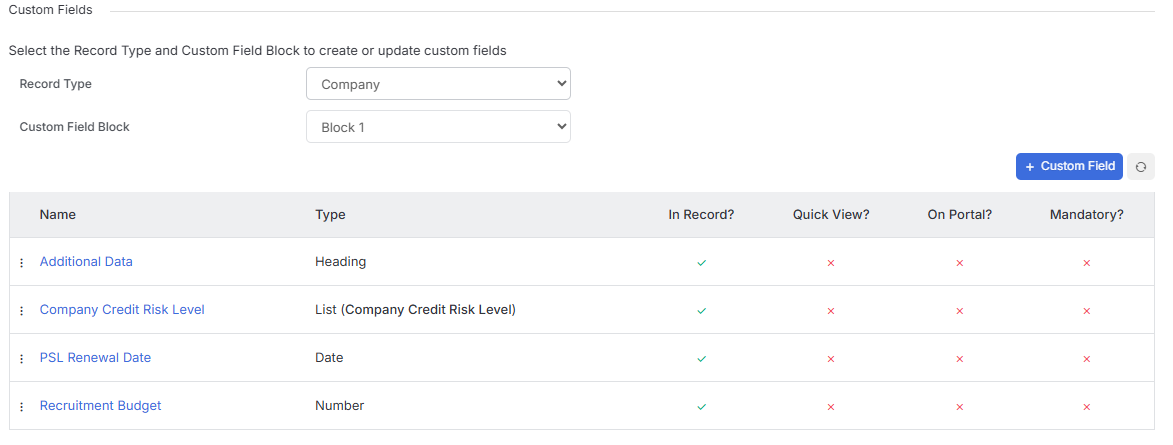
When creating (or editing) a Custom Field you will need to choose the Field type, for example do you just require a Yes/No response, a piece of text or date etc.
If selecting one of the List options you will need to have created the Custom Field List first, see below.
The Heading option is not a Custom Field that is completed on the record, it is a way of dividing up the custom fields under Headers for a more user friendly view. You can have multiple headers within each block.
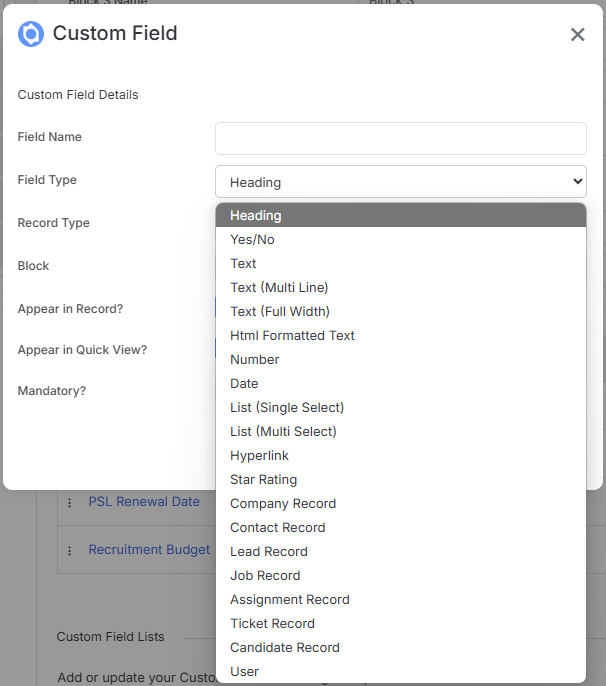
Additionally, you can toggle for the Custom Field to be mandatory and to appear in Quick Views.
Custom Field List
Custom Field lists are predefined value lists to choose from when assigning the custom field to a record. These are linked to Custom Field types List (Single Select) and List (Multi Select).