Introduction
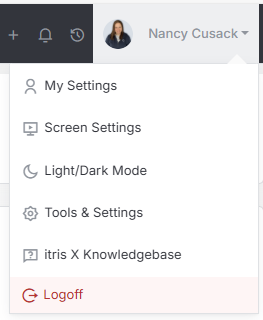
Both the Document and Media Libraries are managed within Tools & Settings, which is accessed via the profile menu.
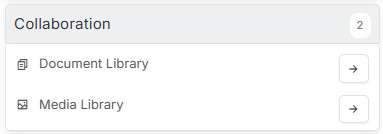
Within Tools & Settings these areas are both found under the submenu Collaboration.
Please note access to this area is permission based, see the article Tools & Settings | User Groups for more details on permissions.
Having all your recruitment documents and media scattered across different folders on your computer can be time consuming. That’s where itris’ Document and Media Libraries can help.
These areas give you centralised storage for all your frequently used materials, making them easy to access whenever you need them. Whether you’re sending out CV templates, adding your company logo to emails, or organising contract documents, these libraries keep everything at your fingertips and help streamline your workflow.
Both libraries work together to keep your recruitment materials organised and easily accessible, saving you time and helping you maintain a professional, consistent brand across all your communications.
Document Library
The Document Library is your go-to place for housing all those documents you regularly send out through itris. Think of it as your digital filing cabinet, but way more convenient!
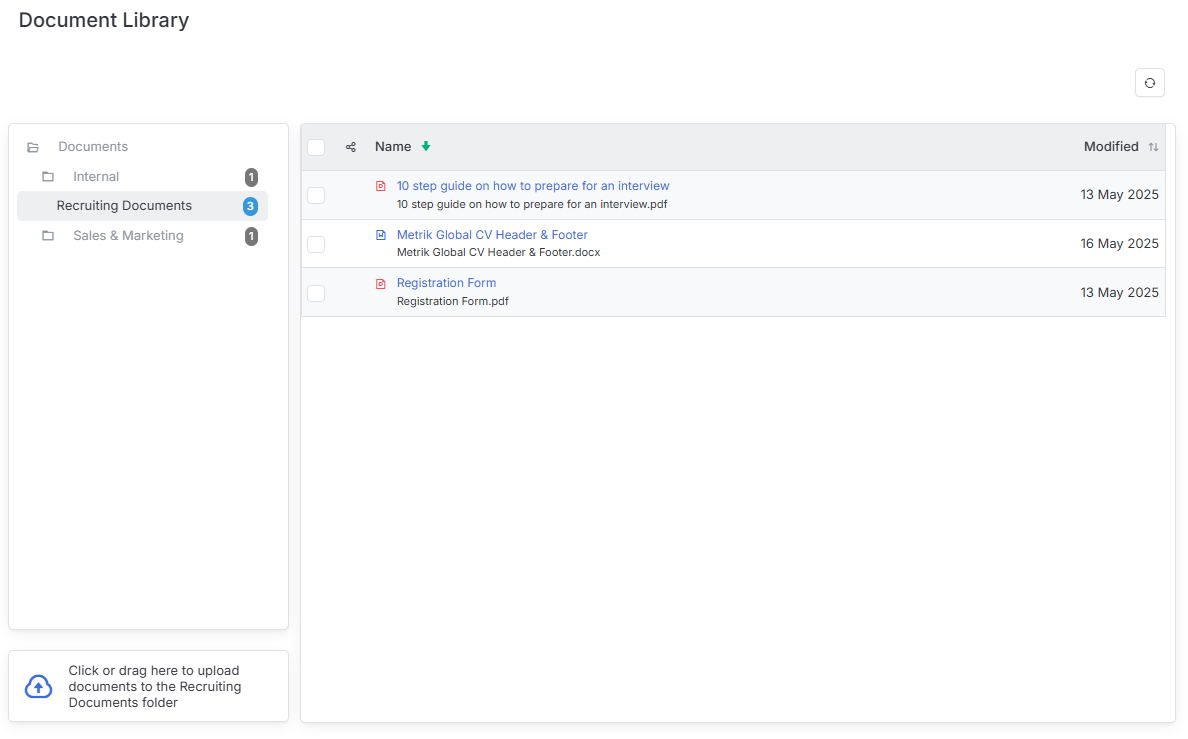
The library is split into folders to keep everything organised, and here’s the best part - you can create your own folders to suit exactly how you work. Adding documents couldn’t be easier: you can either drag and drop files directly into the library or click on the upload box to browse and find your document.
Once your documents are stored here, they become incredibly versatile. You can:
- Attach them directly to emails
- Use them in templates
- Merge headers and footers onto Agency CVs
Managing your documents is straightforward too. You can select multiple documents to move them between folders, copy them, or delete them as needed.
Creating and managing folders
- To add new folders, click on the “Documents” top level - this shows a dropdown arrow where you can click to add new folders
- For sub-level folders, simply click on them to access options for renaming or deleting
Media Library
Your Media Library is the perfect place to store all those regularly used media files like images and GIFs that make your communications more professional and engaging.
This is particularly handy for adding visual elements to your CV templates or dropping images directly into the body of your emails. Just like with documents, you can organise your media into folders - simply click “Create” in the top left to set up new folders whenever you need them.
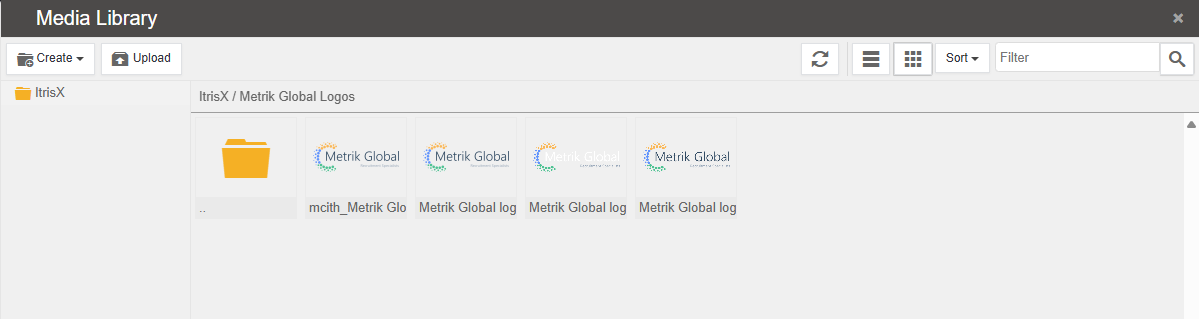
Adding and viewing media
- Click “Upload” to add new images to your library
- Switch between list or grid format depending on your preference
- Use the sort and filter options to quickly find what you’re looking for
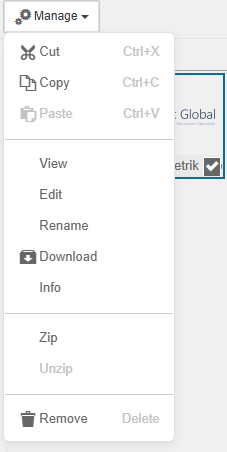
When you select any item in your media library, you’ll see a manage menu pop up with various actions available. From here you can view, edit, rename, and download your media files - giving you complete control over your visual assets.