Introduction
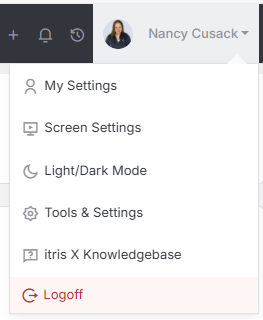
Skills Profiles are managed within Tools & Settings, which is accessed via the profile menu.
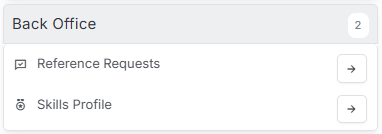
Within Tools & Settings under the Back Office sub-menu you will find Skills Profile.
Please note access to this area is permission based, see the article Tools & Settings | User Groups for more details on permissions.
Overview
Skills can be applied to Company, Contact, Job and Candidate records. They can be searched on via Record Find or Longlisting from a Job and will be used in Auto-Coding and Job Matching.
Skills Profile
Skills are arranged under Skill Categories and then Skill Area’s (e.g. a sub-category), both of which can be created via the Skill Category/Area drop down.
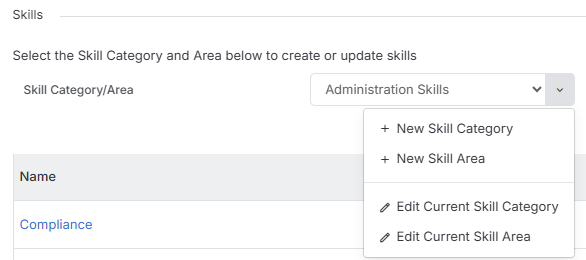
When creating a new Area, ensure you select the correct Category from the drop down menu.
How to use Skill Profiles
Skill Categories and Area’s can be used in different ways.
Technical/Literal Skills
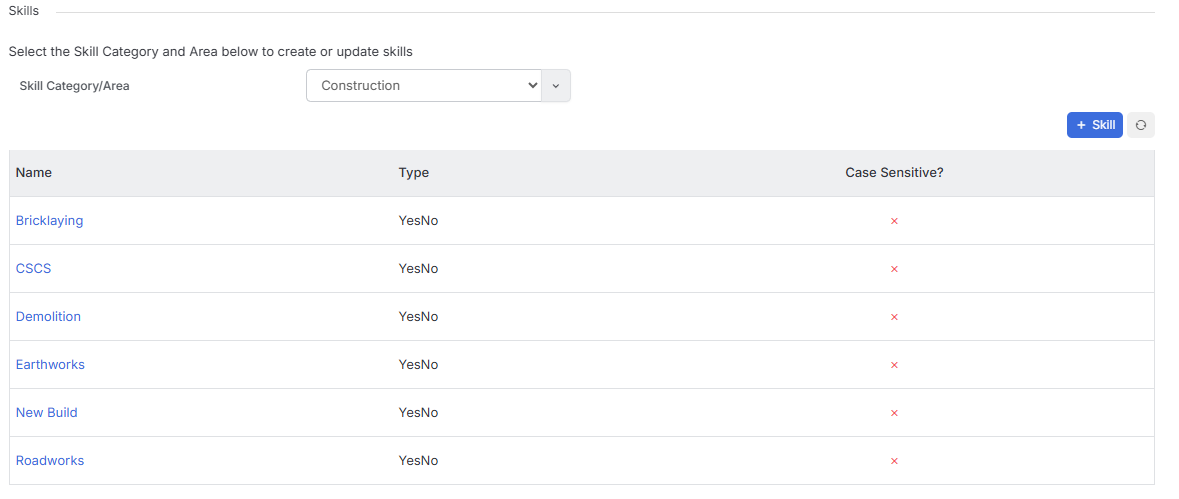
Categories and Area’s might be used to split technical or literal skills by sectors, for example the Category might be Construction and Property, under Area you would have options such as Building Services, Facilities Management, Construction etc. Within each of these the skills would be created.
Heavy Hitters
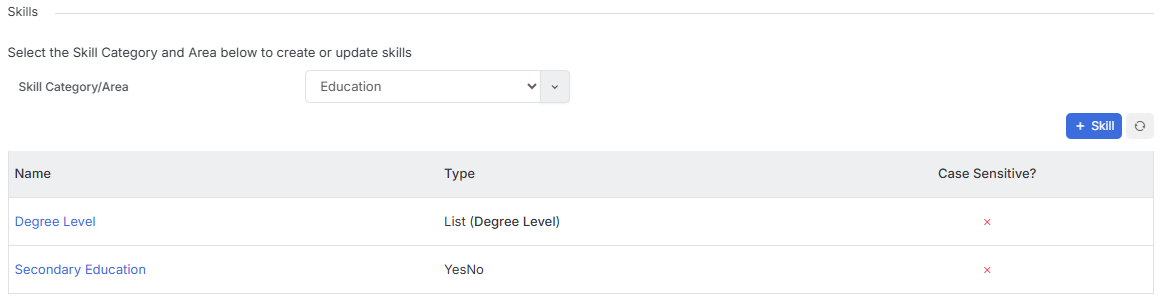
Alternatively and particularly when considering Skilling of Candidate Records, Skills Profiles can be use to cover the heavy hitter aspects such as role level, education, travel and in addition the softer things that won’t be in a CV such as personality, how they interview etc.
Longlist searching for Candidates within itris is very powerful, it goes beyond more than just the number of times a word appears in a CV. When completing a Longlist search using Boolean candidates are ranked on a number of factors including: Prevalence, Chronology, Duration, Weighted Terms, Semantics and Historic Factors, see the article Job Record | Longlisting for more details.
Add to this that skills can’t be ranked and they can degrade, improve, change overtime, this means records require regular updates to reflect those changes. Therefore, you will achieve better results by using the Boolean Searching options to find the technical/literal skills required, and the Skills Profile for those heavy hitters. For example “find me people with marketing experience, including branding and advertising that are at Managerial level with a degree”.
Example of Heavy Hitters
| Category | Area | Skill | Keywords |
|---|---|---|---|
| Heavy Hitters | Role Level | C-Suite | CEO, CTO, CFO, COO |
| Heavy Hitters | Role Level | Managerial | Manager, Assistant Manager, Team Lead |
| Heavy Hitters | Education | Degree Level | PhD, MA, MSc, BAHon, BSc |
| Heavy Hitters | Education | Secondary | A-Level, BTEC, T-Level, Highers |
| Heavy Hitters | Travel | Can Drive | Drive, Driving Licence, Car, Motorbike |
It might be that some of the above are Skills Lists, see below for more details.
Adding a Skill
Once your Category and Area is created you can create your Skills via the New Skills button. For Candidates this will likely be the skill the process, for Companies and Contacts this will typically be the skills they recruit for and can therefore be used for Matching Candidates to prospective Companies/Contacts.

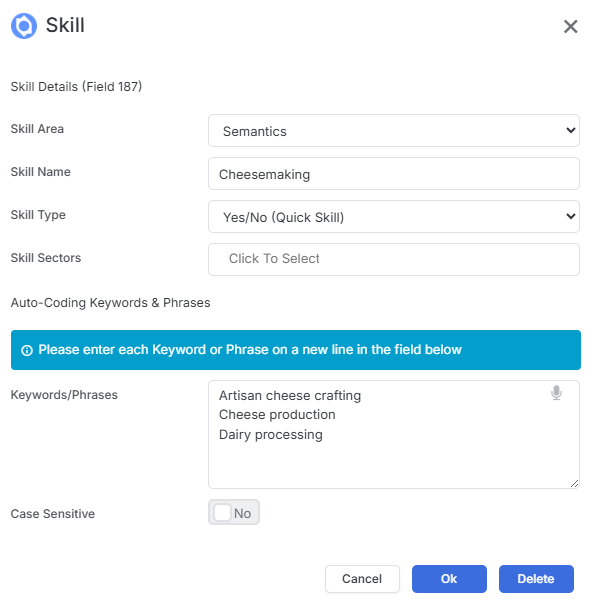
From within the New Skills window, ensure you select the relevant Category and Area, and name the Skill.
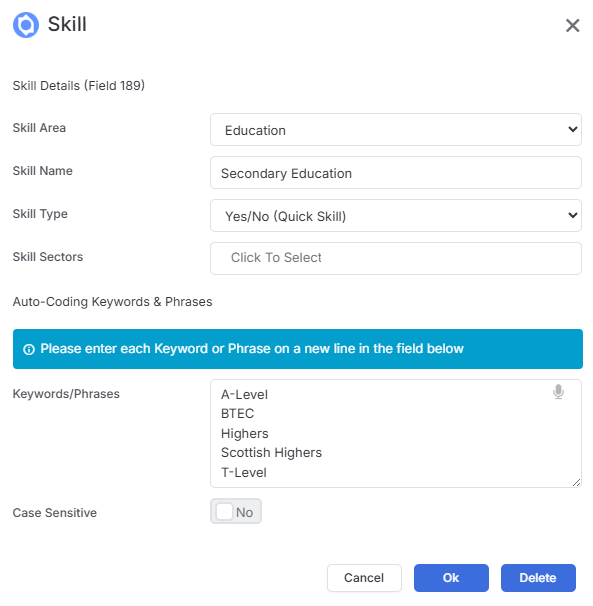
You can then choose the Skill Type, e.g. Yes/No (Quick Skill), a single select Skills List, a multi select Skills List or a date. See below for more details on Skills list.
If you are organising your Skills by Sector you can add that here also so that only Candidates with that Sector assigned would be applicable to match against the Skill. This means when creating a Candidate record you would want Candidate Sector as a Mandatory Field. See the article Tools & Settings | Mandatory Fields for more details.
When Auto-Coding (for example when adding a CV or xTracking a CV), itris will look to match the Skill and/or the Keywords/Phrases listed below, which are effectively alias of the Skill Name.
Skill List
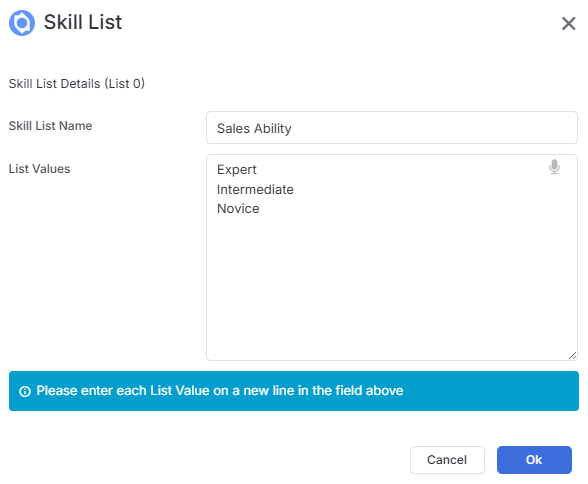
Skill Lists are used for Skills that may be ranked, for example Sales Ability: Expert, Intermediate, Novice, you can then search on candidates with “at least” Intermediate (e.g. Intermediate or Expert).
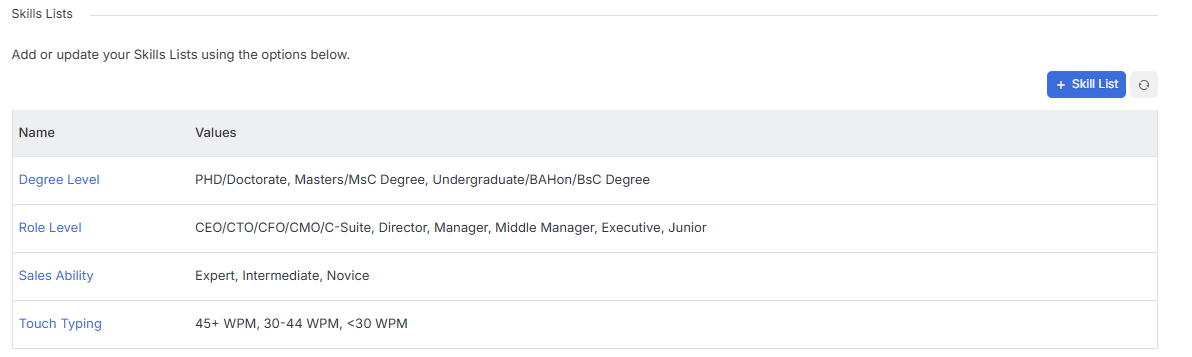
When adding a list the highest proficiency should be at the top.
Semantic Search Terms
Semantics’ works by looking at the words and phrases you are using to find Candidates and making suggestions as to other possible words and phrase that you might also want to include in order to provide a more comprehensive search result.
Typically, within Tools & Settings | Job Settings this will set to use Daxtra to do so, however, you can also choose to create your own Semantics. This may be if you work in a particularly niche sector and/or want to dictate what options are suggested via Semantics.
To create your own Semantic Terms you must first create a Category and Area below that both called Semantics. You can then add Skills to those. All skills with the Semantics category will be excluded from auto-coding, but will appear when using Semantics within Longlist or Job Board search fields.