
Introduction
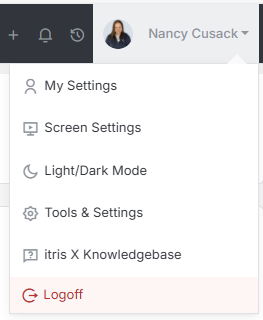
Reference Request are managed within Tools & Settings, which is accessed via the profile menu.
Within Tools & Settings under the Back Office sub-menu you will find Reference Requests.
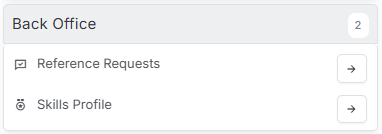
Please note access to this area is permission based, see the article Tools & Settings | User Groups for more details on permissions.
Managing Reference Requests
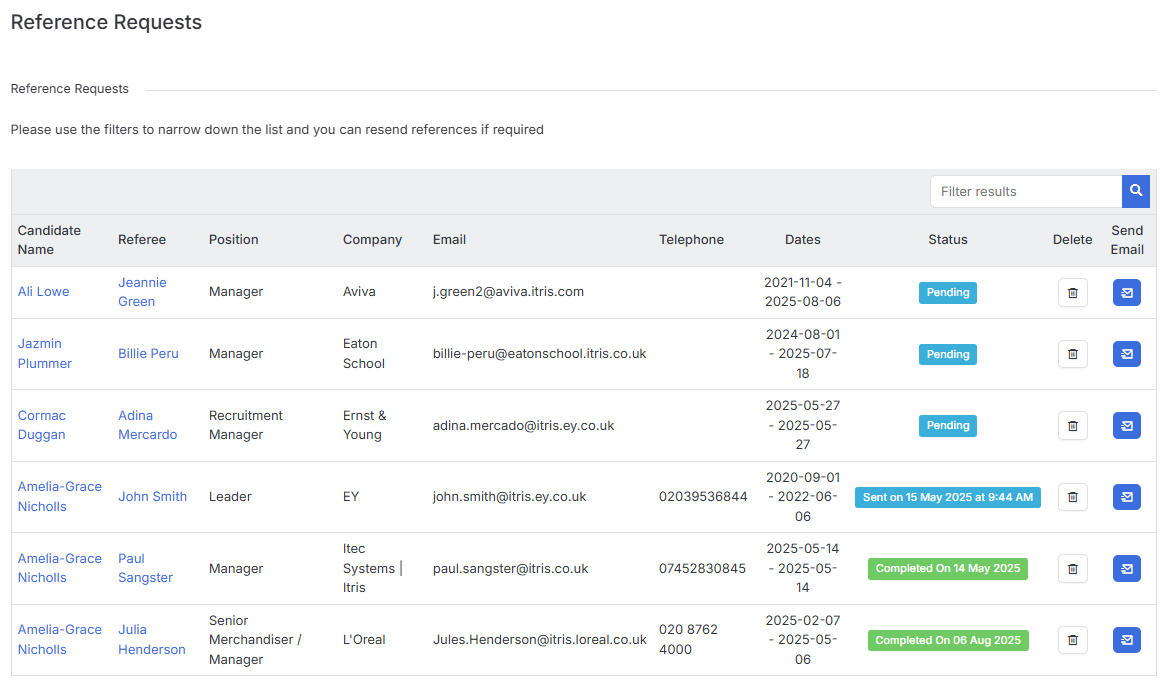
The Reference Request area gives you a complete overview of all your reference activity in one convenient place. You’ll be able to see everything you need about your references at a glance, including which candidate each reference is for, who the referee is, what company they’re from, and all their contact details.
The screen also tracks important dates and shows you the current status of each reference - whether it’s still pending, when it was sent out, or if it’s been completed (with completion dates too). This makes it easy to stay on top of your reference pipeline and follow up when needed.
Quick Navigation and Actions
Getting around is straightforward - you can:
- Click on any candidate name to jump straight to their full record
- Click on a referee’s name to edit their reference details
- Use the email icon to send out a new reference request or resend one if it’s already been sent
Finding What You Need
When you’re dealing with lots of references, the filtering options really come in handy. You can quickly narrow down your list by searching for:
- Candidate names
- Contact or Company names
- Email addresses
- Phone numbers
- Reference status (like showing only pending requests)
This means you can quickly find that specific reference you’re looking for, or focus on particular types of requests that need your attention. It’s all about making your reference management as smooth and efficient as possible.