
Introduction
Telephone & Text Settings are managed within Tools & Settings, which is accessed via the profile menu.
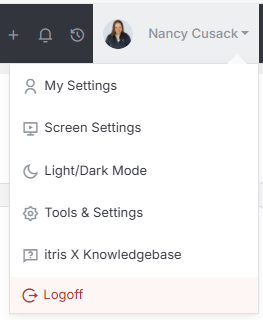
Within Tools & Settings under the Application Settings sub-menu you will find Telephone & Text Settings.
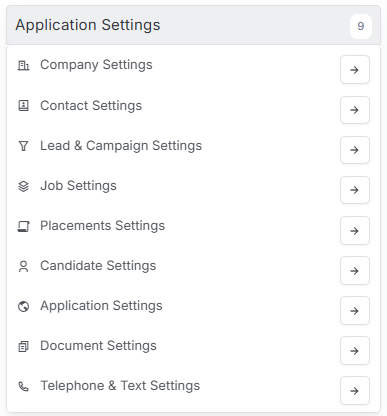
Please note access to this area is permission based, see the article Tools & Settings | User Groups for more details on permissions.
The settings available in the area are detailed below, once you are happy with your selection you will need to Save these settings before navigating away.

itris gives you control over how you make calls and manage text messaging right from the system. Whether you’re making quick phone calls or tracking every conversation, you can customise these settings to match how you work.
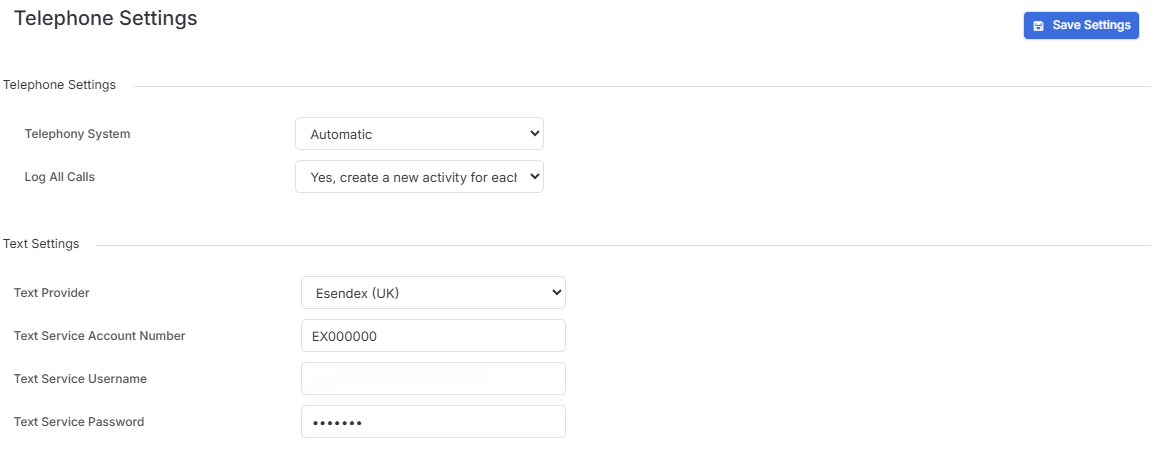
Telephone Settings
You’ve got flexibility when it comes to making calls from itris. The system lets you choose which telephony system you want to use for the click to dial feature—that handy function that lets you call someone with just a click on their phone number.

Depending on your region you may see different options under Telephone System settings. Each vendor will require different information to complete the set up such as API Keys or Tokens, User names, verification steps etc. They may also require certain licences (for example to use MS Teams you must have a VoIP licence with them).
The Automatic setting uses your operating system’s default app for telephone calls, so it’ll work with whatever you’ve already set up on your computer.
Please note for options other than Automatic you will need to also configure these under your My Settings first.
One of the most useful features you can configure is whether itris automatically opens a new activity record when you make or receive calls. This helps you keep track of your conversations easily.
When you choose to log calls, an Activities window will pop up after your call so you can complete the details. You have four options to choose from:
- Yes, create a new activity for each call – Every call, inbound or outbound, gets logged
- Yes (Inbound only), create a new activity for each inbound call – Only incoming calls are tracked
- Yes (Outbound only), create a new activity for each outbound call – Only outgoing calls are recorded
- No, do not create a new activity for each call – Calls won’t be logged automatically
Choose the option that best fits your workflow and compliance requirements.
Default Apps for Calls
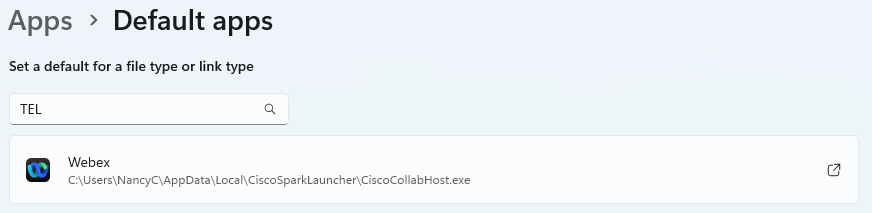
If you choose to use your operating system’s default app for calls, you’ll want to make sure your computer knows which application to use. Here’s how to set that up:
For Windows users:
Navigate to your Default Apps settings (you can find this by searching for “Default Apps” in your Windows search bar). Look for the section that handles phone calls or telephony, and select your preferred calling application from the list of installed apps that support this feature.
For Mac users:
On macOS, open System Settings (or System Preferences on older versions) and look for the default apps or phone call handling settings. You can typically find this under the FaceTime settings or general preferences, where you can designate which application should handle telephone links.
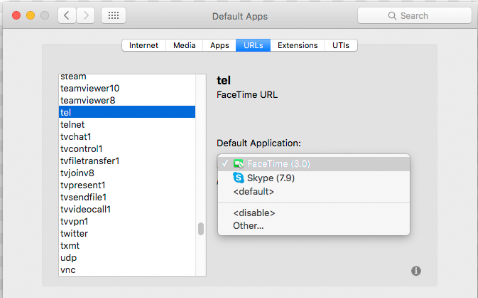
Once you’ve configured your default app at the operating system level, itris will automatically use that application when you click to dial.
Text Settings
The Text Settings area displays the configuration details for text messaging and includes your account number, user name and password for the service. These settings will be configured by itris, please reach get in touch if you would like to use the Text Messaging feature.
Texts working on Credits which are chargeable and managed via Tools & Settings | Licences & Credits.
WhatsApp settings are also configured in this area. See the article Integrations | WhatsApp for more details.