Introduction
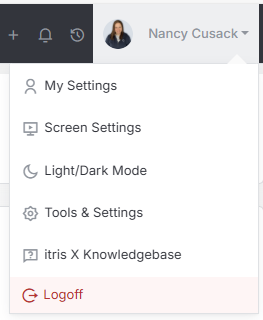
Lead Settings are managed within Tools & Settings, which is accessed via the profile menu.
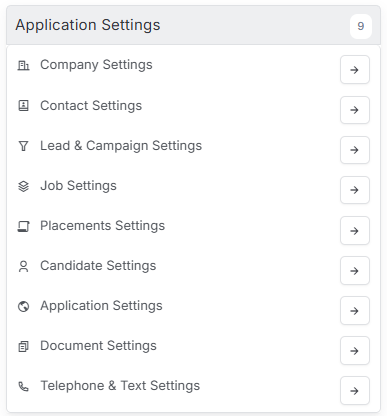
Within Tools & Settings under the Application Settings sub-menu you will find Lead Settings.
Please note access to this area is permission based, see the article Tools & Settings | User Groups for more details on permissions.
The settings available in the area are detailed below, once you are happy with your selection you will need to save these settings before navigating away.

General Settings
Under General Settings you can select various defaults to be applied when a new Lead record is created and more.

Lead Prefix
This allows you to set the prefix for lead records, this can be just one letter should you wish. This prefix will be followed by the record number assigned to the lead once it’s created.
Copy Lead items to job
Should you wish to transfer all of the information added at the Lead record, to the Job when you convert the Lead, you may select ‘Yes, copy all items to Job’ from this dropdown. If you want to ignore all of the Lead information and start with a blank Job, select ‘No, create blank Job’.
Auto-Create Job
As you work through your Lead, you can choose to automatically create a Job at certain points or statuses. If you want a Job record to open automatically as soon as you open the Lead, just select ‘When Lead Opened’ from the dropdown. Prefer to wait until you’ve qualified the Lead? Select ‘When Lead Qualified’ from the list and a Job will be created automatically once that status is reached. Or if you’d rather wait until the Lead converts, simply choose ‘When Lead Converted’ from the list.
Notify Department Users of Assignment
When a Lead is created, you can select here as to whether you want all of the Users in the Department the Lead has been associated to to be notified, or just the individual Owner.
Lead Statues
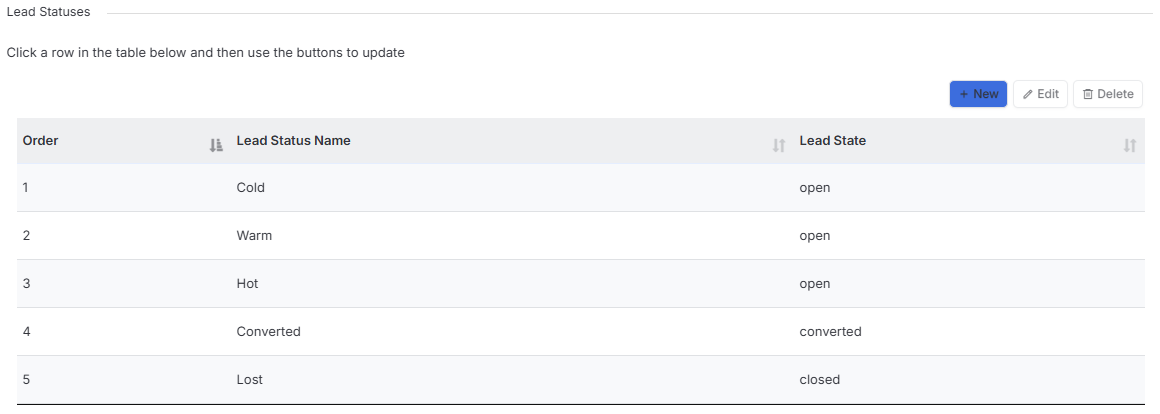
When you move through the Lead Cycle you will need to change the Status of the Lead to represent this. Lead statues will have a state of either Open, Closed, Qualified or Converted. You can also set the order the list appears in.
Send Lists Types
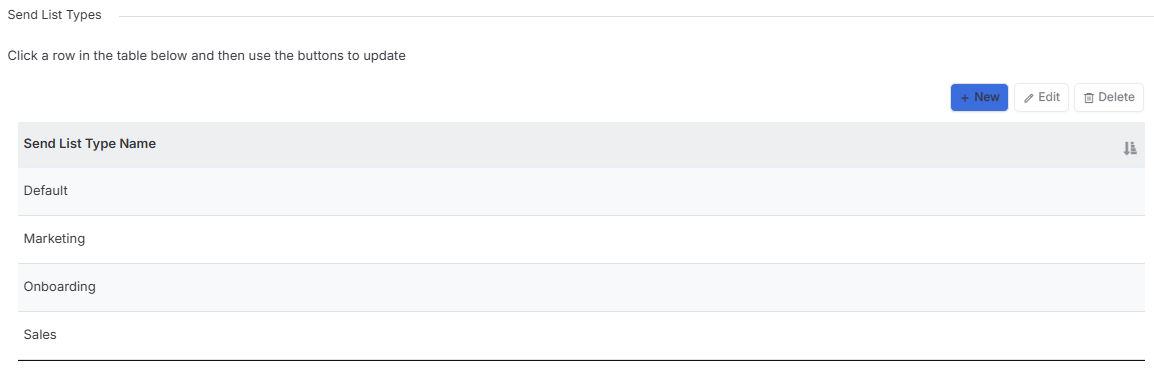
You may create various Send List Types as required. When viewing your Send Lists in itris you can filter by these types.