Introduction
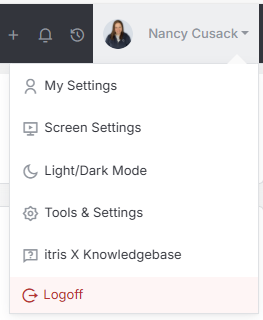
Candidate Settings are managed within Tools & Settings, which is accessed via the profile menu.
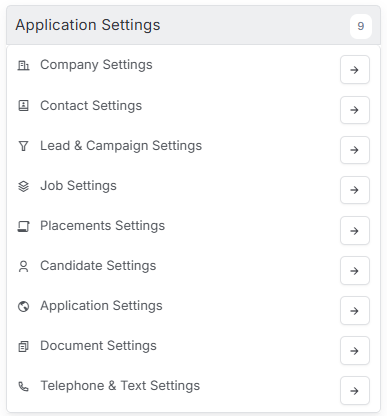
Within Tools & Settings under the Application Settings sub-menu you will find Candidate Settings.
Please note access to this area is permission based, see the article Tools & Settings | User Groups for more details on permissions.
The settings available in the area are detailed below, once you are happy with your selection you will need to save these settings before navigating away.

General Settings

Default Candidate Status
The Default Candidate Status dropdown shows a list of the all of the Statuses for Candidates. Generally, the default would be Active for when the Candidate is initially created as they are actively looking for work. You may change the default here if required.
Duplicate Resume on Parse Action
When parsing a Candidates CV into the system, you can choose whether to ‘Accept and Update’ the Candidate record with any additional information that may be available, or, if there is a match found on either the email address or mobile phone, reject the CV as a duplicate so nothing is changed.
Default Candidate Ownership
If there is a particular user who will always need to be the owner of Candidates when they are created, you will need to select their name from the list.
Fixed Job Titles
If you wish to create a ‘Fixed List’ of Job Titles, you may do so and either force users to pick from the list, or allow them to pick or free type (if not available on the list). See below for creating and managing Job Titles.
Registration Settings

Allow Registration
Choose whether or not to allow Candidates to register on your website portal or not.
Allow CV Registration
Choose whether or not to allow Candidates to upload their CV to your website portal or not.
Allow Manual Registration
Allowing manual registration means that the Candidate can populate their details and submit them on the website Portal, without a CV.
Show Skills Page on Registration
If you have Skills created in your system, you can choose to push these out to the website portal and allow Candidates who are registering the option of adding their own Skills.
Show References Page on Registration
Choose whether or not to allow Candidates to upload their references to your website portal or not.
Show Upload page on Registration
Choose whether or not to allow Candidates to upload their supporting Documents, such as a copy of their Passport, to your website portal or not.
Candidate Statuses
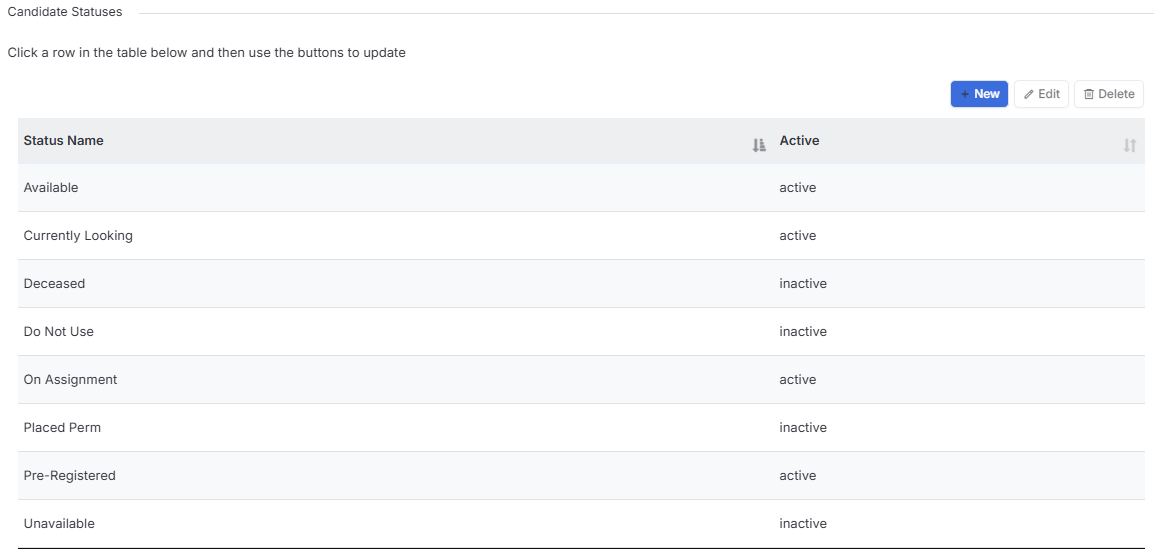
Candidate Statuses help you to ascertain the current situation for an Candidate in your database.
By choosing to mark an Candidate as Inactive they will no longer an active Candidate in the database. Options such as “Assigned, Inactive, On Billing and Rejected” are all most likely Inactive statuses.
Candidate Types
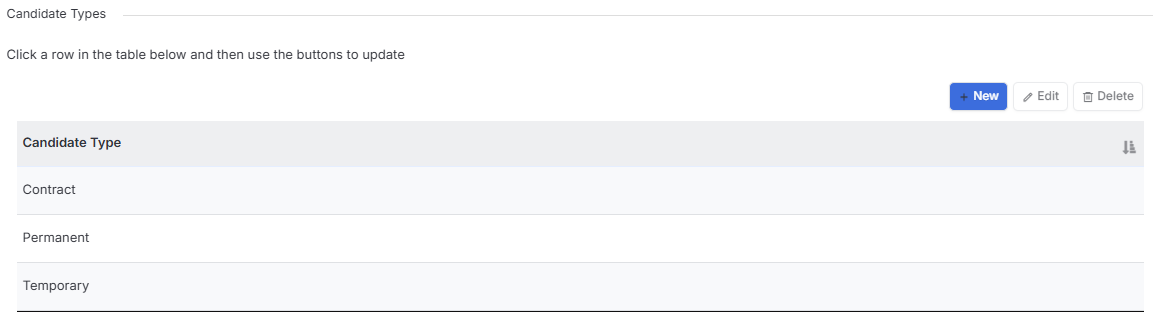
A Candidate Type refers to the type of work they may be looking for, such as Permanent, Temporary or Contract in this example.
Candidate Sources
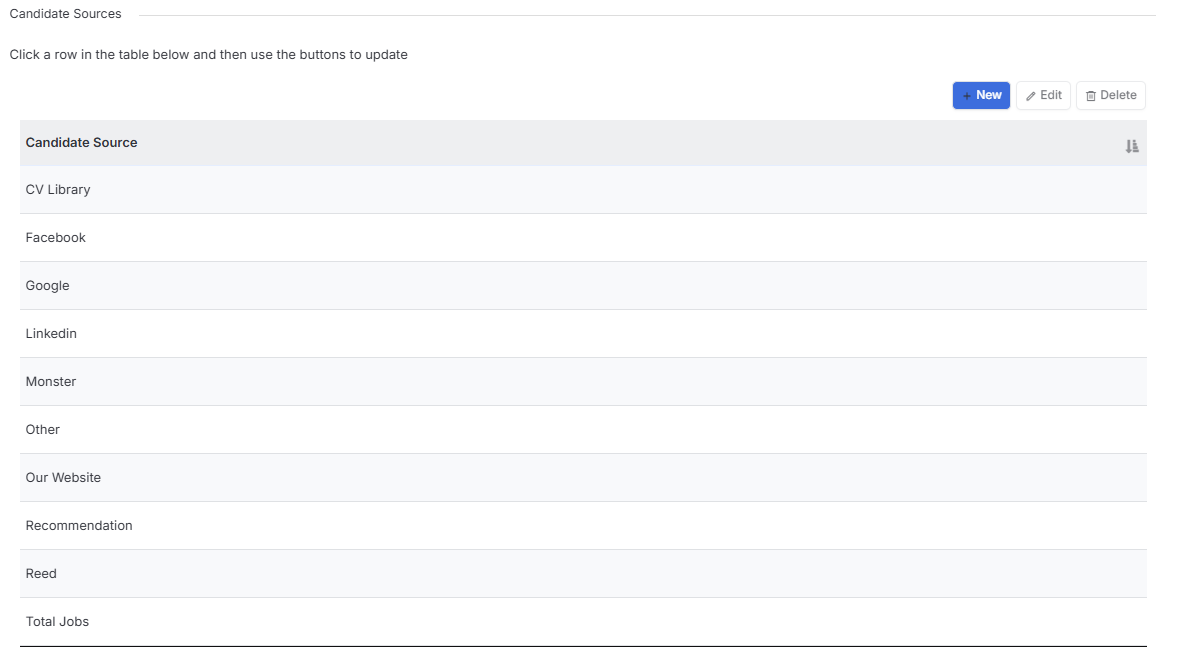
An Candidate Source tells you where the person came from, such as a Job Board, or perhaps an advertisement you ran. This helps you to get a feel for where your better Candidates (e.g. those you are successfully placing) are coming from for understanding the Return on Investment.
Market Candidate Summary
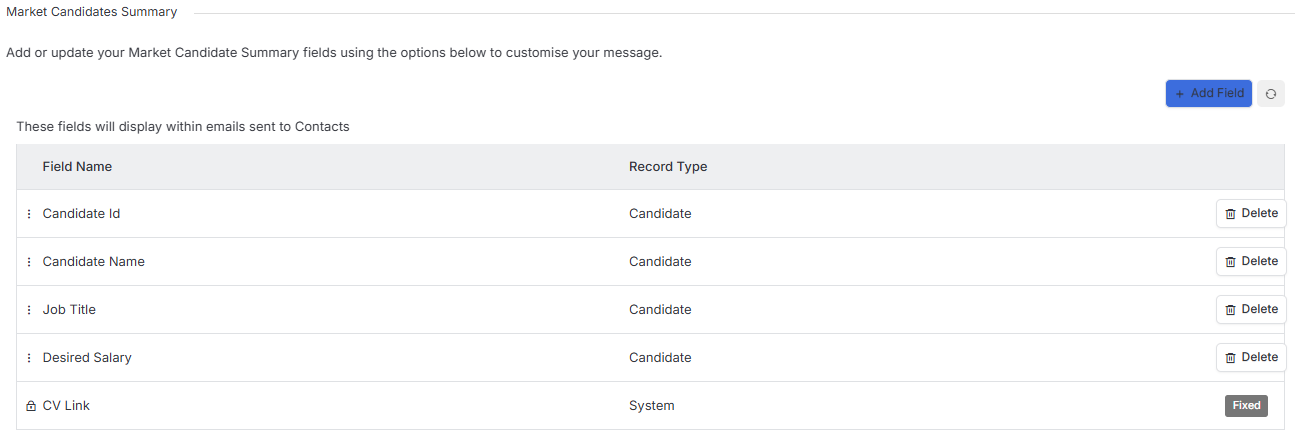
The Market Candidate Summary consolidates key information from a candidate’s record into a single, reusable format that can be included in emails. This summary is linked to a unique merge tag that can be inserted into your email templates, automatically populating with the specific candidate data you’ve selected.
The Market Candidate Summary is designed specifically for market mapping and speculative approaches to clients. They allow you to showcase candidate profiles in a professional, consistent format while controlling exactly which details are shared during market intelligence activities. By tailoring the fields included in your Market Candidate summary, you can highlight relevant experience and skills without disclosing sensitive information, making these summaries ideal for testing client interest or mapping the talent landscape.
This ensures appropriate information sharing when exploring opportunities, helping you gauge market appetite while maintaining candidate confidentiality.
See the articles Candidate Record | Prospecting and Tools & Settings | Standard Templates for more details on actioning these emails.
Candidate Prospect Statuses
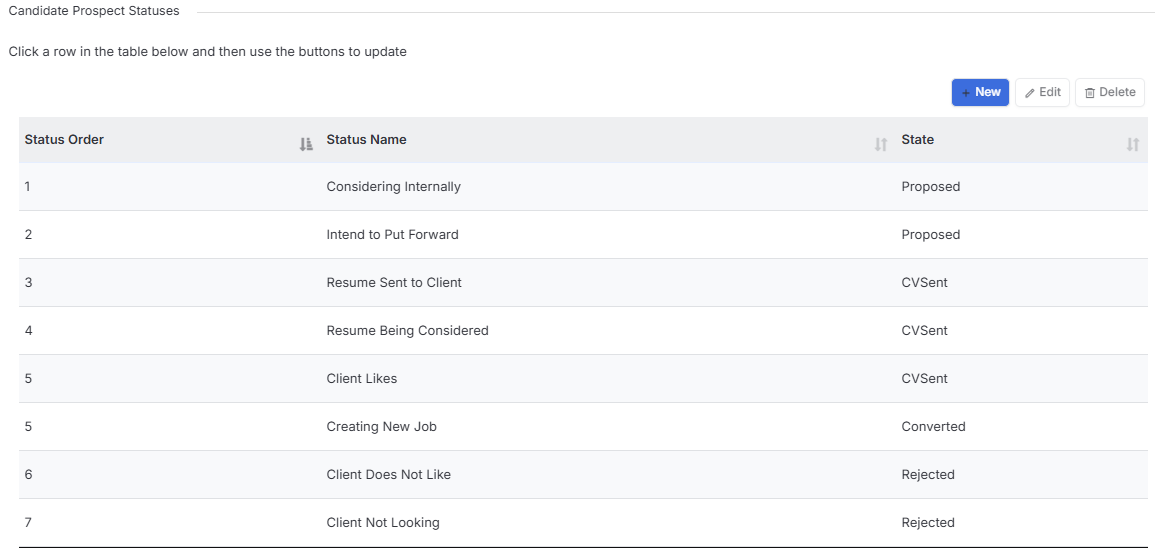
These Statuses can be selected when you have matched a Candidate as a Prospect to a Client or Contact so you and your colleagues can see exactly what stage in the process the Candidate is at.
See the article Candidate Record | Prospecting for more details on Prospecting Candidates.
Job Titles
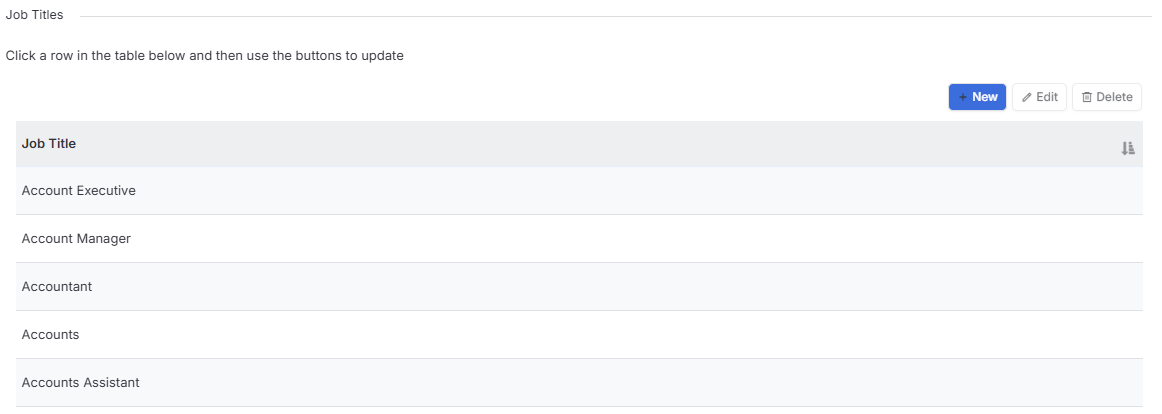
Create options here for your Users to select a Job Title for applying to Candidate Records.
Ethnic Origins
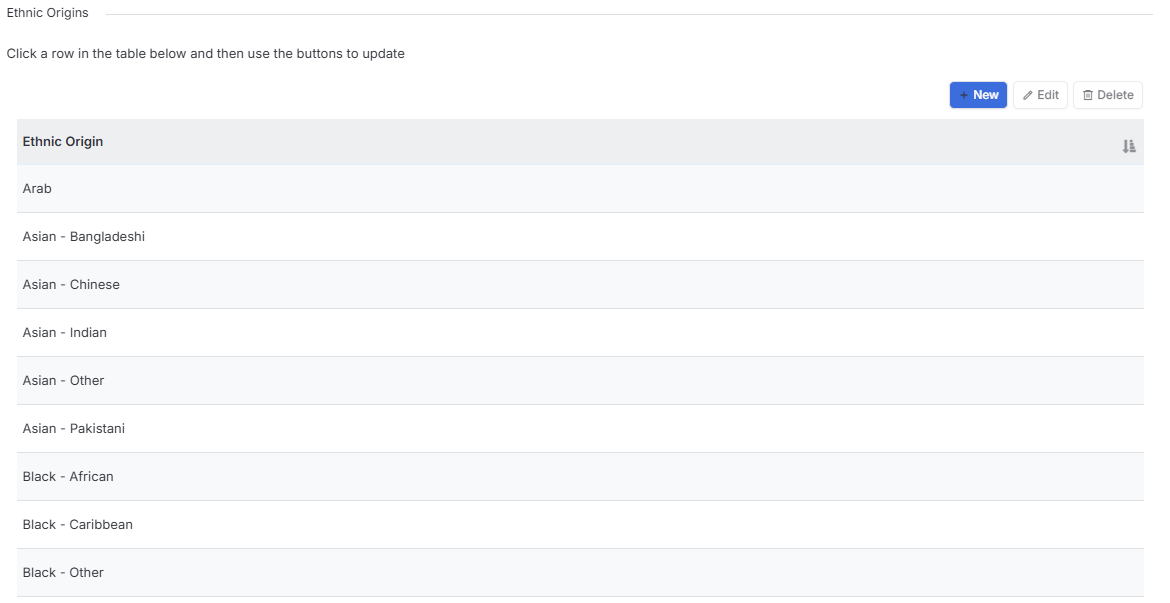
Should you wish to record the Ethnic Origin of your Candidates, you can create and manage the list here.
Agency Worker Regulation Alerts

An AWR effective date can be set on a placement to track the candidates movement towards the AWR qualifying date. Here you can create alerts to notify you are these timeframes for AWR.
Candidate Compliance Items
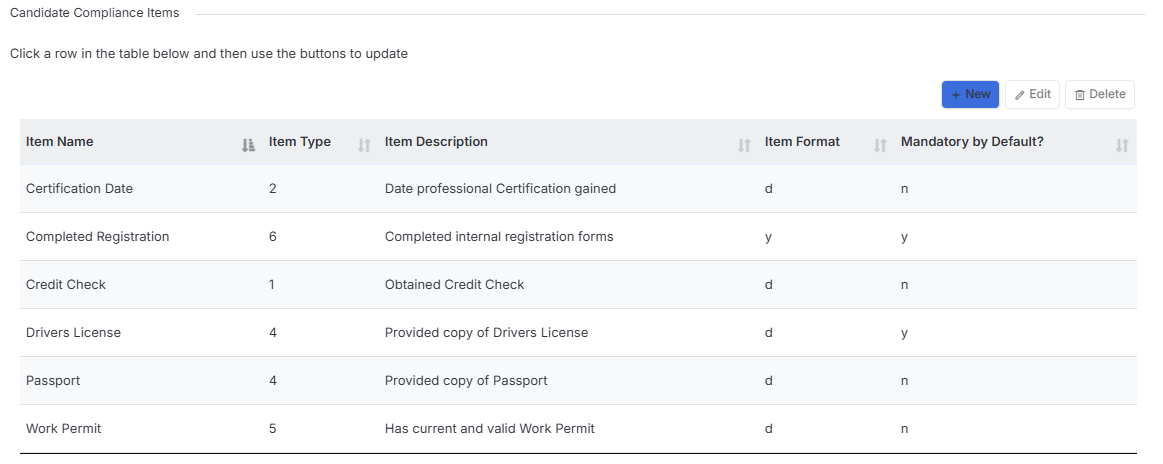
Compliance Items are applied to Candidate Records. If set as Mandatory the item will automatically be added to the record at the point of creation.
There are 6 different Compliance Item Types, and each one can be set up as either a simple Yes/No checkbox or a Date field:
- Background Check
- Certification
- Checklist
- Identity
- Permit
- Registration
In addition to the Type, each Compliance Item can be named and a descriptions added, so they make sense for your specific requirements.
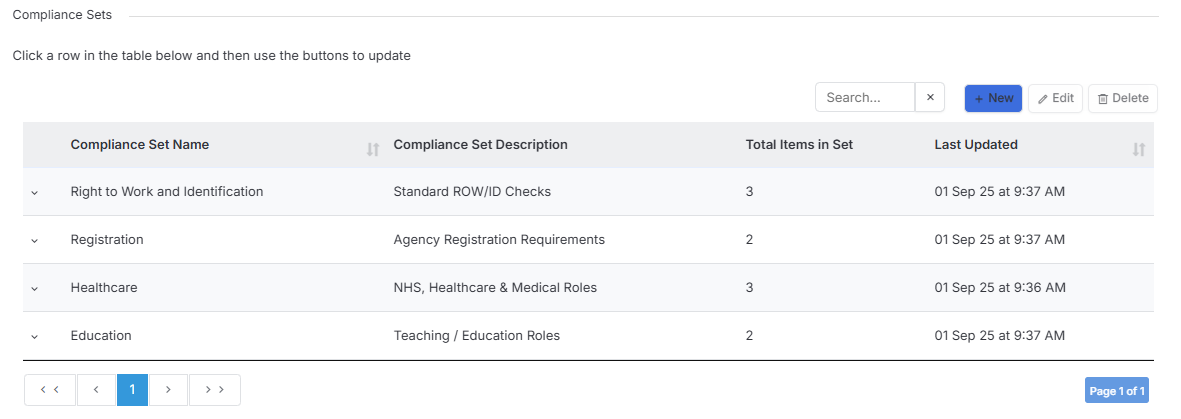
Compliance Sets
Here you can organise your Compliance Items into Sets to help you organise your compliance requirements. Instead of individually adding Candidate Compliance items to a Candidate, Company, Contact or Job you can add a Compliance Set, which will assign all the Compliance Items within that set to the record.