Introduction
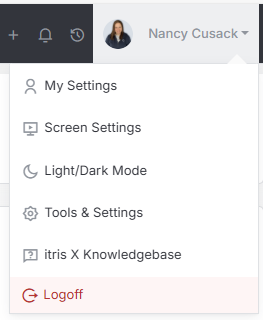
Application Settings are managed within Tools & Settings, which is accessed via the profile menu.
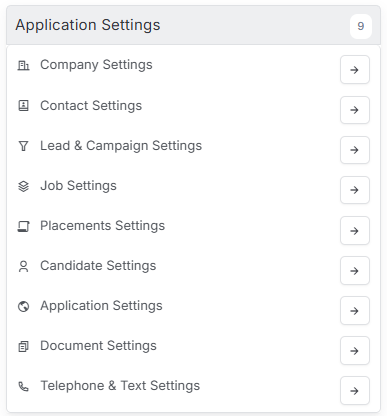
Within Tools & Settings under the Application Settings sub-menu you will find Application Settings.
Please note access to this area is permission based, see the article Tools & Settings | User Groups for more details on permissions.
The settings available in the area are detailed below, once you are happy with your selection you will need to save these settings before navigating away.

Currencies
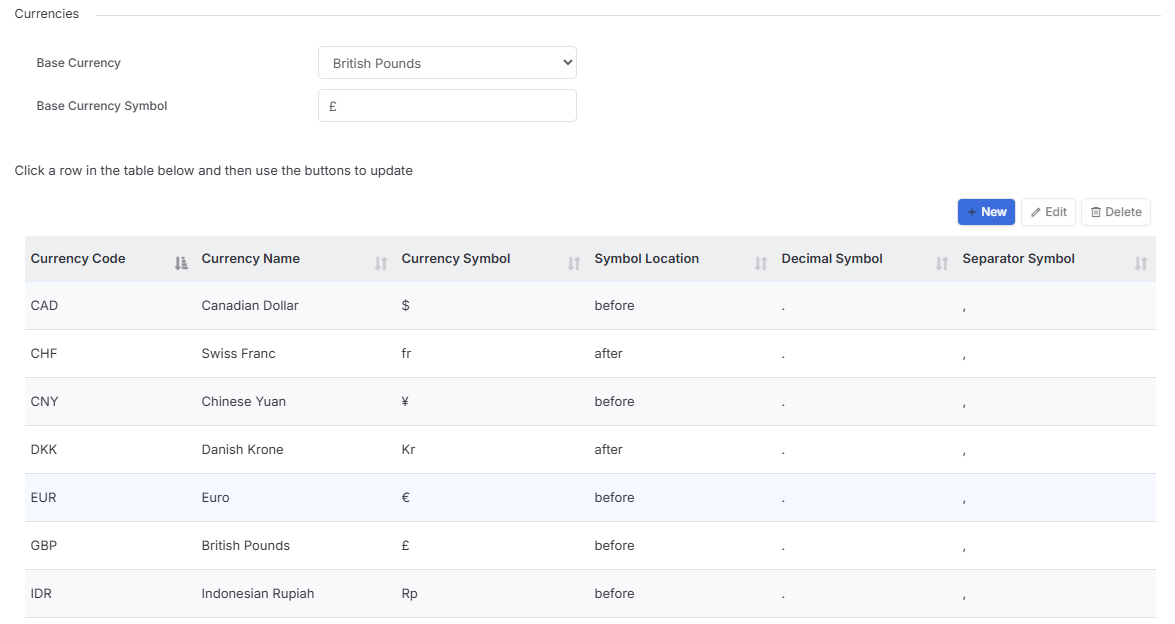
The Currencies section contains the options to select your default Currency, additional currencies can also be added. You can then select alternative currencies within a Job record.
Exchange Rates
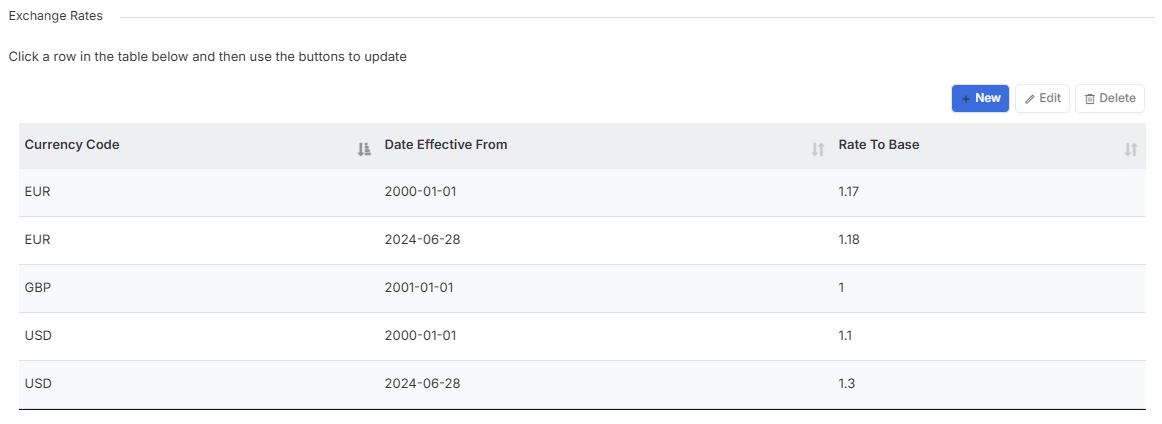
Adding an exchange rate is important for both a Job record and reporting. You may add as many exchange rates as required and the system will calculate this based on the Currency used against the base Currency.
You may use a Base Currency of Dollar, but you also need the amount in Pounds Sterling at the current exchange rate, this needs to be set from the date your system (or data) starts.
When the exchange rate alters, you would add a new one in and add the date that the new exchange rate became effective. Therefore, the system will know that anything added before the date the new exchange rate came into effect, will need to be calculated at the exchange rate that precedes it.
Payroll Taxes
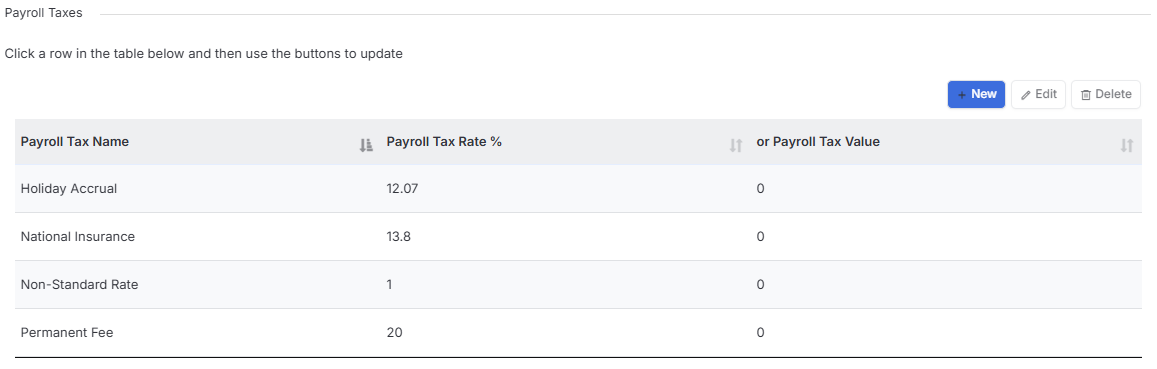
If you need to add a Payroll Tax or Fee of any description on placements and invoices you can add them here and you will be able to select one or more from the dropdown list. In regards to fee’s these can be edited once applied to the placement.
Territories
The Territory for your system represents the country you are in.
If you have multiple offices around the country or in other/multiple countries and your data will be different between these offices, you can have multiple Territories to allow for this.
You can allocate specific users to the relevant Territory and they will only see the data for the office (or Territory) they work in. You may also add a privilege for certain users to be able to view ‘All Territories’ so they have an overview of the data across all offices (Territories).
If you have multiple Territories, you can allow cross Territory Jobs, see the article Tools & Settings | Job Settings for further detail.
Please contact us if you would like additional Territories created.

Departments
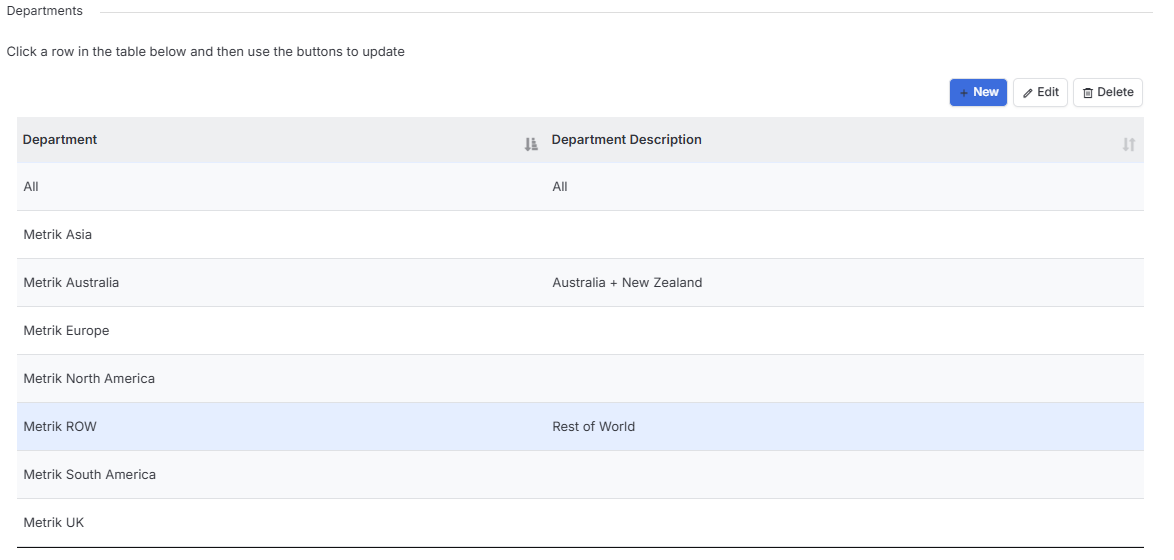
Departments can be applied to Client, Contact, Lead, Job and Candidate records.
This Department is relevant to the Department in which the record relates to internally (e.g. within your business). For example, if you have Department within your business which deals with IT, you would set the record to a Department of IT and the users who work in the IT Department will see these records.
Company Types can have Departments assigned to them (see the article Tools & Settings | Company Settings).
Via User Group Privileges (see the article Tools & Settings > User Groups) you can determine if users in that group can view records of all departments (or just those of the department they are in).
Via user permissions (see the article Tools & Settings > Users) you can set the department the user is in.
Sectors
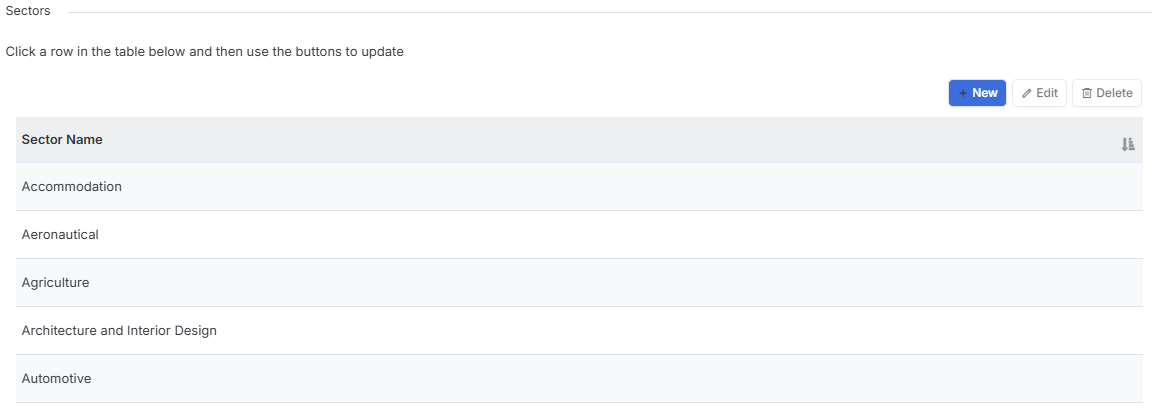
If you need to segment jobs, Sectors can be a great identifier. For example, you may want to report on the number of jobs that are in the Accounting or HR sector to identify which areas you need to put more focus on or which you are succeeding.
You can add multiple Sectors to a job record, under the Job Sector area of the Job Profile.
Teams
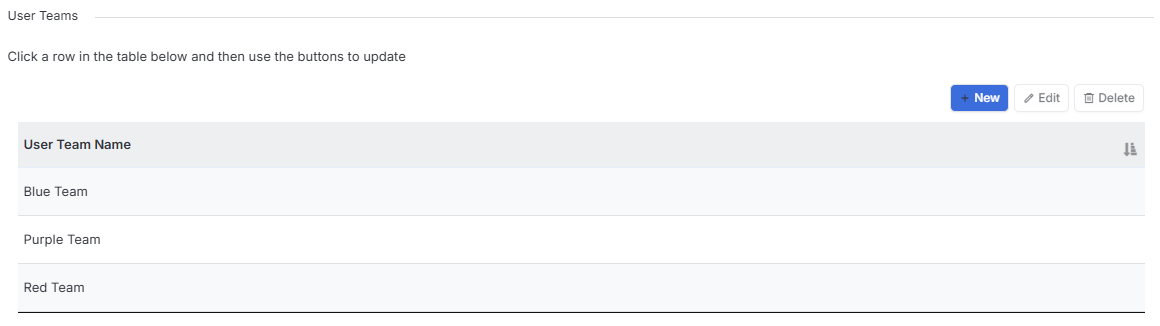
Teams can be created here to add users to via their User Record (see the article Tools & Settings > Users). Teams for example can be used in Reporting to filter or divide data.
Sources
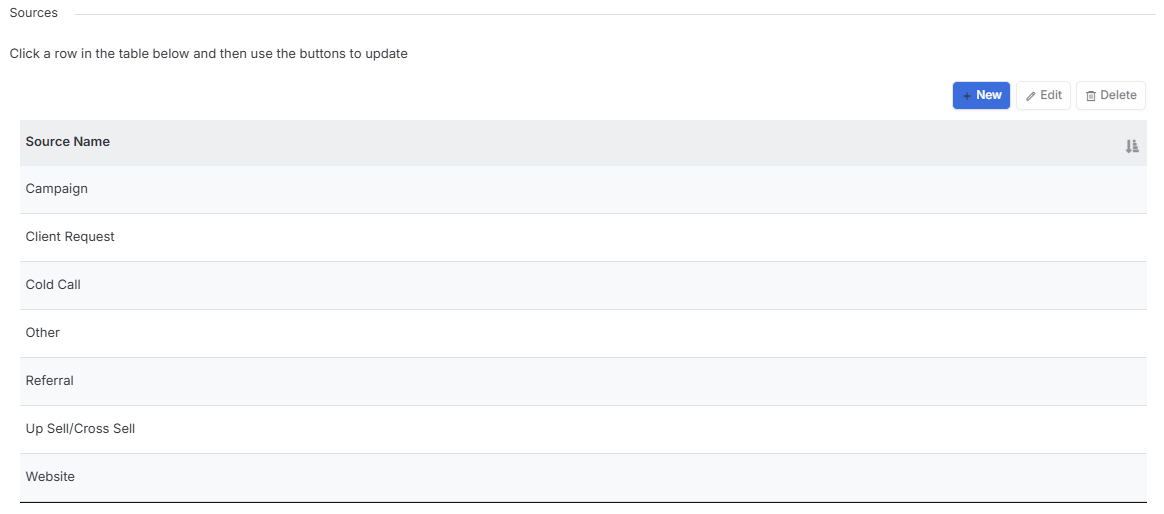
Knowing the Source a Client originated from can be very useful for reporting purposes as it gives you an insight as to what form of marketing or particular type of contact works in generating your business.