
Introduction
Text messaging in itris gives you a direct line to the people who matter most in your recruitment process. Whether you’re reaching out to a single candidate about an urgent opportunity or updating an entire list about latest vacancies, itris makes it simple to send professional, tracked text messages that keep your recruitment moving forward.
To send Text Messages through itris, you’ll need to complete a one-time setup in your My Settings area. This is where you’ll configure your Text Integration
Getting Started
You can initiate a text message from several convenient locations throughout itris, each designed to fit naturally into your workflow:
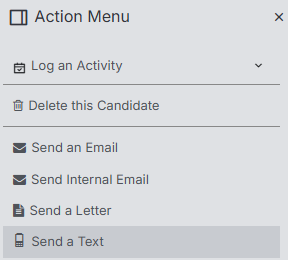
- Record Action Menu - Send texts directly from individual records. The system will indicate if the person has opted out of receiving texts.
- Mobile phone field - Click directly from the contact details when viewing any record.

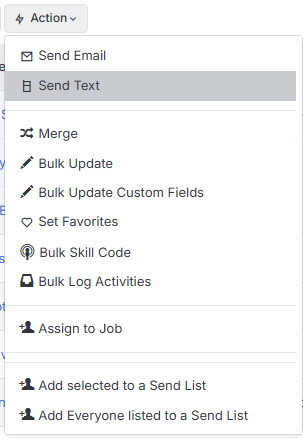
- Action Buttons in Record Views - Select multiple records and send text messages to everyone at once—particularly useful for updating groups of candidates about interview arrangements or notifying your shortlist of new developments.
Composing Your Message
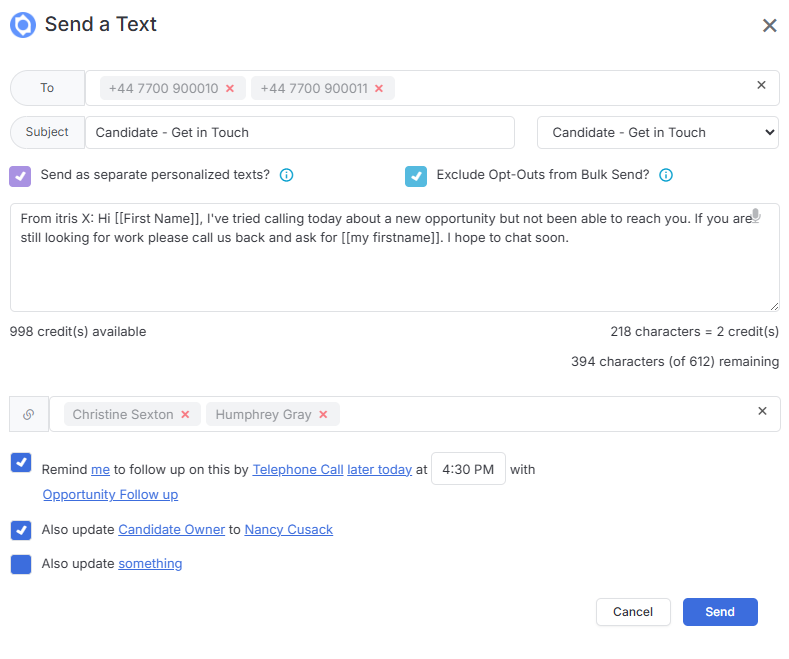
When you open the text messaging window, itris provides everything you need to craft and send your communication effectively. The subject line you enter serves an important dual purpose: it helps you identify the communication and becomes the title of the Activity record that itris automatically creates to track this interaction.
Sending to Multiple Recipients
If you’re sending to multiple people, itris intelligently defaults two settings that maintain professionalism and compliance:
- Send as Separate personalized texts - Automatically ticked to maintain the professional, individual touch that candidates appreciate (you can untick if needed)
- Exclude Opt-Outs - Automatically ticked to help you maintain compliance effortlessly (you can untick if needed)
Creating Your Message Content
The message composition area offers flexibility in how you create your content:
- Type your message directly into the text area
- Use the Dictate function (microphone icon) to speak your message
- Select from your library of Text Templates (created in the Standard Templates area of Tools & Settings)—you can customise the content before sending without altering your saved template
As you compose, itris keeps you informed with a real-time display showing your available credits, the current character count, and how many credits your message will consume.
Linking and Organisation
Every text you send connects to the relevant records in your database. The system displays the record links where the Activity will be attached, and you can add additional links as needed to ensure the communication appears in all the right places within your database.
Post-Workflow Actions
One of itris’ most powerful features is its ability to help you maintain momentum after sending your text. Rather than treating the send button as the end of the process, you can configure automatic follow-up actions that keep your recruitment process moving forward.
Follow-Up Reminders - Set reminders to ensure you circle back at precisely the right time. This eliminates the mental burden of tracking every conversation manually while maintaining consistent, professional communication with your candidates and contacts.
Record Updates - Configure the system to automatically refresh record information the moment your text is sent. The available update options adapt intelligently based on the type of record you’re texting:
- When messaging a candidate, you can automatically update their Status, Job Title, and other relevant fields
- Configure multiple updates to occur simultaneously
- Keep your database current without requiring additional manual data entry
Sending Your Message
When you’re satisfied with your message and have configured any desired post-workflow actions, simply click Send. itris immediately dispatches your text and creates the corresponding Activity record, maintaining a complete communication history that you can reference at any time.