Introduction
In order to send Campaigns you need Send Lists (sometimes referred to as a Hot List), these are the lists of Candidates and Contacts for the campaign to be sent to.
Lists can be a combination of both Candidates and Contacts.
For details on using Send Lists in Campaigns please see the Campaigns article.
Creating & Adding Records
Depending on your workflow Send Lists can be created and records added in different ways:
Send Lists area
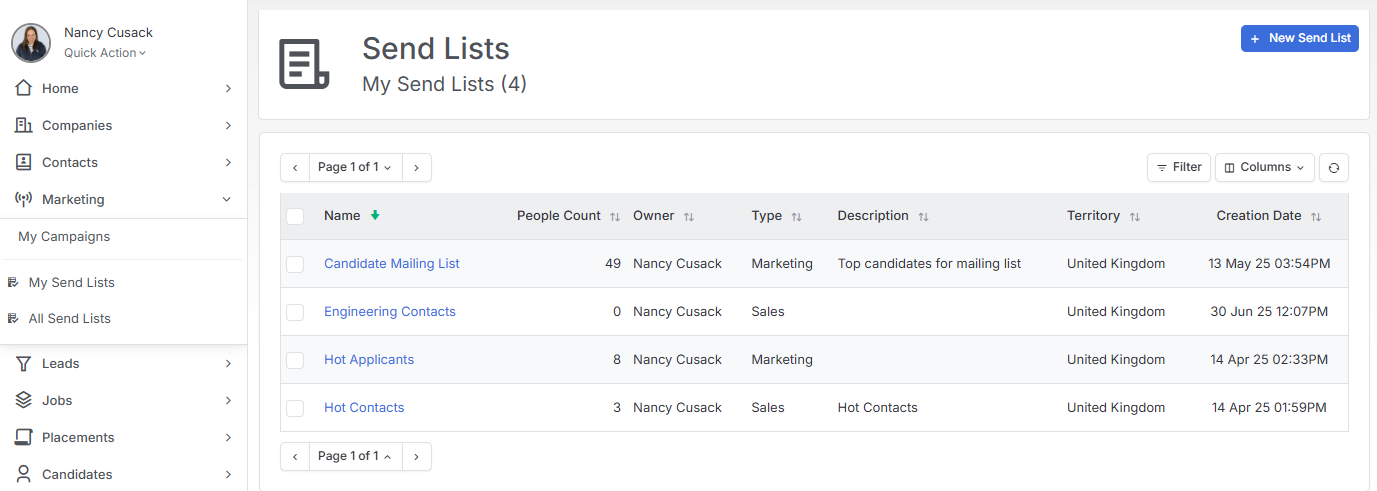
Under the Marketing > Send Lists area of the Menu bar is the option to create a New Send List. Unlike the options below this will be a blank list without records added.
Views
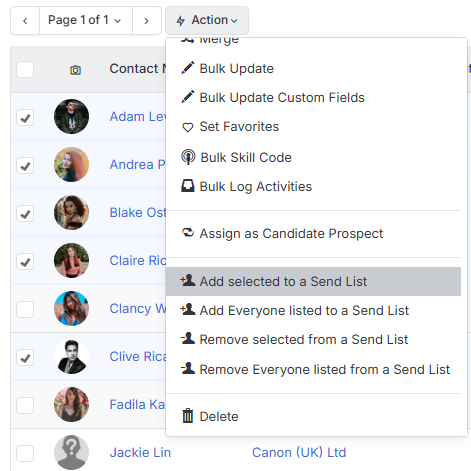
When in a Candidate or Contact View (see the article Record Views), once records are selected and the Action Menu is visible this can be used to Add to an existing Send List. This is a good route to add multiple records at one time (either the selected or all records in the view). You can also remove records from a Send List here too.
When adding records to a Send List, you can choose one or more Lists to add them too.
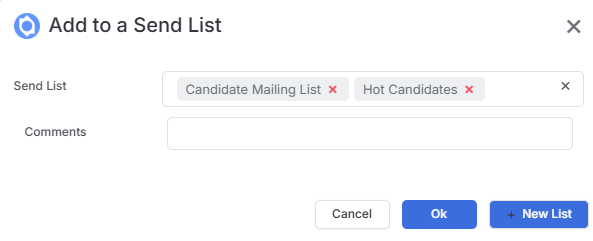
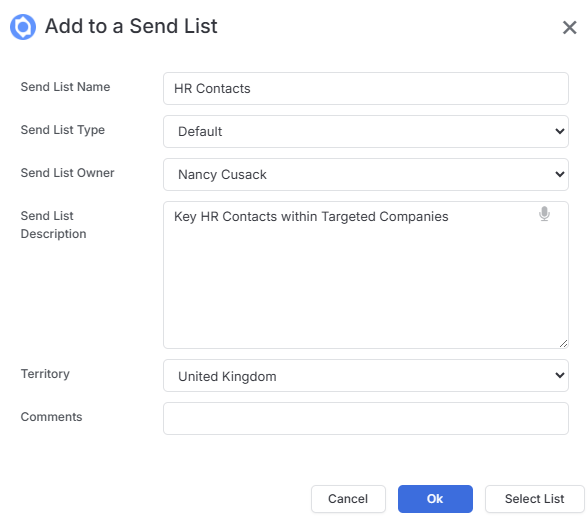
Additionally, via this route you can create a new Send List via the New List button.
When creating a new Send List via this route it will default the owner to the person creating it, though you can change the owner of the List.
Record Action Menus
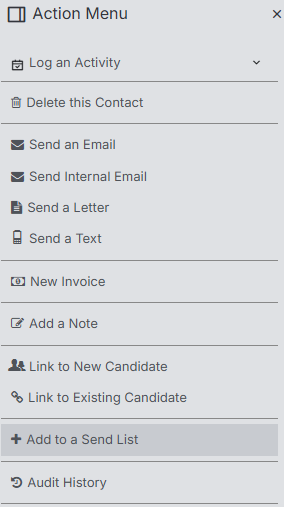
Via the Action Menu’s of Candidate and Contact records the record you are on can be added to an existing Send List, or as shown above a New Send List can be created.
Send Lists View
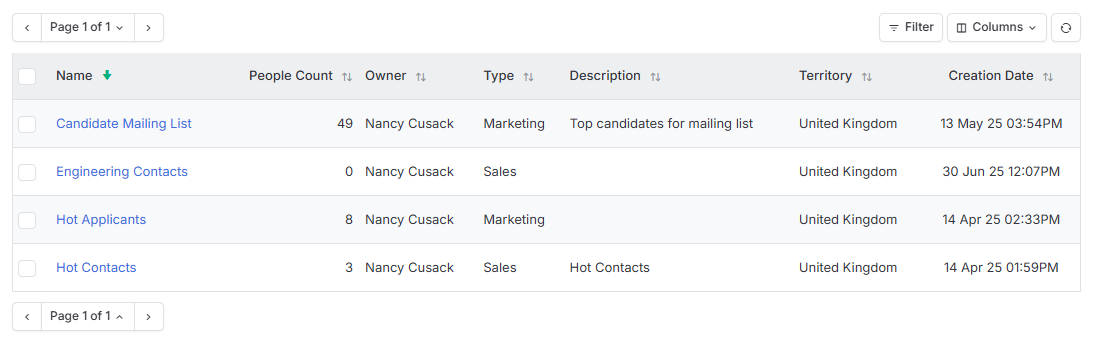
In the Send Lists area there are functionalities to note.
Manage View
As with other View areas you can add and remove columns as well as re-order as required, you can also apply the Filter to look for lists by Name, Owner, Territory or Type.
When one or more lists are selected the Action button provides the option to Delete them.
Viewing a Send List
Clicking on a Send List name will open the details of that list, including the list of people added to the list, the Name, Type, Owner, Territory and Description. Additionally, there is summary and key statistics areas to the left (which can be collapsed), and the Send List can be deleted from here too.
The list is paged and has a filter to help you find specific records. The Quick View icon next to each record allows you to view core information on that person without having to go to their record.
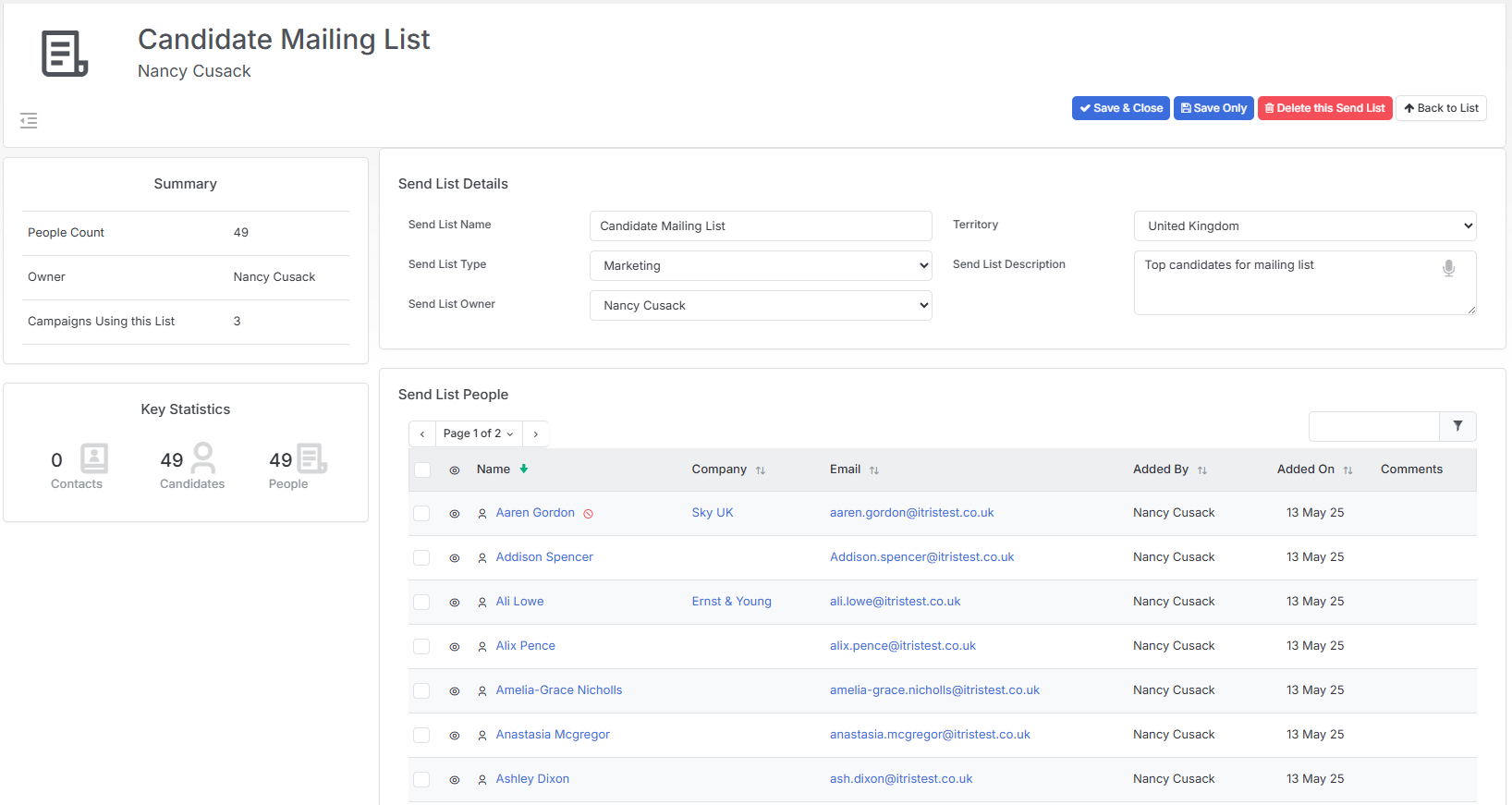
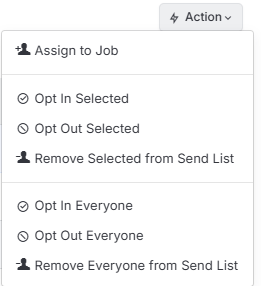
When one or more records in the list are selected the Action button has options to Assign records to a Job, Opt In/Out or Remove selected/all records.