Setting Up Contact Access
Before your clients can use the portal, you’ll need to set up their login details on their Contact Record. Head to the Company Portal Information block where you’ll find everything you need to get them started. If you don’t see this block, you may need to add it via the Layout Designer.
If the login details are blank, just click refresh on the password field to generate credentials automatically. You can also type in custom login details if you prefer. The Portal link shown here is what your clients will use to access their portal. If you want to embed the Client Portal into your existing website, you can use an “iframe” to create a window to the portal on any web page.

Sharing Jobs with Clients
When your client logs into their portal they will see their live jobs which have submissions for them to see, more on this below.
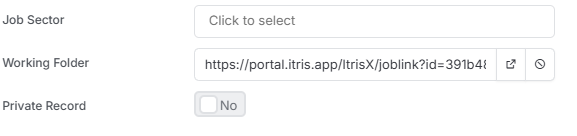
You can also share a direct link to view specific jobs within their portal. In the Job Profile block, you’ll find a link to the Working Folder—this is a direct link to that job within the Client Portal. You can copy and send this link (for example, via email) to take your client straight to the job landing page without them having to navigate through the portal menu.
Sharing Candidates with Clients
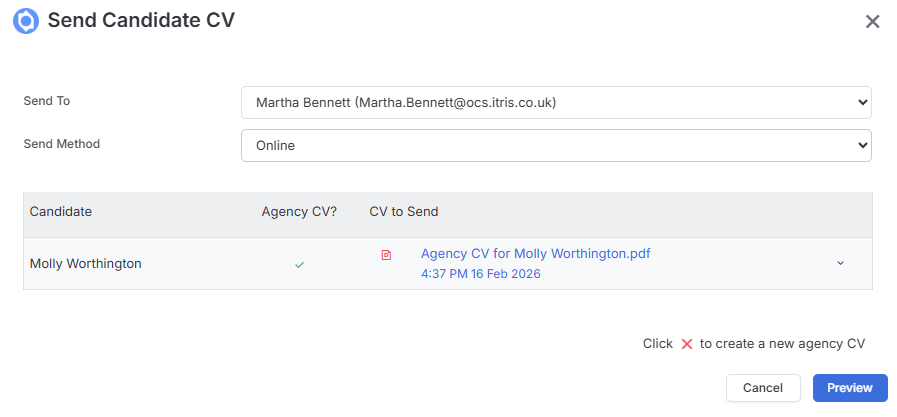
Navigate to the Job Record > Submissions area. Here you’ll see “Send Candidate CV” as an option under Send Method when you select Online. Sending resumes to the client using the “Online” send method will automatically share these candidates, allowing them to see and review them instantly.
What Clients See in the Portal
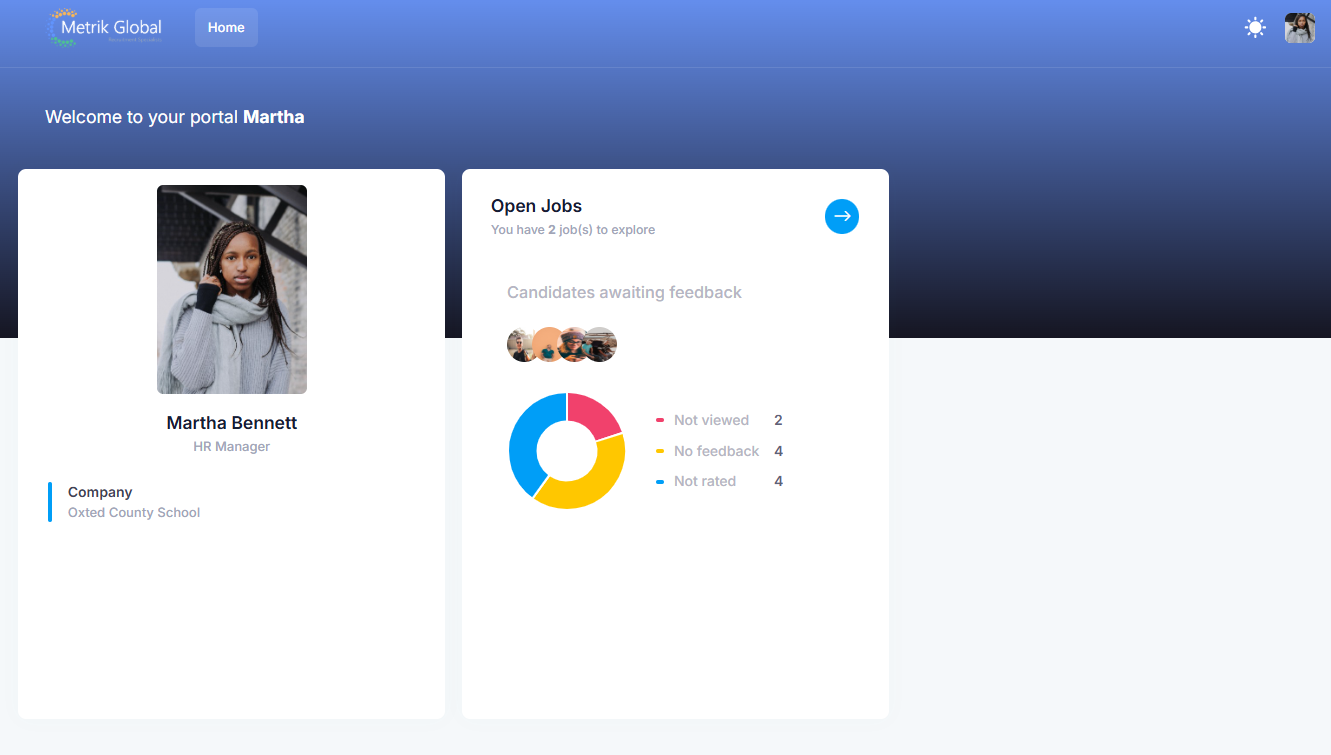
Once your contacts log in, they will see their name, job title, and company name always visible at the top. If you’ve added a picture to their itris record, that’ll display too.
In the top right, they can reset their password, log off, and toggle between Light or Dark mode. The Home button is in the top left for easy navigation.
Jobs Area
Contacts access the Jobs area by clicking on the arrow by Open Jobs. Here they’ll see a list of their jobs.
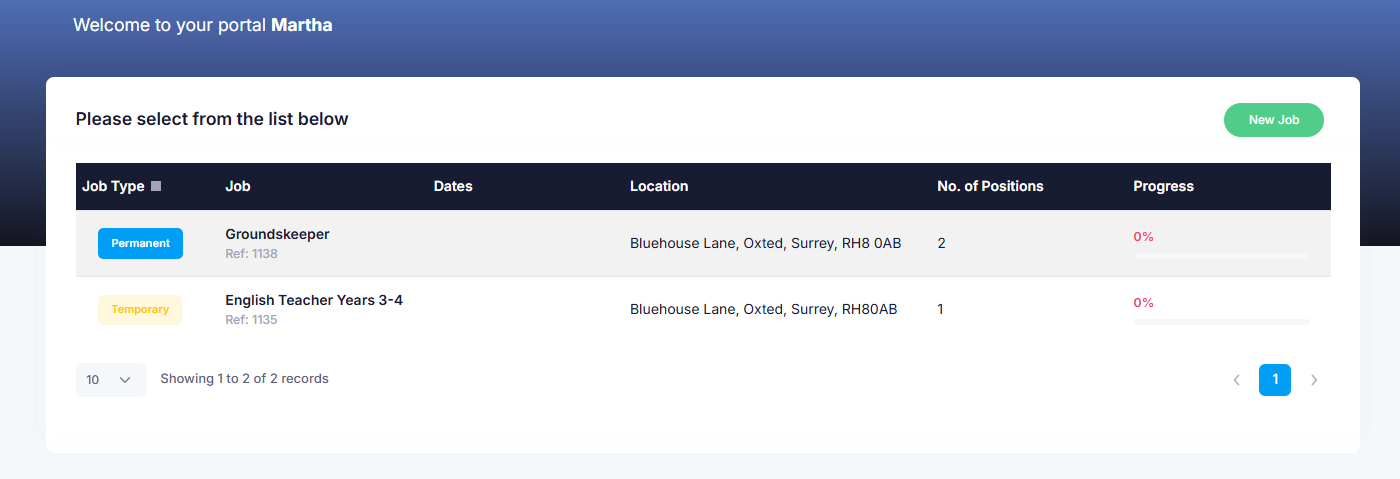
Clients can click through to see an overview of each job you’ve shared on the portal. When they click on a specific job, they’ll see:
- Key Stats and summary
- Overview of activity
- Candidates along with their status
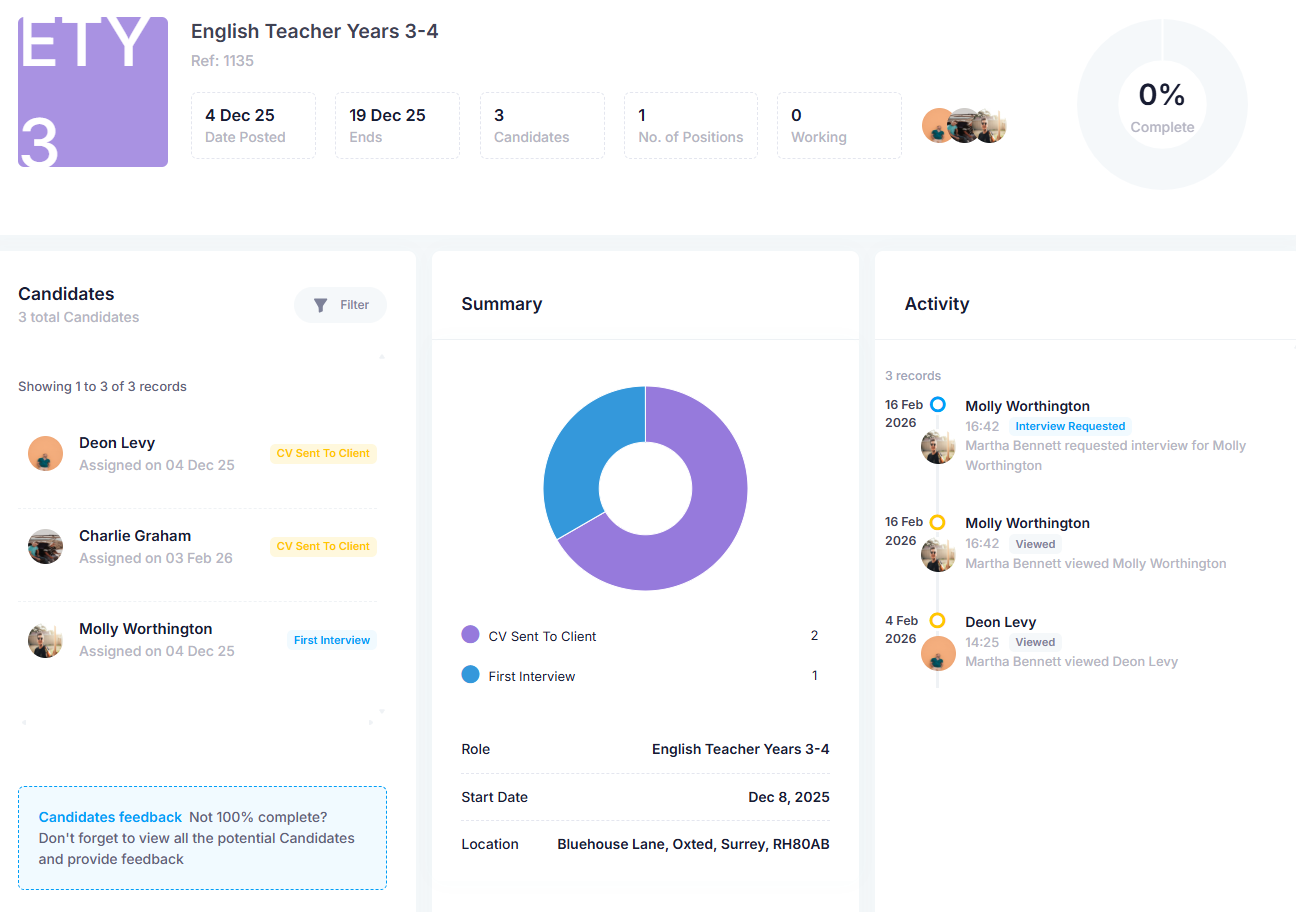
Each candidate you’ve shared will appear on the Job page within the shortlist stage they currently reside in. This allows you to present each candidate in their best light, with automatic links to their Resume, along with feedback and action buttons.
Reviewing Candidates
When a client clicks on a candidate, they’ll see:
- Overview
- Resume
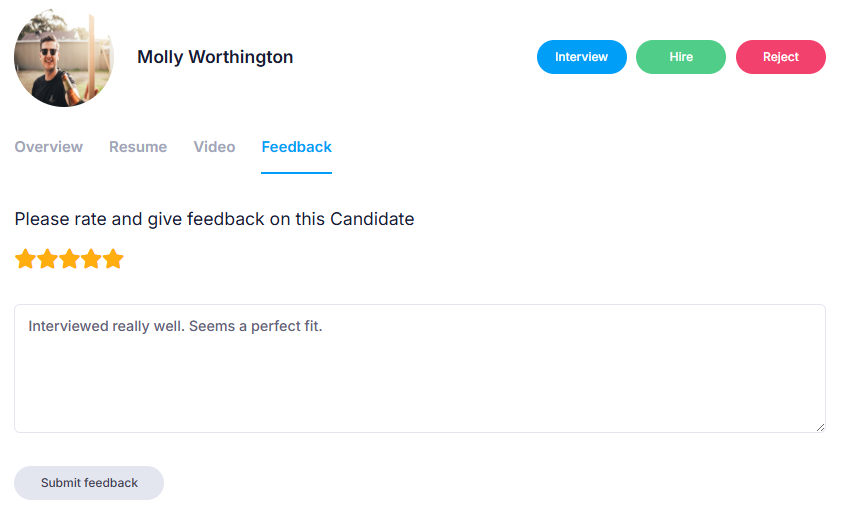
- Feedback - Clients can star rate each candidate, providing instant feedback that gets alerted back to the Job Owner via the on-screen alerts in Tracker
Taking Action
Clients can request an interview, express interest in hiring, or reject a candidate directly from the portal. Selecting one of these action buttons creates tasks for the Job Owner:
- Interview - The client is prompted to provide suitable dates and times, creating a Task for the Job Owner to organize the interview and send confirmations
- Hire - This alerts the Job Owner and creates a Task against the job to process the offer
- Reject - This alerts the Job Owner to the rejection and instantly moves the candidate to the relevant “Rejected by Client” status both on the shortlist and in the Client Portal
You’ll receive alerts in itris for all these actions, keeping you in the loop in real-time.
Clients can also add a candidate of their own in this area (via the Add Candidates button at the top of the page) if they have someone they’d like you to consider.