
Introduction
itris provides automated Candidate Registration and Job Application tools that streamline your recruitment process. Instead of manually entering candidate details, you can share unique links that allow candidates to register directly on your database or apply for specific positions themselves.
These self-service options reduce administrative overhead while ensuring you capture complete, accurate candidate information. The links are unique to your itris database and can be easily integrated into your existing marketing channels.
There is also a Portal available for Candidate Consent options, please see the following articles for further information:
Tools & Settings | Security Settings
Tools & Settings | GDPR Submissions
Links to Register or Apply
Candidate Registration
The URL for the Registration page is: https://portal.itris.app/yourdatabasename/apply
Note: you’ll need to replace the yourdatabasename with your unique value. This can be obtained from our Helpdesk team.
An example of a Candidate Registration URL would be: https://portal.itris.app/metrikglobal/apply
You could use your Candidate Registration URL in emails to potential candidates or add it to your website.
Job Application
The URL for the Job Application page is: https://portal.itris.app/yourdatabasename/apply?jobcode=000
Note: As above, you’ll need to swap out yourdatabasename. You’ll also need to swap out 000 with the numerical part of the job id for the job you want the candidate to apply to.
An example of a Job Application URL would be: https://portal.itris.app/metrikglobal/apply?jobcode=1076
As with Candidate registrations you may wish to email the URL to candidates for them to apply to a Job.
Using Job Application alongside Jobs Feed
Job Application links can also be utilised in partnership with the Job Feeds functionality.
The Job Feeds feature provides a feed of data for open, published jobs. This data can be used for a variety of purposes, such as displaying job listings on your website or integrating with other systems. Wherever you choose to list these jobs, you could use the Job Application URL to provide an easy route for candidates to apply to the job directly from the listing.
Jobs can be sent to your Jobs Feed from the Publish Jobs block of the Job Record by switching the toggle to Yes. See the Job Record article for more details.

For technical details on setting up the Jobs Feed, see the Jobs Feed article.
Using the Portal
Getting Started
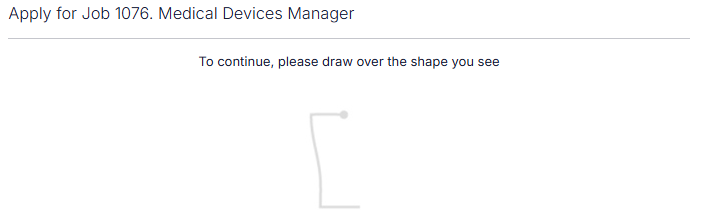
When candidates follow either a registration or application link, they’ll first encounter a security verification step requiring them to complete a quick tracing CAPTCHA to confirm they’re human.
For general registration links, candidates will see a page titled “Register”

For job-specific application links, the page displays both the Job ID number and job title
Consent and Options
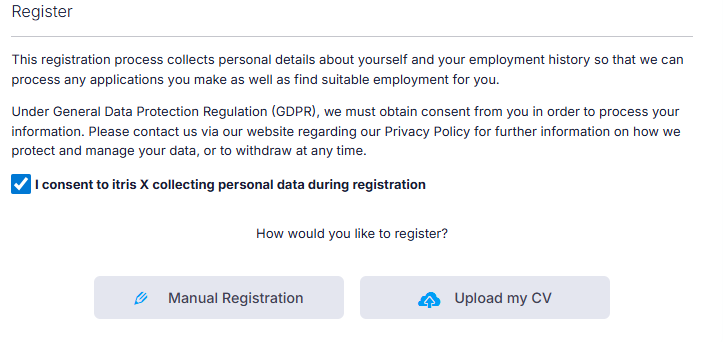
After completing the CAPTCHA, candidates must tick a consent checkbox (confirming they agree to data processing) before proceeding. They’ll then choose between two registration methods:
Manual Registration
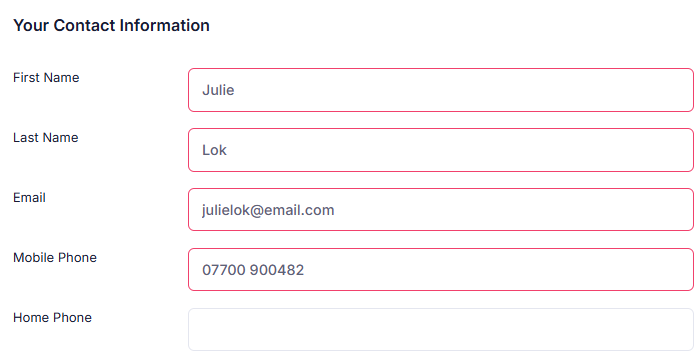
Candidates complete an online form with required fields including:
- Personal details (name, address, contact information)
- How they heard about your company (selected from your configured Candidate Sources)
Name, email, and mobile number are mandatory fields, which enables itris to check for existing records and prevent duplicates.
For more information on Candidate Sources see the Tools & Settings | Candidate Settings article.
Upload CV
Candidates can upload their CV by either:
- Dragging and dropping a file into the upload area
- Clicking the upload area to browse and select a file from their device
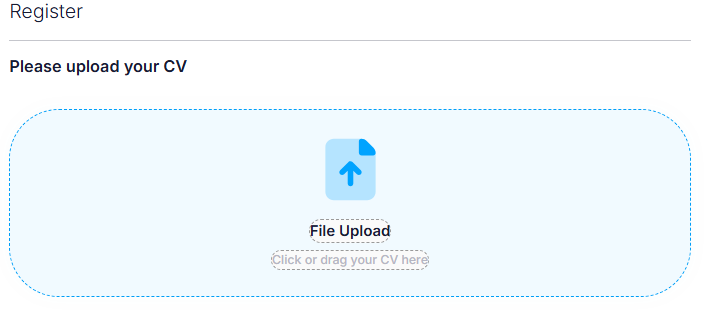
When a CV is uploaded, itris automatically extracts information and populates the registration form. Candidates will still need to complete any mandatory fields that couldn’t be parsed from their CV before submitting their registration.
What Happens Next
Once a Candidate has completed their registration:
- A new Candidate record will be created (you may find the Candidate View “New Candidates” helpful here, see the Record Views article for more details).
- If a duplicate record is identified the itris record will simply be updated. The following fields are used in duplicate checking: name, email and mobile fields.
- If the Candidate applied for a Job, they will be added to the Applied group in the Shortlist block of that Job record. See the Job Record | Submissions article for more details.