Introduction
Placement records give you complete visibility from day one. As soon as a candidate is Shortlisted for a role they get a Placement Record that tracks their entire journey through the submissions process. Whether they’re moving through interviews or heading towards a final decision, everything is captured in one place. For more details on Shortlisting candidates see the articles Job Record | Submissions and Longlisting & Shortlisting
Placement records can be viewed and managed from either opening the full placement record or as pop outs, for example from the Submissions area (much like Quick View). The later option are also referred to as Shortlist Cards.
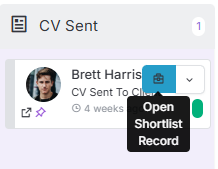
The functionality available is the same whichever route you choose to open the Placement Record and the default for how it opens can be set in the Tools and Settings area.
At the top the Placement record the name banner will display the Placement ID number, Candidate Name, Job Number and Name.
Below the name banner the job record is comprised of tabs, and within those tabs are the record blocks. Due to itris being highly customisable, the order and name of the tabs, and the placement of the record blocks may differ to those shown in this article.
Below the tabs the are the Show/Hide Summary and Favourites buttons. Additionally, you have buttons to Save the record, Back to List and Action menu.

Action Menu
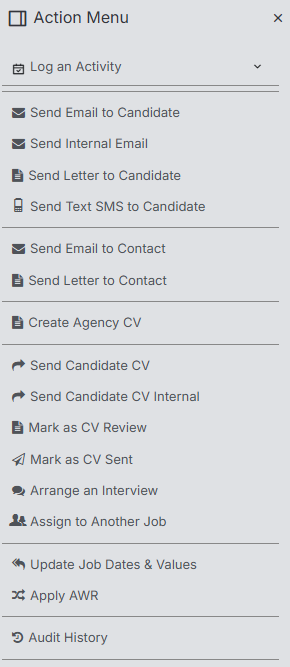
Via the Action Menu you can Log Activity (such as calls and tasks, note this is a collapsible list) against the Placement, Send Emails, Create an Agency CV, Perform Submission actions, Update the Job Dates and Values, apply AWR and view the Audit History.
Summary Panel
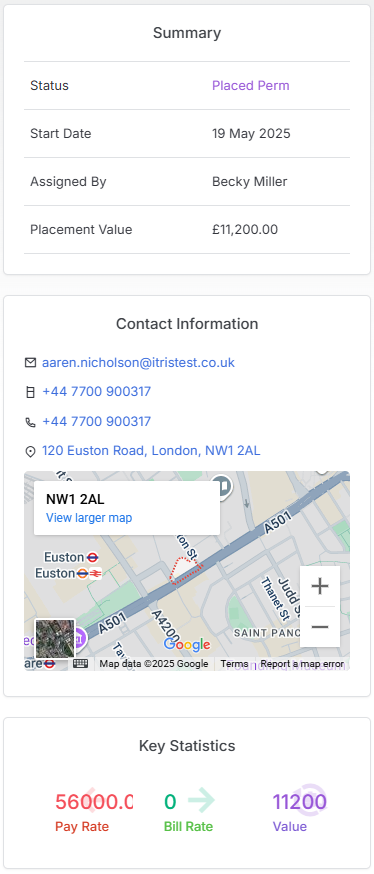
As noted above the Summary panel is expandable/collapsible. When expanded this displays key data about the Placement including its status, start date and value.
Profile
In the default layout, the profile tab will house the Placement Details, Placement Dates and Placement Lifecycle blocks providing key information about this placement. The majority of data recorded here can be displayed in reports and used as filter criteria giving you flexibility on analysing your data.
Placement Details
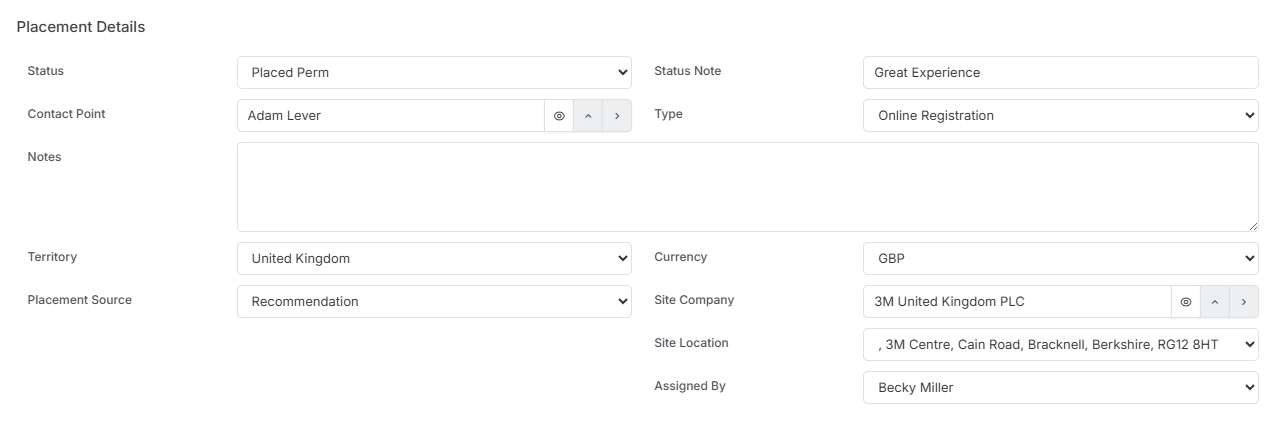
The Placement Details block contains comprehensive information about the Company, Contact, Job, and Candidate linked to the placement (with quick view, open record in new tab, and open record options available). You’ll also see the placement’s current Status (see below), the Placement Source (invaluable for ROI reporting), and Placement Type (which tracks how your Candidate entered the Shortlist—whether through the Outlook Add-in, Online Registration, or other channels).
There are two fields for Site Company and Site Location (the Site Company’s default address, or selectable from a dropdown if multiple addresses exist). These fields are pre-populated based on the company linked to the job or placement, but can be updated to a different company, useful in scenarios such as a third-party end site.
The Status Note field can be configured as either free text or a dropdown list via Tools & Setting | Placement Settings. This field captures the reasoning behind the placement’s current status—commonly used to document rejection reasons (such as “Interviewed poorly” or “Lack of Career Direction”) or acceptance rationale (like “Great Experience” or “Good fit”).
Statuses
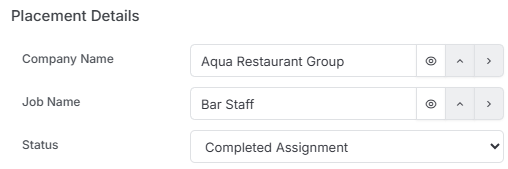
Placement status indicate where the candidate is in the submissions and placement process . Status will typically range from Application through to a Placed status (e.g. Placed Perm, On Assignment) and can include statuses such as Internal Review, Rejected, Completed Assignment, Lost and more.
See the article Tools & Settings | Placement Settings for more details on managing Statuses.
See the article Job Record | Submissions for updating the Placement Status as part of the submissions workflow.
Ending a Placement
Status will also be used to indicate a placement has ended. When a candidate is placed for example in a Temporary role and that comes to an end it is the Status field that is used to indicate the assignment is completed.
Placement Dates
This section displays different information depending on the Contract Terms (such as Fixed or Time-based) linked to the Placement’s Job Type. You can learn more about Job Types in the Tools & Settings | Job Settings article.
Job Types with Fixed Contract Terms will show the Start Date and Date Confirmed.
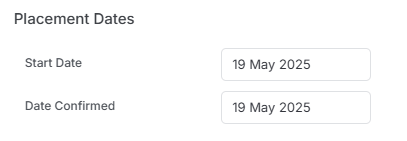
Job Types with Time Contract Terms will show Start/End Dates and Times, Days of the Week, Units in a Day and Date Confirmed.

Please note that in both cases above the Date Confirmed field is permission based. See the article Tools & Settings | User Groups for more details on setting permissions.
Placement Lifecycle
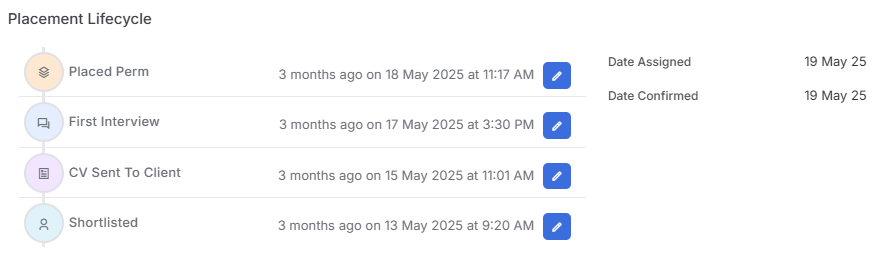
The Placement Lifecycle displays the stages, dates, and times that track the candidate’s progression through the placement record.
Rates, Fees & Ownership
In the default layout, the Rates, Fees & Ownership tab contains three blocks: Placement Rates; Rates, Taxes & Accruals; and Placement Ownership.
The appearance and functionality of the Placement Rates and Rates, Taxes & Accruals blocks vary depending on whether the Job Type’s Contract Terms are configured as Fixed or Time-based (see the article Tools & Settings | Job Settings). Placement values are calculated as Margin (pay minus charge only) using the data under within these two blocks.
It’s also worth noting that some information in these areas may be prepopulated based on the settings configured in the Placement Default block of the Job Record. See the Job Record article for more details.
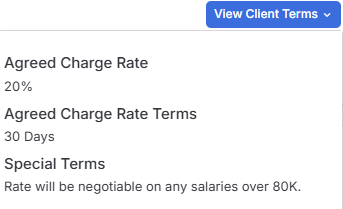
Regardless of the configuration, you’ll have the option to View Client Terms, which displays the relevant details from the Company record.
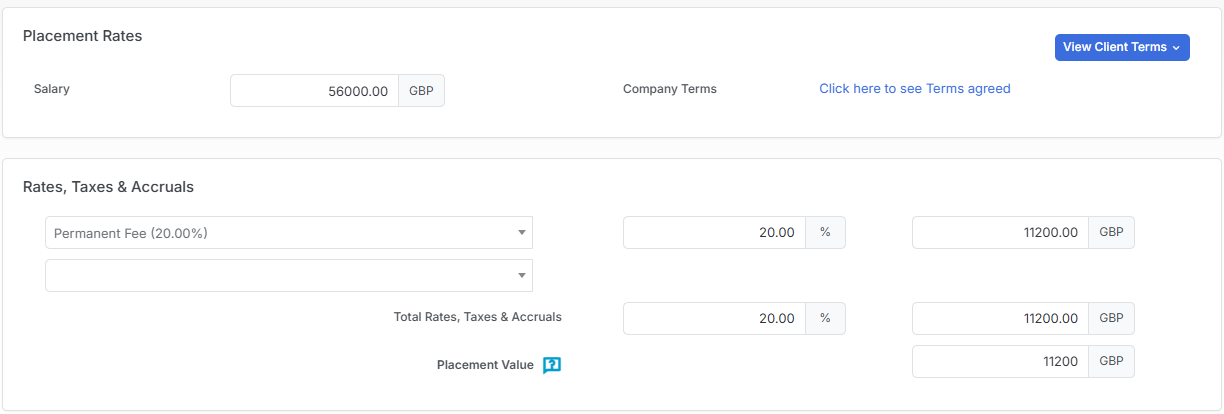
Rates, Taxes & Accruals | Fixed
Here you can set the Salary for this placement, this can be different from the Salary shown on the Job.
If you are raising Permanent invoices via itris a fee will need to be selected from Default Rates, Taxes and Accruals. This can be overwritten if required, and will be used when generating an invoice. Please see the article Tools & Settings | Application Settings for setting up these values.
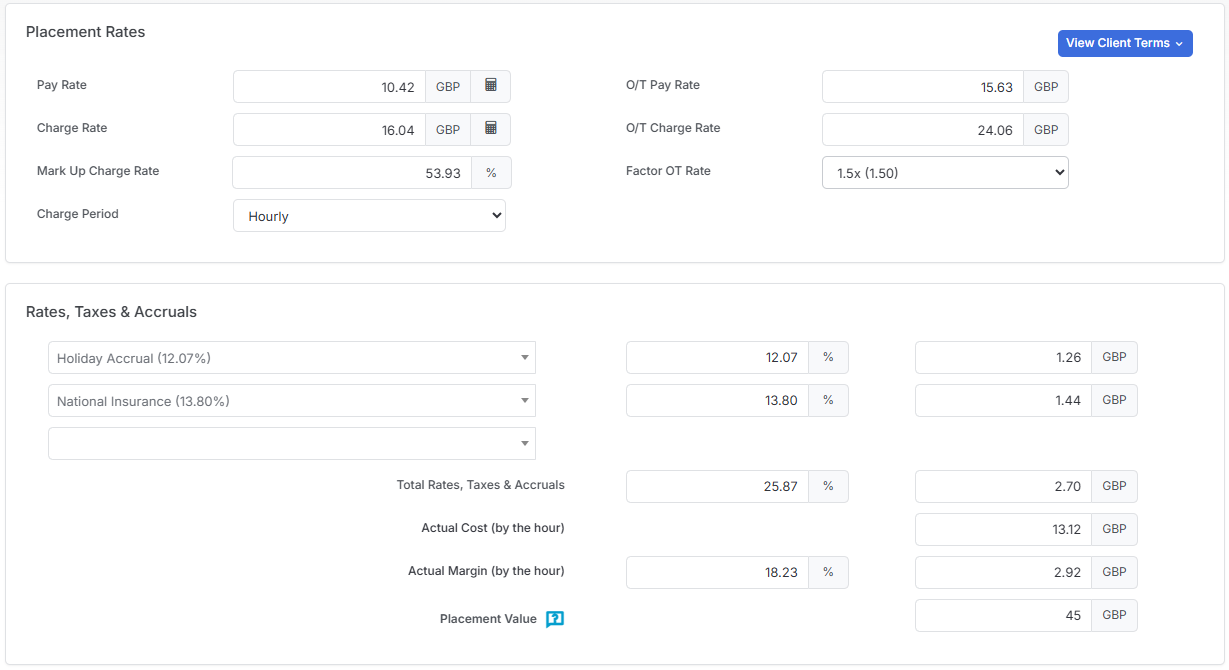
Rates, Taxes & Accruals | Time-Based
The Rates, Taxes & Accruals section makes managing the financials of time-based placements straightforward and accurate. The key thing to remember is to add these costs (e.g. holiday pay and National Insurance contributions etc) first - this gives the Rate Seek function all the data it needs to calculate accurate rates and margins.
Once you’ve got your taxes and accruals in place, the Rate Seek feature becomes your go-to tool for hitting target margins without manual calculations. Think of it as a smart auto-calculator - simply set your target margin percentage, and it’ll automatically adjust either the pay rate or charge rate to get you there. The Rate Seek feature is accessed via the Calculator icons by Pay and Charge Rate fields. Depending where you start from the following happens:
- Clicking the Seek button on Pay Rate will adjust the Pay Rate field until the Target Actual Margin % is achieved.
- Clicking the Seek button on Charge Rate will adjust the Charge Rate field until the Target Actual Margin % is achieved.
For overtime scenarios, there’s a handy dropdown with standard multipliers like 1.25x or 1.5x time, or you can input custom rates when needed.
This setup takes the complexity out of time-based placement pricing while ensuring you maintain healthy margins and accurate cost tracking throughout the assignment.
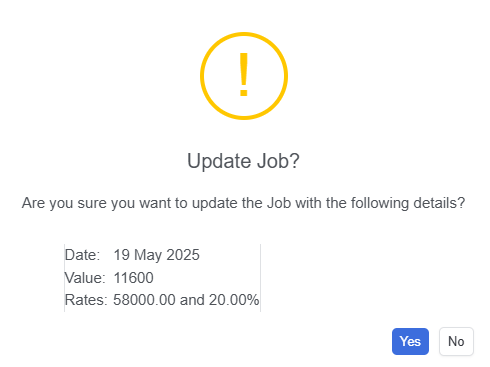
Update Job Dates & Values
Via the Action Menu is the option to “Update Job Dates & Values”, this will update the Job Record with that set on the Placement Record/Card. You may need to refresh the job to see these values.
Placement Ownership
The Placement Ownership tab will be used to identify the owners of the placement, their roles and split percentages.

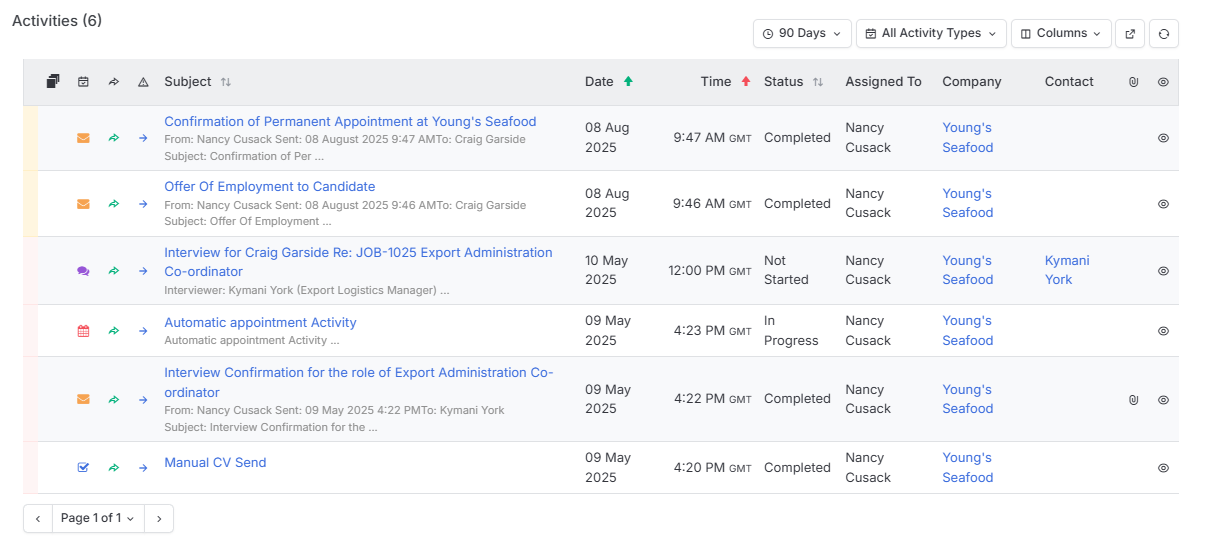
Activities
View automated and create activities against the Job record. See the Activities article for more information.
AWR
Here AWR dates, details and related entitlements can be recorded. Please see the Agency Worker Regulations article for more details.
Compliance
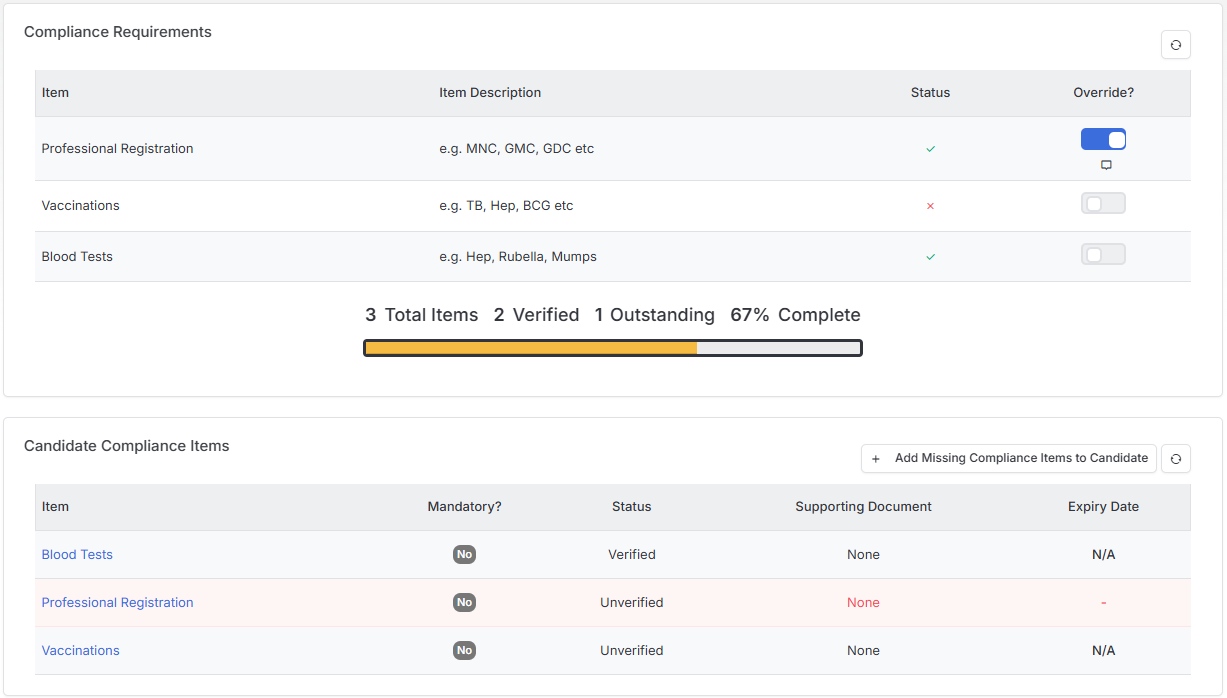
This section displays Compliance progress and management options for the Candidates when the associated Job includes compliance requirements.