Introduction
This article gives a quick overview of itris X and shows you how to get around. There are articles within the Knowledgebase explaining about the different functionalities in more detail.
Please note, as itris X’s layout is highly configurable, your layout, the tabs and fields you see on records may differ to descriptions and images below.
Menu Bar
From the menu bar (typically) on the left you can navigate to the Main Record sub menus (e.g. for Companies, Contacts, Leads, Jobs, Placements, Candidates), Reporting and Discover (for Power Search).
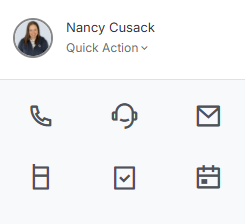
At the top of the Menu bar is the Quick Action menu from where you can quickly initiate activities such as calls, emails, appointments and texts.
Home
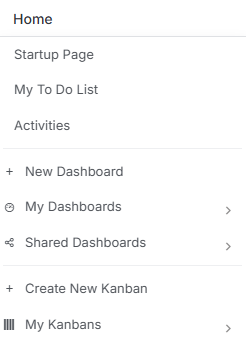
From the Home icon you can navigate to your:
- To Do List - which shows starters, finishers tasks, activities and alerts.
- Activities - where you can view and filter Activities (e.g. to see past, present, future). See the Activities article for more details.
- Dashboards - including creating new Dashboards. These can be used to show a summary of activity in the recruitment workflow you need to be aware of and potentially action, for example data that is currently relevant in terms of pipeline. Many users set this as their start up page.
- Kanbans - Kanban boards help manage tasks visually and collaboratively—a digital version of sticky notes with tasks displayed as cards moving through workflow stages.
Main Records & Record Views
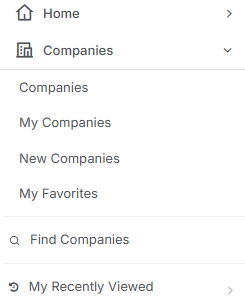
When clicking on any of the options in the menu bar you get a sub-menu for further navigation, for example to see lists such as My Companies (where you are the owner of those records), My Favourites, New Companies (e.g. those created in the last week), Find Companies (taking you to a list view to display all company records or use the filters to narrow that list down) and recently viewed.
Depending on what is set in Tools & Settings | Contact Settings, the My Contacts option may include just records you own or those that form part of your groups.
See the article Record Views for more details on working with these types of lists.
Reporting
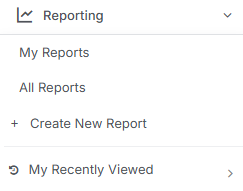
Here you can create new reports and view current reports and access the Commissions Report. See the Reporting and Commission Report articles for more details.
Discovery
Under the Discover menu you can run a Power Search, which allows you to run a Boolean search across the entire database. This allows you to search across all record types and other items such as activities, documents and more. See the Power Search article for more details.
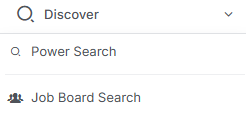
Users with the appropriate licences will also see the option for Job Board Searching, to learn more on this feature see the article Job Record | Job Board Searching.
Minimise the Menu Bar
If you wish minimise the menu bar so that you see the icons only and not the labels to go with them you can do this via the 3 lined icon next to the itris logo.
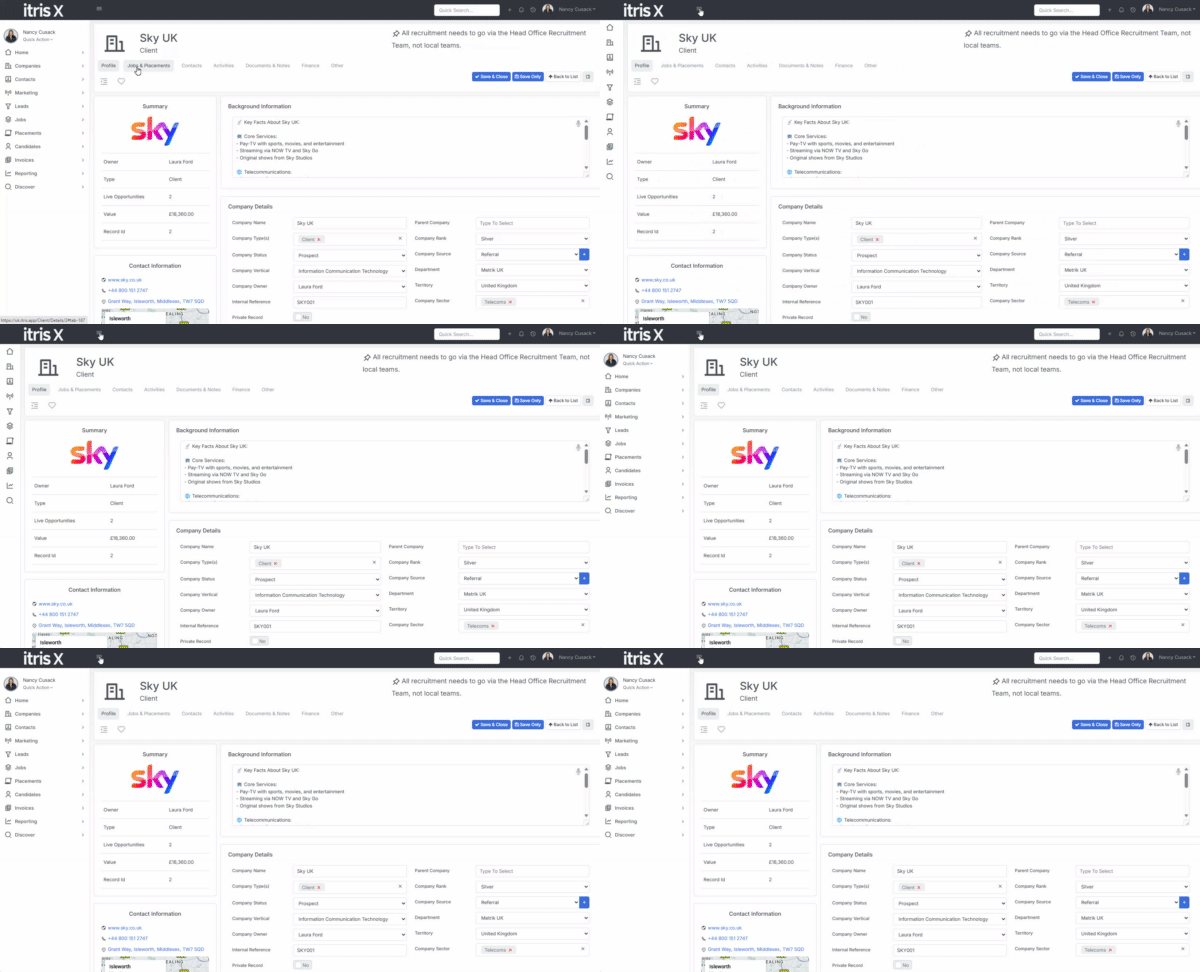
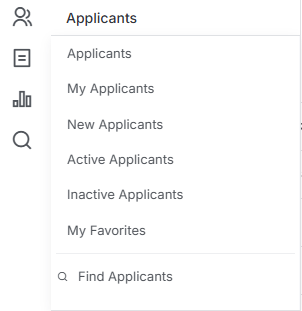
The sub-menus then appear when you hover your mouse over the icon.
Productivity Bar
At the top of the screen is the Productivity Bar.

Quick Search
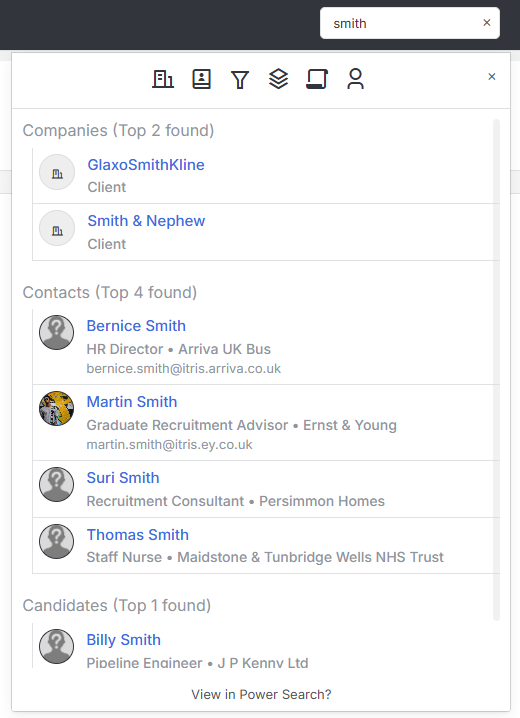
Via the Quick Search you can find records by name, and filter that list by record type using the record icons at the top of the results list.
See the Quick Search article to learn more.
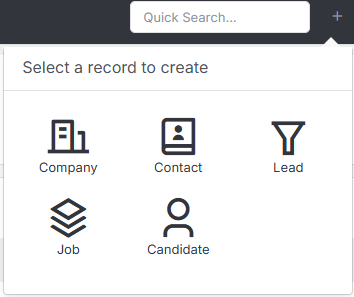
Add Records
New records can be created via the Add Record icon.
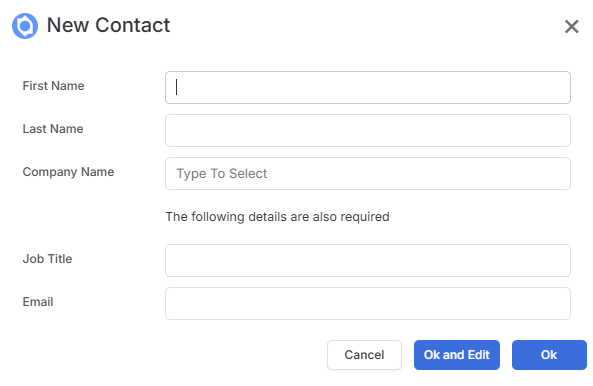
When creating new records, the information required will be based not only on system mandatory data, e.g. person/company name, but also on any Mandatory Fields set by your company. See the article Tools & Settings | Mandatory Fields for more information.
To learn more about adding records, see the article New Records.
Alerts
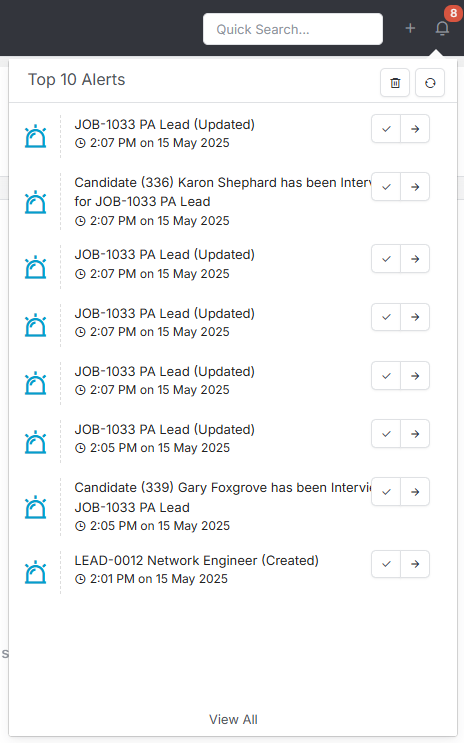
Alerts can be set up to notify you when certain triggers/actions occur, typically for activity that effects the user, for example a candidate applies to one of your jobs.
Alerts can be created both via a users My Settings and in the Tools and Settings area.
Also see the My To Do List article.
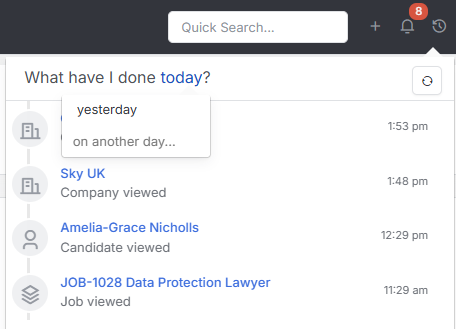
What have I done?
This area is a chronological diary of everything done, viewed, added etc.
By default it will show what you have done today, but this can be changed to any day within the last 180 days.
Image you came in on a Monday morning can’t remember who you added a particular activity for on Friday afternoon, this list is one quick way to find that activity.
Also see the My To Do List article.
Profile Menu
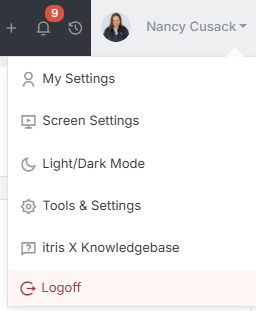
Via your profile menu you can manage certain aspects of your login, including updating your profile image and password. Additionally you can manage certain aspects of your screen settings. Those with permissions will have access to the Tools and Settings area, and what is visible within that will also depend on your settings. You can easily reach the itris X Knowledgebase via the Help option, and finally there is the Logoff option.
Main Record Overview
Reminder: itris X’s layout is highly configurable, your layout, the tabs and fields you see on records may differ to descriptions.
When you are in any of the main records in itris there will be some similarities, for example the name banner at the top of the record. Within the name banner will the tabs into the different parts of the record.
itris is highly configurable, and the tabs that you see may differ to your colleagues or those shown in the Knowledgebase resources. You can learn more about this type of configuration in the Tools & Settings | Layout Designer article.
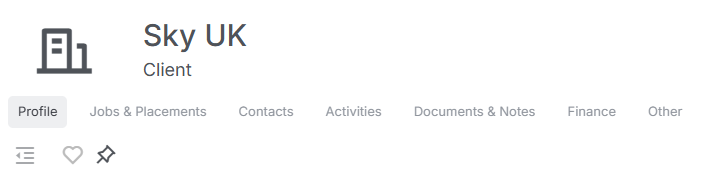
Beneath the tabs, and depending on the type of record you are viewing, you have the following options.
- Hide Summary - show/hide the panel in which the Summary, Contact Information and Key Statistics details show.
- Favourite - mark a record as a favourite, allowing you to view via your My Favourites list for that record type.
- Tag - add a short piece of text to a record that shows in the top right of the name banner.

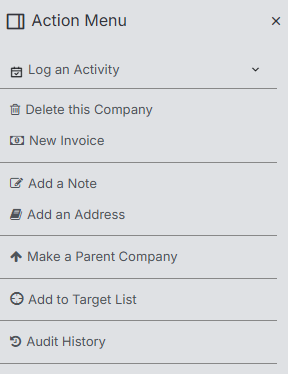
To the right of the name banner are also options to Save and Close the record, Save Only, return to List View, navigate between records and open the Action Menu (this will differ slightly per record, please see the relevant Record articles for more details).