Introduction
You can access My To Do List from the Main Bar > Home sub menu. Once you’re there, you’ll see everything you need to manage your workload, and you can quickly create new activities using the New Activities button whenever something pops up that needs tracking.
Tile Banner
The Tile Banner is designed to give you headline information about your working candidates and activity progress without having to dig through multiple screens. Think of it as your command centre for what’s happening right now and what’s coming up soon.

You’ll see four key tiles across the banner, and here’s the clever bit – you can click on any tile to see the full list of items behind that number. The tiles show:
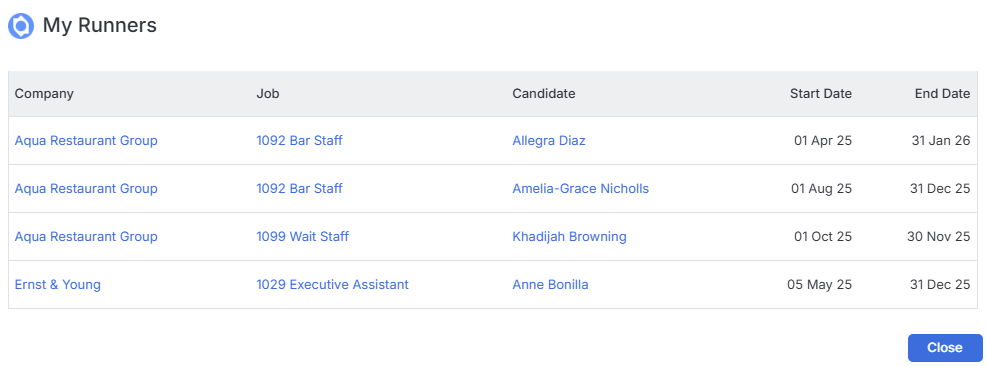
- Candidates starting placement in the next 2 weeks – these are placements where you’re a job or placement owner, so you can prepare for onboarding.
- Candidates currently working – again, filtered to show placements where you’re a job or placement owner, giving you a clear view of your active workforce.
- Candidates due to finish a placement in the next 2 weeks – helps you stay ahead of endings and plan for what’s next, again, filtered to show placements where you’re a job or placement owner.
- Candidates with birthdays in the current month – a nice personal touch for candidates you own, perfect for building rapport
Activities This & Next Week
The Activities this Week / Next Week section keeps your upcoming commitments visible. You’ll be able to see what’s on your plate in the immediate future, helping you prioritize and plan your time effectively.

Tasks and Calls
itris separates out your incomplete tasks and calls into dedicated widgets, making it easy to focus on what still needs doing:
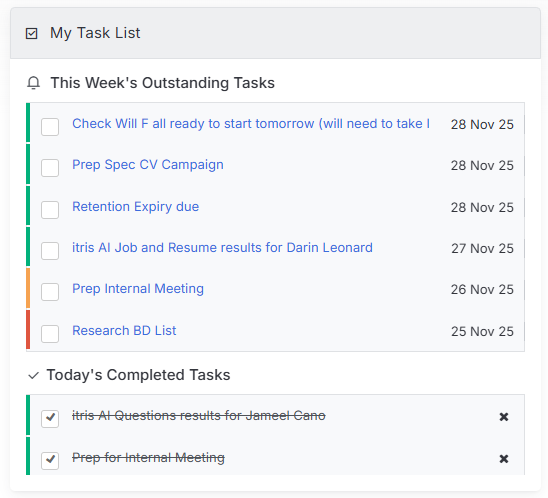
My Task Lists works the same way, displaying activities with the Activity Type “Task” that remain incomplete. The difference here is you can tick tasks off directly from this widget to mark them as done.
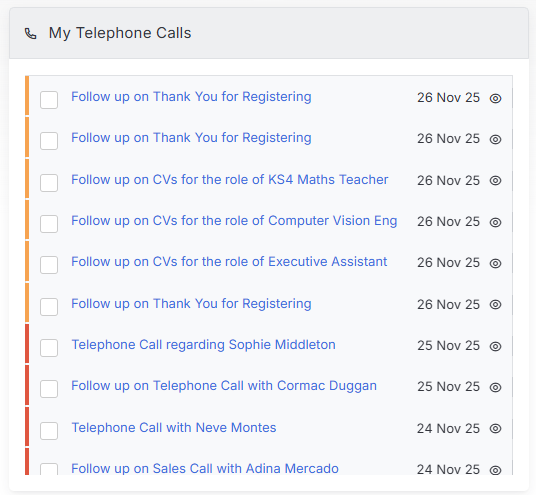
My Telephone Calls shows activities set with the Activity Type “Telephone Call” that have statuses which don’t update the last contacted date (see the Activities article for more detail). Essentially, these are calls you haven’t completed yet. You can use the eye icon to view the full record for any call.
Both widgets let you edit and complete activities right where you are, and if something needs to be pushed back, you can easily move the date to follow up later. No need to navigate away – everything’s manageable from your dashboard.
Alerts
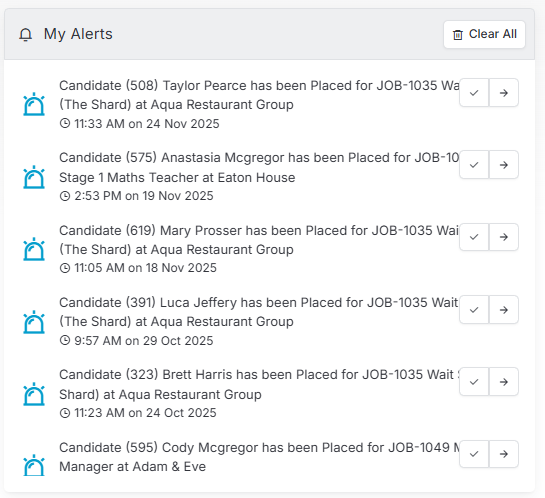
Alerts can be set up to notify you when certain triggers or actions occur, typically for activity that affects you directly. For example, you might get an alert when a candidate applies to one of your jobs. You can create alerts both through My Settings and in the Tools and Settings areas, giving you control over what notifications you receive. This is the same view you can access via the icon in the Productivity Bar (see the Navigation article for more details).
What Have I Done Today
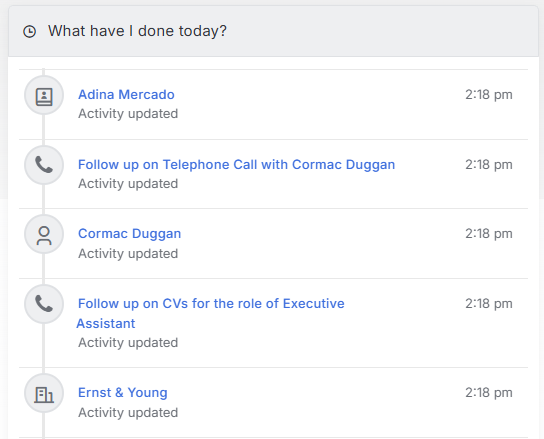
This section is like a chronological diary of everything you’ve done, viewed, or added in itris. By default, it shows you what you’ve done today, but you can change it to view any day within the last 180 days.
Imagine coming in on a Monday morning and you can’t quite remember who you added that particular activity for on Friday afternoon – this list is one quick way to track it down. It’s the same view you can access via the icon in the Productivity Bar (see the Navigation article for more details).
My Calendar
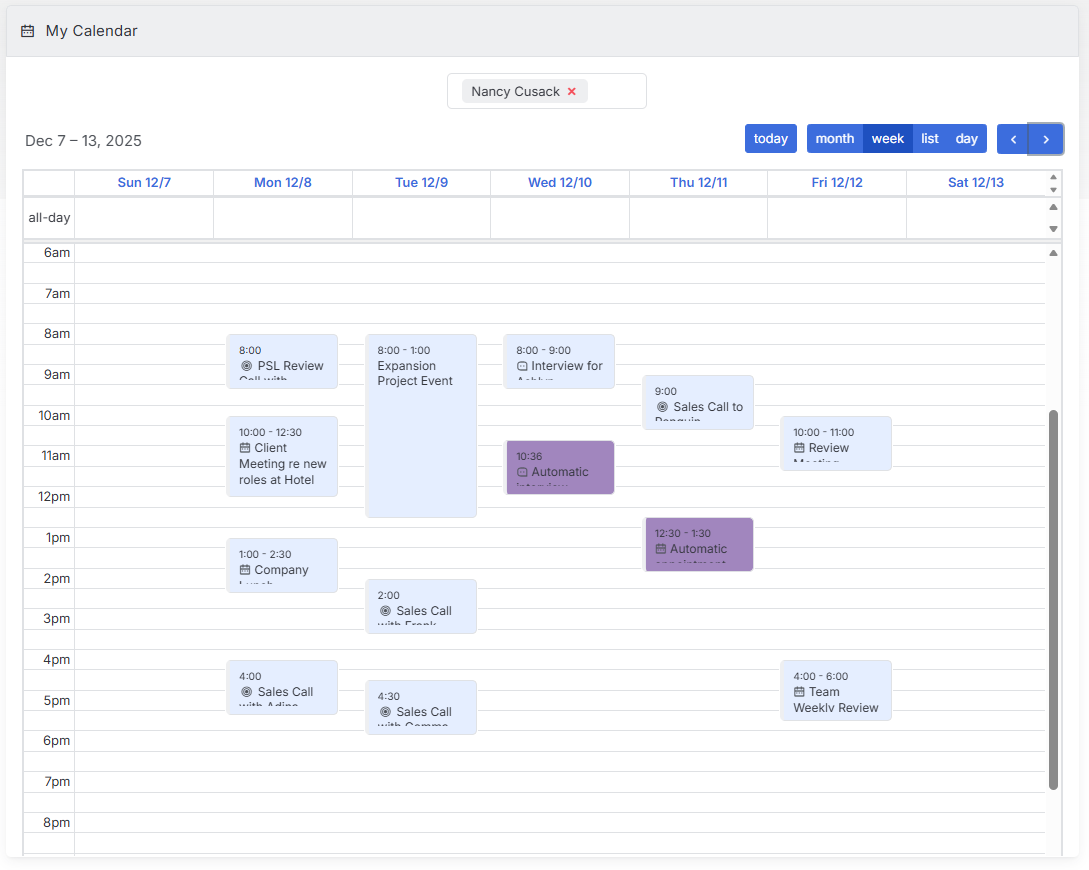
The Calendar gives you flexible viewing options so you can see your schedule the way that works best for you:
- Switch between month, week (the default view), day, or list views
- Use the Today button to jump straight back to the current date
- Toggle between weeks, months, and days using the arrow buttons
- Drag and drop activities to reschedule them quickly
- Add other people’s calendars to see team availability and coordinate more effectively
The calendar uses color coding to help you quickly identify what’s done and what still needs attention. Appointments that are effectively completed (those with a status that updates the last contacted date – see the Activities article for more details) appear in purple, while appointments you’ve yet to action or complete show in blue. This visual distinction means you can scan your calendar and instantly see where your focus needs to be.
The calendar integrates seamlessly with your activities, making it easy to visualise your workload and plan ahead.