Introduction
Taking a few minutes to properly configure your My Settings can improve your daily workflow and productivity.
From personalising your start up screen and search preferences to setting up smart alerts that keep you informed about your most important records, this area lets you tailor every aspect of your itris experience.
Your My Settings Area
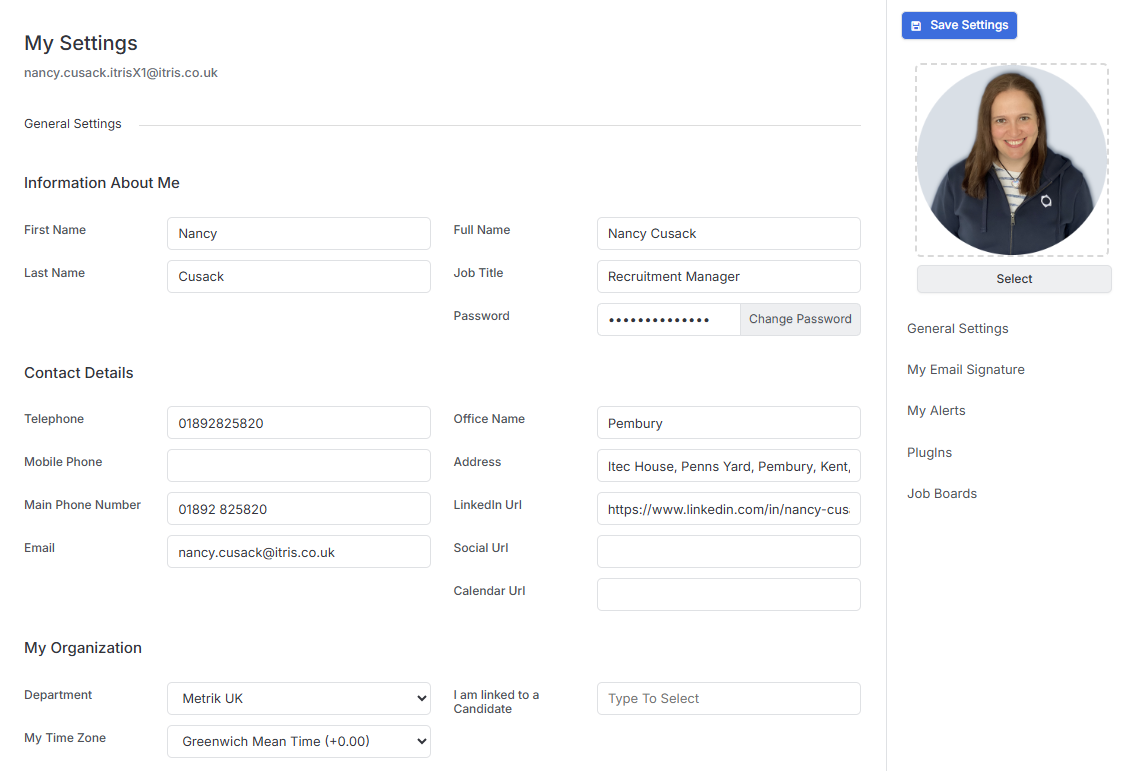
When you first head into the My Settings area you’ll notice your username displayed right at the top under the My Settings header. This might be the same as your email address, but it could also be different depending on how your system was set up.
A number of these settings can also be managed via the Users area in Tools & Settings.
Your Personal Details
Under the first sections here are where you can manage all your personal information. This is where you’ll want to update your contact details including your phone number, email address, and LinkedIn profile URL. You can also set your department and timezone here, which helps ensure you’re getting notifications and scheduling information at the right times. These details can be used in Tags, for example in email templates, making it easy to personalise your communications.
If you happen to have a relationship with a candidate in the system, you’ll see that connection noted here as well.
You can also change your password from this section when needed and add your photo.
Preferences
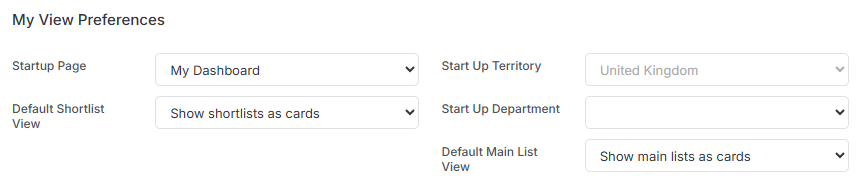
The preferences section lets you tailor your experience to match how you work best. You can choose your start up page - if you set this as Dashboard, it’ll automatically load your default dashboard when you log in each day.
Other useful preferences include:
- Setting your preferred shortlist default view
- Choosing your main record default view
Quick Search
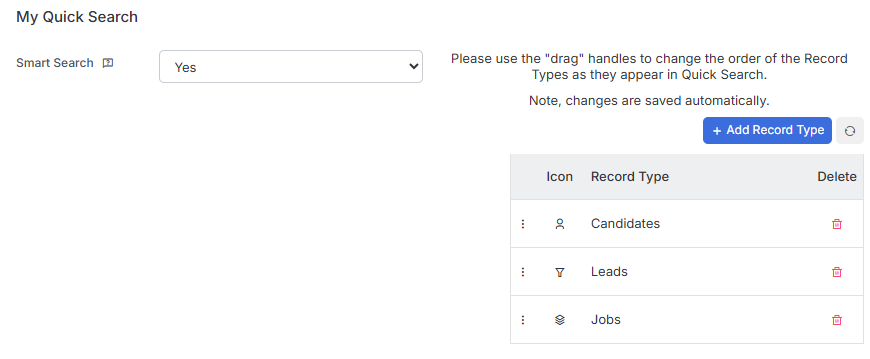
The Quick Search functionality can be customised to work exactly how you need it. You can switch from the standard alphanumeric order to Smart Search, which prioritizes results in a more intelligent way - showing records you own first, then recently viewed items.
You can also customize the order of record types in your quick search results. For example, if you’re a Resourcer, you might want Candidates to appear first, while a BD consultant might prefer Companies to show up at the top.
Email Signatures and Aliases
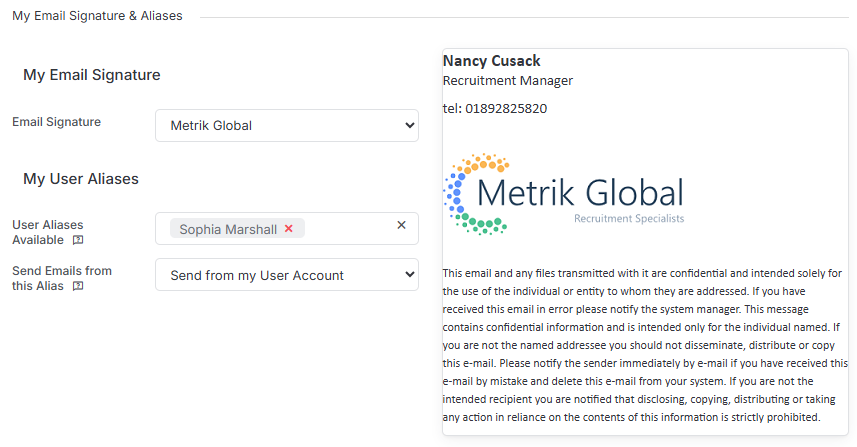
Managing your email communications is straightforward in this section. You can choose from your company’s email signature templates and set up aliases to send emails from different addresses when needed.
Staying Connected with Alerts
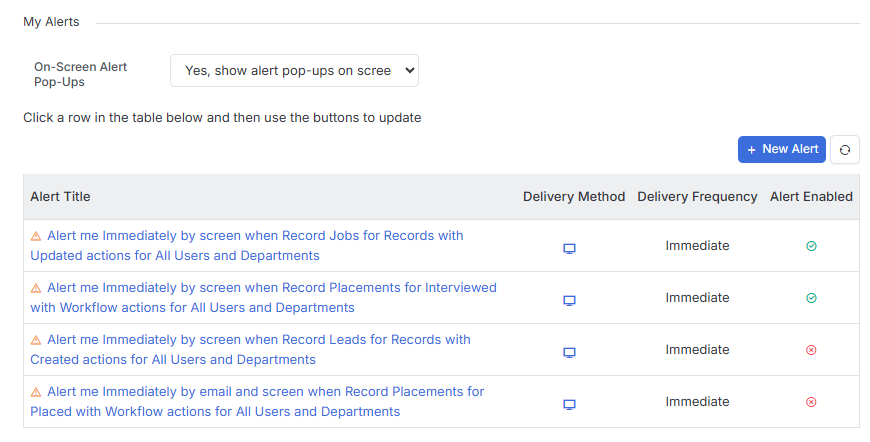
The alerts section is where you can set up email or onscreen notifications to keep you in the loop on important updates. You might want to receive alerts for:
- Updates to records you own (or that your department owns)
- Jobs that have been won
- New leads that have been taken
Integrations and Plug-ins
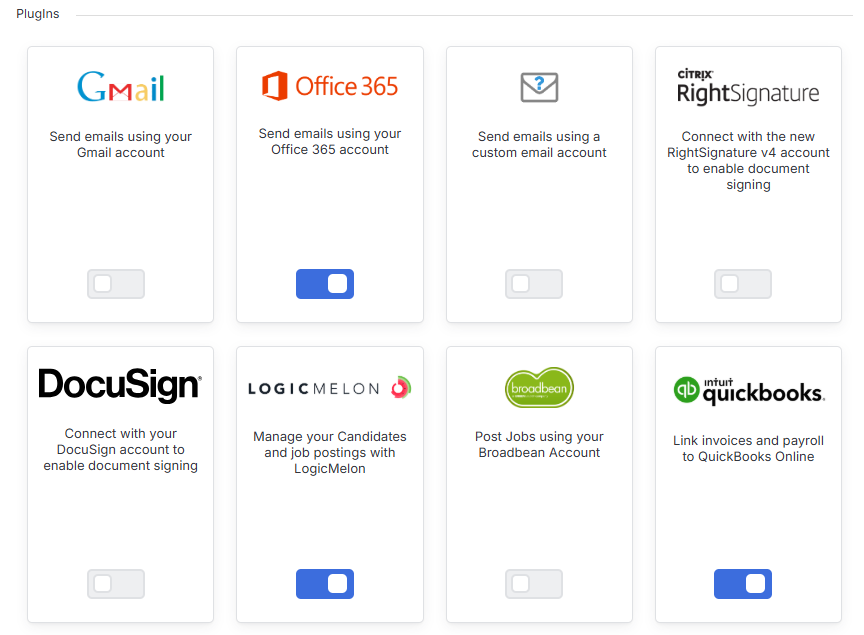
The integrations area shows you what’s available to connect with itris. For example, you can configure your email connection by simply toggling it on and following the prompts.
You’ll see all the available integrations where you can add your details to start using them right away.
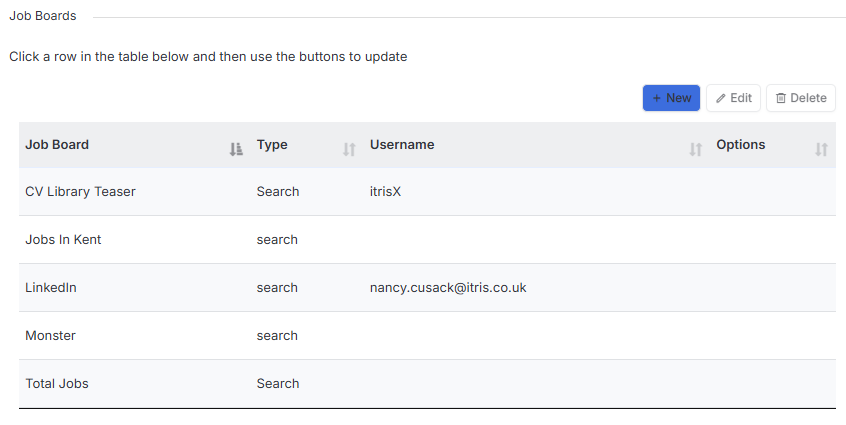
Job Board Search
For users on a relevant package, you can also add in your Job Boards for searching. These can be searched either through the Job Longlist or the Discover area, giving you more resources to find the perfect candidates for your roles. For more details on Job Board Searching, see the article Job Board Searching.