
Introduction
Managing duplicate records is essential for maintaining a clean, efficient database. The good news is that you can merge Candidate, Company, Contact and Job records - helping you keep everything organized and avoid confusion.
Keeping your itris database free of duplicates doesn’t have to be a chore - with these tools and best practices, you can maintain clean, organized records that make your recruitment process more efficient.
Finding Your Duplicates
Before you can merge records, you need to find them. itris makes this easier with built-in duplicate detection tools.
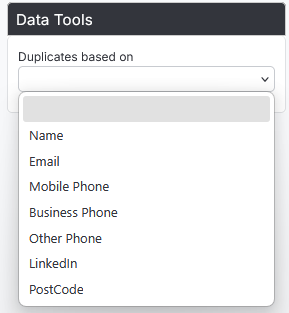
In your Record Views, you’ll find a handy Filter option under Data Tools specifically designed to help you spot duplicates. The duplicate check options will vary depending on which type of record you’re working with:
Candidate records are checked for duplicates based on email address, mobile number, and LinkedIn URL
Contact records use the same email and mobile criteria (though you’ll want these as mandatory fields to capture them effectively)
Company records are matched simply on the company name
Of course, you can also use any of the other filters to find records to merge that aren’t identified via the Data Tools filter. For more details on the other Filters available see the Find Records (Searching) article.
Best Practices Before You Merge
Taking a moment to prepare before merging will save you headaches later. First, identify which record you want to keep as your primary record - this is crucial because certain details from this record will be preserved during the merge process.
Here’s a helpful tip: you can add an ID column to your view, which makes it much easier to identify your primary record. Records with lower ID numbers were created first, so this can help you decide which one to keep if you’re unsure. See the Record Views article for more details on adding columns.

Merging
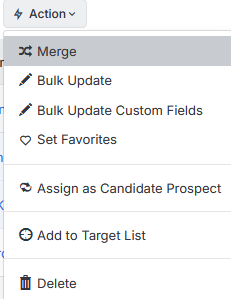
Once you’ve identified your duplicates and chosen your primary record, merging is straightforward. Simply select the records you want to merge, go to the action menu and choose Merge.
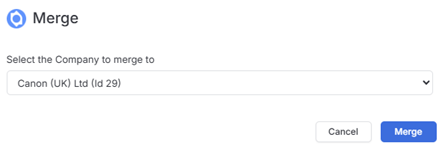
Next you’ll need to select which record should be your “Merge To” record (your primary), and click Merge.
Post Merge
After you complete a merge, the old record will be deleted. If you ever need to reference deleted records later, you can find information about this in the article Tools & Settings | View Deleted Records.
One important thing to remember: when you merge company records, itris won’t automatically merge any duplicate contacts associated with those companies. However, you can easily handle this as an additional step by running a separate merge from the Contact Record View for those contacts if needed.
If you have fields that are blank in your primary record but are completed in the secondary record you’re merging, itris will automatically populate those blank fields with the data from the secondary record. This means you won’t lose any valuable information during the merge process.
The action of merging will combine all related information to the main selected record, including:
Candidate Records
- Work Types
- Sectors
- Skills profile & Lists
- Activities
- CV Cloud
- Job History
- CV History Timeline
- CV History
- References
- Documents & Notes
Company Records
- Company Sectors
- Addresses
- Skills profile & Lists
- Jobs
- Placement History
- Leads
- Current Candidates
- Contacts
- Org chart
- Activities
- Documents & Notes
- Invoice
- Products & Services
- Targets (Sales & Revenue)
Contact Records
- Contact Sector
- Skills profile & Lists
- Jobs
- Placement History
- Leads
- Activities
- Documents & Notes
Job Records
- Job Sectors
- Target Lists
- Activities
- Long List Filters
- Shortlisted Candidates
- Placements
- Long List Results
- Document Folders and Documents
- Notes
- Status History (Lifecycle)
- Orders (Products & Services)
- Invoices
- Alerts
- Custom Fields
- Leads linked
- Audit History
- Job Board Results