Introduction
Leads are one of itris’ most valuable features. Think of leads as your way of capturing and tracking potential business opportunities before they become actual jobs. They’re essentially a record of companies that might have roles to fill, and they help you stay organized and proactive in your business development efforts.
What Are Leads?
Leads represent potential business opportunities - basically any company that might have a role to fill. What’s great about leads is that they can come from virtually anywhere in your daily workflow:
- Candidates - Often your best source of intel about upcoming opportunities
- Online sources - Job boards, LinkedIn, company websites
- Campaign results - From your marketing efforts
- Networking - Conversations, events, referrals
The beauty of having a proper lead system is that you can report on both your leads and conversions, giving you real insight into what’s working in your business development efforts.
Since leads are a record type in the system, you have full control over them. You can set mandatory fields (like Source - super important for tracking!) and create custom fields that match your specific workflow needs.
Creating Leads
There is flexibility when it comes to creating leads. Depending on where the opportunity comes from, you’ve got several options:
From the Productivity Bar
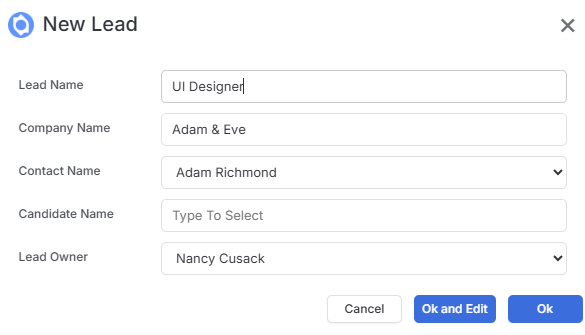
The quickest way is using the New Button in your productivity bar. Keep in mind that this won’t prepopulate any information unless you’re already viewing a specific candidate, company, or contact record - in which case it’ll pull in the relevant details to save you time.
From Candidate Records
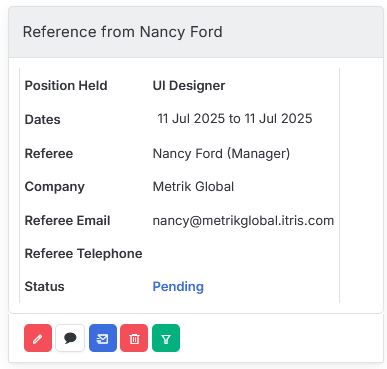
This is where things get really smart. You can create leads directly from candidate records in two ways:
Via References - using the funnel icons, this creates a lead named “Created from Reference for [candidate name]”. Perfect for when you’re updating candidate notes and they mention a potential opportunity.
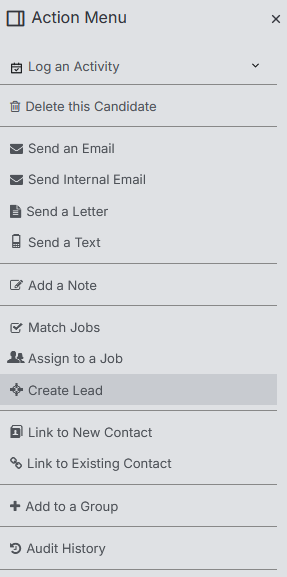
Via Action Menu - Creates a lead named “Created from [candidate name]”, gives you the option to go straight to the lead record so you can immediately start working on that lead.
From Campaigner Results
If you’re running campaigns you can create leads directly from your campaign results in two ways:
- Tick multiple results and use the action button for bulk creation.
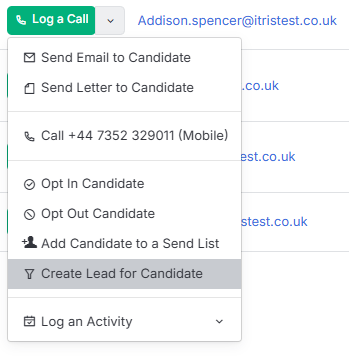
- Or use the “Log a call” dropdown menu to create leads for specific candidates or contacts.
Record View
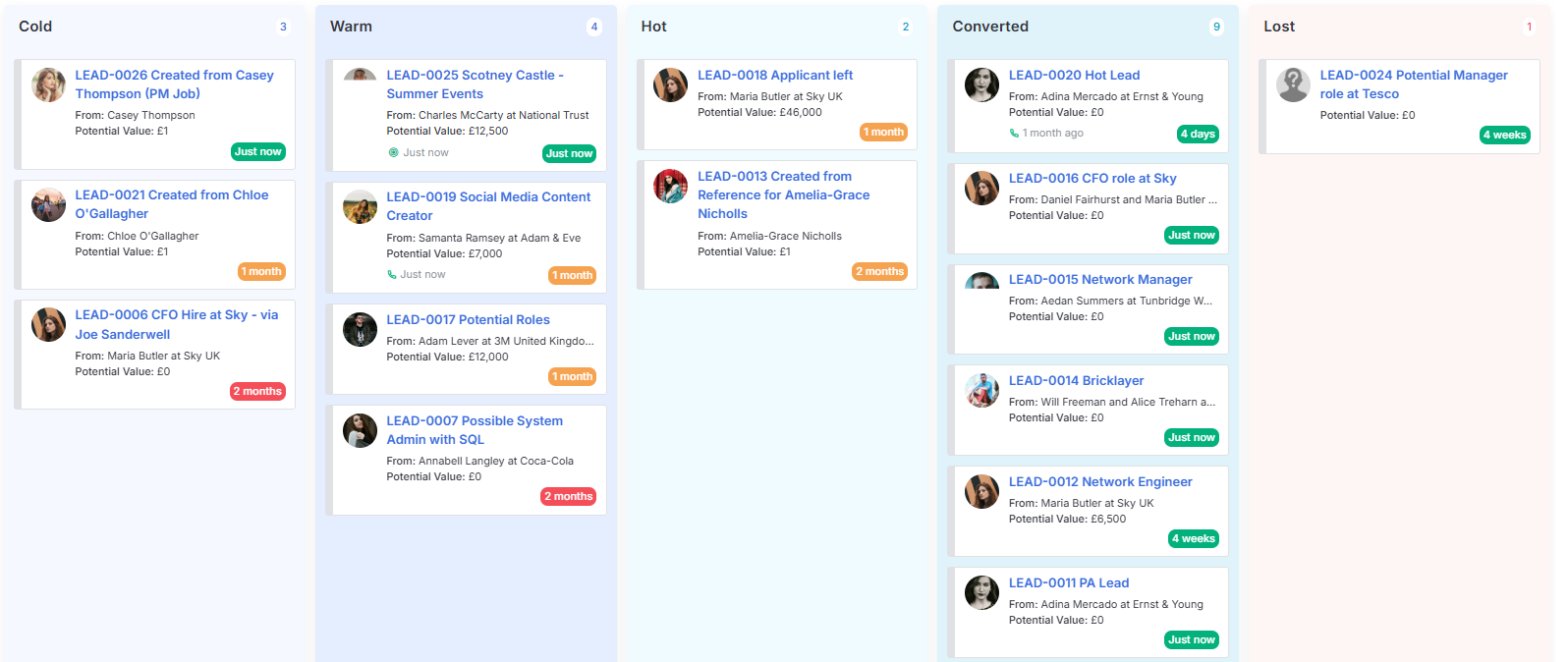
The Record View for leads gives you a fantastic overview of all your opportunities. You can choose between Cards view or List view.
In Card View the columns are organized by Lead Status, and you can drag leads between columns or update the status directly on the record.
Each lead card shows:
- The lead age, RAG colour coded to represent the new v old leads.
- Recent activity like calls, emails, etc.
- A dropdown for quick actions.
Lead Records
At the top the Lead record the name banner will display the Lead ID number and name, along with the company the lead is associated with.
Below the name banner the lead record is comprised of tabs, and within those tabs are the record blocks. Due to itris being highly customisable, the order and name of the tabs, and the placement of the record blocks may differ to those shown in this article.
Below the tabs the are the Show/Hide Summary, Favourites and Tag Text buttons. Additionally, you have buttons to Save the record, return to the List (Find Records), next record in list button and the Action Menu.

Summary Panel
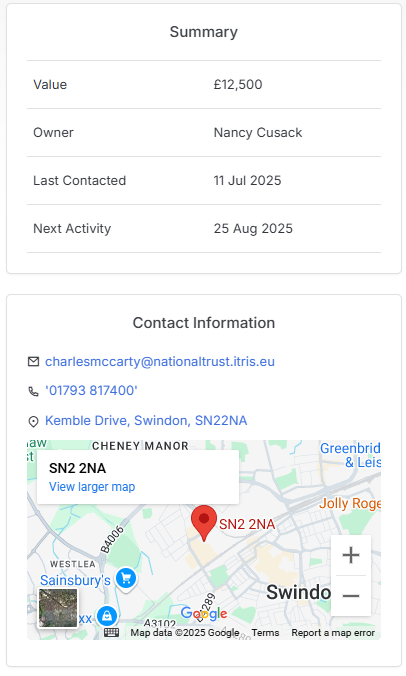
As noted above the Summary panel is expandable/collapsible. When expanded it shows key information at a glance:
- Value - How much the opportunity is worth
- Last & next activity - Keeps you on top of follow-ups
Profile
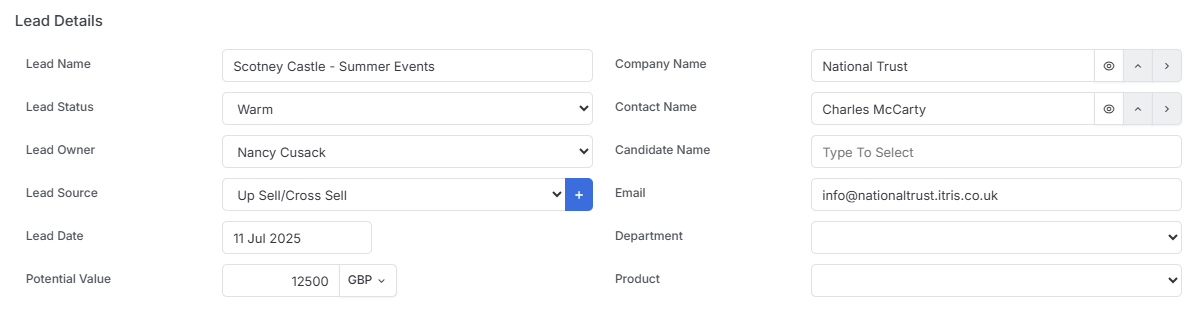
In the default layout the profile tab will house the Lead Details, Lead Profile and Lead Lifecyle blocks, which include important data including but not limited to:
- Status - Links back to your record view
- Source - Essential for tracking what’s working
- Lead lifecycle - Shows the journey from lead to job
Activities
View automated and create activities against the Job record. See the Activities article for more information.
Documents & Notes
In this area you can store job descriptions and any other documents related to the lead record. See the Documents article for further details on this area.
Additionally, you can add Notes to the job, these are searchable via Find Records (Searching).
Other > Record Links
Custom Fields linked to Lead Records will create bidirectional connections - the Lead Record will show which record it’s linked from.
Action Menu
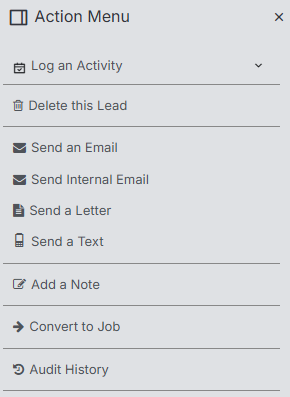
The action menu is where the real power lies. You can log various activities such as Send email or internal email, view the Audit History for the last 180 days and, most importantly Convert to a Job.
Converting Leads to Jobs
When you convert a lead to a job (via the Action Menu, see above), several things happen automatically:
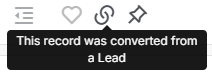
- A link icon appears between the records (so you can always trace back)
- The original lead record stays intact (great for reporting)
- Information transfers from lead to job such as:
- Source
- Description
- Company/Contact
- Value
- The Award date populates on the lead (showing when it converted)
- Lead status updates to “Converted”
Important note: If there’s no company or contact on the lead, those fields will be blank on the new job record.
Reporting
Dashboards
Within the Dashboard there are widgets for New Leads Generated and Leads Converted. Additionally, you can view Lead related targets.
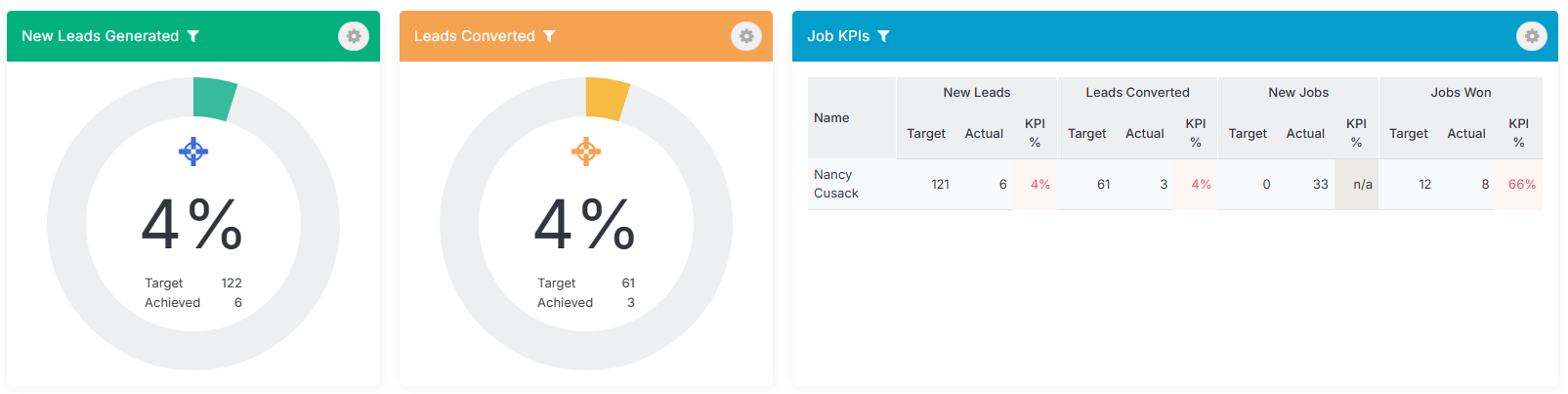
See the Dashboards and User Targets articles for more information.
Reports
Via re reporting area you can create reports related to Leads, including but not limited to:
- Conversion rates - By company or user
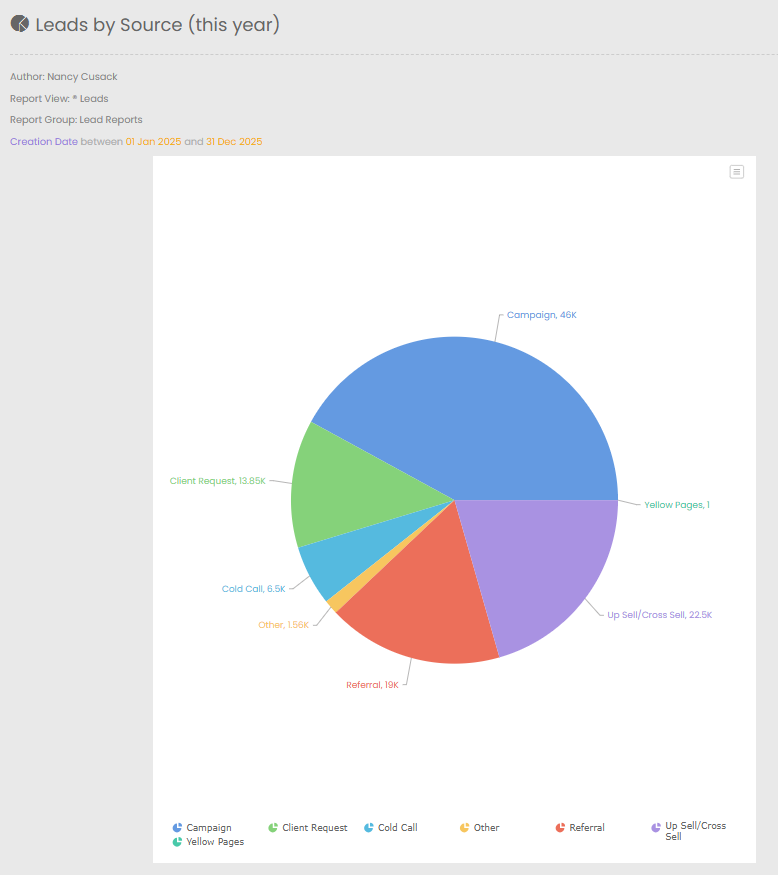
- Source analysis - Which sources are bringing in the best leads
- Open leads - By company or user to see what’s in your pipeline
These reports help you understand what’s working in your business development efforts and where you should focus your energy.
See the Reporting article for more information.