
Introduction
This feature allows you to maintain a curated list of companies where you can actively headhunt qualified candidates who match the specific requirements of an open position. By centralizing target organizations within the job record, you can streamline your sourcing efforts and maintain a systematic approach to candidate identification across relevant industry players.
When you’re building your target company list for a new role, there are a couple of straightforward ways to get companies onto your list, and then plenty of useful features to help you manage and work with them effectively.
Typically, you’ll find the Target Companies block within its own tab, however, due to itris being highly customisable, the order and name of the tabs, and the placement of the record blocks may differ to those shown in this article.
Adding Companies
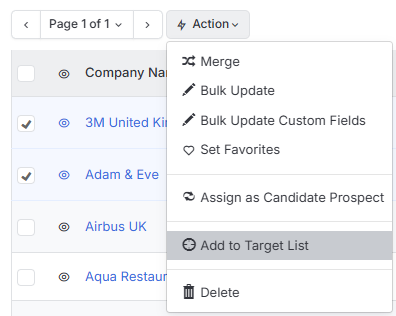
The easiest way you can add companies is directly from the Company Record View. After you’ve run a search using relevant criteria like location, vertical, sector, or specific skills, you can simply hit the Action Button and select “Add to Target List.” This is particularly handy when you’ve just discovered a company that looks promising during your research phase.
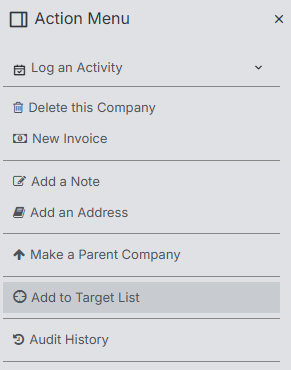
Alternatively, you can access the same function through the Company Record’s Action Menu, which gives you the same result but through a slightly different path.
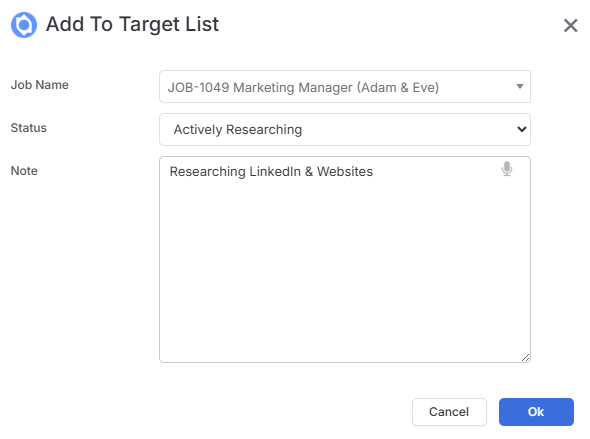
With both options you will need to select the Job, add a status from the available list and add an optional note.
The Current Status options are customisable for both names and colours, see the article Tools & Settings | Job Settings for more details. (learning/tools-settings-applications-settings-job-settings/#target-list-status)
Managing Target Companies
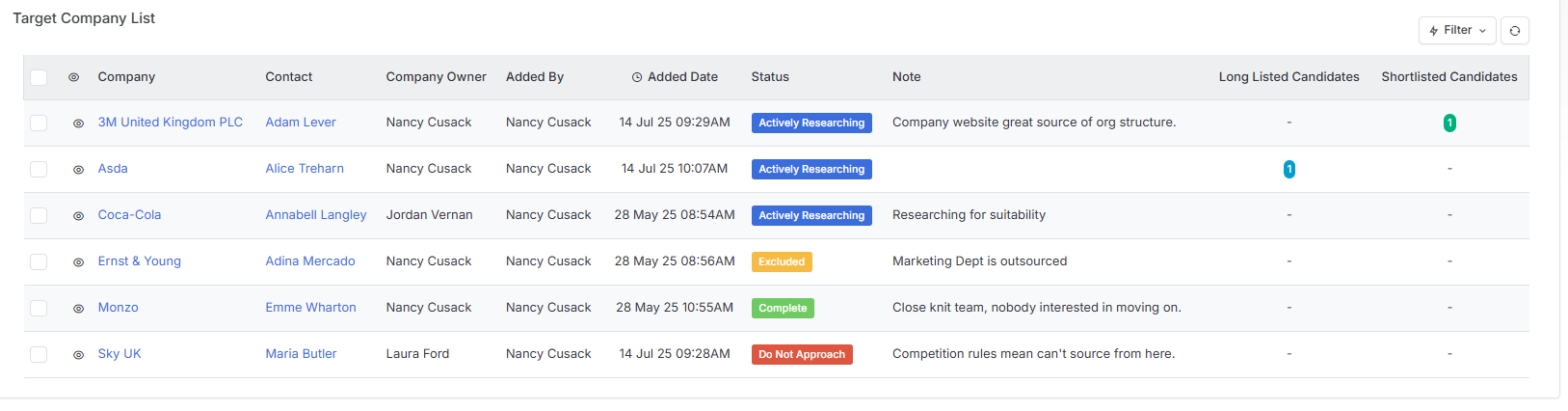
Once you’ve got companies on your list it will display all the essential information you need to track your progress:
- Company name
- Primary contact (if added, you can edit the entry and change if required).
- Who owns the company record
- Who added it to the Target list and when (useful for team coordination)
- The current status
- Any notes you’ve added to the entry
- A count of longlisted candidates who currently work at that company
- A count of shortlisted candidates who currently work at that company
What’s particularly useful is that the Longlist and Shortlist candidate counts automatically reference your candidate records current employer field in the Candidate Details block, matching current employers with target companies. This gives you an instant overview of how productive each target company has been.
When you click on a company name, you can edit existing information, such as updating the status or add new notes - this is where you’d typically note things like “spoke to HR director on 15th” or “planning recruitment drive in Q3.”
The real time-saver comes with the bulk actions. You can select multiple companies from your Target list and use the Action button to:
- Assign to another company - This is brilliant when you have similar roles running simultaneously. Instead of rebuilding the entire target list from scratch, you can simply assign your researched companies to the new job.
- Remove targets - Perfect for cleaning up companies that turned out to be inappropriate or were added by mistake.
- Send email - You can communicate directly with contacts at multiple target companies without having to switch between different parts of the system.
This streamlined approach means you can focus more time on actually speaking to candidates and less time on administrative tasks, which is exactly how it should be.