
Introduction
This area is used to search itris and any job boards you have linked under you My Settings for relevant candidates.
Due to itris being highly customisable, the order and name of the tabs, and the placement of the record blocks may differ to those shown in this article.
You can switch between the search criteria and longlisted candidates via the button in the top right.

At anytime you can switch between the Basic and Advanced Search, Reset your Search or Run your search. Please note if you run multiple searches, each will be added to the Longlist (and deduplicated where necessary).

Longlist Search | Criteria
Natural Language Search
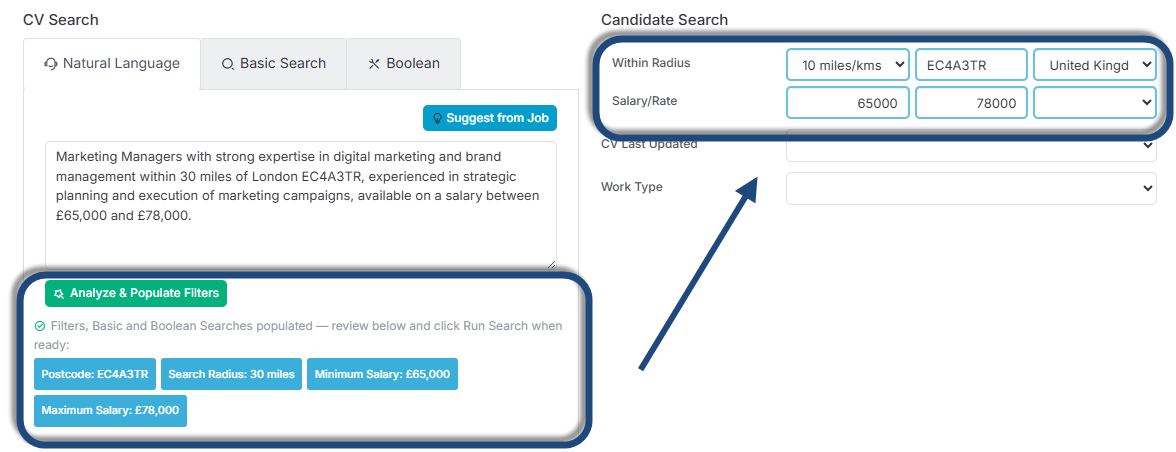
The Natural Language tab offers a smarter way to build your longlist search criteria, using your job specification to do the heavy lifting for you.
Suggest from Job reads the job specification and automatically generates your search criteria. The more detailed your specification, the better the Natural Language search will perform so it pairs particularly well with a job spec written using the itris AI Assistant (see the New Job article).
Once the criteria has been generated you can review and add to it if needed. You can also use the Analyze and Populate button to push relevant information from the specification into other fields in the search for, itris will highlight which fields have been populated so you can see exactly what’s been applied.
When you’re happy with the criteria, run your search as normal.
Basic Search
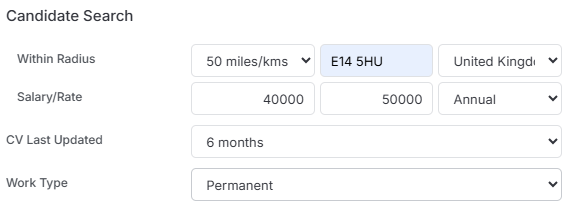
The Basic Search area allows you to search across a candidates CV using words and phrases. These can be applied to the “All of These”, “Any of These”, or “None of These” fields, aka AND, OR and NOT criteria.
Additionally, you can search by postcode radius, Salary/Rate, CV Last Updated date and Work Type.
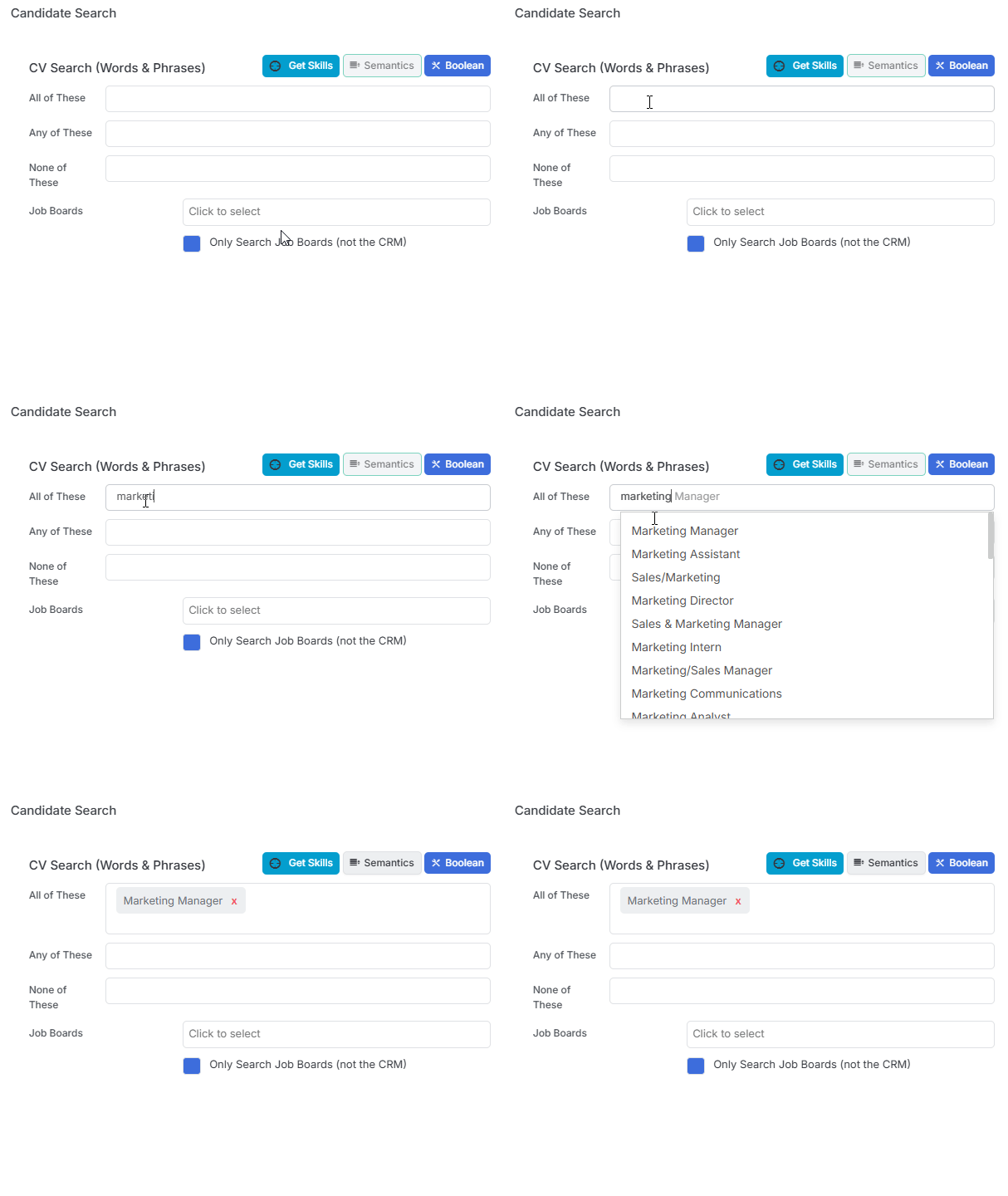
Manual Entry
Once you start typing a word, itris will give you options to save you time. Either selecting one of these or clicking return on your keyboard will add that word/phrase.
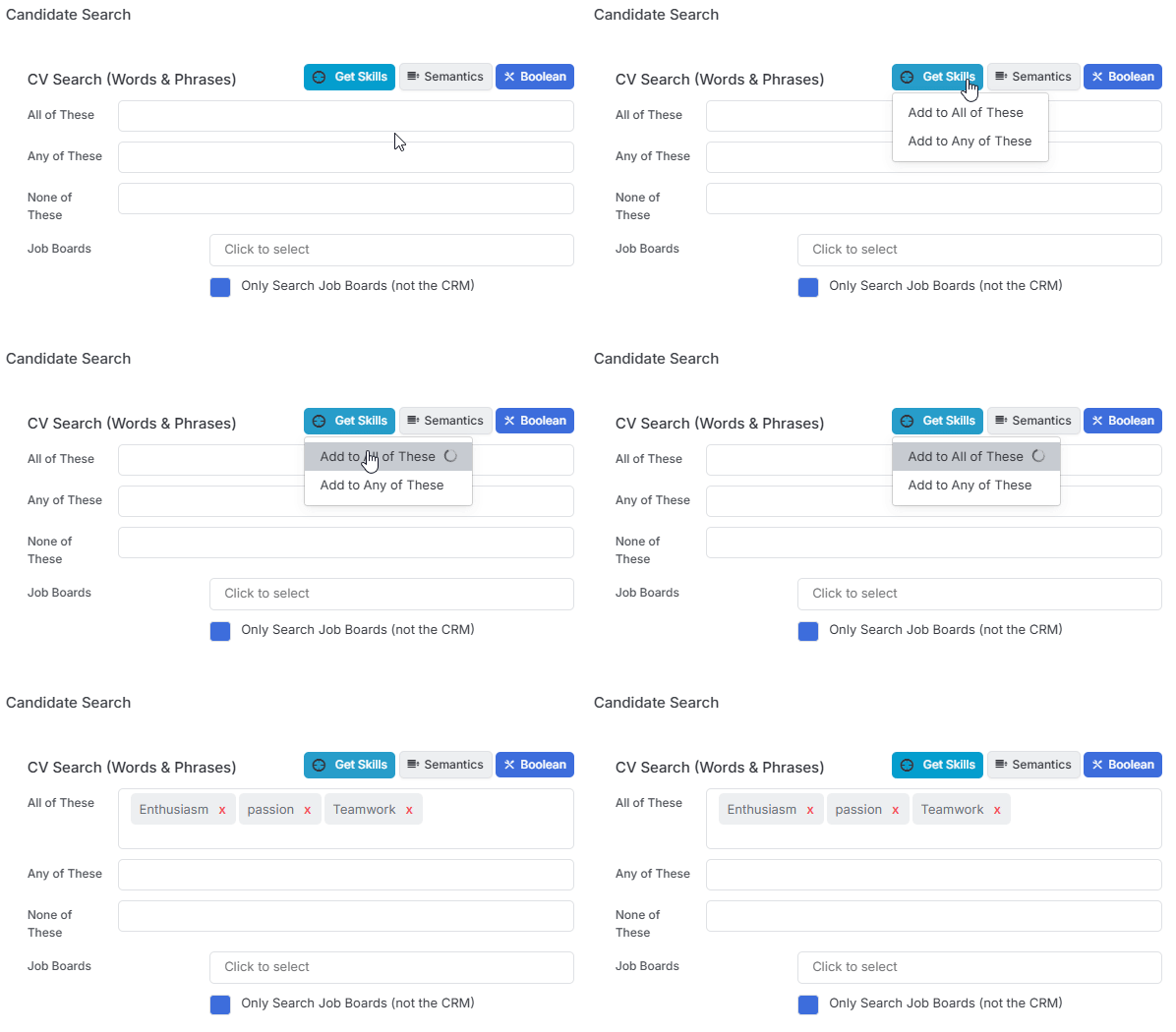
Get Skills
This button will generate search terms based on the job description. These can be added to either the “All of These” or “Any of These” areas.
Semantics
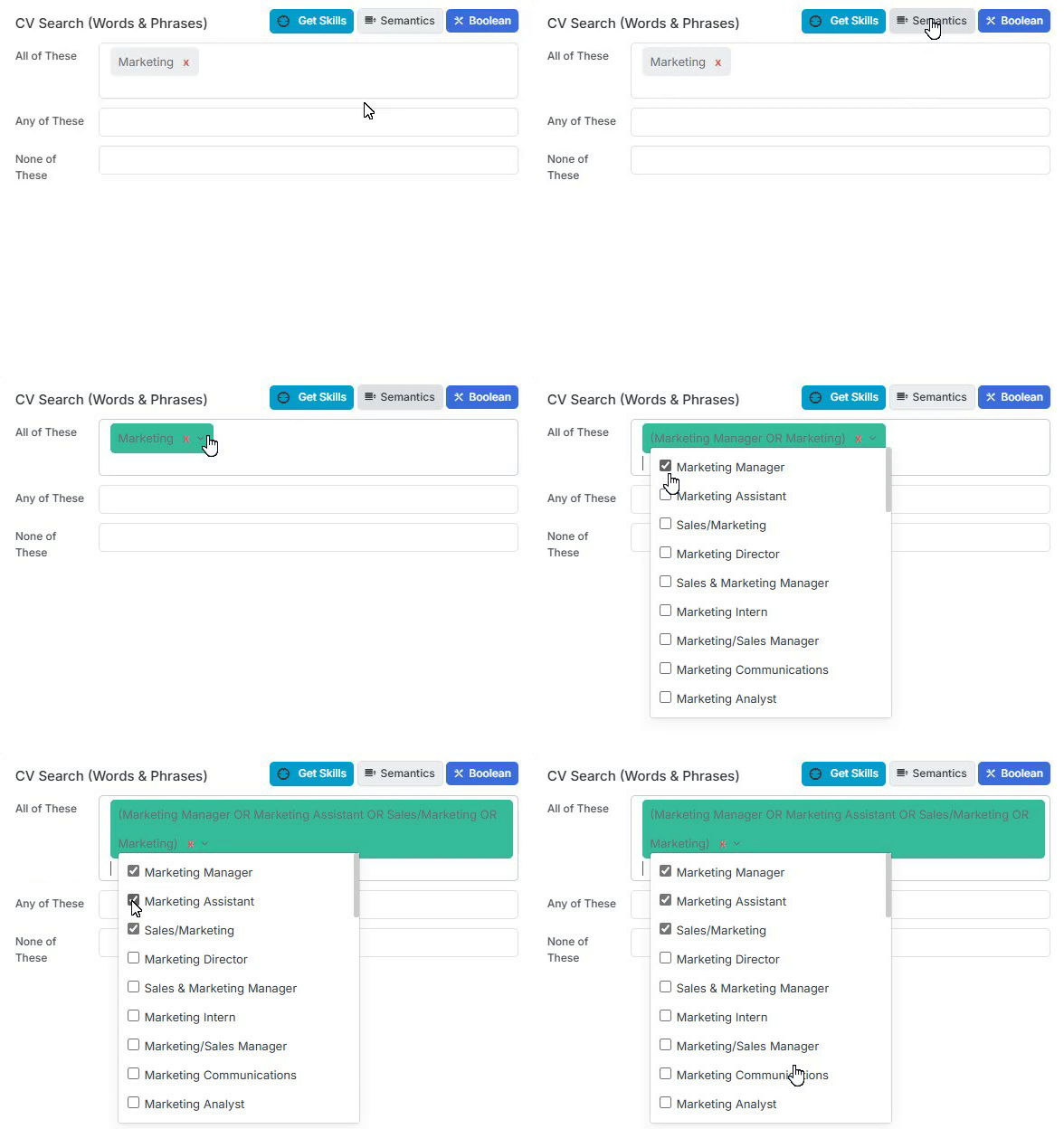
Semantics’ works by looking at the words and phrases you are using to find applicants and makes suggestions as to other possible words and phrases that you might also want to include in your search in order to provide a more comprehensive search result.
Once you have added your search words/phrases you can turn on Semantics, any with matching suggestions will turn green, you can then select from the suggested lists those you also wish to search on.
In Tools and Settings you can set to use Daxtra’s semantics or create your own (the latter being primarily used in very niche markets). Please see the following articles for more details: Tools & Settings | Job Settings and Tools & Settings | Skills Profile.
Boolean
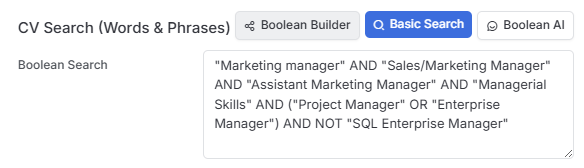
Under the Boolean search you can either write your own Boolean search, use the Boolean builder to build one for you or use AI to generate a Boolean search.
Job Board Searching
For users with the Job Board Searching module you will have options to search your Job Boards at the same time as, or instead of, searching itris and add to your Longlist so that all your potential applicants are in one place to review. For more details on Job Board Searching, see the article Job Board Searching.

Advanced Search
The advanced search allows you to search the various fields on the candidate record such as Job Title, Status, Skills, Custom Fields and more, in addition to any criteria added under the Basic Search. You can also add criteria so use to search across Job Boards (as set in your My Settings).
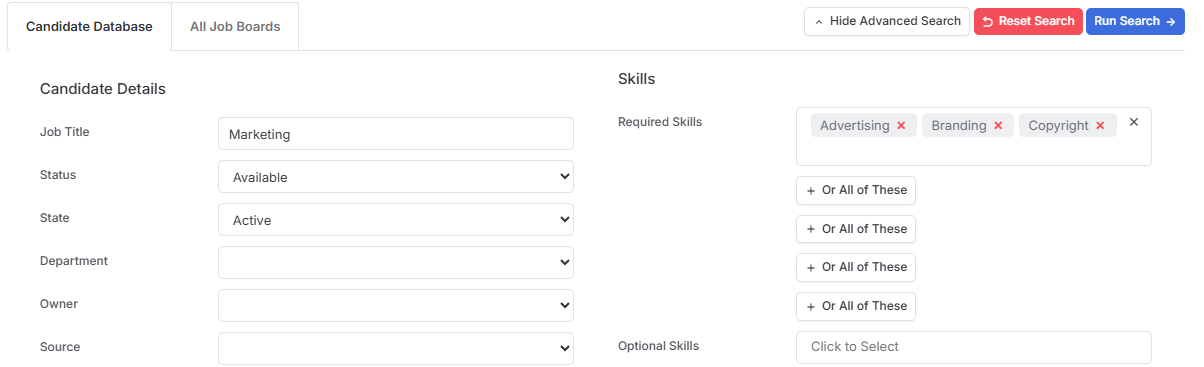
As Skill Lists are added in a ranked order these can be used to not only find records with or without that skill, but where the record has at least that skill, or that skill at most. For example when using “Is at Least” 30-44 wpm typing skills, any record at that level or above would be returned, but any record with a lower typing speed would not be matched.
Longlist Search | Results
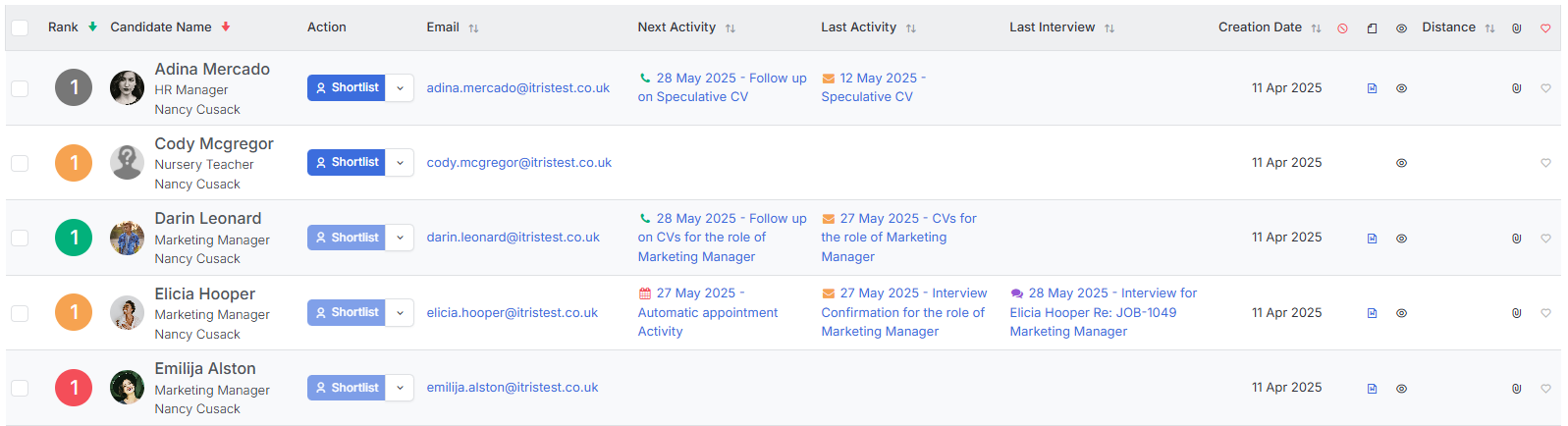
When you have run your search the results will be displayed under the same area and ranked. For more details on how the search results are ranked please see the appendix at the foot of this article: How Candidates are Ranked.
Longlist Buttons
At the top of the list are a few action buttons:

Quick Add Candidates allows you to find candidates by name one at a time to add to the Longlist.
Clear Results (clears the results from previously run searches).
Re-Rank search, for example if you edit your search and add new criteria, you can re-rank the search based on the new results.
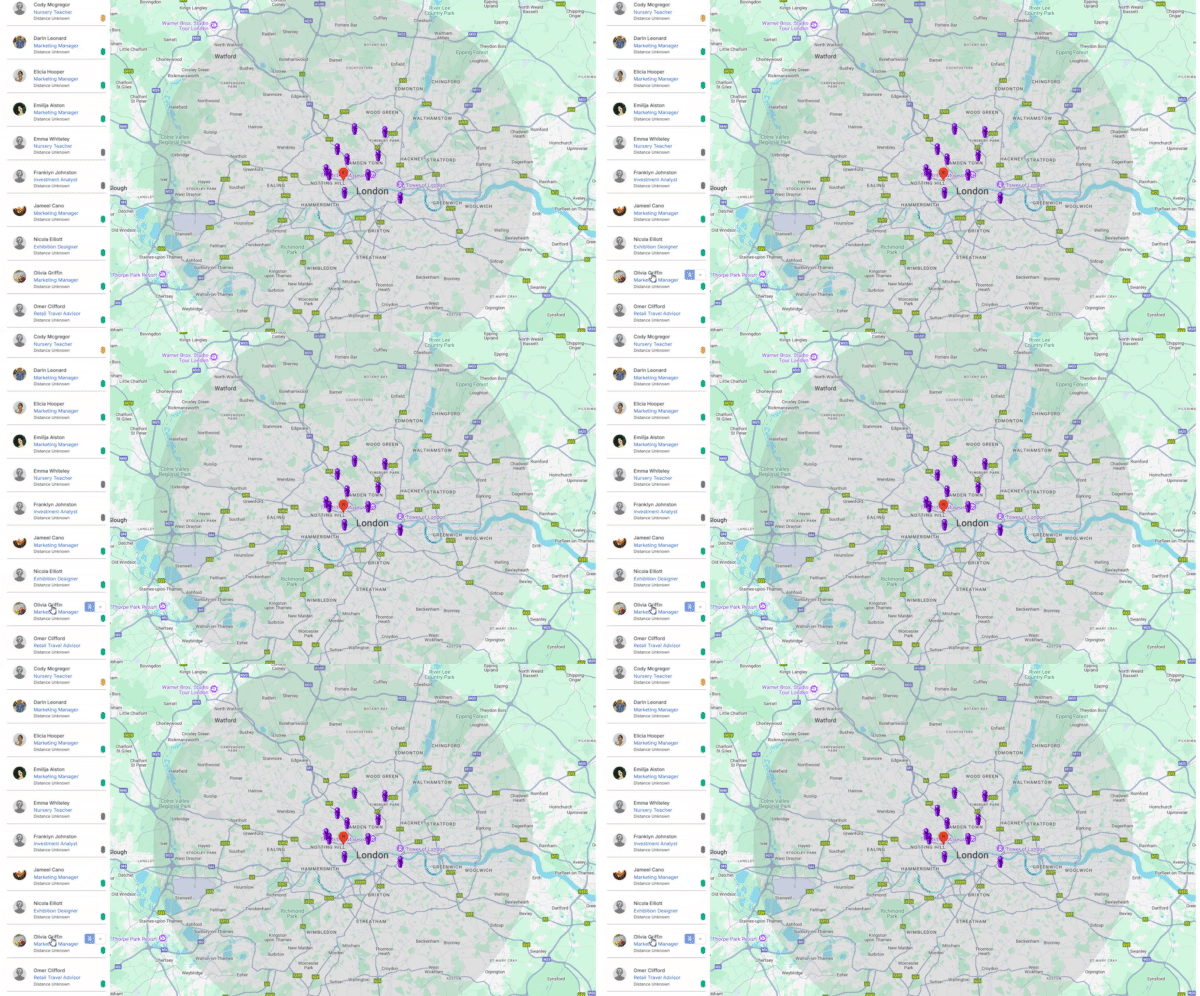
Map View allows you to plot the candidates on a map. Clicking the icon on the map will highlight the results on the list to the right, clicking a results on the right will cause the corresponding icon on the map to jump. Above the map will be a button “List” to return to the list view.
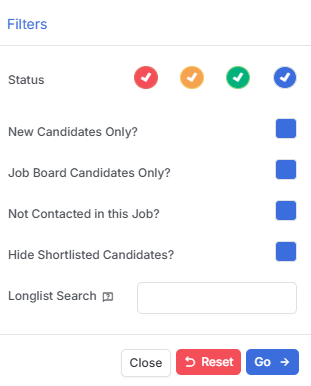
- Filter give you various options, including filtering the list by the Red, Amber, Green (RAG) labels, for example to find all the Green flagged candidates to progress to shortlist.
Columns - see the article Record Views for more details on managing columns.
- a couple of useful columns to note for this area are the CV and Quick View columns, allowing you to see key information about the candidates without having to navigate away from the search.
- Refresh the list, for example perhaps activity has been added to the record by another user whilst you are viewing the area.
Working with Longlist Results
Ranks & Flags
As mentioned above your results will be ranked, 1+ with 1 being the best, and this rank will show in the circle icon next to the result. Clicking on the circle icon then allows you to apply Red, Amber, Green (RAG) status flags, you can use these flags as a filter on the results (see above).
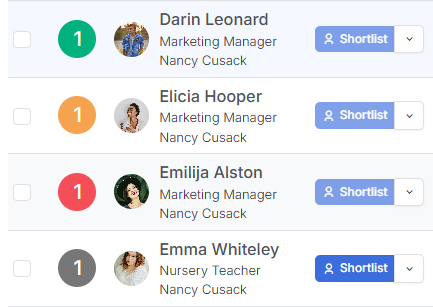
Shortlist Button
Next to each candidate the Shortlist button allows you to shortlist one candidate at a time.
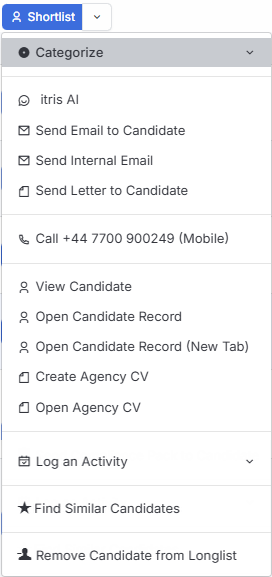
The drop down next to it has a number of options including (but not limited to):
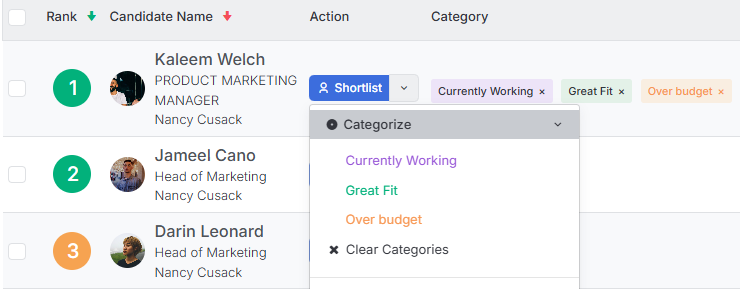
- categorising the candidate - flag each candidate with one or more categories to provide more information about them at a glance. The three most recently added categories are visible in the Category column, with an option to expand to see more if added. Categories are fully filterable for more granular organisation. Additionally, they automatically carry over as candidates progress from Longlist to Shortlist..
- initiating communication such as email or telephone call - if choosing to email the candidate, clicking the plus icon at the end of the Attach field will show any document attached to the job (e.g. the Job Description) or allow you to attach from your Document Library.
- viewing the record (even opening in a new tab)
- create or open Agency CV
- logging an Activity
- removing them from the list
- Finding similar candidates
itris AI > Evaluate with itris AI
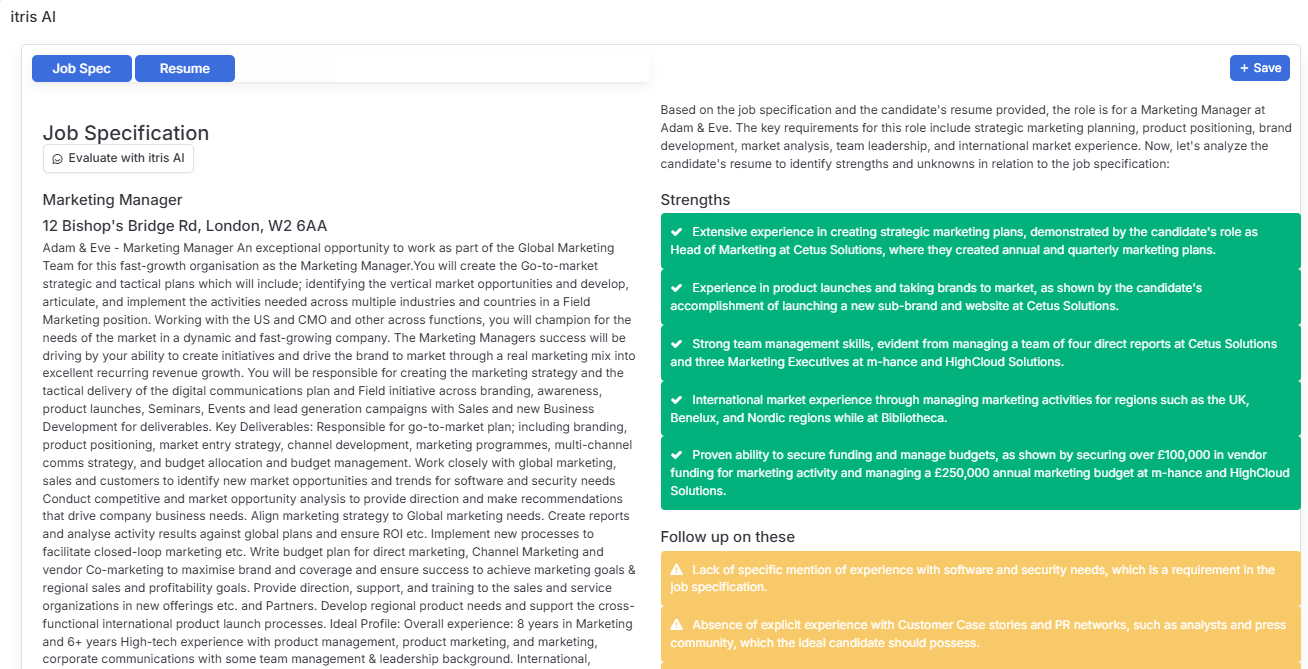
The top option under the drop down button is itris AI, this opens the Quick View of the Candidate on the itris AI tab (you can also navigate to here via direct via Quick View too).
Via the Job Spec or Resume buttons you have “Evaluate with itris AI”, this will highlight the candidates strengths and weakness specifically against the job spec. There is an option to save this as an Activity against the Candidate record, to be revisited at any time.
Bulk Actions
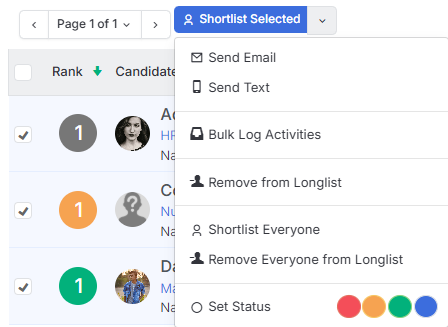
The tick boxes to the left of each results allows you to select multiple records to perform bulk actions against, such as Shortlisting, RAG flagging, removing from list and more.
Submissions
Once candidates have been progressed to Shortlist stage the next steps in the submission workflow is managed via the Submissions tab (Shortlist block), see the article Job Record | Submissions for more details.
Other Routes to Longlisting
In addition to the ways to generate a Longlist mentioned above there are other routes to longlisting candidates. See Longlisting & Shortlisting article for more details.
Appendix: How Candidates are Ranked
itris takes a more human approach to ranking longlisted candidates, it goes beyond the typical ranking formulas using frequency of terms and skills indicators. The approach we take not only attempts to replicate the thought process a person might take when scanning a CV, but added to this we take account of the candidates history both in terms of their CV and their relative success or failure on jobs over time (which you won’t see on a CV, who is going to show how many times they did not get an interview or were rejected?). Additionally, any documents attached to the candidate record under a Custom Document Type set to Index will be considered, see the article Tools & Settings | Document Settings for more details.
The methodology used for ranking considers the following:
Prevalence - How often the word or phrases being searched appears in the CV and its context, such as “…extensive use of…” vs “…some exposure to…”. Prevalence is a key aspect in identifying rank, especially when it comes to literal skills such as “WordPress” or “Sage Accounts” etc.
Chronology - CV’s may be littered with the search terms, but when it happened is also important. Chronology looks at when these skills were used and whether they are part of career history or skills acquired. Someone with a Spanish qualification from school does not make them a candidate as a Spanish teacher.
Duration - Knowing how long a particular skill has been used or role has been worked is also a key factor. Each job in their history has a duration and within that prevalent skills so this plays a fundamental part in ranking.
Weighted terms - Some search terms carry more weight than others. By weighting some terms over others, factors such a Prevalence, Chronology and Duration get armed with better intelligence as to how each term should be prioritised.
Semantics - Interpretation is important in order to get a more rounded view of the Candidate pool. Excluding Candidates simply because the terms were too restrictive or at worst, spelled wrong returns poor results. So, allowing for common variations of terms and including them in the ranking ensures coverage.
Historic Factors - The all-important X-Factor that no CV search or ranking engine will do alone is in the Historic Factors. These sit outside the resume entirely and look at the itris database to apply weighting to all results, favouring successful candidates over unsuccessful ones.
Every part of a candidate’s profile—whether it’s from their most recent CV, one they sent us five years ago, or their track record across multiple shortlists—can be pulled together in itris to not only find the right candidates but also compare them against each other.
Once we know what we’re searching for, we can start assigning scores to different factors. Some of these scores are standalone, while others are layered—like evaluating how consistently a skill has appeared over time, how recently it was used, and for how long.
Now, behind the scenes, it might sound complex—and it is—but it’s still not as instinctive as a human. For instance, it can’t get a “gut feel” from how a CV is worded. What it can do is take the solid, factual information and apply smart analysis to give you a highly accurate ranking. This helps massively when you’re faced with reviewing hundreds of potential candidates.
On the tech side, itris runs on a heavily customised version of the Lucene search engine. Our parsing tools break down each CV and structure the key information into the candidate’s record. This becomes the foundation for the searchable index that powers our ranking process.
Here are just some of the details we capture:
- Current Job Title
- Current Job Description and Dates
- Previous Job Descriptions and Dates
- Full job history
- Education
- Technical Skills
- Languages
- Soft Skills
- Achievements
Each candidate ends up with a rich profile inside itris. This lets us apply the main five search factors—Prevalence, Chronology, Duration, Weighted Terms, and Semantics—quickly and at any time. Every time a new CV comes in, the profile is updated and improved.
We then blend this with what we already know about the candidate from their past activity in itris, giving a small boost to those with a stronger track record of success.
So, in under a second, we’re not just identifying the right candidates—we’re also evaluating them against your criteria to provide one of the most accurate rankings technology can offer.