
Introduction
Instead of logging into each job board separately and filling out the same job details over and over again, itris lets you post to multiple job boards all at once from a single screen. This means you’ll get your jobs in front of more candidates faster, while cutting down on all that repetitive admin work.
Note: this feature is available to customers on Premium or Premium Plus licences.
Jobs Lite is your free, ready-to-use jobs page that lets you display all your “open” published jobs quickly and easily. To learn more please see the article Job Record | Posting to Jobs Lite.
Setting Up Your Job Post
Head over to your Job Record and click on the Publish Job block, usually on the Job Posting tab. Due to itris being highly customisable, the order and name of the tabs, and the placement of the record blocks may differ to those shown in this article.
You’ll see a number of fields to complete.
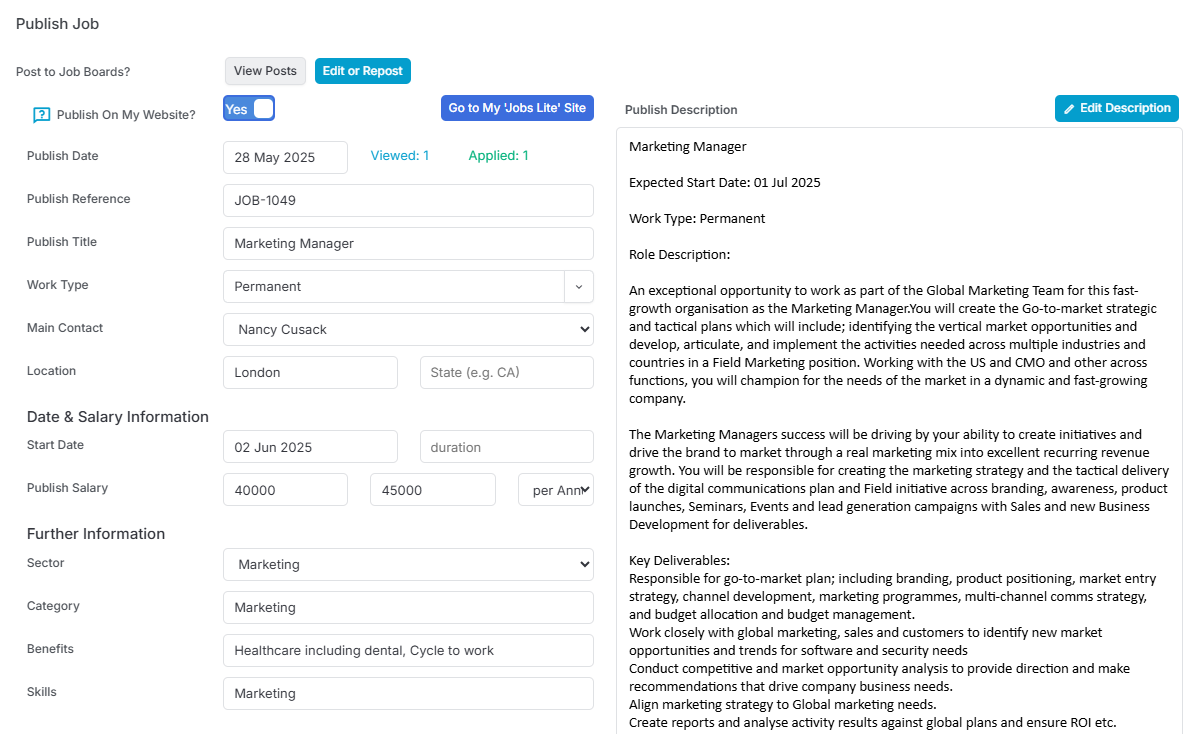
The Publish Date will be blank and the Viewed/Applied at zero until your job is posted (this is the published date) and viewed etc.

Top Tip that will save you time: Job Description Templates are absolute lifesavers for keeping your posts consistent across different roles and job boards. See more about how to set these up in the Tools & Settings | Job Descriptions Template article.
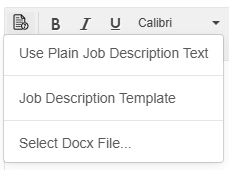
When you’re ready to go live, just click Post (you’ll notice this changes to Edit/Repost once you’ve published).
If you’ve missed any required fields, itris will let you know and highlight them for you.

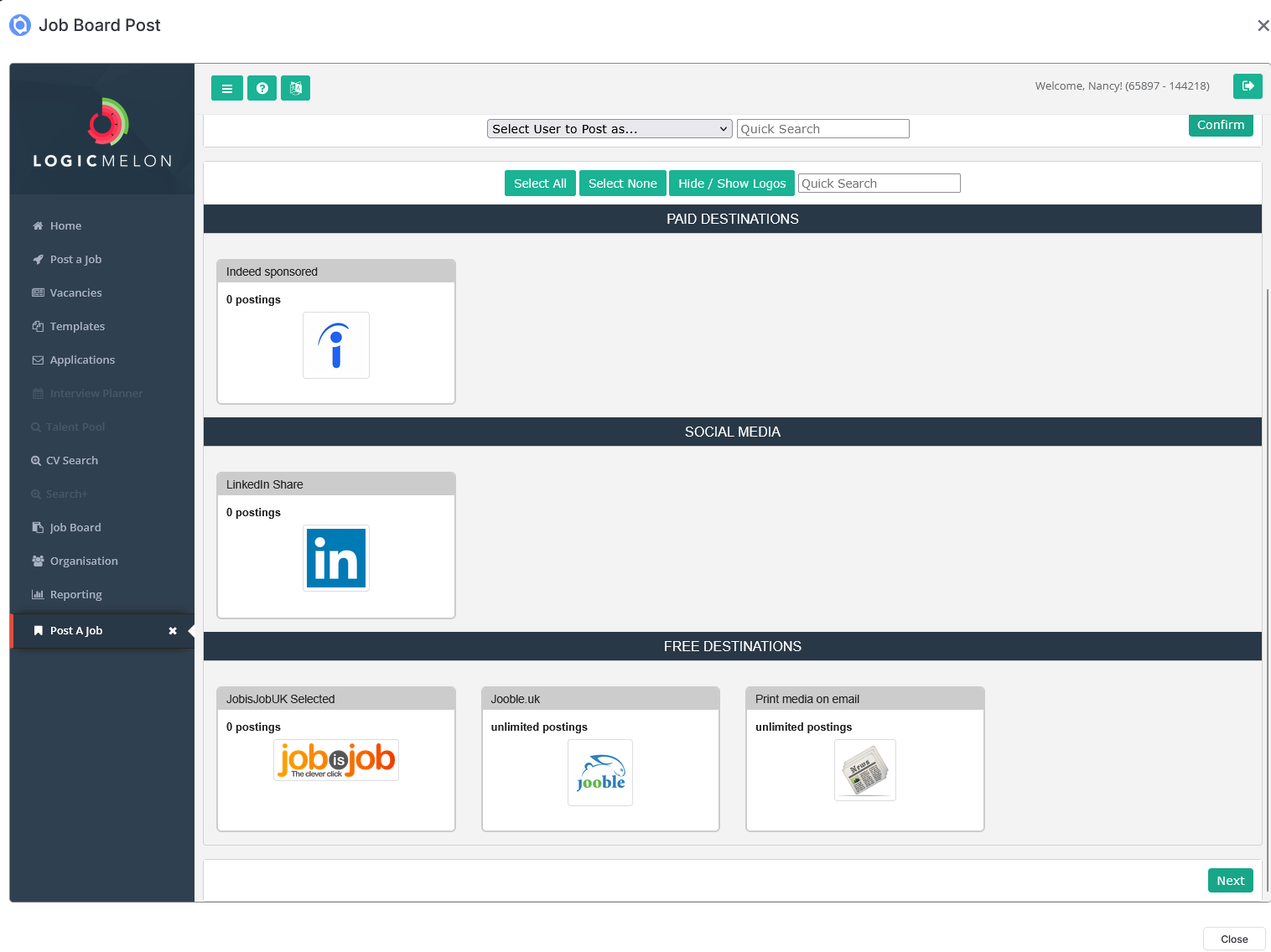
The system will then walk you through selecting which job boards you want to use - it’s really straightforward and you can pick and choose based on where you think you’ll get the best candidates. Follow the steps through for posting by clicking Next at the foot of the window.
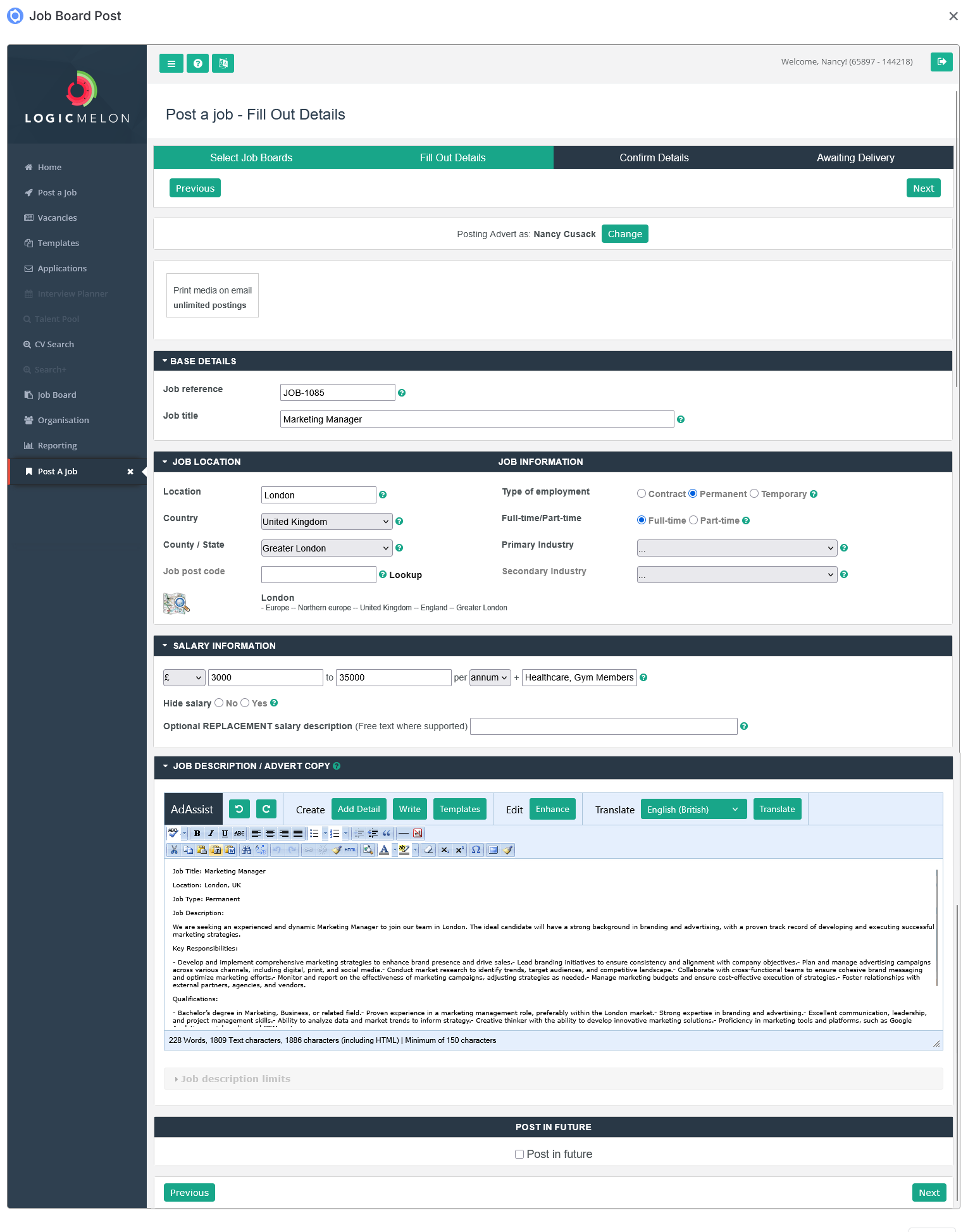
Based on the chosen Job Boards there may be further details to fill out.
When it comes to mandatory field, if you’ve missed anything essential for job posting, itris will highlight it for you so you don’t get stuck halfway through the process.

Once completed, follow the steps through for posting by clicking Next at the foot of the window.
Finally, when all the criteria is added and you’ve clicked Next you’ll need to confirm your posting by clicking Finish.

Once everything’s published, you’ll see a View Posts button appear on the itris job record. This is handy for keeping track of where your job is live and for closing postings when you’re ready to stop receiving applications.
You also have a button to Edit/Repost your job.

From View Posts you can also close Posts.
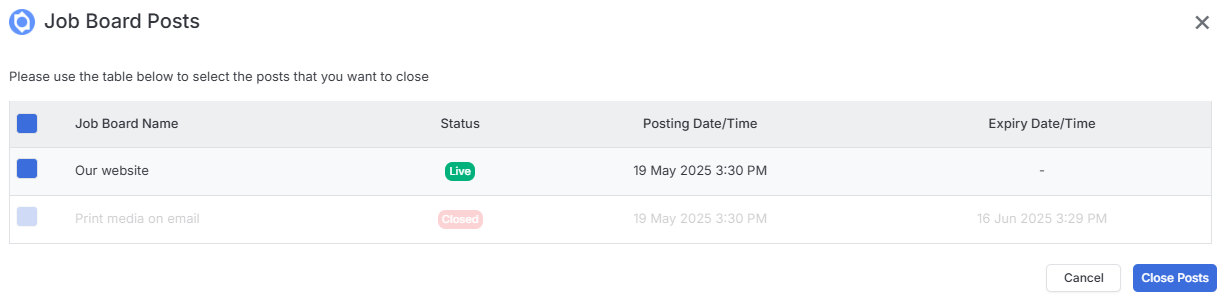
Job Board Applicants
When applications start applying to your Job Board posts they will display on the Job Board Applicants block, the results come in deduplicated and ranked from top to bottom, so you’re not wasting time looking at the same person twice or sifting through completely irrelevant applications.
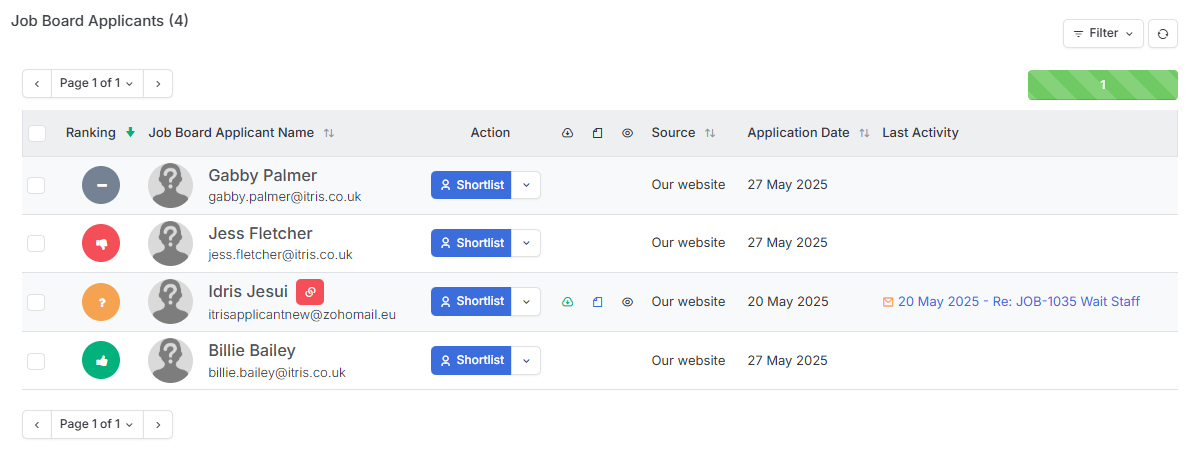
For each applicant, you’ve got several options through the grid Shortlist button:
- View the applicant’s CV - get the full picture before making decisions.
- Longlist - keep them in the running for now.
- Shortlist - move them forward in your process.
- Keep them - add them to itris without progressing this particular application.
- Remove them from the tab - clear out the ones that aren’t suitable.
With the ranking system you can click on the rank icon next to any applicant to RAG flag them (Red, Amber, Green) - it’s a quick visual way to categorize candidates as you’re reviewing them. Clicking on the Candidate name to open the Quick View will also give you options to apply one of the three RAG flags to the candidate, you’ll then automatically progress to the next record to continue the process.
itris will also highlight potential duplicates. If itris thinks a candidate might already exist in your database, you’ll see a link icon appear. This gives you View CV and Quick View options so you can check their history with you before deciding how to proceed.
You can multi-select several candidates and use the Shortlist Selected button to action multiple applicants at once. It’s the same options as individual actions, but way faster when you’re dealing with high volumes.
Job Board Applicant Settings
Via the Job Board Applicant Settings block you can override the system setting which controls what happens to candidates who apply via job boards. For more details on the default system setting see the article Tools & Settings > Job Settings.
The Applicant Routing dropdown lets you override the system default. If no job-level preference is set, itris falls back to the system default automatically.
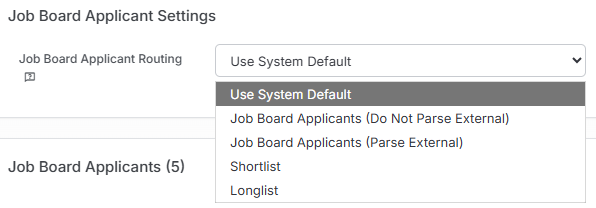
When an application comes in, you can now choose exactly what happens next:
No, don’t automatically parse applicants - the applicant appears on the Job Board Applicant block only, but no candidate record is created. This keeps your candidate database clean and uncluttered if you’re not ready to bring them in.
Yes, automatically parse applicants - a candidate record is created automatically and they’re linked to the job via the Job Board Applicants block, without being added to the shortlist or longlist. Perfect for keeping track of all applicants while deciding who to progress.
Yes, automatically parse and shortlist applicants- a candidate record is created and they’re immediately added to the job’s shortlist, so your most promising applicants are ready to review straight away.
Yes, automatically parse and longlist applicants - as above, but candidates land on the longlist instead, giving you a structured way to capture wider applicant pools before narrowing down.