Introduction
itris allows you to search multiple job board CV databases and itris Candidates in one go, saving you from the hassle of checking each platform separately.
This means you’ll uncover more qualified candidates while cutting down your search time significantly. It’s a smarter way to recruit that helps you find the right people faster and stay ahead of the competition.
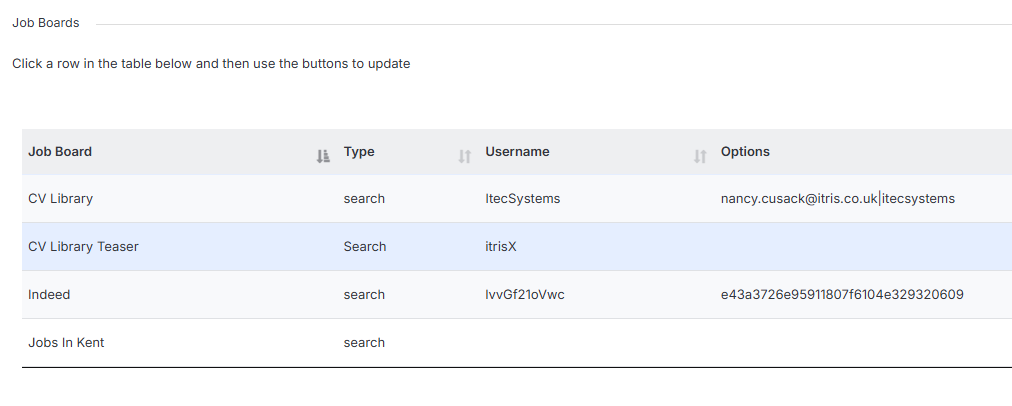
You will need your own accounts with the Job Boards and the credentials for these are added in your My Settings area.
Note: this feature is available to customers on Premium or Premium Plus licences.
Ways to Search
You’ve got two main options for searching job boards via itris:
- From a Job Record - This runs your job board search at the same time as searching your itris database, essentially you’re killing two birds with one stone by searching both itris and external job boards simultaneously.
- Via Discover > Job Board Search - This focuses purely on external job boards.
From both options, you can take the same actions with candidates - Longlist them, Shortlist them, or Keep them (which adds them to your database without linking to a specific job).
Setting Up Your Search
Details on using search criteria are covered in the Job Record | Longlists article, but here’s what you need to know about the job board specific bits.
Once you’ve added your basic search criteria, you’ll see a Job Board dropdown where you can choose from the job board search accounts you’ve set up in My Settings. Top tip: if your running this search from a Job Record, you can choose to search just job boards, or include your CRM results too.
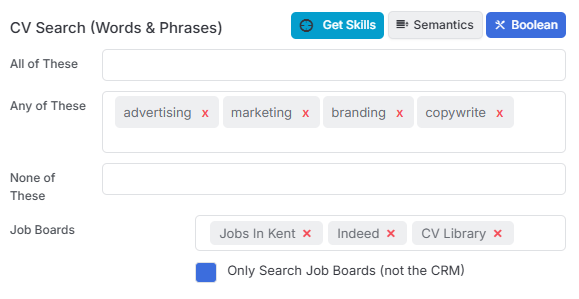
Click into Advanced Search for some useful tabs:
- Shared/Common Job Board fields - for criteria that work across multiple job boards
- Specific Job Board tabs - for those unique search options that each job board offers
When you’re happy with your criteria, hit Run Search.
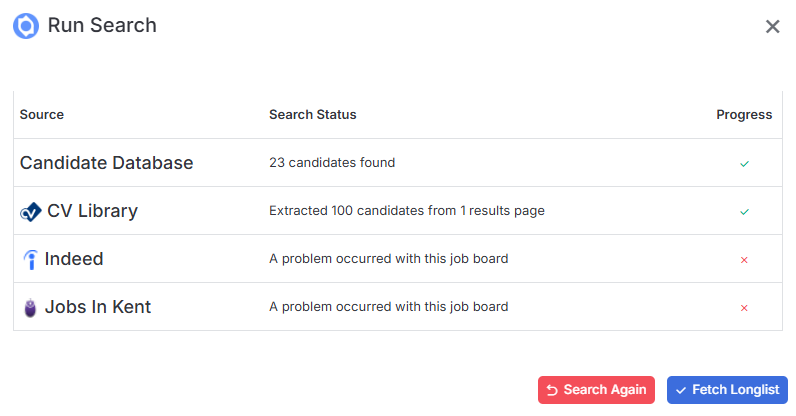
You will be presented with a window detailing the number of results from each job board and (if searched) itris. A Green tick means the search has run successfully across that job board, if you see a red X this means there’s a problem such as incorrect log in credentials. Hover over the red x icon for more details.
Search Results
The Results window will show different tabs breaking down your results:
- CRM results (if you included them in your search)
- All Job Board Results - these are de-duplicated so you’re not seeing the same person multiple times
- Individual tabs for each job board with result counts
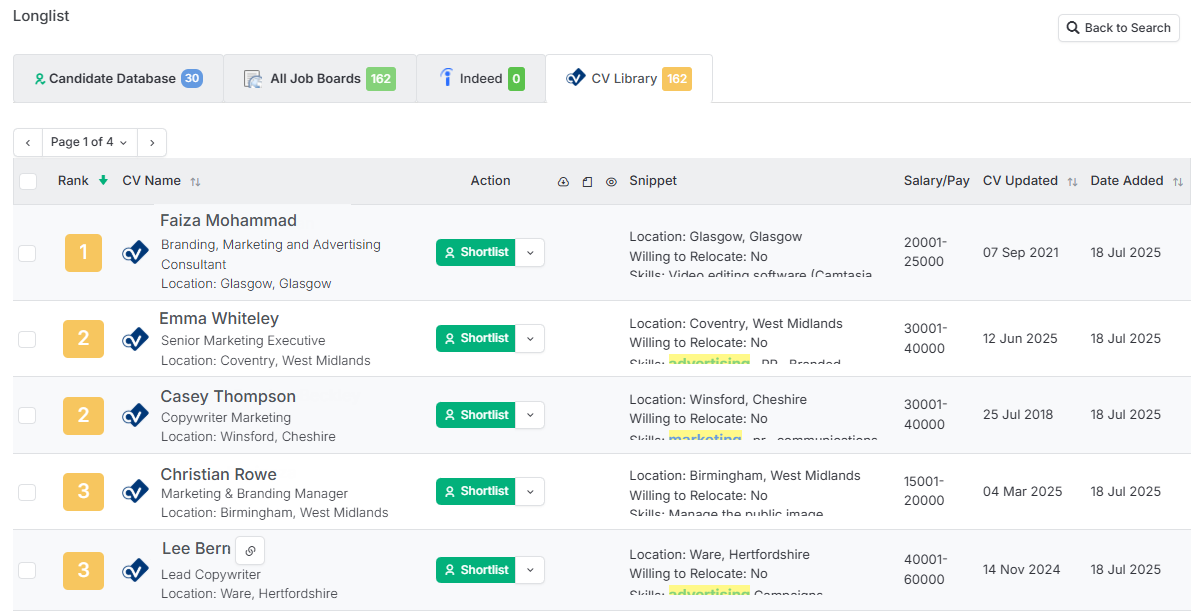
In the results grid, you’ll see each candidate’s name and key info.
The results are ranked by experience and skills hits, so the most relevant candidates appear at the top. Each result shows an icon indicating which job board it came from, which is helpful for tracking your sources.
A few things to keep in mind about the results display:
- Results are paged, so you can browse through them easily
- Use Clear Results when you want to start fresh
- Via the Show button you can filter by timeframes to see results from the last X days
If the candidate is already in itris, you’ll spot a handy link icon that gives you a quick view of their record.

When viewing the matched candidate you can choose to Link them to the matched candidate in itris via the Action menu.
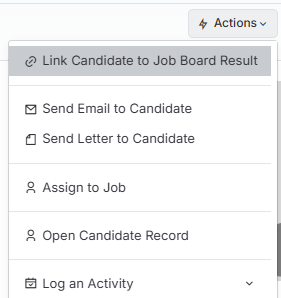
The Link icon will then turn red to indicate the link.

Actioning Results
Either via the Shortlist Button next to a candidates name, or by selecting one or more of the results to show the Action Button you’ve got several options:
- Shortlist - Adds them to itris and puts them on your shortlist (either for the job record you are on, or the job you select if searching via Discover).
- Longlist - Adds them to itris and your longlist (mainly useful when searching from Discover as via the Job Record they are already Longlisted).
- Keep - Adds them to itris without longlisting or shortlisting.
- View CV - Opens their full CV (this counts as a credit/view from that job board, so use wisely).
When you add a candidate from a job board, you’ll see a parsing status showing whether it’s pending, succeeded, or failed - there’s even a progress bar at the top.

The system automatically completes the Source field on the candidate record based on which job board they came from, which is great for tracking.
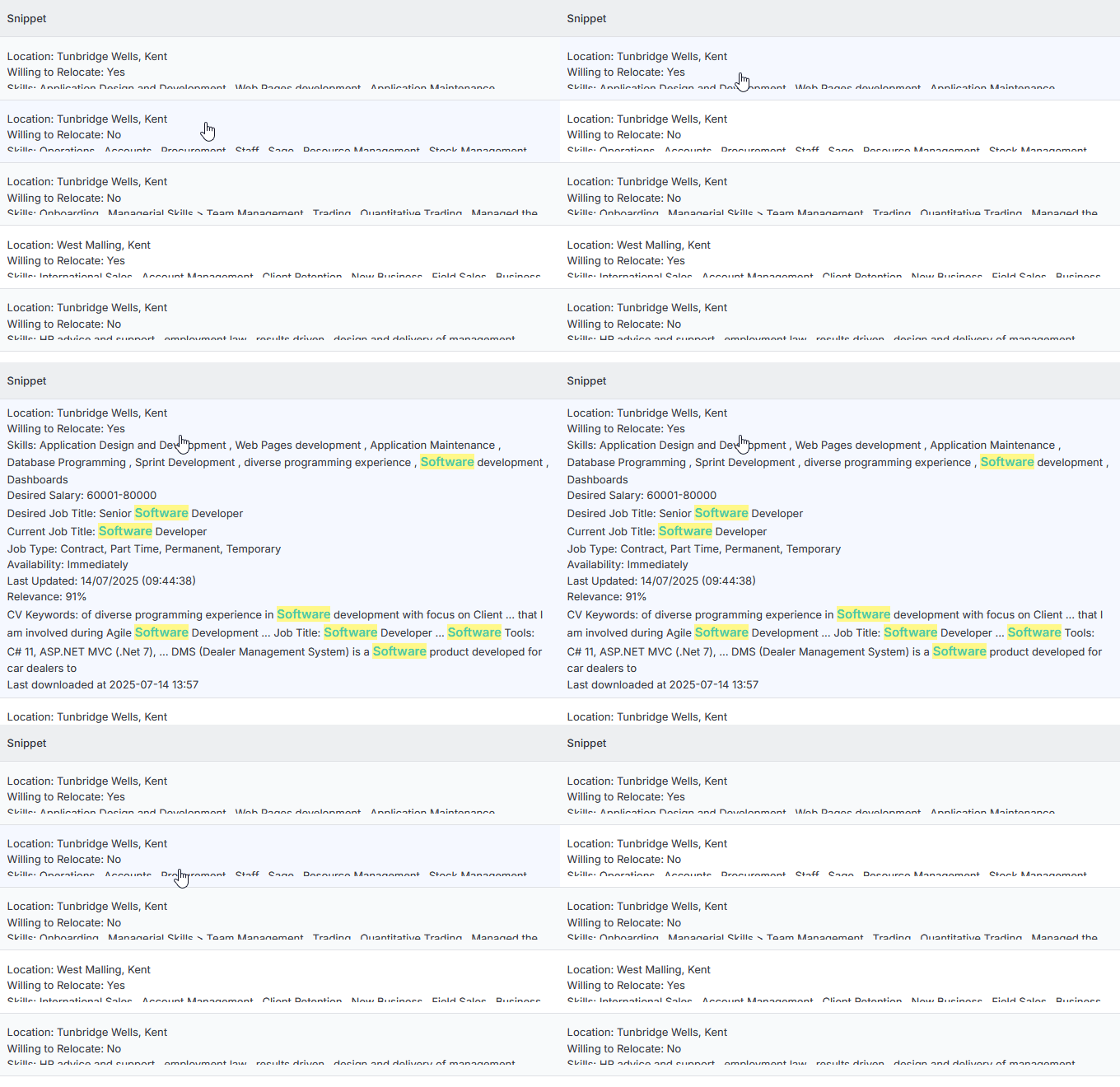
Each candidate result includes a Snippet that you can expand or collapse. What’s really clever is that your search terms are highlighted in these snippets, so you can quickly see why they matched your search. Additionally, when parsing these Candidates the snippet received from the Job Board search is appended to the Candidates Summary field for future reference.