Introduction
itris X supports an integration for WhatsApp Business, giving you a powerful new way to communicate with your candidates and contacts. With this integration, you’ll be able to:
- Send messages directly to Contacts and Candidates from within itris X
- Receive message replies from WhatsApp right back into your system
- Manage both Business Initiated Messages (BIMs) and non-Business Initiated Messages to stay compliant with WhatsApp’s messaging policies
This integration brings your WhatsApp conversations into your recruitment workflow, making it easier to stay connected with your talent pool where they’re already active.
Setting Up WhatsApp Business in itris X
Getting started with WhatsApp Business is straightforward. Before you can connect itris X to WhatsApp, you’ll need to have a few things ready from the WhatsApp Business Platform.
Step 1: Set Up Your WhatsApp Business Account
If you haven’t already done so, head over to the WhatsApp Business Platform to set up a Cloud API account (WhatsApp Cloud API Get Started).
This is where you’ll manage your WhatsApp Business presence and get the credentials you need for itris X.
Step 2: Gather Your Credentials
Once you’re logged into your WhatsApp Business Platform, you’ll need to collect two key pieces of information:
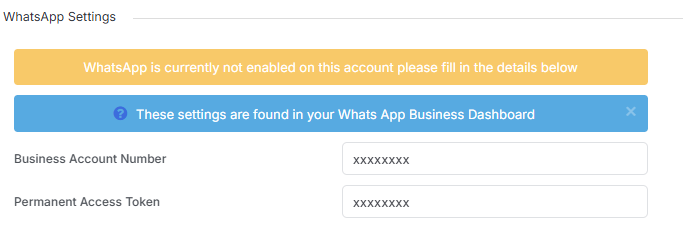
- Your Business Account Number
- Your Permanent Access Token
Keep these handy—you’ll need them in the next step.
Step 3: Configure WhatsApp in itris X
Now you’re ready to connect everything together:
- In itris X, navigate to Tools & Settings > Application Settings > Telephone & Text Settings
- Locate the WhatsApp Settings field
- Enter your Business Account Number and Permanent Access Token
- Click Save Settings
That’s it! Your WhatsApp Business integration is now active.
Setting Up an “Opener”
If you’re not using Business Initiated Messages (which allow you to send messages without prior consent from the recipient), you’ll need to initiate what’s called an “opener” . This is an important step for compliance with WhatsApp’s messaging policies.
An opener is an approved message that you send ahead of your actual message to request consent from the recipient. Think of it as a polite knock on the door before you start a conversation or an invitation to connect on WhatsApp
Your opener template should be:
- Simple – easy to understand at a glance
- Concise – just a few words to get the point across
- Generic – applicable across different situations so you can use it repeatedly
The Opener is not sent via WhatsApp, you may decide to create an email Template for this and would include your WhatsApp Business Number.
The purpose is simply to inform the recipient that you have a message for them and to get their permission to continue the conversation. Once they’ve initiated contact, you have a 24-hour window to respond freely. After 24 hours, you’d need them to message you again to continue the conversation (unless you upgrade to Business Initiated Messages).