
Introduction
The LinkedIn Recruiter integration brings the power of LinkedIn’s professional network directly into your itris workflow, creating a seamless bridge between the two platforms. This article covers the functionality available with LinkedIn RSC.
Here are some of the key benefits of the LinkedIn RSC integration with itris:
Work across both platforms without the hassle — view a candidate’s itris record from within LinkedIn, and see key LinkedIn profile details from within itris. No more switching back and forth between the two.
Instantly see whether a candidate is already in itris — a clear indicator appears directly in LinkedIn search results, helping you avoid duplicate outreach.
Export LinkedIn profiles to itris in a single click — no manual data entry, no copying and pasting.
Send LinkedIn InMails directly from itris — messages are automatically logged in itris, keeping your candidate record complete and up to date.
Stay on top of record currency — see at a glance when a candidate’s record was last updated in either platform, and when it was last exported to itris.
Jump straight to the record you need — quick links let you open the corresponding record in the other platform instantly.
Access the full picture without leaving LinkedIn — view key information such as submission stages, feedback, and notes directly within LinkedIn Recruiter.
Depending on your LinkedIn Recruiter licence type, you may have access to LinkedIn’s Connected Projects feature in addition to the two-way syncing of candidate profiles, job shortlists, and recruitment activities. Connected Projects includes LinkedIn’s Hiring Assistant, which compares your shortlisted candidates’ CVs and LinkedIn profiles against your jobs to assess their suitability. For more information on this functionality please see the article Integrations | LinkedIn Recruiter Connected Projects.
Once your LinkedIn Recruiter integration is set up, you can work fluidly between both platforms without worrying about keeping data in sync. The integration handles it all automatically, whether you’re creating a candidate in itris or exporting a LinkedIn profile.
Note: this feature is available to customers on Premium Plus licences.
Synced Records | itris
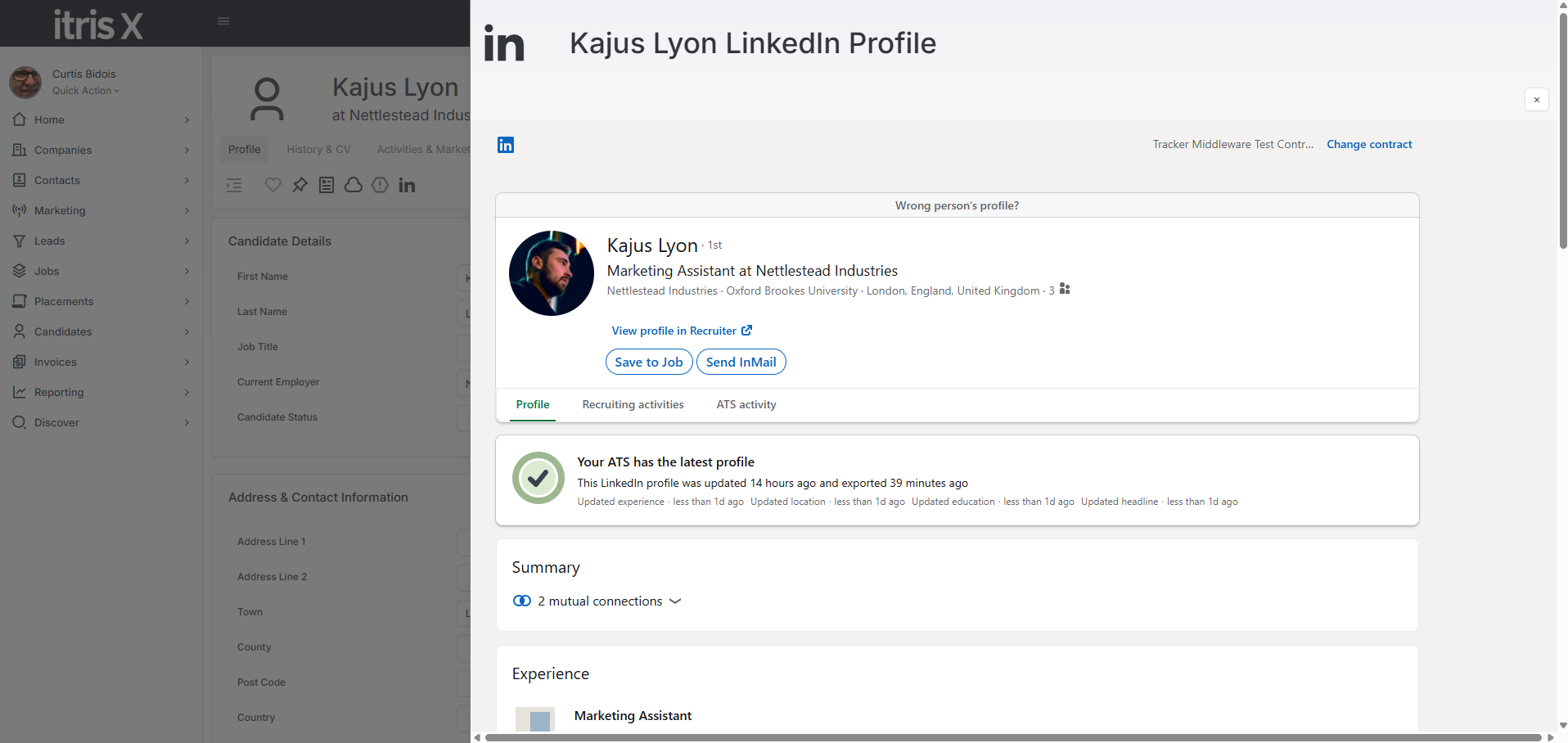
In the name banner of candidate records you will have the LinkedIn Icon.

When you click on the LinkedIn icon the LinkedIn Profile widget will open out on the Profile Tab. This tab shows a part of the persons LinkedIn profile.
The ATS Activity tab shows a smaller/condensed view of that candidates history in your database.
From this view you can also Save to Job which is a way to shortlist the candidate to a Job (beyond the other itris based workflows), send an InMail and open their full profile on LinkedIn Recruiter.
If there is not a linked profile you can manually link from here or if the incorrect record has been synced you can can click “Wrong person’s profile?” and then manually link to the correct one. See the section below Manually Linking a Candidate Profile from itris for more details.
Synced Records | LinkedIn
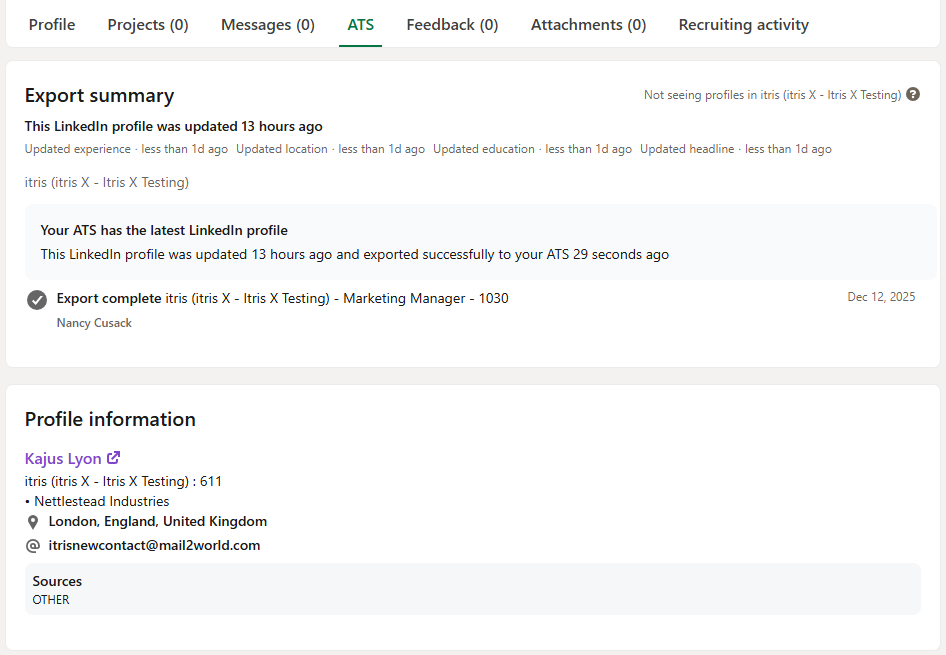
When viewing a synced record from LinkedIn there will be an ATS tab that shows information shared between the two systems.
Export Summary - shows if that record is synced to itris, for example your database(s) it is linked to and when.
Profile Information - gives a link to open the record in itris and the itris Id number.
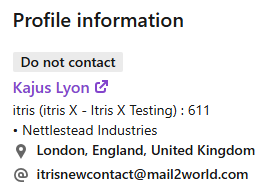
If the candidate is opted out of Marketing Preferences within itris a Do Not Contact badge will show in this area too.
Jobs & Feedback - shows a history of Jobs shortlisted to and subsequent submission stages (e.g. Shortlist, Interview, Offer) so you can view and track their progress from within LinkedIn.
- Notes show Activities linked to both Candidate & Placement records.
- Feedback shares the same logic as above but for Activities added against Placement records when at Interview stage.
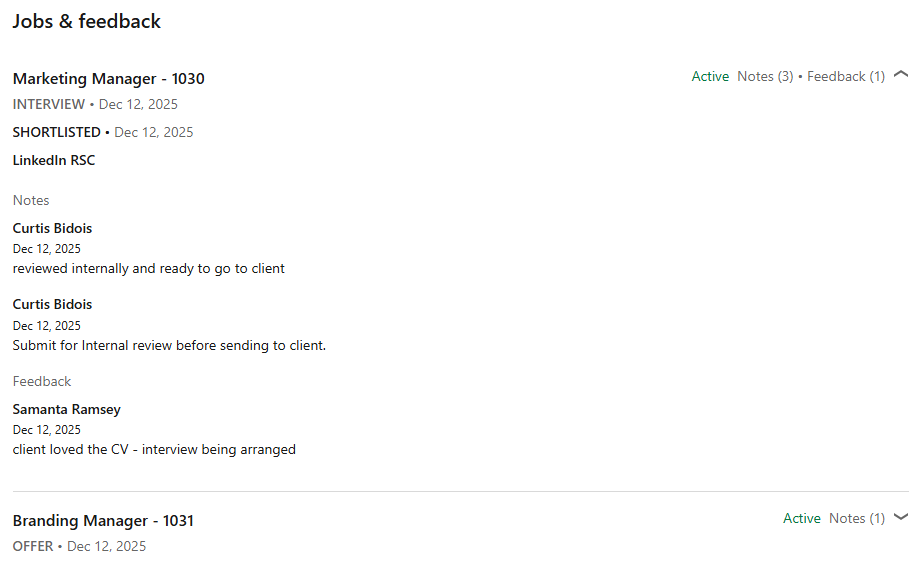
Candidate Notes - these are activities solely linked to candidate record

itris initiated Sync
An itris initiated sync is called an Ad Hoc sync and occurs automatically when a new record (Candidate, Job, Placement) is added to itris.
When adding a new candidate to itris the record data will be matched and synced to LinkedIn based on the name and email address of the record. You can manually link via the candidate profile widget if needed, for example if you don’t have the email address at the point of creating the record, see below for more details. The sync will normally occur within one minute, but may take longer if the initial integration sync is still in progress or if multiple syncs are occurring at the same time.
LinkedIn initiated Sync
From LinkedIn, where a persons profile record is not already synced with itris the ATS tab will show they are not matched.
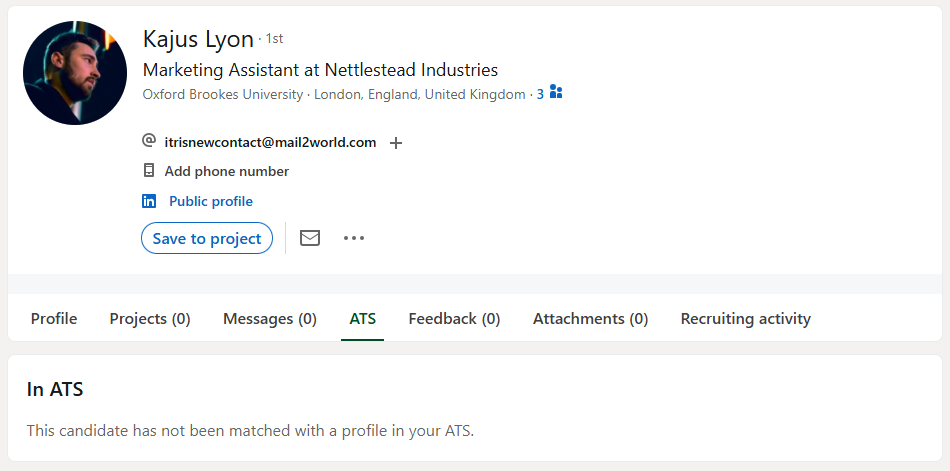
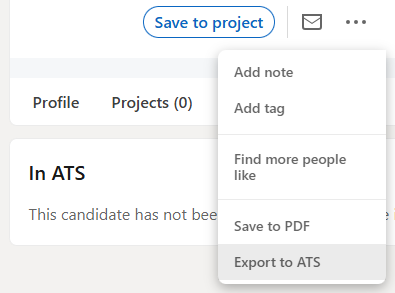
Via the ellipses in the LinkedIn name banner you can choose to Export to ATS.
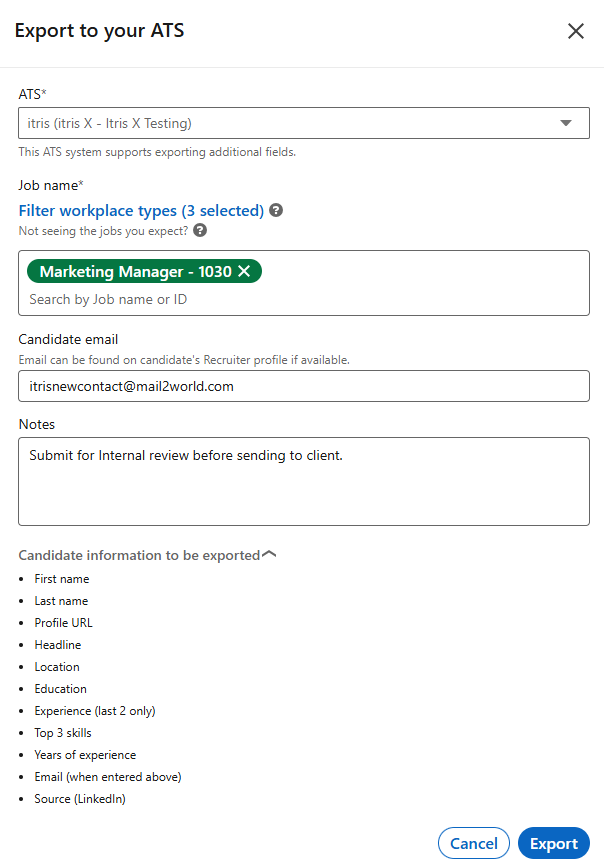
When Exporting to itris, if you have more than one ATS database (contract) you can select from the drop down.
You are not able to “free” export a person to itris, it must be linked to one or more Jobs for you to export it. You can search for Open Jobs by name or Id number.
There is a field to add the candidate’s email address, you may find this displayed in the name banner of their LinkedIn profile for you to copy and paste here.
Additionally, you can choose to add a note that will be added as a completed Task (Activity) against the Candidate, Company and Placement records.
You can expand the section “Candidate Information to be exported” to see the details of which data (if available on the LinkedIn record) will be exported to itris (please note this does not include Headline and Years of experience. For skills to be exported they must match your Skills list in itris).
Once Exported the record is created in itris.
Please note, there is a limit on the number of exports you can make per month, this is by design and a restriction from LinkedIn.
Refreshing the LinkedIn person record will update the ATS tab and show an Export Summary, a link to the itris record (under Profile Information) and details of the Job(s) shortlisted for. See the section above Synced Records | LinkedIn for more details.
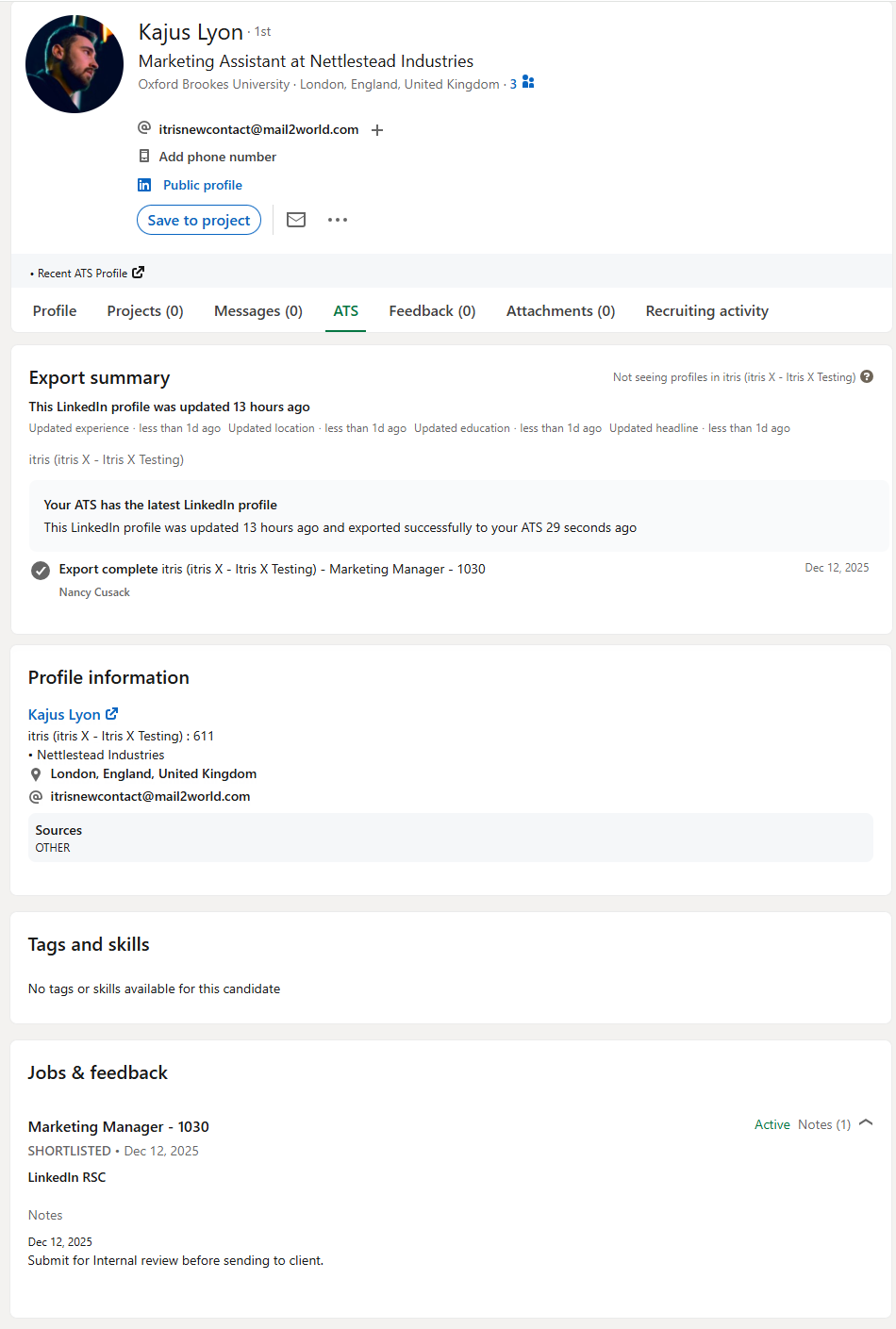
Additionally, as mentioned above, within itris the Candidate will be shortlisted to the Job(s) specified on the Export form and Completed Task Activities created on relevant Candidate, Company and Placement records.

Manually Linking a Candidate Profile from itris
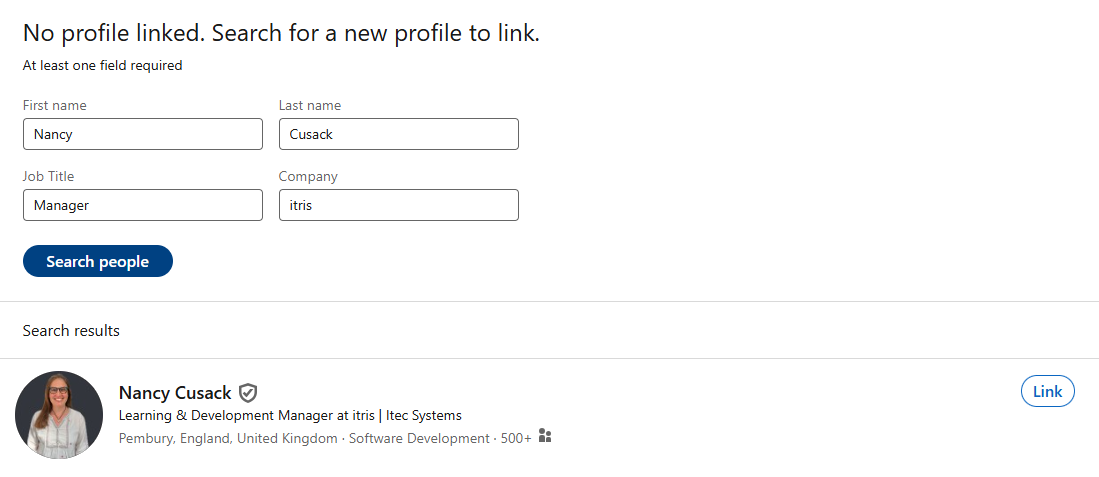
Where an itris candidate record is not synced, or if you need to re-match with another LinkedIn profile you can search for a new profile link via the Candidate record LinkedIn widget and link to that record.
InMail Stub Profile
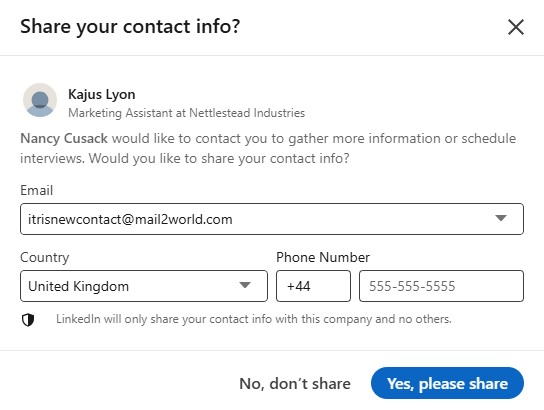
As you may know, when you initiate a conversation with somebody via LinkedIn Recruiter using InMail, once you start that conversation with them LinkedIn will ask them if they want to share their contact information with you. If they choose to share these details and they are already a candidate record in itris, these will be synced.
As that conversation continues via InMail (when the LinkedIn Recruiter account is used), Activities of the type InMail will be synced to itris hourly. These will be both Inbound and Outbound activities.
Note: itris only has visibility of the InMail mailbox for your LinkedIn Recruiter account, itris does not have visibility of your personal LinkedIn InMails.
Deleting Data
If you delete an itris record this will delete any data synced to LinkedIn, including Activities, Submissions as well as the record.
If somebody deletes their LinkedIn account this creates an itris (Activity) Task, which will show in My To Do List for the Candidate owner. If there is no Candidate Owner this will be assigned to last user to update their itris record. The Activity will add a note to let you know they have deleted their LinkedIn record and for you to consider if you should remove from itris. They will not automatically be deleted as you may have a right to retain them, for example they have agreed to be retained or have been placed etc.
Note: LinkedIn will notify itris 21 days after the candidate has deleted their profile.