
Introduction
The Dialpad integration lets you dial directly from itris X and automatically log your calls as Activities — complete with Dialpad’s AI-generated call summary once the call ends.
The steps below are split into two parts: Initial Set Up, which your database administrator will need to complete first, and Individual User Set Up, which each user completes once the admin configuration is in place.
Initial Set Up
Step One: Dialpad
The first step is to create an API key in your Dialpad account.
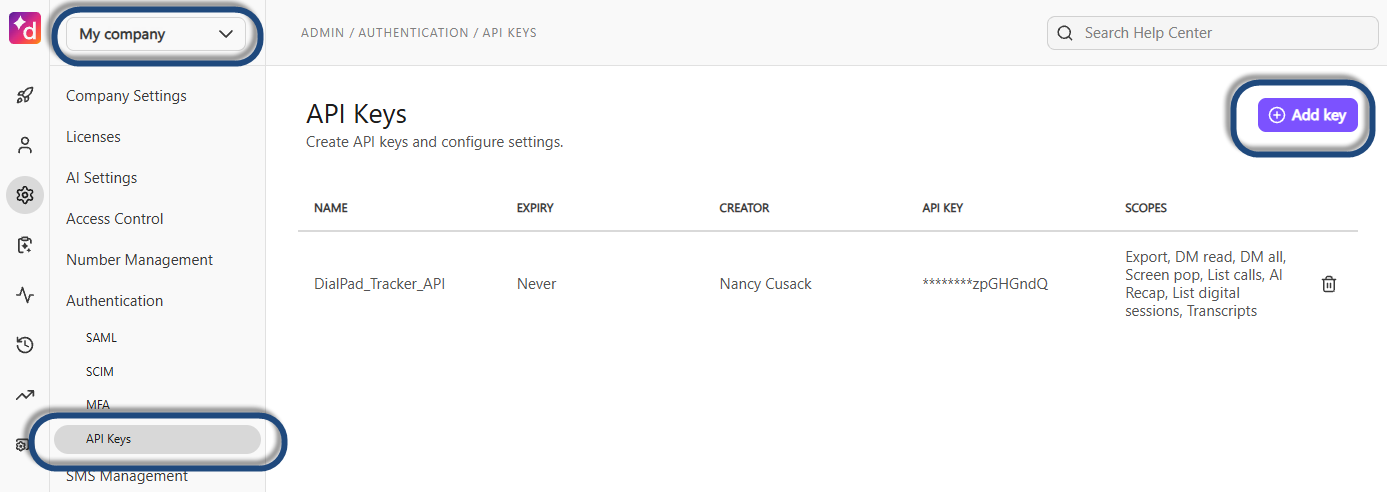
Go to the My Company dropdown and select your Company here, under the Authentication options on the left menu choose API Keys and then click to create a new API Key.
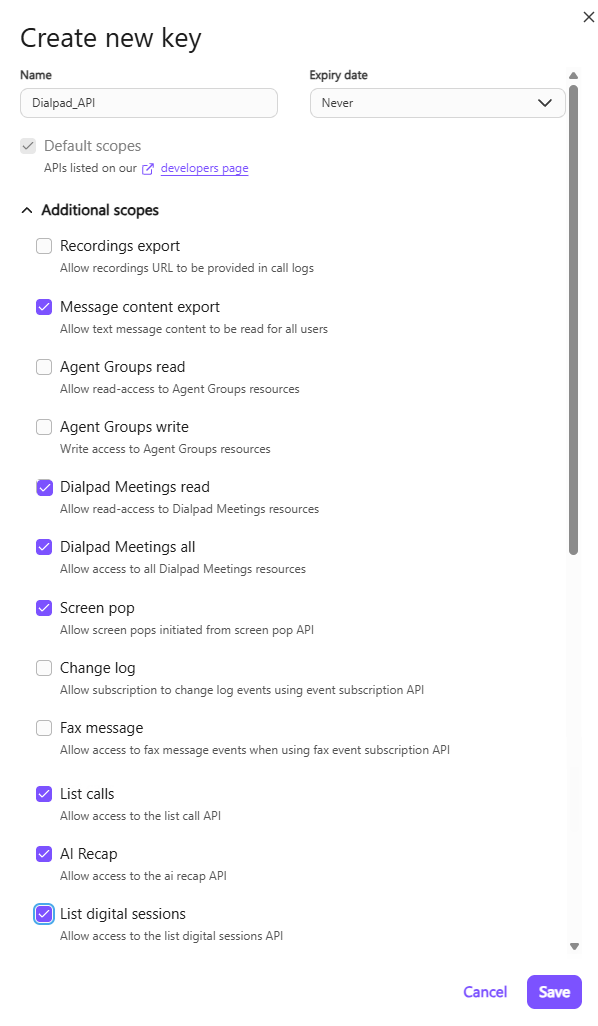
Complete the Name field, set Expiry Date to Never and then expand out the Additional Scopes options. Tick those options as shown in the below image. Then click Save.
- Message Content Export
- Dialpad Meetings read
- Dialpad Meetings all
- Screen pop
- List calls
- AI Recap
- List digital sessions
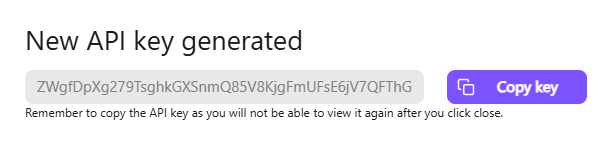
Copy the API Key to your clipboard, you will not be able to access it again. (you may want to paste in a safe place).
Step Two: itris
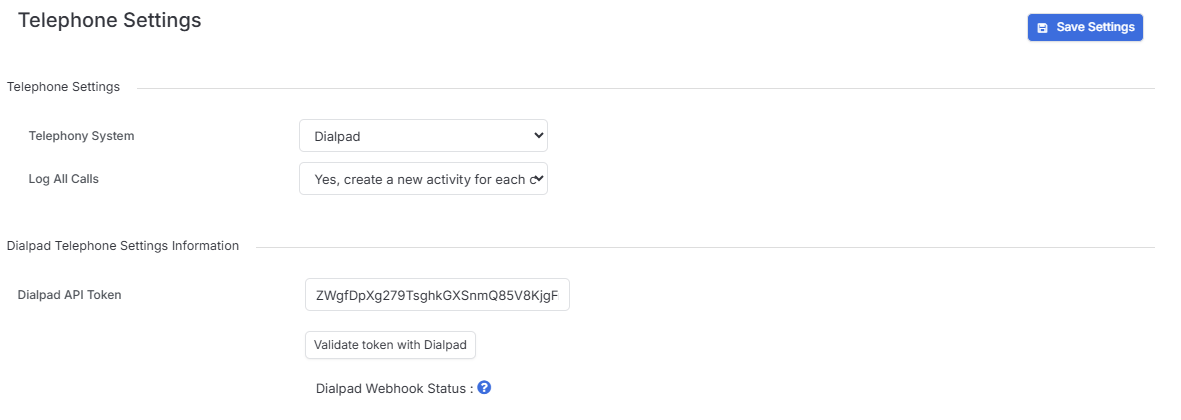
Log into itris, and go to Tools & Settings (via the Profile Menu) and under Application Settings choose Telephone & Text Settings.
Under the Telephony System drop down you will want to select Dialpad and choose your preferred option under Log All Calls.
In the Dialpad API Token field paste your API Key.
Click to Save Settings.
After you have completed the steps below under My Settings you will return here to Validate.
Step Three: My Settings | Dialpad Add In
In itris go to the Profile Menu and choose My Settings. Scroll down to the Add Ins area.
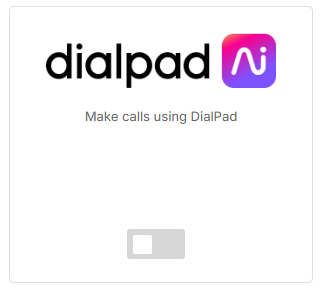
Toggle on Dialpad.
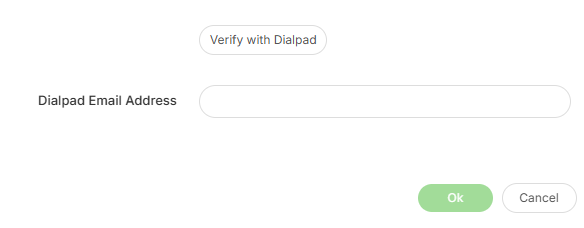
Enter your Dialpad email address and click Verify, then Ok.
Step Four: Validation
Return to Tools & Settings > Application Settings > Telephone and Text Settings and click “Validate token with Dialpad.
The Dialpad Webhook Status should now have a green check next to it.
Individual User Set Up
Once you have completed the Set Up steps above, each User that needs to dial using Dialpad will need to download the Dialpad App: https://www.dialpad.com/download/
Once this is downloaded each users will need to complete the following steps under their own My Settings to connect their account in itris.
Go to the Profile Menu and choose My Settings > scroll down to the Add Ins area > toggle on Dialpad.
Enter your Dialpad email address and click Verify, then Ok.
Using Dialpad
Once Dialpad is configured, when you click a number to dial you will see the following pop out box, showing the number you are calling, the Dialpad number you are calling from and an option to choose the Call Type this call will be logged as.
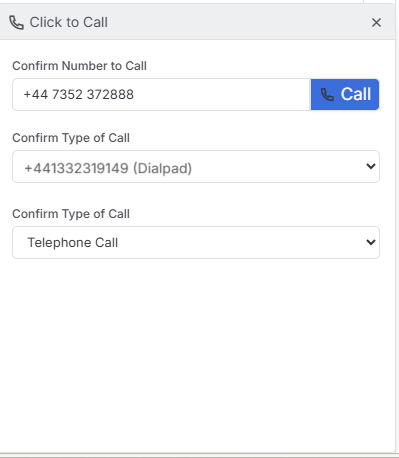
When you start a call an Activity pop out will open in itris.
Once the call is completed and the AI Summary has been generated in Dialpad you can close the Activity window, which will then populate with the AI Summary.
