Introduction
Understanding and utilising Record View Filters to their fullest gives you the ability to perform quick, detailed and complex searches to Find records. This means you can work effectively and productively. For further details on Records Views beyond the filters, such as columns, paging, sorting and more, please see the article Record Views.
Depending which record type you are filtering, the filter options will differ slightly, though the general functionality between them will be similar.
Common Filter Functionality
Filter bar
With in the majority of the Record Views (the exceptions being Send Lists & Recently Viewed) you will have a Filter bar on the right hand side of the screen.
When using the Find options via the Menu bar this panel will open automatically, for other views it can be opened via the Filter icon in the top right. This same icon will also collapse the the filter bar.

Once a filter (that includes criteria) is run, the Filter button will change colour.

If you wish to edit, add or remove criteria you would use the Filter button to reopen the panel.
Filter Bar Headers
The Filter criteria you can search on is grouped under Headers. The groups/headers will differ depending on the record type you are filtering.
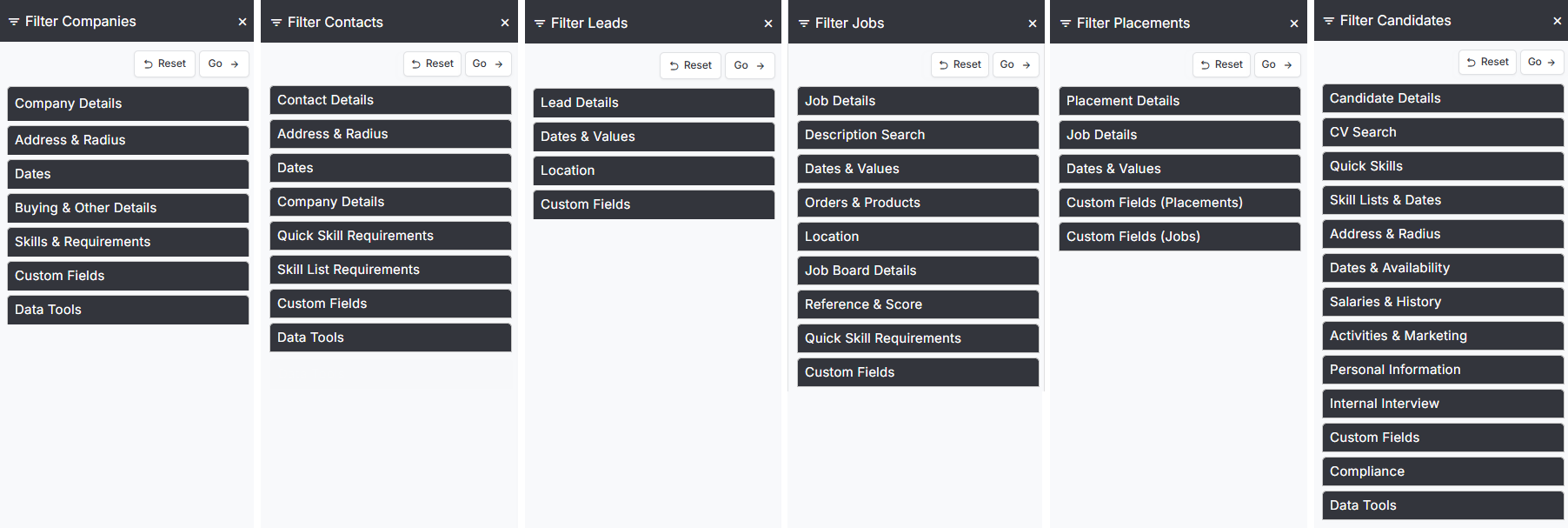
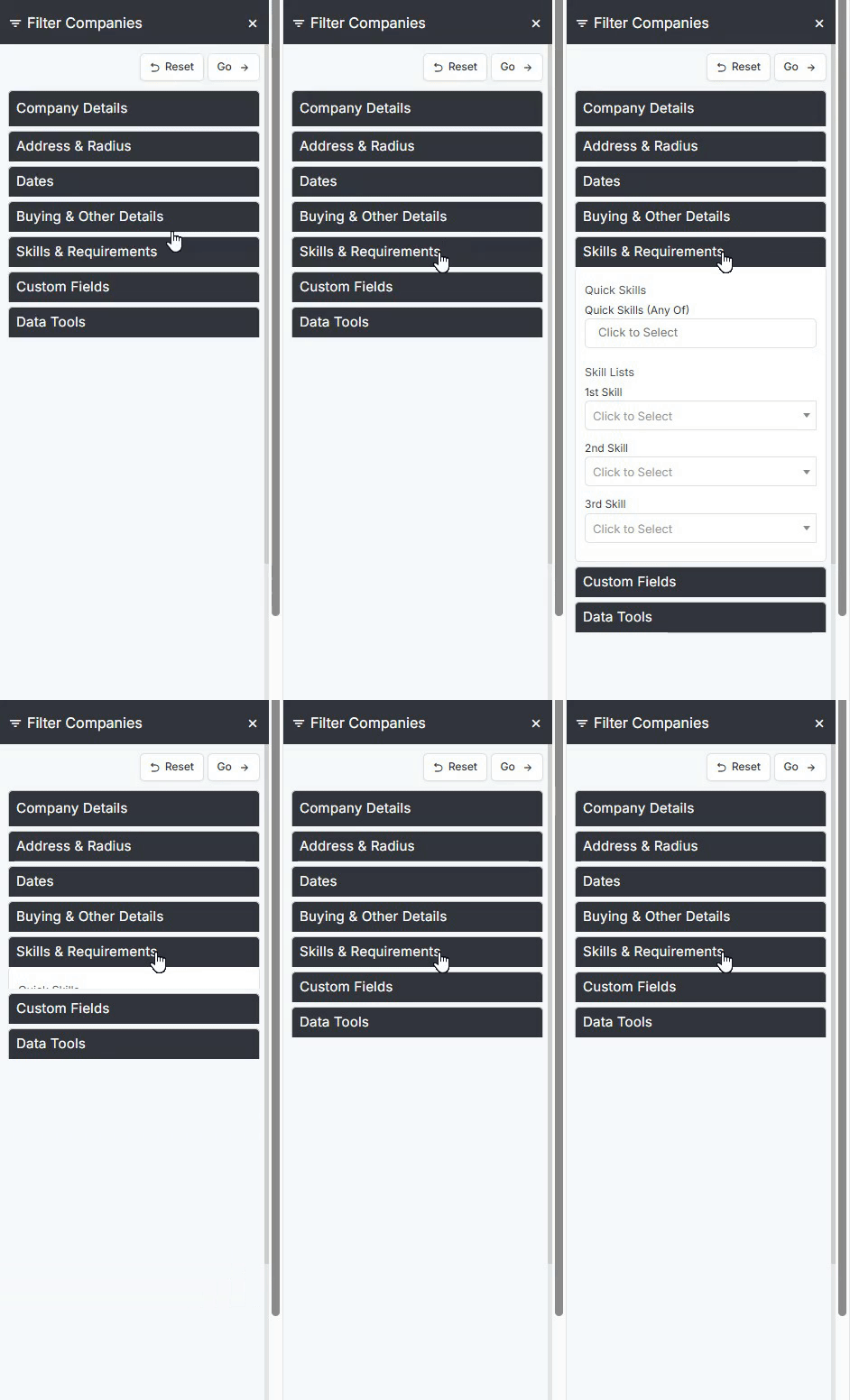
The headers can be expanded/collapsed by clicking on them to reveal the criteria options under that header.
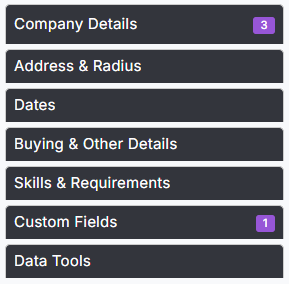
Once the Filter is Run, a count of criteria searched on will show on any headers that contain criteria.
Action Buttons
When you have added in your Filter Criteria you will have options to run the filter via the Go button or use Reset to clear the filters.
Once you run the filter you will have the option to Save your filter criteria.

See below for the Delete Action button.
Saving, Sharing & Deleting Filters/Views
Once you run the filter you will be presented with the Record View. Views/Filters can be Saved, Shared with other users and (saved views/filters) Deleted.
When saving a filter as a view you can share it with one or more other users.
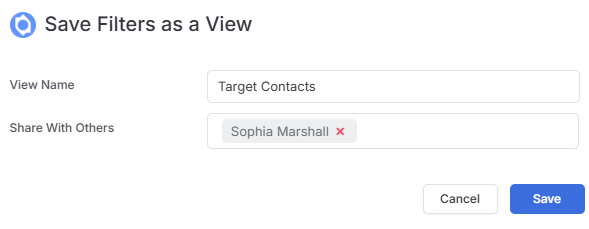
Saved Views can be added to Dashboards.
Once a View is saved, an option to Delete the view will be included in the filter action buttons.

Filter Fields
Types of filters you can search on include text entry and drop down fields and will differ depending on the record type you are filtering.
Some Text fields, such as Name or Tag will work on a “Contains” basis, e.g. the text you are searching on is contained in the name/tag.
Depending on the field you may be limited to one piece of criteria that must be matched, whereas other fields will allow for multiple options where just one of those must be matched, essentially this is an OR search. Examples of this include the Name and Type fields.
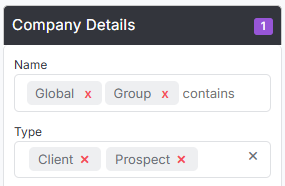
Adding criteria to multiple fields will constitute AND searching, e.g. the results must match all of the fields.
The following are some key area’s you might filter on.
Activities & Marketing
Activities & Marketing filtering provides powerful search capabilities for Contact and Candidate records, making it an essential tool for strategic business development and relationship management.
This filtering system enables targeted outreach by identifying prospects based on their interaction history and current status. For instance, you can quickly locate contacts who may benefit from renewed engagement.
Example Use Case: Sales Opportunity Identification
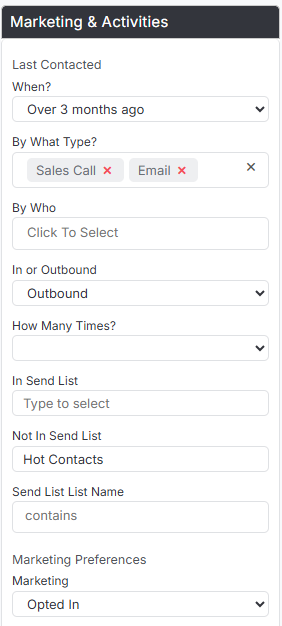
The filter shown below demonstrates how to identify high-potential prospects by targeting contacts who meet specific criteria:
Filter Parameters:
- Last Contact: No outbound sales calls or emails in the past 3 months
- List Exclusion: Not currently included in the “Hot Contacts” send list
- Marketing Preferences: Have opted in to Marketing
Expected Results:
This configuration generates a focused list of contacts who may be ready for re-engagement, providing sales teams with qualified prospects for immediate outreach and potential business development opportunities.
By systematically identifying contacts who haven’t received recent attention but aren’t already in active sales sequences, this approach helps maximize efficiency while ensuring comprehensive prospect coverage.
Advanced Activities
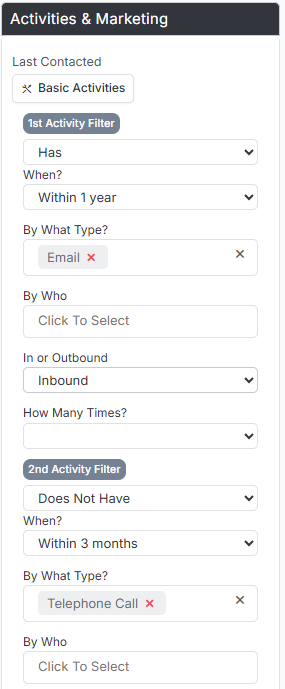
Additionally, Candidate filtering comes with Advanced Activities that lets you filter by multiple activity types at once. It’s a handy way to mix and match different filters so you can find exactly the candidates you’re looking for.
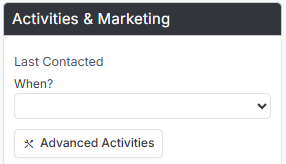
For instance, you can filter to find all candidates who have emailed you within the last year but haven’t had a phone conversation in the past three months. This targeted approach helps you identify engaged candidates who may have gone quiet recently, allowing you to proactively re-engage them before they lose interest or accept opportunities elsewhere. By reaching out to these warm prospects, you can rekindle conversations, provide updates on relevant opportunities, and maintain the relationship momentum that’s crucial for successful placements.
Skills
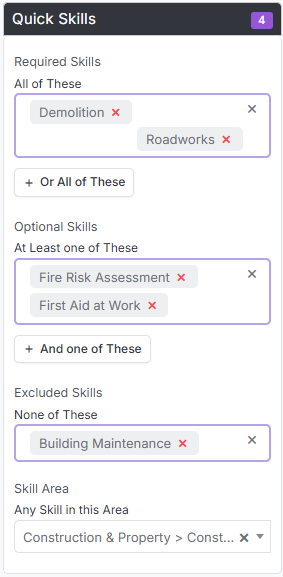
Within the Quick Skills area you can search on skills assigned to candidate records, by both required and optional skills. You are also exclude candidates based on an assigned skill. Additionally, you can search for Candidates that have any skills within a given Skill Area.
Skills Lists
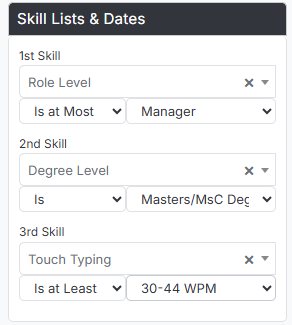
As Skill Lists are added in a ranked order these can be used to not only find records with or without that skill, but where the record has at least that skill, or that skill at most.
For example when using “Is at Most” Manager, anybody below this, say Assistant Manager would be returned, but anybody above, say Senior Manager, would not be returned. Or when using “Is at Least” 30-44 wpm typing skills, any record at that level or above would be returned, but any record with a lower typing speed would not be matched.
For more information on Skills see the article Tools & Settings | Skills Profile.
CV Text
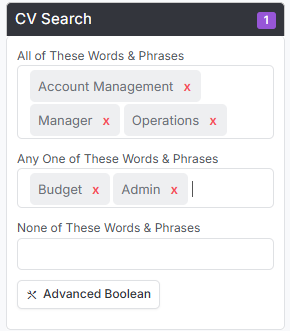
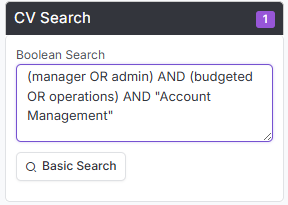
Here you have the options to use the basic Boolean search which builds the criteria for you or the Advanced Search.
Example Basic Boolean
Example Advanced Boolean
Address & Radius
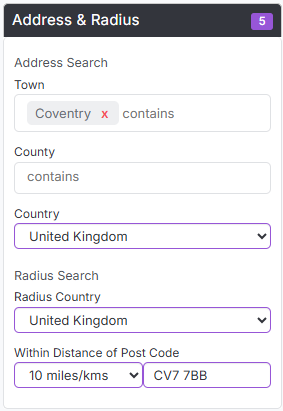
Under Address & Radius you can search by various options, however please note these are AND options, meaning results will need to match all criteria.
Status
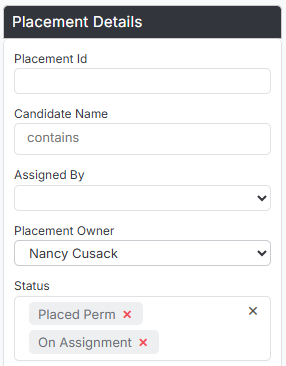
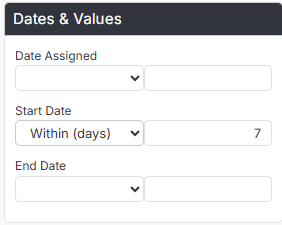
Status filtering is available across all record types, but it’s especially useful when working with Placements. Since your saved views are Live Views (meaning records automatically appear as they meet your criteria), this becomes a really smart way to keep tabs on important placement milestones - alongside your usual Dashboards and Reports.
You could easily set up views to track placements starting in the next few days or ones that are wrapping up soon. What makes views particularly handy compared to Dashboards and Reports is that you can take action right from there. Need to update statuses, send bulk emails, or add candidates to a send list? You can do it all directly from your view without jumping around between different screens.
Custom Fields
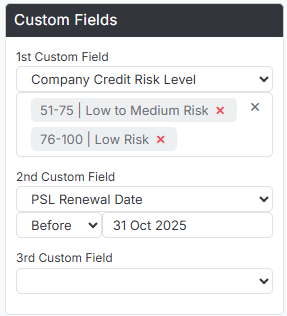
With Custom Field filters, first the Custom Field needs to be selected, this will then display a field to input the criteria to filter by the value of the Custom Field.
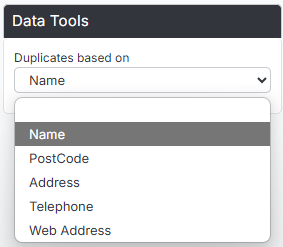
Data Tools
This filter allows you to find duplicates by different criteria dependant on the record type you are filtering. Once you have run the filter records can be merged, see the Merge Records article for more details.