Introduction
At the top the Contact record the name banner will display the Contacts Job Title and the Company they are associated with.
Below the name banner the record is comprised of tabs, and within those tabs are the record blocks. Due to itris being highly customisable, the order and name of the tabs, and the placement of the record blocks may differ to those shown in this article.
Below the tabs the are the Show/Hide Summary, Favourites, Mark as Off Limits and (if a tag is not already added) Tag Text buttons. Additionally, you have buttons to Save the record, return to the List (Find Records), next record in list button and the Action Menu.

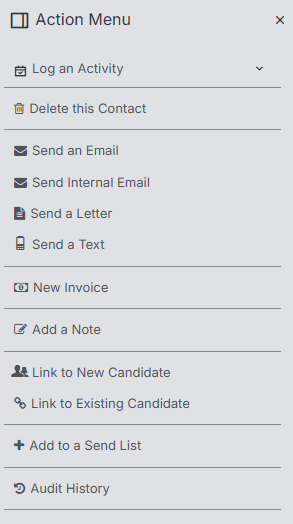
Action Menu
Via the Action Menu you can Log Activity (such as calls and tasks, note this is a collapsible list) against the Contact, delete the record, send communications such as email and text, raise New Invoice, Link with a Contact record, add to Send List and view the Audit History.
Summary Panel
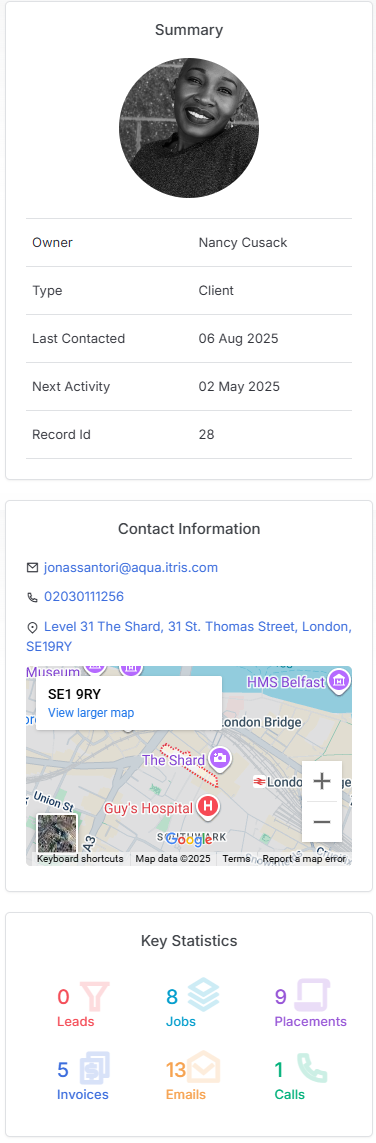
The Summary panel is expandable/collapsible. When expanded this displays key data about the Candidate including: Owner, Contact Type, Last and Next Activity, Contact information and Key communication/job statistics.
Profile
Contact Details
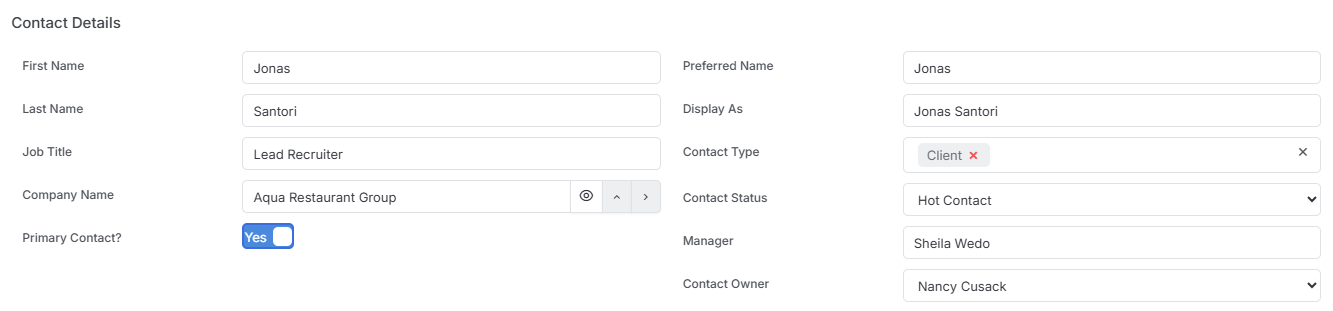
In addition to their Name, this area includes key and searchable information such as their job title, Company they are associated with, Contact Types and Status and their Manager.
Moving Companies | Career History
If your contact moves to work at another company within your database you can simply change the Company name entry. In turn this will create a link between those on the Company name field. See the article Contact Record | Moving Contacts for more details.
Additionally, this history will be recorded under the Contacts Relationships block.

Address & Contact Information
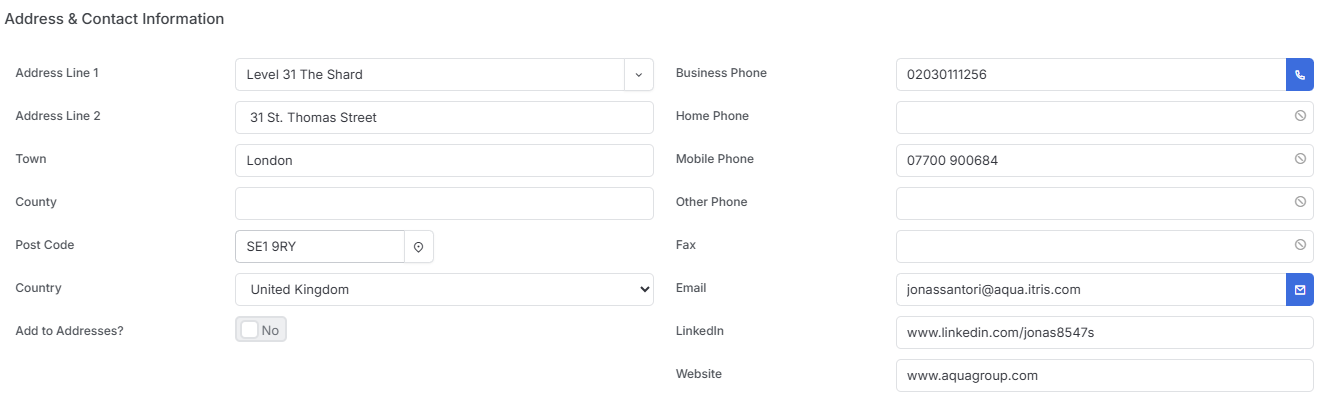
This area will show the Contacts address and contact information. The drop down under Address Line one is a quick selector showing all the addresses associated with the Company.
Work & Job Information
This area gives further information about the Contact, often used for reporting, for example by Source, Sector, Territory or Contact Role.

Personal Information
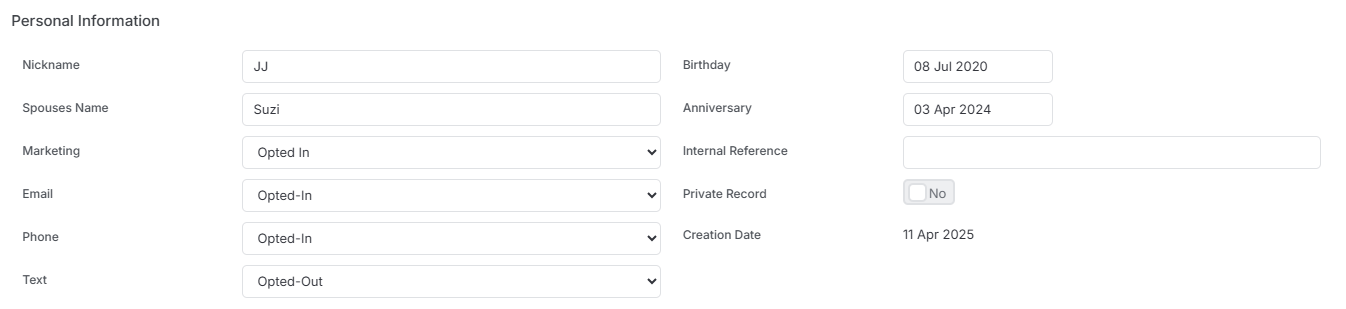
Details here will assist in building rapport with your contact, as well as recording the Marketing and Communication consent preferences.
Opt Out
Opt In/Out statuses are also searchable via Find Records.
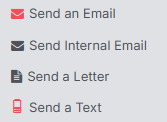
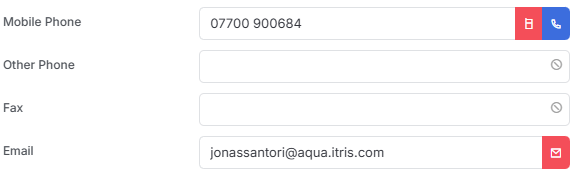
If Email or Text are set to Opted Out, and your Display Settings are set to “Highlight Opt-Out in Red” this will show on the record in two places:
Action Menu
Address & Contact Information
Skills Profile
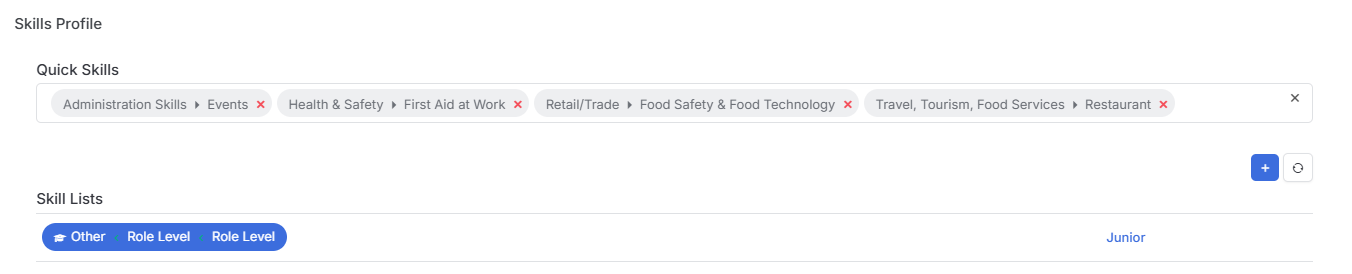
Skills listed here represent the skills of the Candidates suitable to work for this Contact. This data is used in Skills Matching for Candidate Prospecting.
Contact Lifecycle
This area shows the lifecycle of the record, for example its progression through Contact Statuses.

Jobs & Placements
Jobs
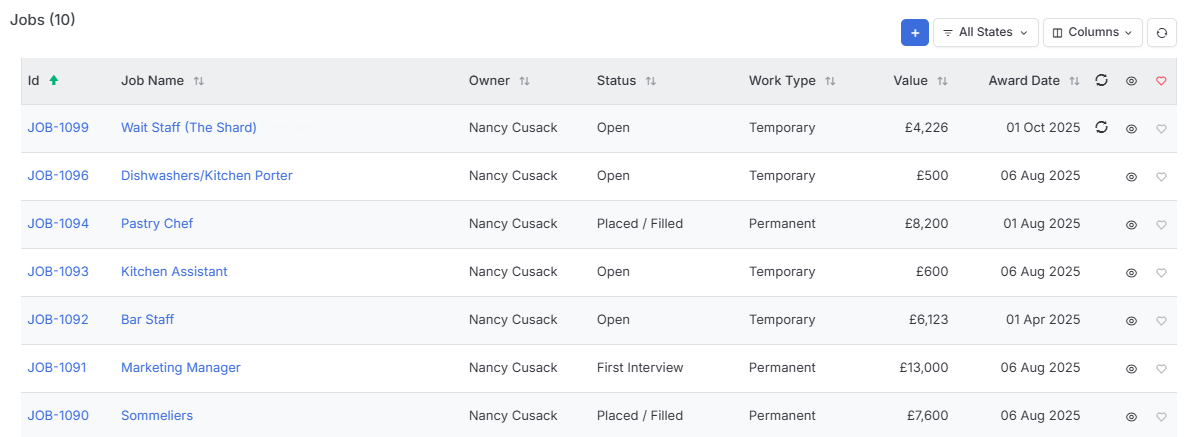
This block shows all the jobs created against the Contact, you can also create new jobs from here via the plus icon.
The All States filter allows you to show just Open, Won or Closed Jobs. Job Statuses such as Open, CV’s Sent, On Assignment, Placed Perm etc are linked to these States, see the article Tools & Settings | Job Settings for more details.
Placement History
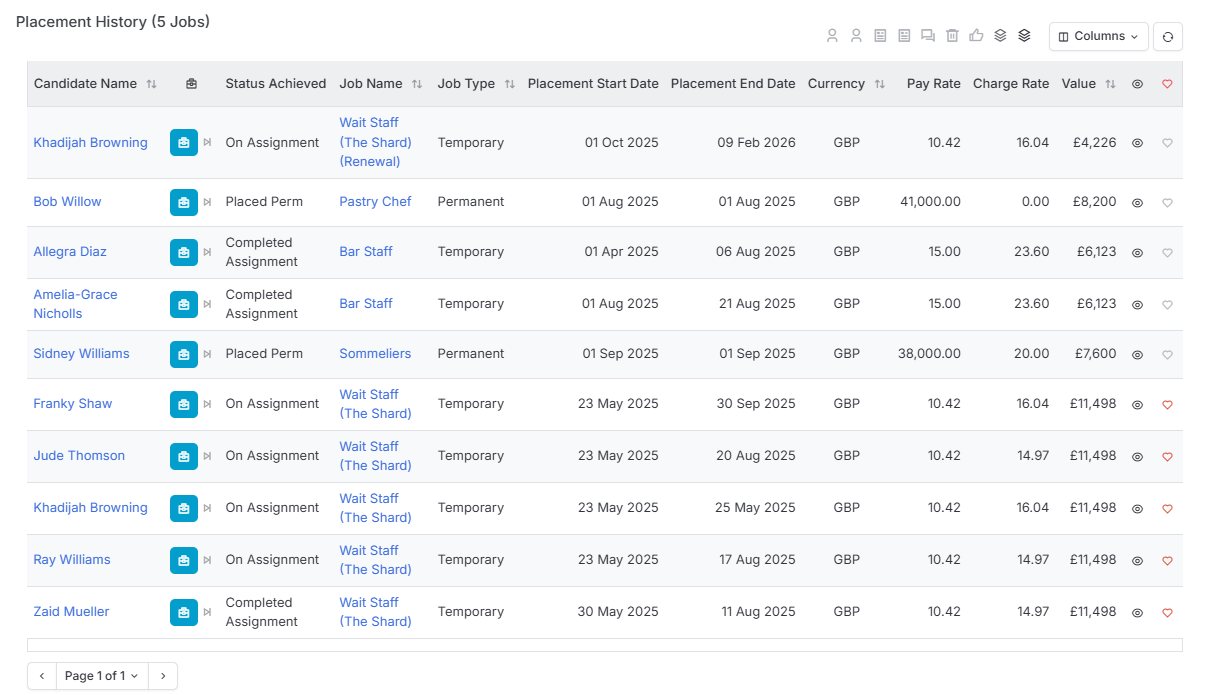
A candidate’s placement journey begins when they are shortlisted and follows their progress through every stage from initial submission to final outcome, and can be shown here. However, its common to use the filter at the top to just show Working and Complete placements.
Click on a filter option to show or hide placements at that stage.

Leads
Leads show potential business opportunities before they become actual Jobs and can be viewed and created here.

Activities
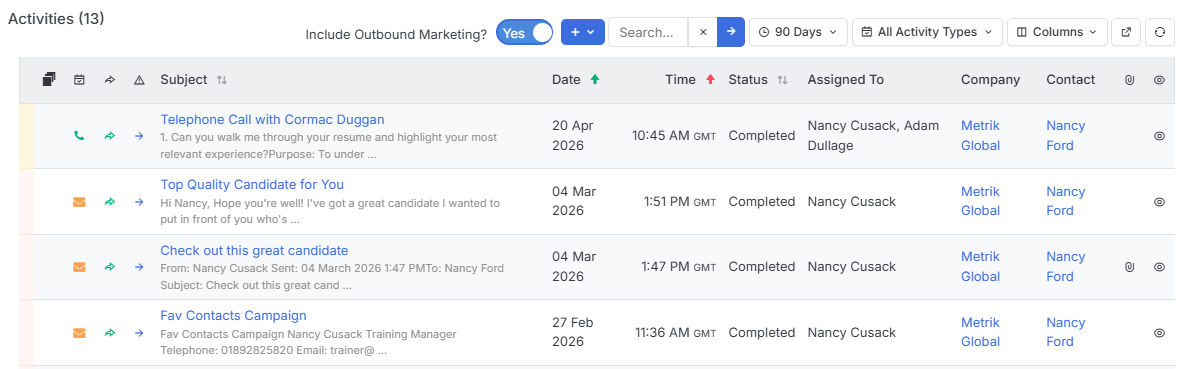
View automated and create activities against the Candidate. See the Activities article for more information.
Documents & Notes
In this area you can store documents related to the Contact including their profile image which will show in the Summary panel. See the Documents article for further details on this area.
Additionally, you can add Notes to the Contact, these are searchable via Find Records (Searching).
Marketing
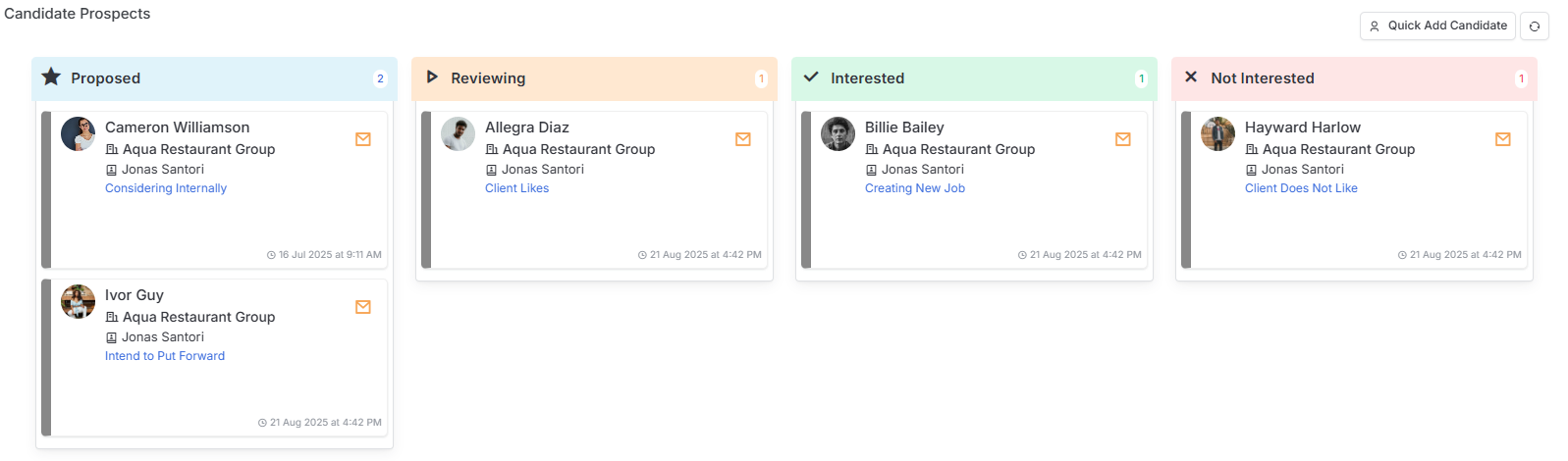
Candidate Prospects
This area will show prospected Candidates to the Contact. You can also learn more about this area in our Candidate Record | Prospecting article.
Campaign Results
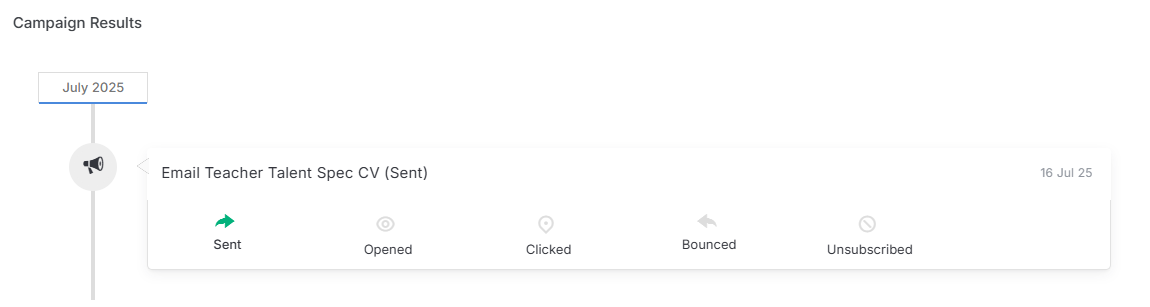
Here you will see all the Campaigns the Contact has been sent, and their activity against that Campaign. Learn more in our Campaigns article.
Send Lists
Send Lists are curated lists to which Campaigns are sent. Here you can view all the Send Lists the Contact is associated with and remove them from those lists. See the Send Lists article to learn more about these and how to add Contacts to them.

Other
Linked CV History
Where a Contact and Candidate record are linked (because they are the same person), the CV History from the Candidate Record will display here. See the Candidate Record and Linking Contact & Candidate Records articles for more details.
Record Links
Custom Fields linked to Contact Records will create bidirectional connections - the Contact Record will show which record it’s linked from.
Relationships
This block will show companies where the contact previously worked and any relationships manually added, for example a Board Member.

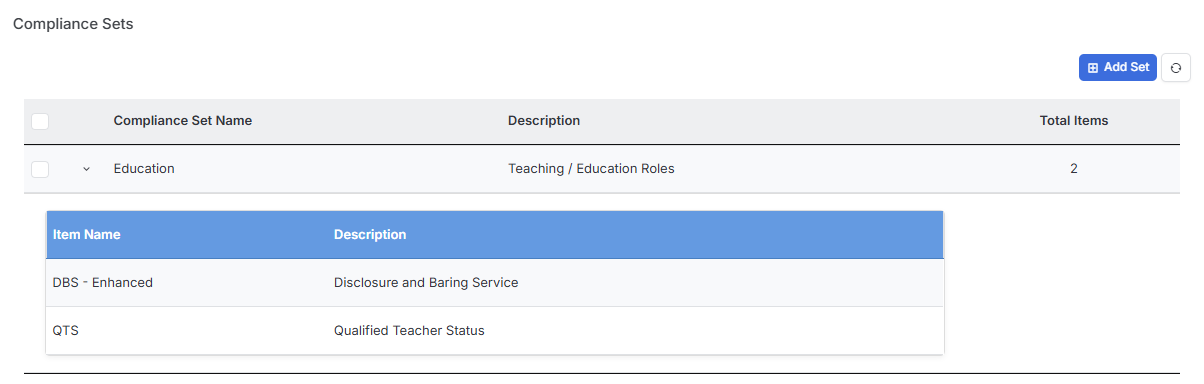
Compliance Sets
Compliance Sets can be assigned to Contact records, making it easy to apply relevant compliance requirements to any Jobs associated with that Contact.