Introduction
At the top the Company record the name banner will display the Company name and most recently added Company Type
Below the name banner the record is comprised of tabs, and within those tabs are the record blocks. Due to itris being highly customisable, the order and name of the tabs, and the placement of the record blocks may differ to those shown in this article.
Below the tabs the are the Show/Hide Summary, Favourites and Tag Text buttons. Additionally, you have buttons to Save the record, return to the List (Find Records), next record in list button and the Action Menu.

Action Menu
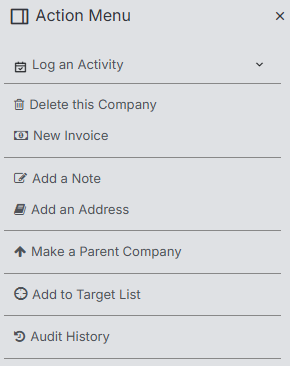
Via the Action Menu you can Log Activity (such as calls and tasks, note this is a collapsible list) against the company, delete the company, raise invoices (see the article Invoices, add notes and addresses, make a Parent Company (or if already a parent company make a Sub Company), Add to Target List (see the article Job Record | Target Companies and view the audit history.
Summary Panel
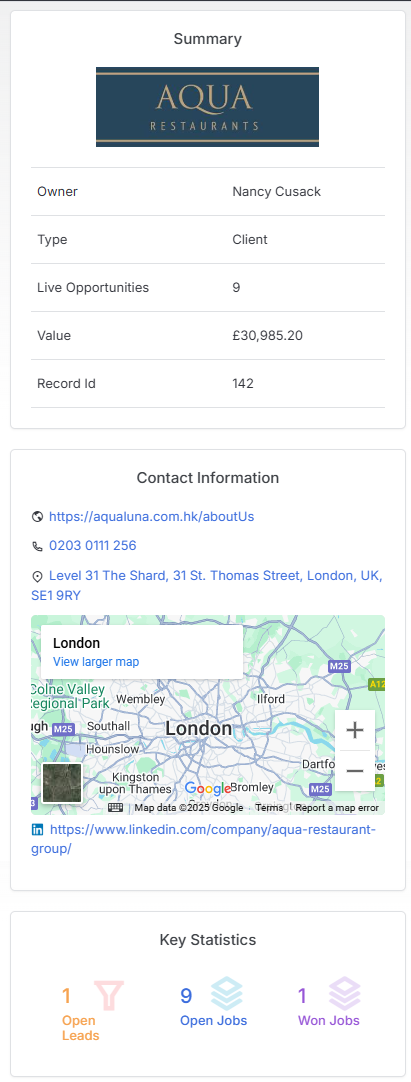
As noted above the Summary panel is expandable/collapsible. When expanded this displays key data about the Company including its Owner, Type, Live Jobs, Value (based on Invoice values), main office address and key statistics.
Profile
In the default layout the profile tab will house key data about the company. The majority of data recorded here can be displayed in reports and used as filter criteria giving you flexibility on analysing your data.
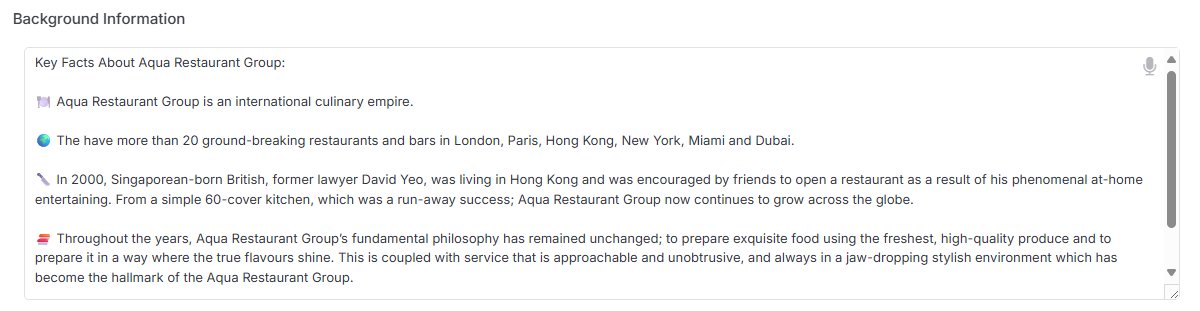
Background Information
You can use this field to capture strategic sales intelligence, for example:
- overview of the business including sector/industry operating in, scope of business, history etc.
- decision-maker preferences (“CFO prioritises cost-per-hire, HR Director focuses on cultural fit”),
- documenting specific pain points (“struggling to find senior developers, previous agency delivered poor candidates”),
- record budget constraints and approval processes (“£80-100K range, slow approval through finance committee”),
- track operational preferences (“prefers email over calls, hires seasonally in Q1/Q3”).
Note the Dictate icon allowing you to use talk to text to complete this field.
Company Details
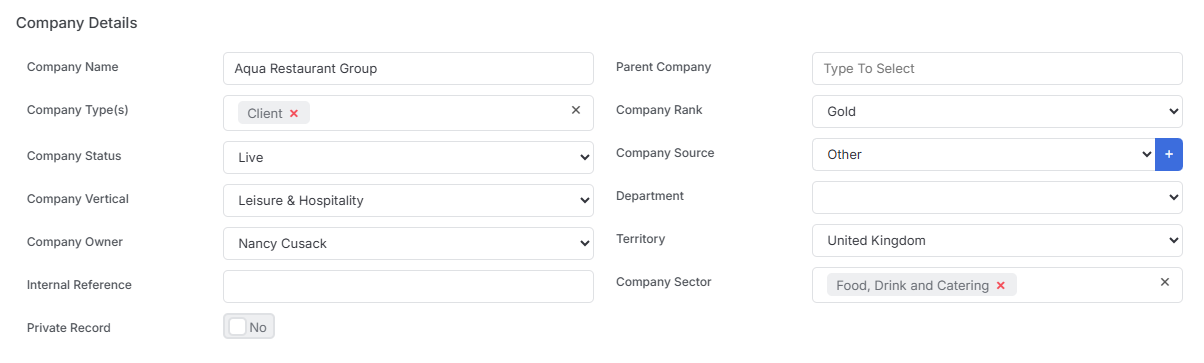
Key data fields are housed here, many of these are drop down values set in Tools & Settings | Company Settings and are key filters for reports and finding records.
Contact Information
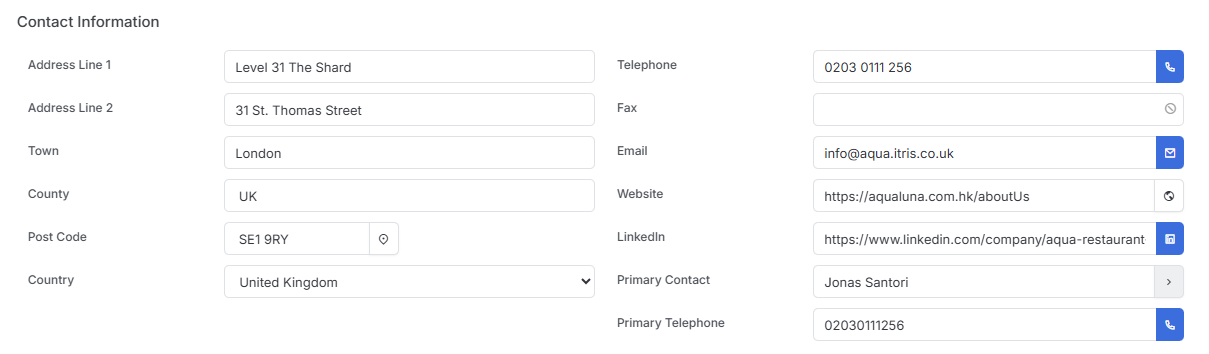
This area will display the primary address (see below) and Primary Contact (this is a flag on the Contact record, see the article Contact Record for more details).
Address Book
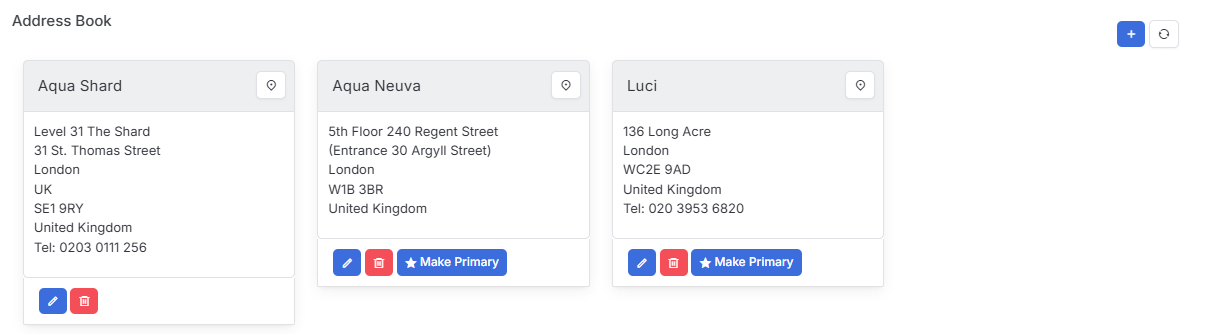
Store all the company’s addresses and telephone numbers here. One of these will be the primary address shown in the Contact Information block and under the Summary panel.
Skills Profile
Skills listed here represent the skills of the Candidates suitable to work at this company. This data is used in Skills Matching for Candidate Prospecting.

Company Lifecycle
This area shows the lifecycle of the record, for example its progression from a Prospect to Live client.

Jobs & Placements
In the default layout this tab houses the following blocks: Jobs, Placement History, Leads, Current Candidates.
Each list under this area has an option to add/remove columns, refresh and move between pages of results.
Jobs
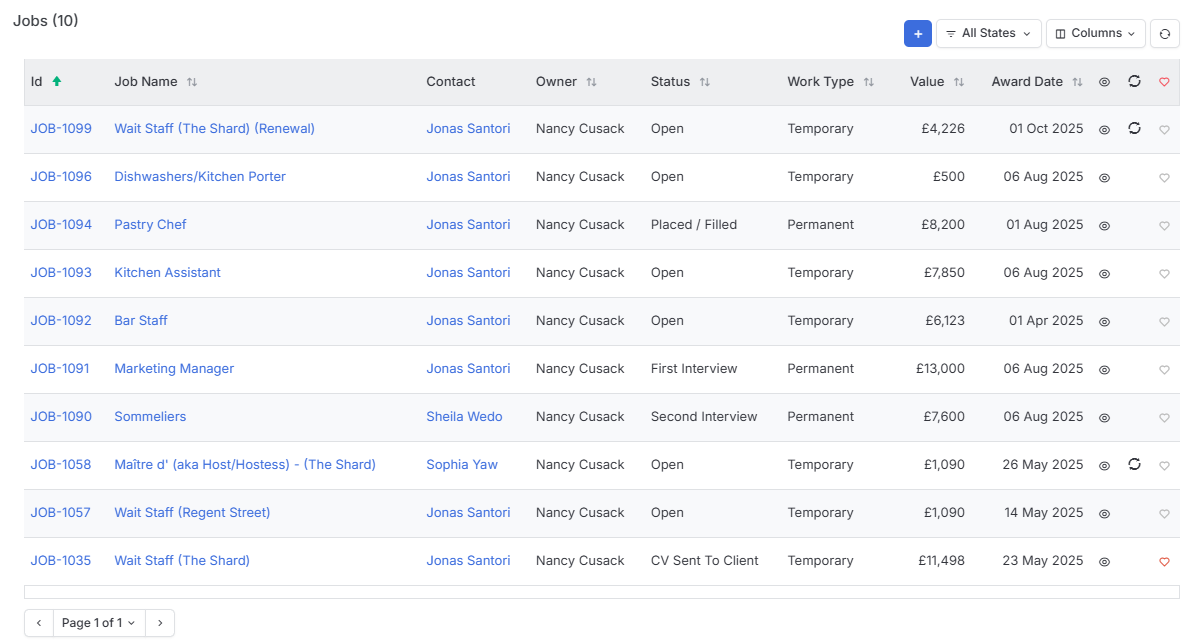
This block shows all the jobs created against the company, you can also create new jobs from here via the plus icon.
The All States filter allows you to show just Open, Won or Closed Jobs. Job Statuses such as Open, CV’s Sent, On Assignment, Placed Perm etc are linked to these States, see the article Tools & Settings | Job Settings for more details.
Placement History
A candidate’s placement journey begins when they are shortlisted and follows their progress through every stage from initial submission to final outcome, and can be shown here. However, its common to use the filter at the top to just show Working and Complete placements.
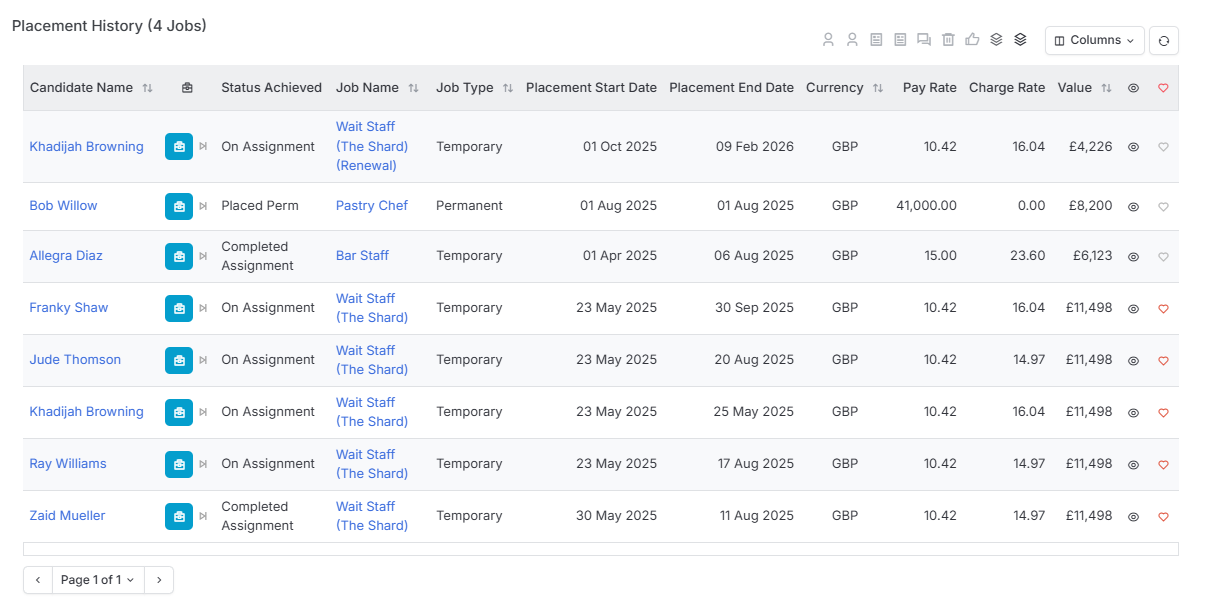
Click on a filter option to show or hide placements at that stage.

Leads
Leads show potential business opportunities before they become actual Jobs and can be viewed and created here.

Current Candidates
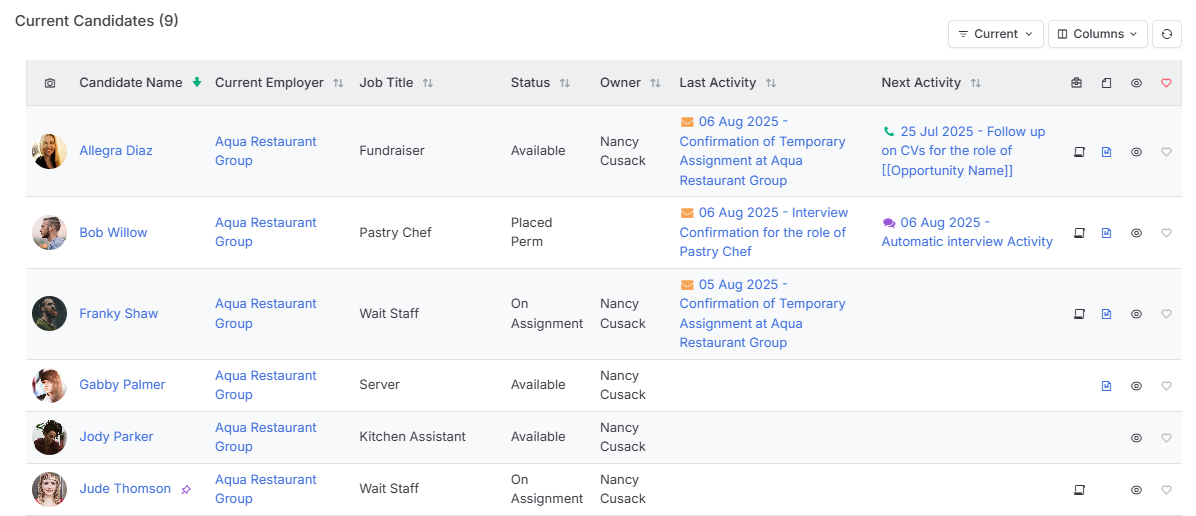
This area displays the Current Employer as shown on the Candidate record. This field gets populated when a candidate is placed into a Job via itris, when the Candidate CV is parsed into itris (and the company name matches an itris record), or can be manually updated.
Important: The Current Employer field remains populated even after an itris placement ends (unless manually changed).
The Historic Current Filter is used to find candidates who were previously on itris placements but whose assignments have ended, yet still have that company listed in their Current Employer field. This helps identify candidates whose employment status may need updating.
Contacts
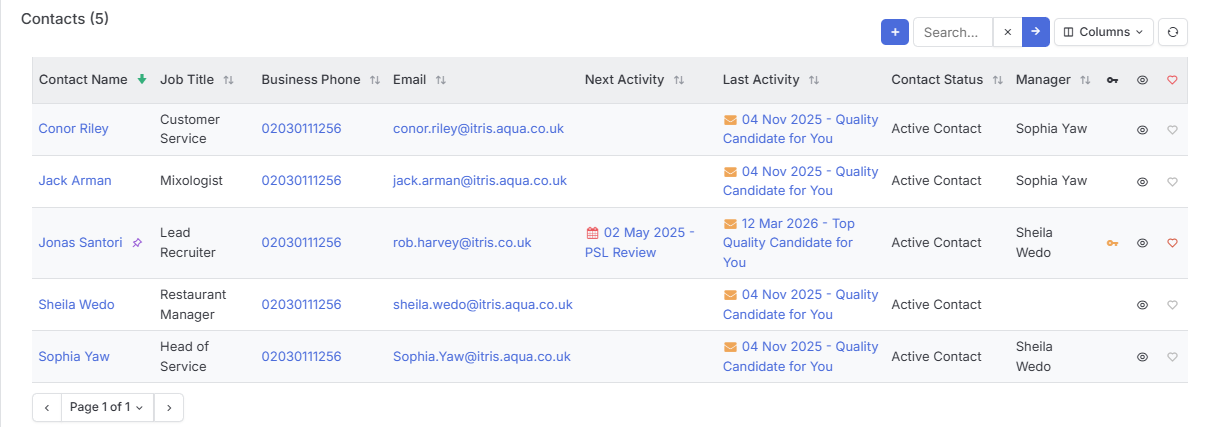
The default layout will have the Contacts and Organisational Chart blocks under this tab. Here you can see all the contacts along with useful information such as who the work for last and next Activity and more.
New Contacts can also be added from here.
Activities
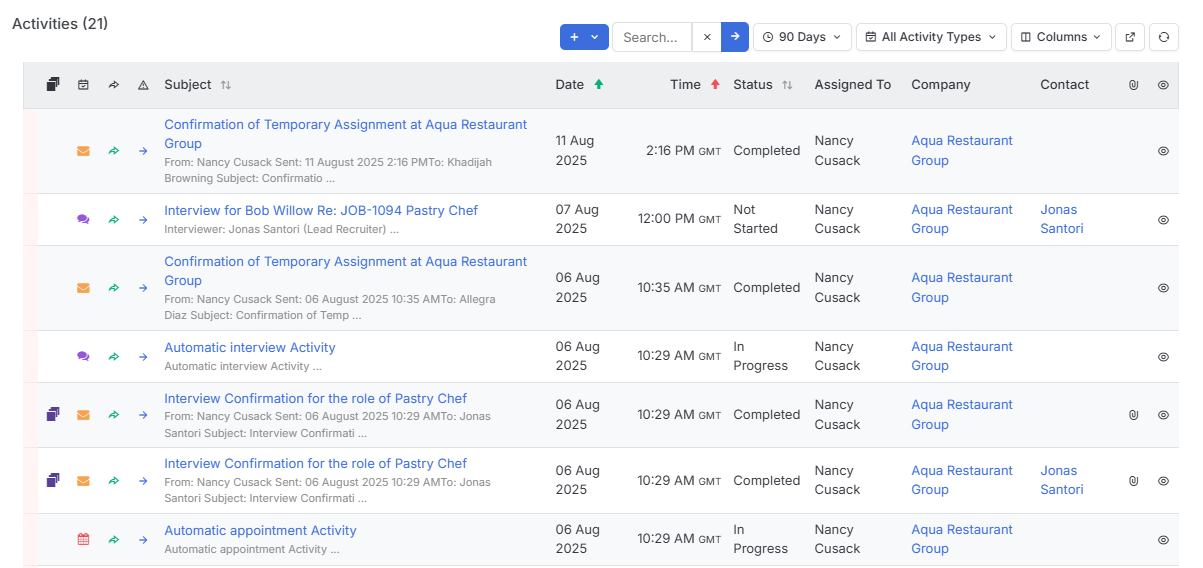
View automated and create activities against the Company and related records. See the Activities article for more information.
Documents & Notes
In this area you can store documents related to the Company including their logo which will show in the Summary panel. See the Documents article for further details on this area.
Additionally, you can add Notes to the Company, these are searchable via Find Records (Searching).
Finance
In the default layout this tab offers blocks to help you manage and track your finances for the Company
Invoices
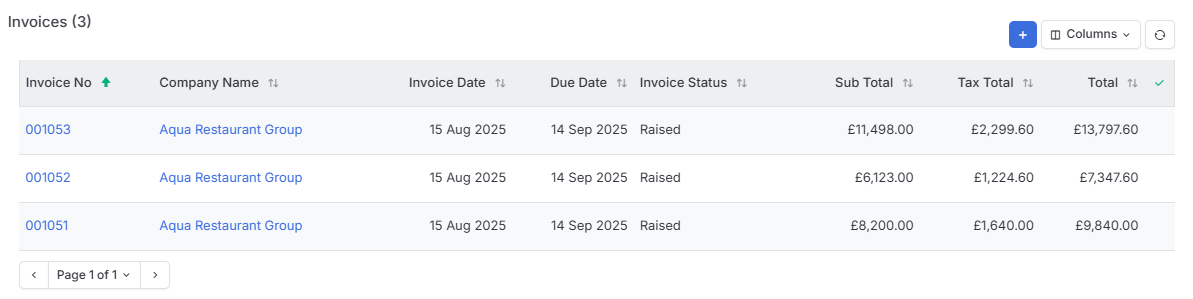
The invoices block shows all invoices raised against the company, you can edit them by clicking on the Invoice Number, new invoices can also be added here. See the Invoices for more details.
Special Terms
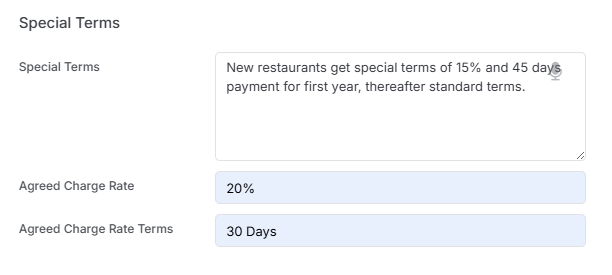
If you have special terms with a client you can note them here.
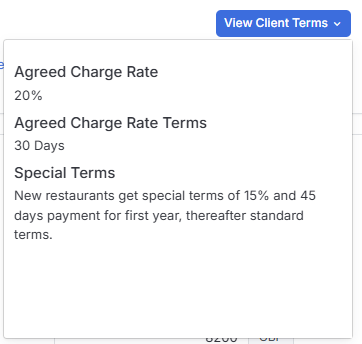
On Placement records under the Placement Rates block you can view these terms to check you are adding the correct values for the placement.
Products & Services
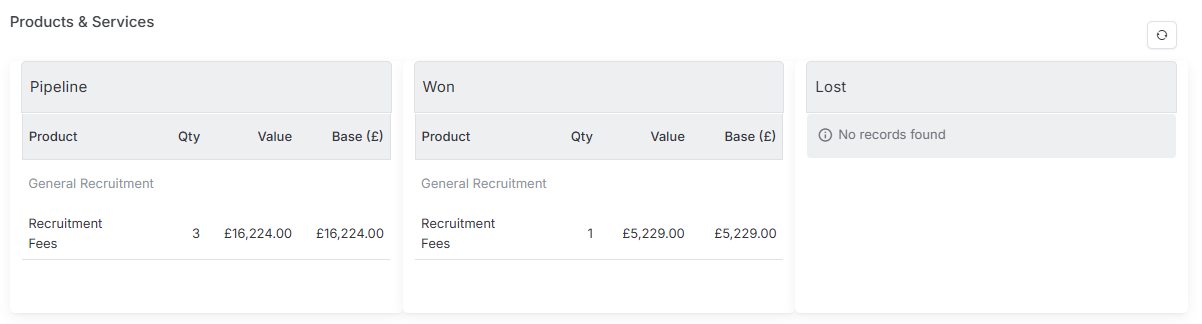
Products and Services are raised against jobs as a way of tracking revenue (they can also be used in invoices). Depending on the Job Status they will show here as Pipeline (live/unfilled job), Won (filled job) or Lost (e.g. filled by competitor).
Invoicing Details
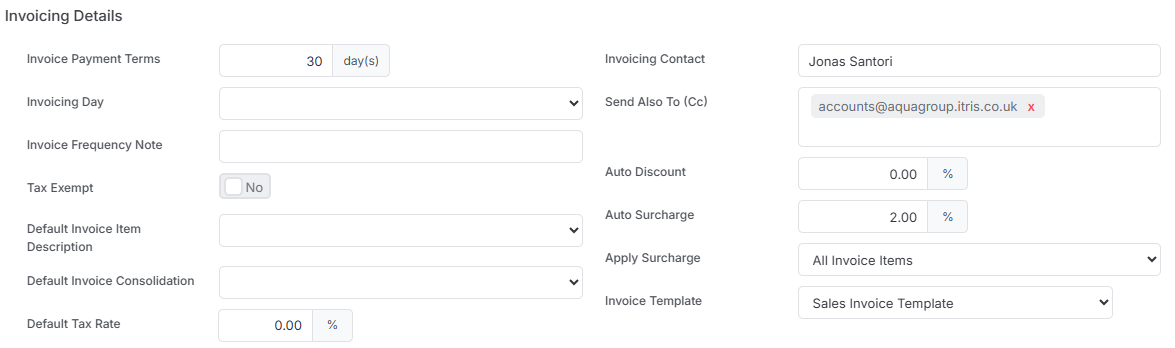
Invoicing details for your clients can be added here, a number of these are defaults which will prepopulate on the invoices, making it a simpler workflow. See the Invoices article for more details.
Most notably of the defaults include:
- Invoice Payment Days - this will also be applied to when splitting invoices, see the Invoices article for more details.
- Tax Exempt - Yes or No
- Invoicing Contact and “Send Also To (cc)
- Invoice Template - often clients would like a specific format so that can be defined here.
- Auto Discounts - allow you to set a % value which will be applied automatically whenever an invoice is generated.
- In line with general accounting practice, Discount is applied before Sales Taxes are applied so will appear after all Invoice Items and before the Taxation.
- Because these discount settings are automatic, if changes are made to the Client’s discount percentage, existing invoices will not be updated, however re-opening and existing invoice will apply the new discount % and will be updated if that invoice is saved.
- If discount percentages are to differ on various invoices, please use the Add Invoice Item to add a negative value instead of using the automatic discounts.
- Auto Surcharges allow you to setup a % value which will be applied automatically whenever an invoice is generated.
- Surcharges can be applied to different aspects of an invoice and the options are:
- None
- All Invoice Items
- In line with general accounting practice, Surcharges is applied before Sales Taxes are applied so will appear after all Invoice Items and before the Taxation.
- Because these surcharge settings are automatic, if changes are made to the Client’s surcharge percentage or application settings, existing invoices will not be updated, however re-opening and existing invoice will apply the new surcharge and will be updated if that invoice is saved.
- If surcharge percentages are to differ on various invoices, please use the Add Invoice Item to add a positive surcharge value instead of using the automatic surcharges.
- Surcharges can be applied to different aspects of an invoice and the options are:
Targets
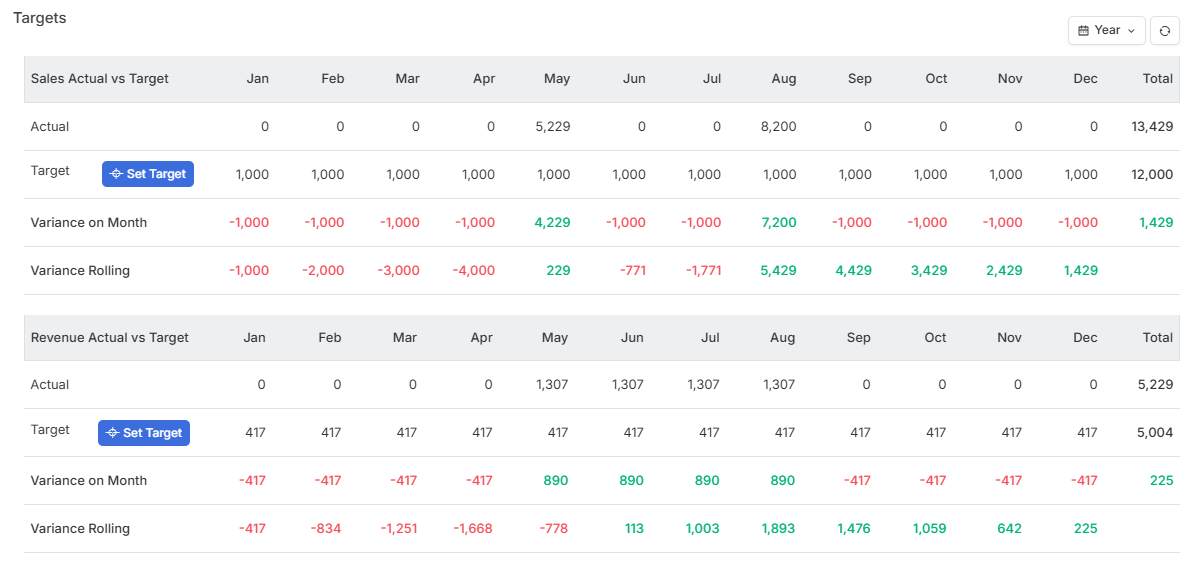
Targets can be set for individual company records.
Sales figures represent filled placements, using the job value figure and assigning that value under the jobs Award Date.
Revenue is taken from Products & Service assigned to a filled Job, potentially splitting the revenue between months depending on how the Product & Service value is allocated.
See the articles Job Record and Tools & Settings | Products & Services for more details.
Other
In the default layout this tab houses the following blocks:
Candidate Prospects
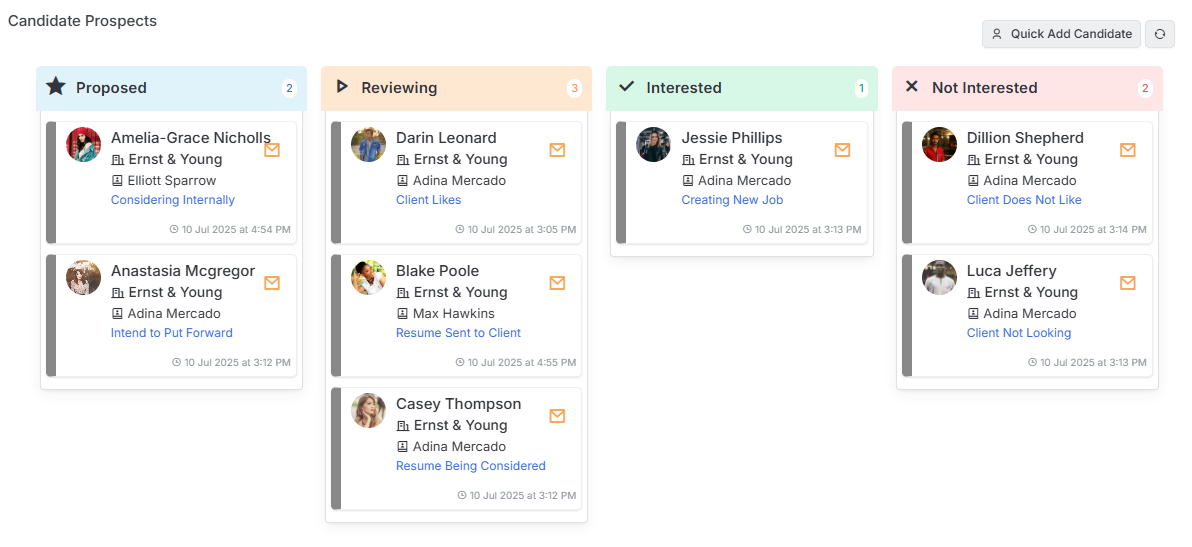
This area will show prospected Candidates to the Company and its Contacts. You can also learn more about this area in our Candidate Record | Prospecting article.
Record Links
Custom Fields linked to Company Records will create bidirectional connections - the Company Record will show which record it’s linked from.
Relationships
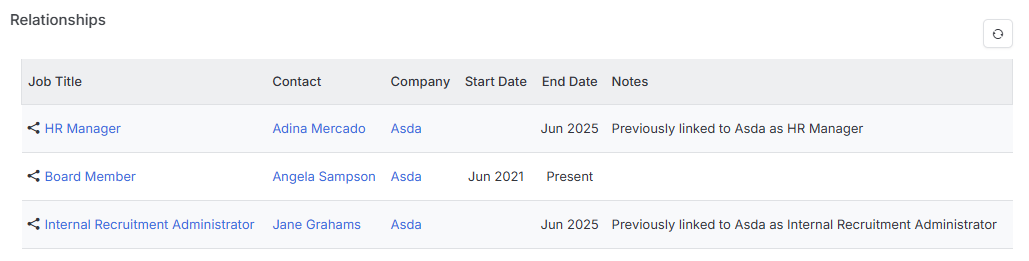
This block will show contacts who previously worked at the company (but have moved to another) and any manually relationships manually added from the Contact Record, for example a Board Member
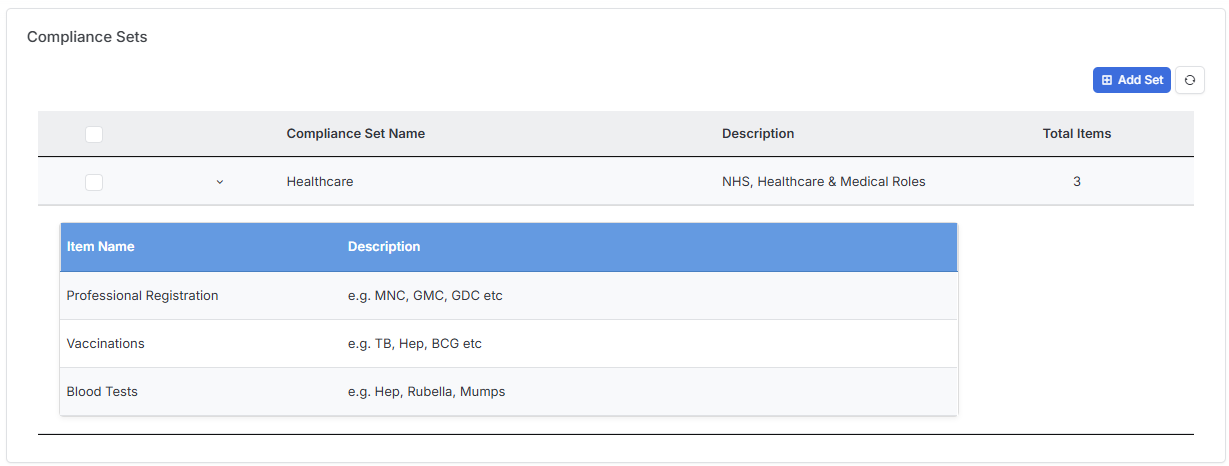
Compliance Sets
Compliance Sets can be assigned to Company records, making it easy to apply relevant compliance requirements to any Jobs associated with that Company.