
Introduction
At the top the Candidate record the name banner will display the Candidate name, their job title and current employer.
Below the name banner the record is comprised of tabs, and within those tabs are the record blocks. Due to itris being highly customisable, the order and name of the tabs, and the placement of the record blocks may differ to those shown in this article.
Below the tabs are the following buttons:
- Show/Hide Summary panel
- Favourites icon
- Tag Text (if a tag is not already added)
- View Text CV
- View Primary CV
- View Cloud CV (this can be saved/downloaded as a PDF)
- Mark Candidate as Off Limits
Additionally, you have buttons to Save the record, return to the List (Find Records), next record in list button and the Action Menu.

Action Menu
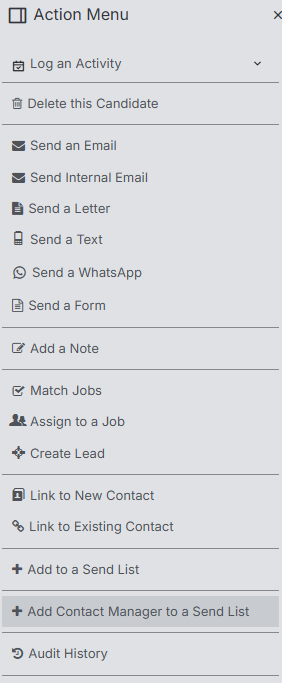
Via the Action Menu you can Log Activity (such as calls and tasks, note this is a collapsible list) against the Candidate, delete the record, send communications such as email and text, Match and Assign to jobs, Link with a Contact record, add to Send List and view the Audit History.
Summary Panel
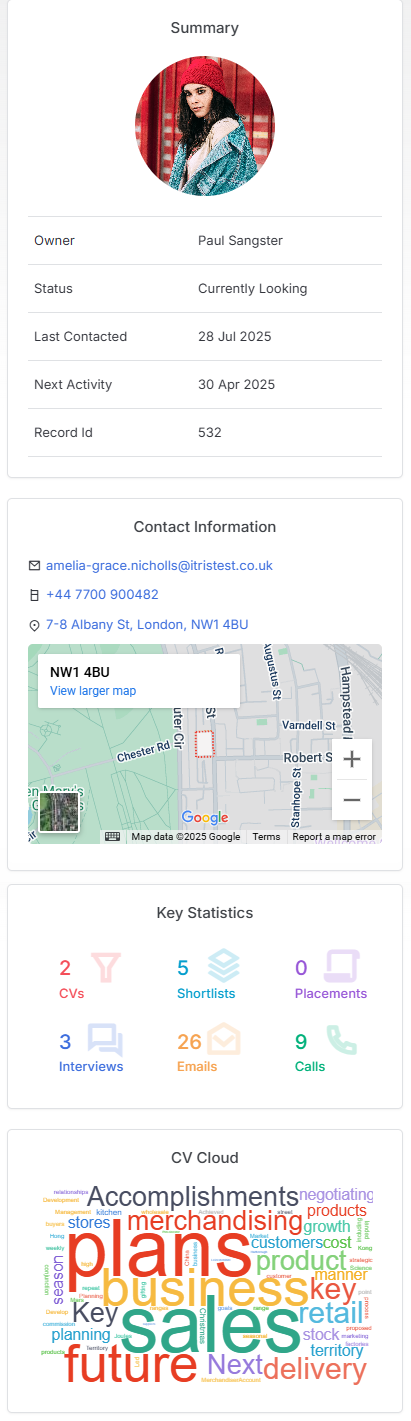
As noted above the Summary panel is expandable/collapsible. When expanded this displays key data about the Candidate including: Last and Next Activities, Status, Contact Information, Key Submission and Contact Activity and their CV Cloud.
Profile
In the default layout the profile tab will house key data about the Candidate. A number of fields in these tabs described below will be populated when parsing the Candidates CV (either when adding as a New Record), updating the CV via the New Record route or Re-xTracking an existing CV. The majority of data recorded here can be displayed in reports and used as filter criteria giving you flexibility on analysing your data.
Candidate Details
In addition to their Name, this area includes key and searchable information such as their job title, current employer, status, owner and source.
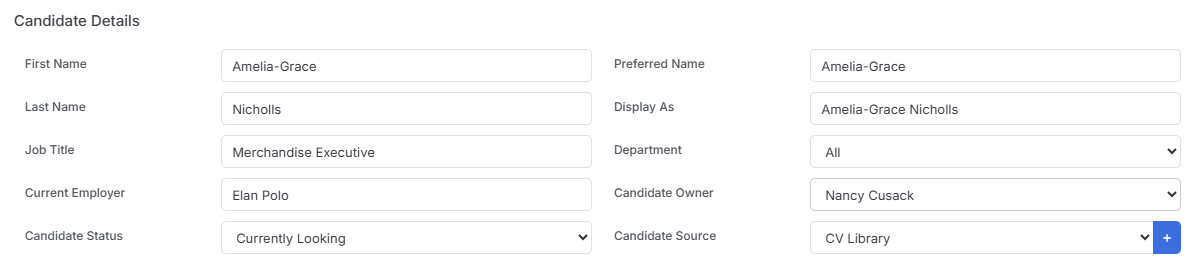
Assigning sources will allow you to effectively analyse where the money is coming in from, which enables informed decision-making when reviewing and renewing paid-for sources, such as job boards and LinkedIn Recruiter based on their performance for you. Reporting can be created to help in analysing this data.
Address & Contact Information
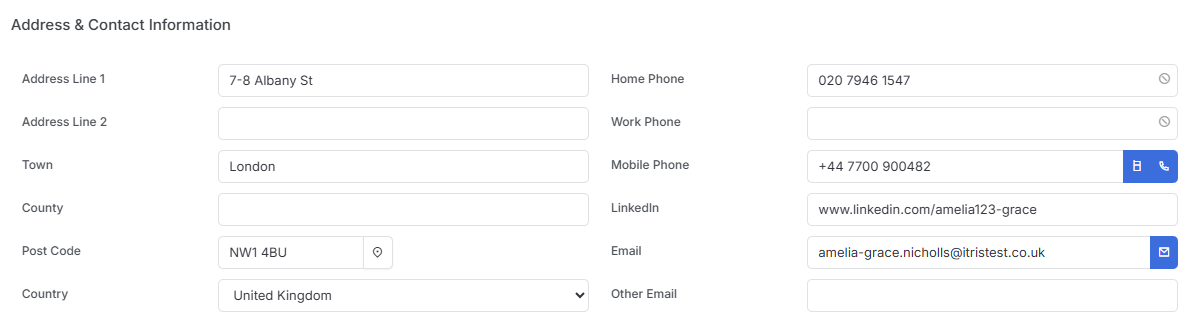
Key contact information is saved in this area, including Post Code which is a searchable field. Emails, Calls & Texts can be initiated from this area (assuming you have the relevant Plug Ins).
Work & Personal Information
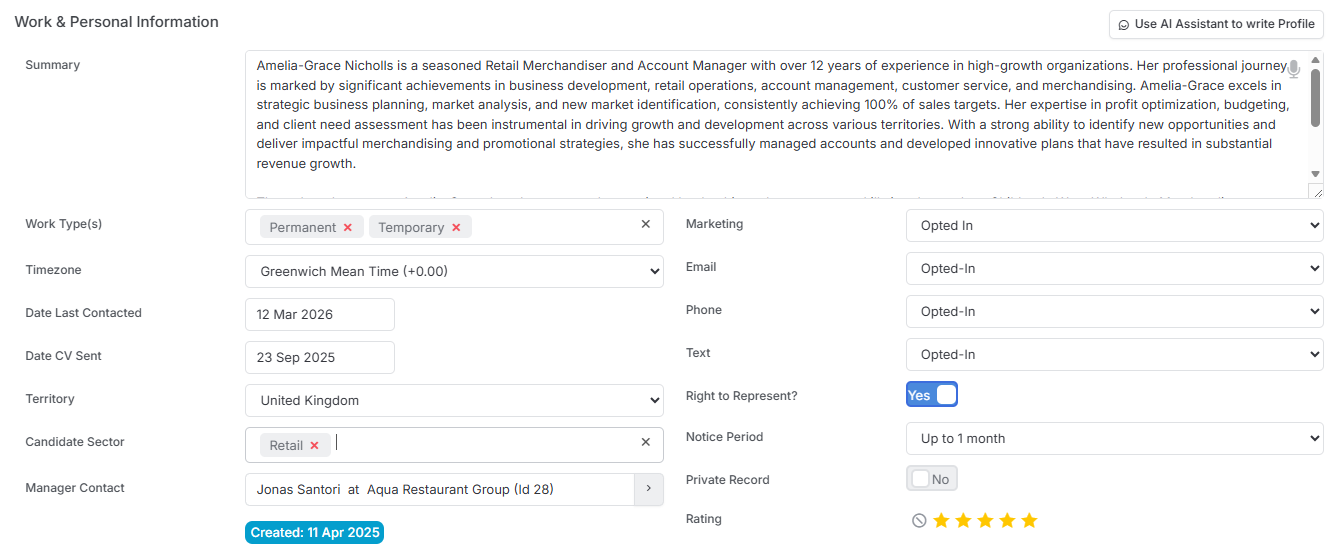
Under this block you have the Summary, this will be created when parsing a Candidates CV, you can also use the AI Assistant to write a profile for you. This can be in paragraph or bullet format, there is also a Custom Option where you can add specific parameters to be included.
A number of these fields are also searchable via Longlist and Find Records searching, such as Work Type, Notice Period and Last Contacted.
When you place a candidate, their manager is often your next best lead — they’ll need to backfill that vacancy, and you’re already one step ahead. The Manager Contact field makes it easy to capture and act on that connection without any extra legwork. The manager can be added to a Send List via the Action Menu or in bulk via the Candidate Record Views.
Opting In/Out
Opt In/Out statuses are also searchable via Find Records.
If Email or Text are set to Opted Out, and your Display Settings are set to “Highlight Opt-Out in Red” this will show on the record in two places:
Action Menu
Address & Contact Information
Salary & Pay
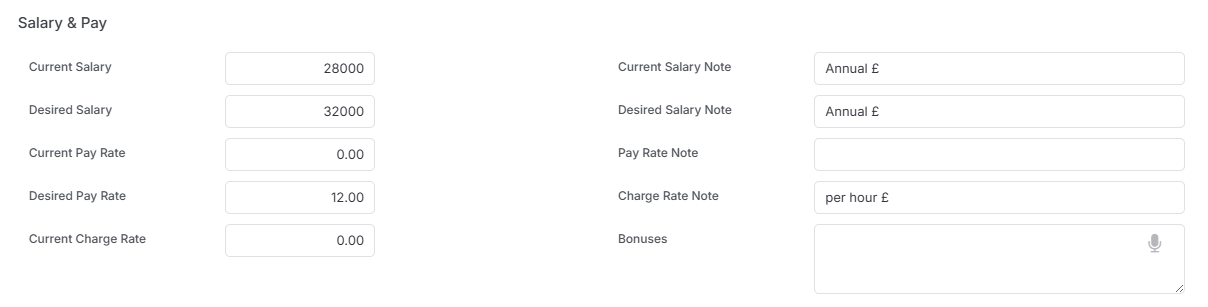
This block can be used to record both the Candidates current and desired Salary and Pay requirements.
Skills Profile
Skills have multiple applications in itris.
- Longlist searching
- Find Records searching
- Job Matching
- Candidate Prospecting
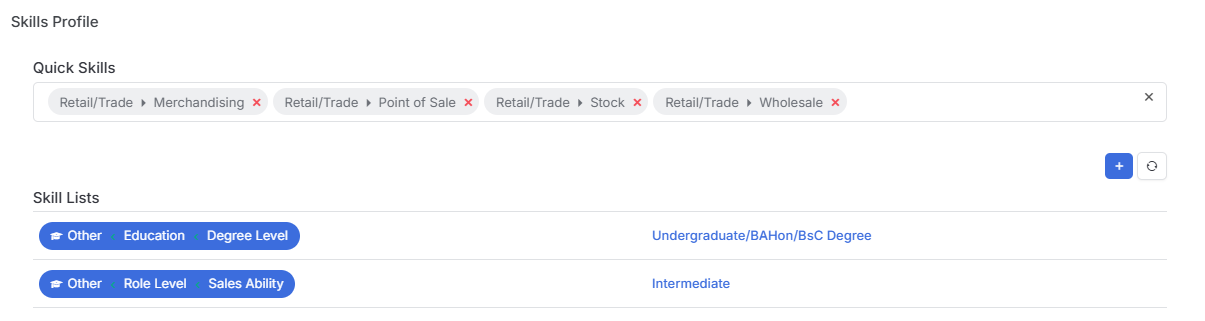
Both Quick Skills & Skills lists are managed by you and can therefore be created in a format that reflects your business, workflow and sectors you recruit into.
Quick Skills will be organised via Categories and Areas, and are added by clicking into the Quick Skills area. Once added a Quick Skill will be prefaced with the Area. When parsing CV’s quick skills will be detected and automatically added.
Skills Lists are used for Skills that may be ranked, for example Sales Ability: Expert, Intermediate, Novice, you can then search on candidates with “at least” Intermediate (e.g. Intermediate or Expert). Use the plus icon to add.
For more information on setting up Skills Profiles see the Tools & Settings | Skills Profile article.
History & CV
Job History
This block shows all the Submissions/Placement records associated with the Candidate. This area has an option to add/remove columns, refresh and move between pages of results.
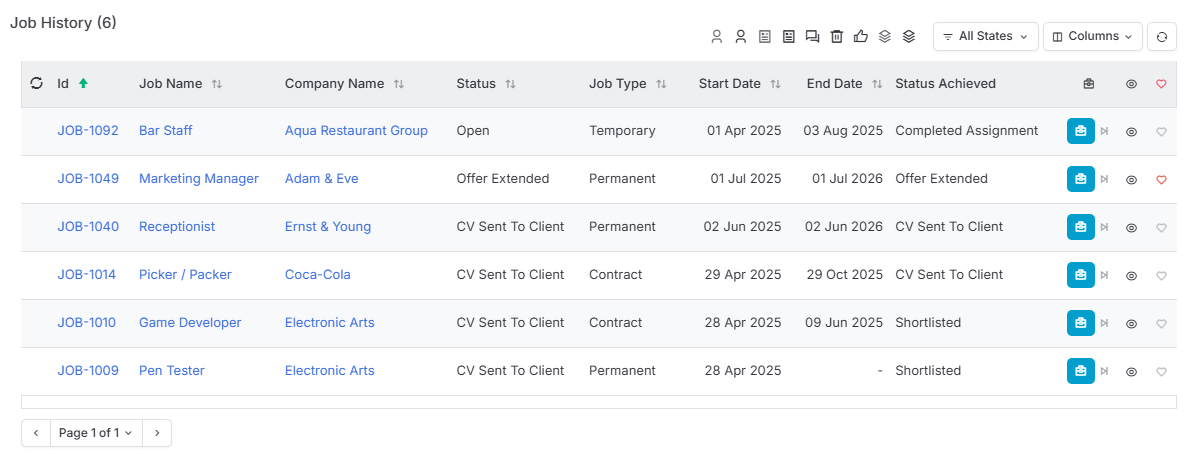
Additionally, there is a filter to allow you to show or hide placements at that stage, for example you would filter to show just those “Working”.

CV History Timeline
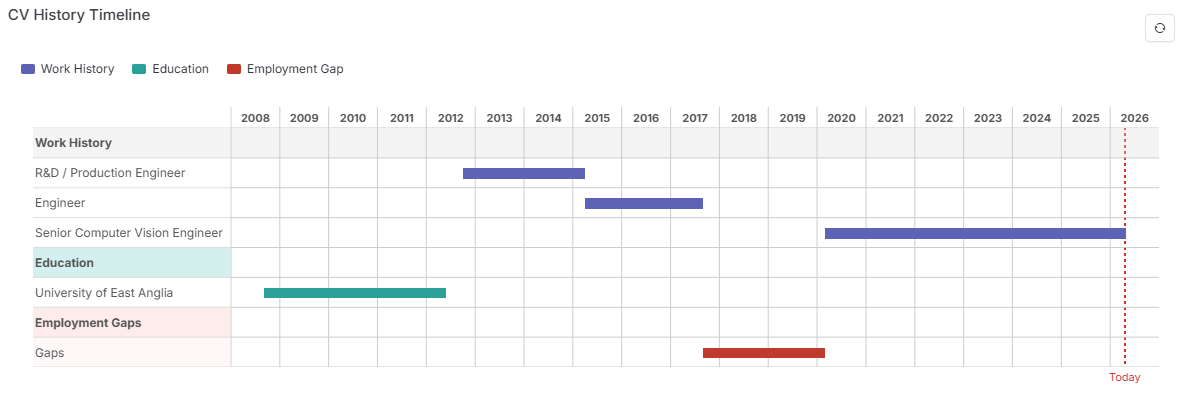
When parsing an Candidates CV a CV History Timeline is created. This allows you to instantly understand not just where a candidate has worked (when and for how long), but when they were in education, and where periods of unemployment may need further exploration, all without having to read through the CV line by line.
This data is incorporated into the Ranking of Longlisted candidates, click here to learn more about Longlist Ranking.
CV History
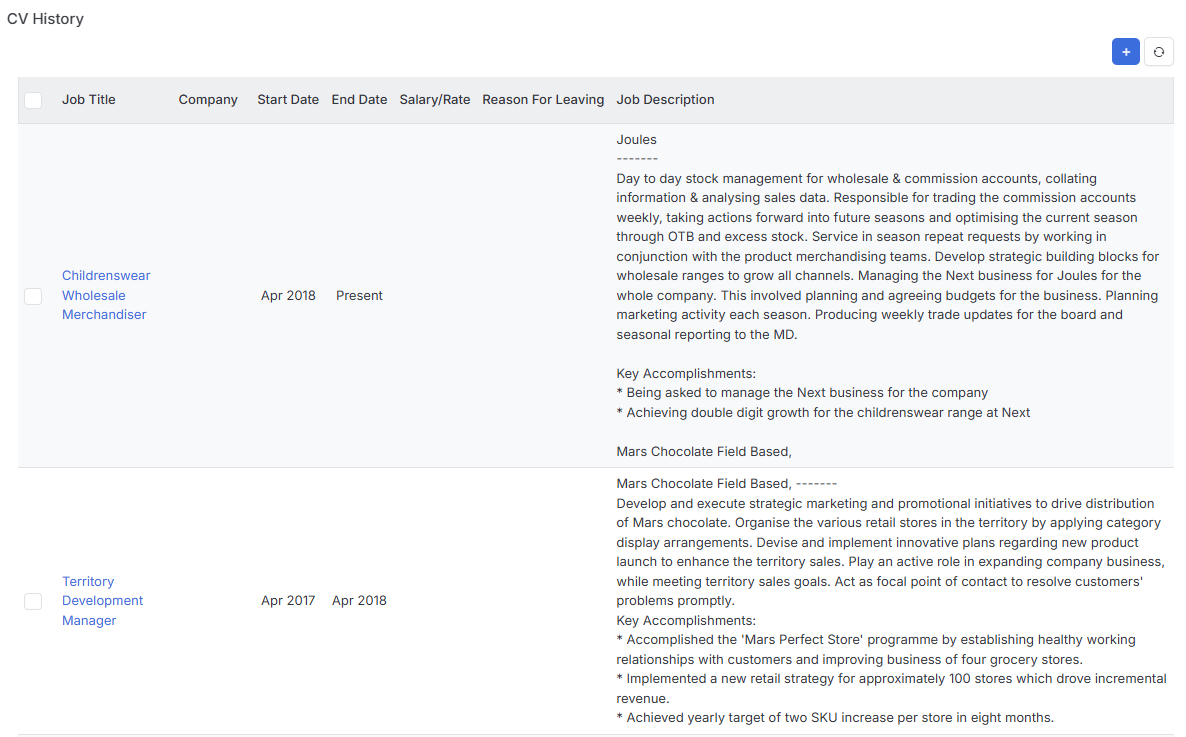
When parsing an Candidates CV a CV History is created. This data is incorporated into the Ranking of Longlisted candidates, click here to learn more about Longlist Ranking.
Entries here can be edited by clicking on the Job title and additional entries added by clicking on the plus icon.
Candidate Education
When parsing an Candidates CV the Education area is populated. This data is incorporated into the Ranking of Longlisted candidates, click here to learn more about Longlist Ranking.
Entries here can be edited by clicking on the Qualification and additional entries added by clicking on the plus icon.

Further CV Information
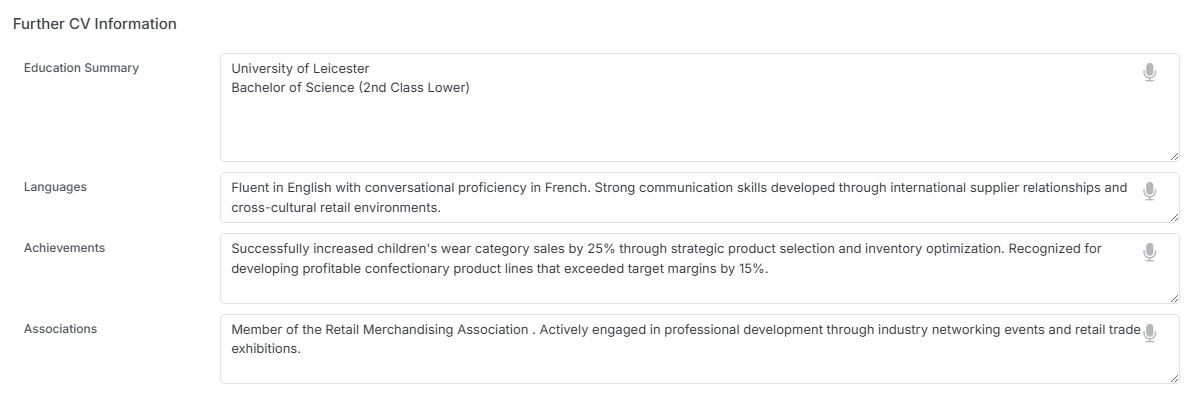
When parsing an Candidates CV the Further CV Information area is populated. Language and Achievements data is incorporated into the Ranking of Longlisted candidates, click here to learn more about Longlist Ranking.
Entries can be added/edited by clicking into them, note the Dictate option also.
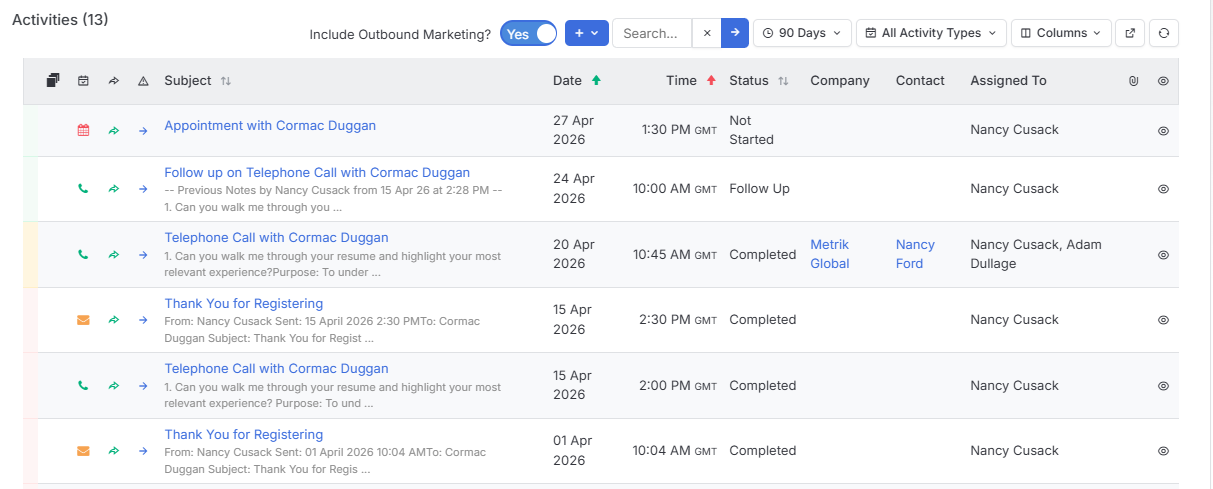
Activities
View automated and create activities against the Candidate. See the Activities article for more information.
Marketing
Candidate Prospects
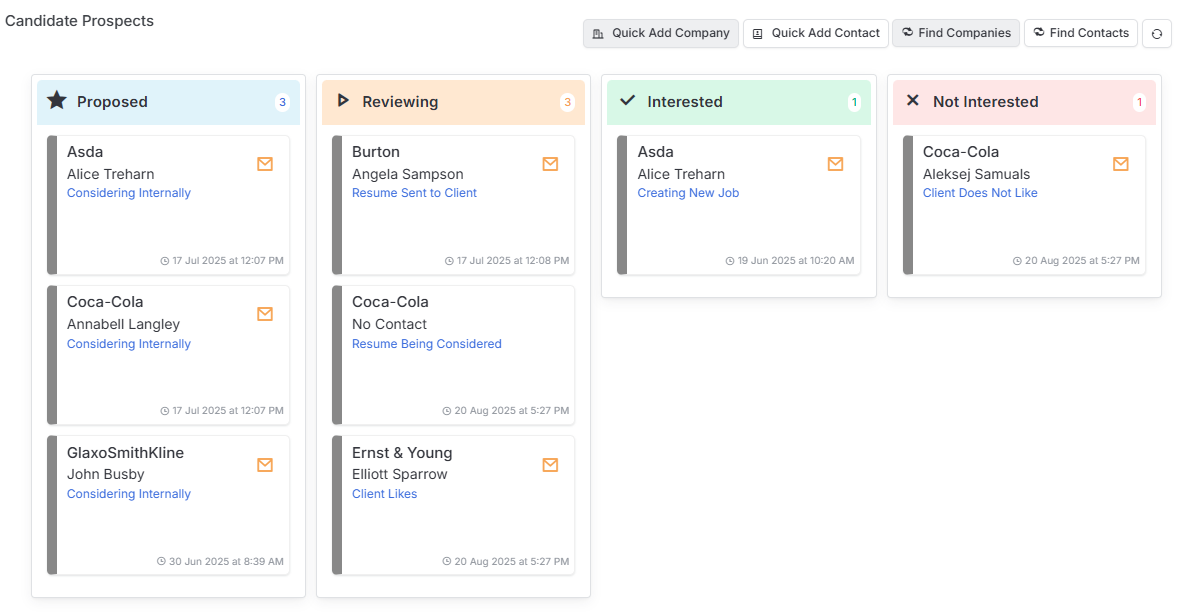
Strategic outreach with targeted Prospects can open doors to new clients and generate opportunities in previously untapped markets. This area will show the Companies and Contacts the candidate has been Prospected to.
You can initiate further Prospecting activities with the Quick Add or Find buttons, and move Candidates through the stages.
Learn more about this area in our Candidate Record | Prospecting article.
Campaign Results
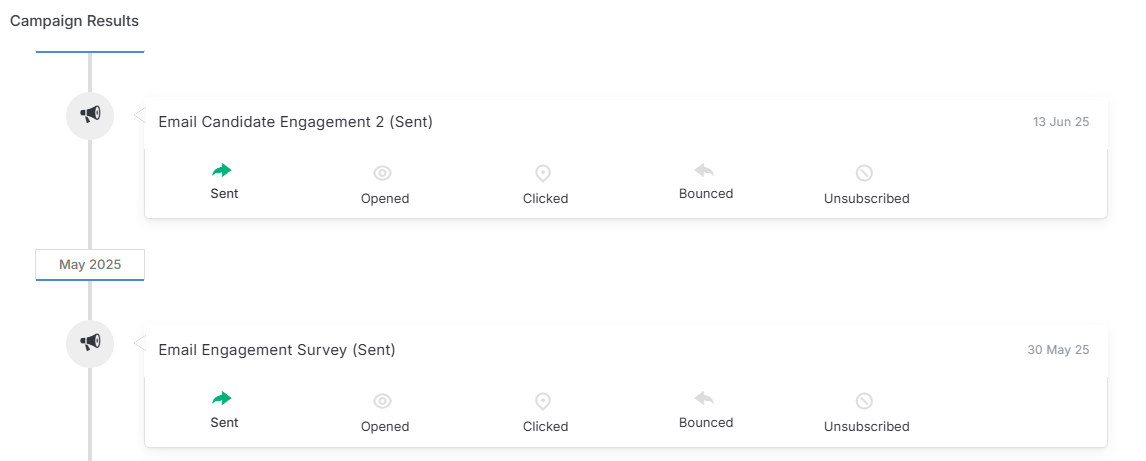
Here you will see all the Campaigns the Candidate has been sent, and their activity against that Campaign. Learn more in our Campaigns article.
Send Lists
Send Lists are curated lists to which Campaigns are sent. Here you can view all the Send Lists the Candidate is associated with and remove them from those lists. See the Send Lists article to learn more about these and how to add Candidates to them.

Documents & Notes
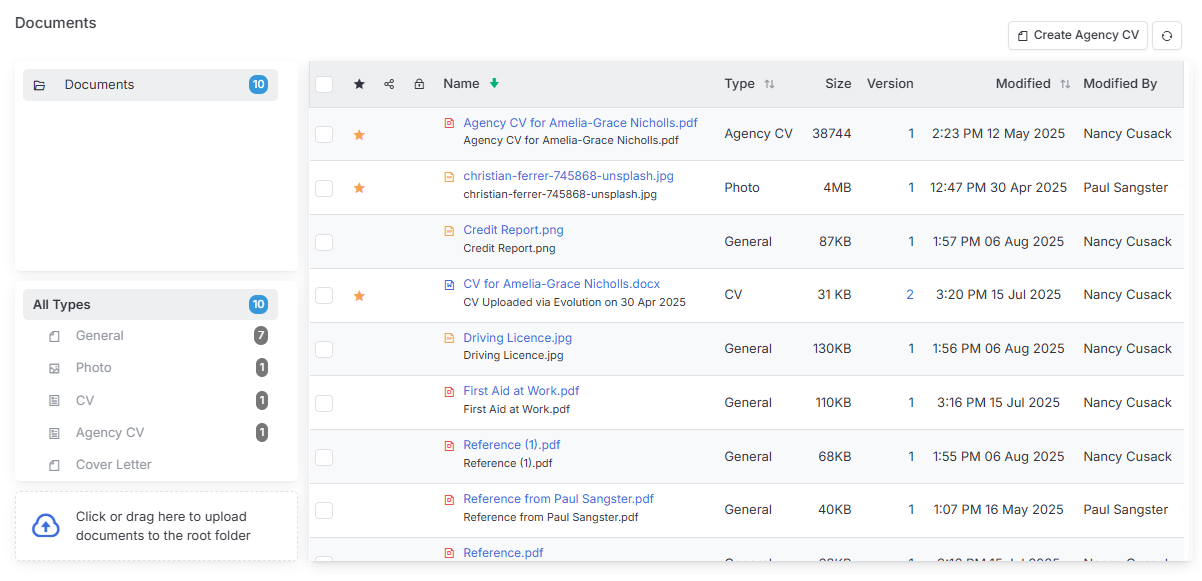
In this area you can store documents related to the Candidate including their profile image (which will show in the Summary panel) and compliance documents.
When adding documents into this area it is important to ensure the correct type is first selected, however this can be changed once the document is added.
See the Documents article for further details on this area.
Additionally, you can add Notes to the Company, these are searchable via Find Records (Searching).
Re-xTracked a CV
When a Candidate is added or updated with a CV via the New Records form their CV will be parsed. If a CV is added directly to the Documents area, or if you want to parse a different CV then this is done via Re-xTracked.
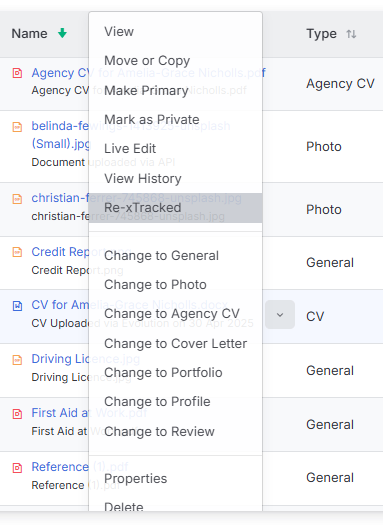
To start this process hover over the CV to see the option for the menu and choose Re-xTracked.
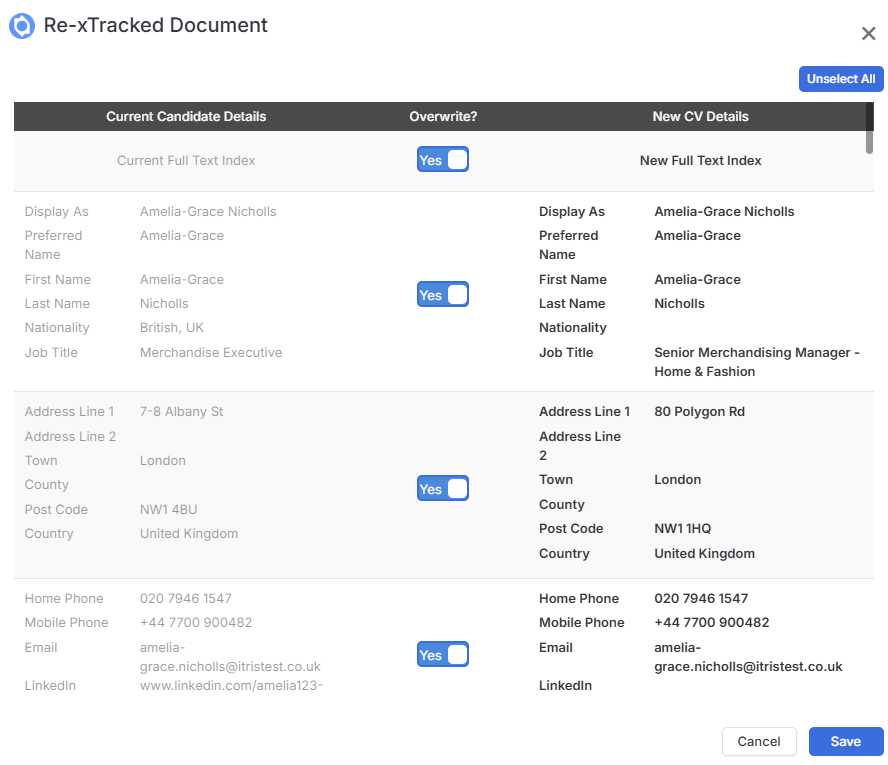
In the window that opens both the Current and New field details will show and you can choose which fields to Overwrite fields and/or create a New Full Text Index for searching. Note, in addition to the individual toggles there is an Unselect All at the top.
Compliance
References
References give you crucial insight into how candidates actually perform beyond interviews and CVs. In itris, managing them doesn’t have to be a paperwork nightmare - the system streamlines reference collection with automated emails, custom forms, and smart features that make the whole process effortless.
See the article Candidate Record | References for more details on this block.
Candidate Compliance Items
Managing candidate compliance in itris is all about staying on top of the documentation and certifications your candidates need. The system gives you plenty of flexibility to track exactly what matters for your business.
See the article Candidate Record | Compliance for more details on this block.
Other
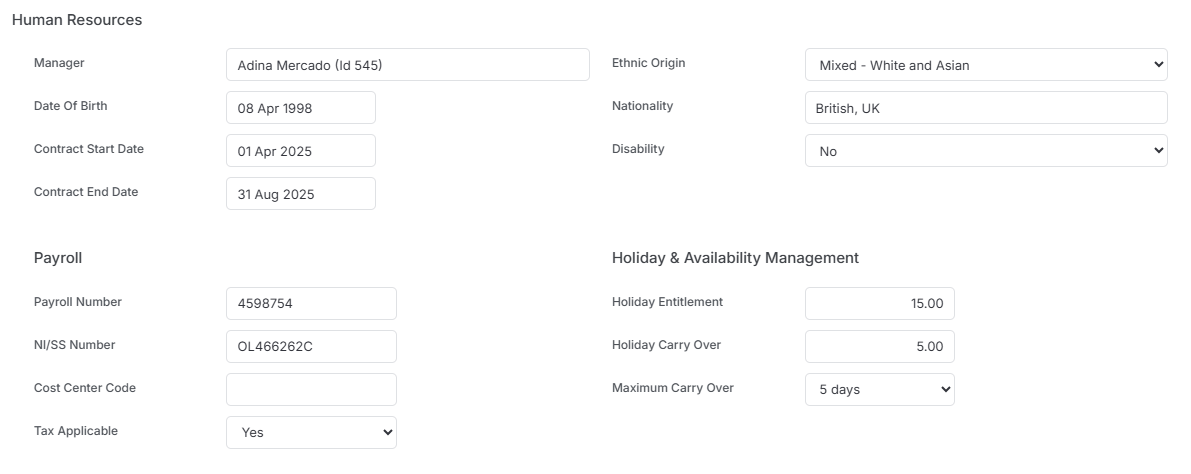
Human Resources
Record Human Resources data here for reference.
Company Exclusions
It may become necessary to impose a restriction on a candidate to stop them from being sent to a particular company. You can add these with or without and end date and reason. Clicking on the exclusion will allow you to edit or delete it.

Record Links
Custom Fields linked to Candidate Records will create bidirectional connections - the Candidate Record will show which record it’s linked from.
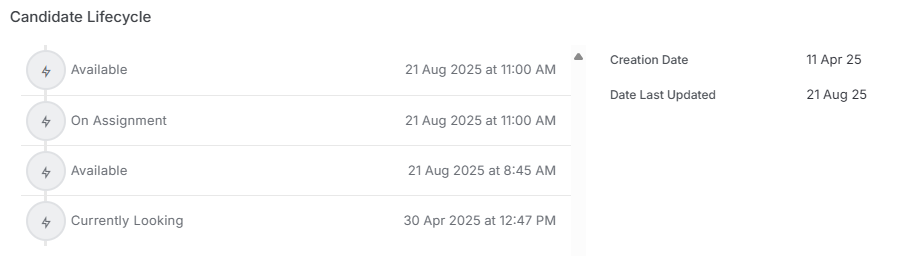
Candidate Lifecycle
This area shows the lifecycle of the record, for example its progression from available to On Assignment.
Internal Interview
If you conduct internal interviews of your Candidates you can record those details here. If required, via User Group permissions you can restrict users from editing these details.

Banking Details
If you wish to record a Candidates banking details in itris for your reference you can do this here.