Introduction
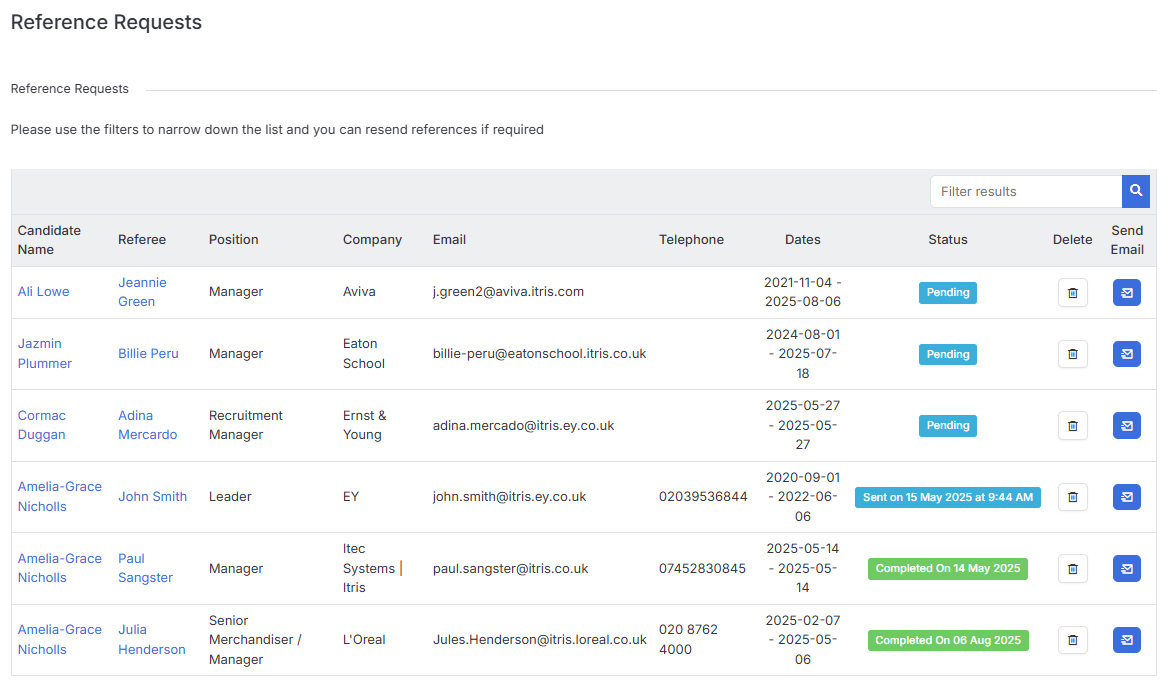
Whether you’re dealing with a high-volume agency environment or managing a smaller, more boutique recruitment process, itris gives you the tools to streamline reference collection while maintaining the personal touch that gets results. From automated email requests to custom forms, and from tracking incomplete references to turning referee contacts into new business leads, the system is designed to make your life easier.
Adding References
When you’re adding references to a candidate in itris (via the plus icon), the most important thing to remember is to save the record once you’ve added them. It’s one of those simple steps that’s easy to forget but crucial for keeping your data intact!
Reference Actions
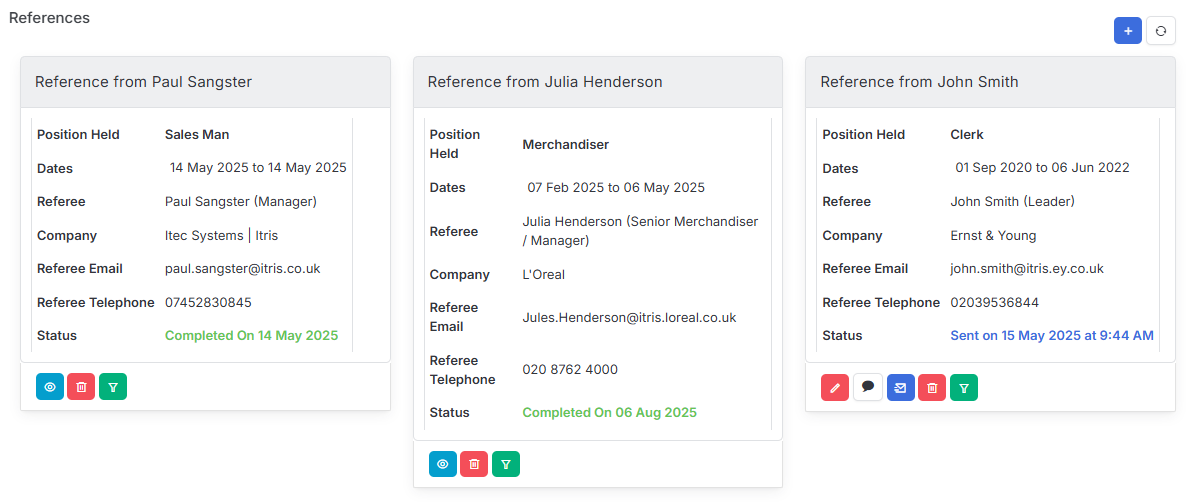
Once you’ve successfully added a reference, you’ll see several action buttons become available that give you plenty of flexibility in how you manage that reference:
- View - This lets you see completed references at a glance by opening it in a side panel (this is the Reference Report).
- Edit - Perfect for making quick updates or corrections.
- Manually complete - Handy when you’ve gathered reference information through a phone call or face-to-face conversation.
- Request by email - The easiest way to reach out to referees digitally, see below.
- Delete - For when you need to remove outdated or incorrect references.
- Create lead - A great feature that can turn reference contacts into potential business opportunities, see the Leads article for more details.
- Send Reference - completed References can be emailed itris contacts, see below.
Email Reference Requests
When you choose to request a reference via email, itris makes your life easier by offering a couple of different approaches. Both options work well - it really comes down to whether you want the convenience of the built-in system or the flexibility of creating something tailored to your specific needs.
itris Reference Form
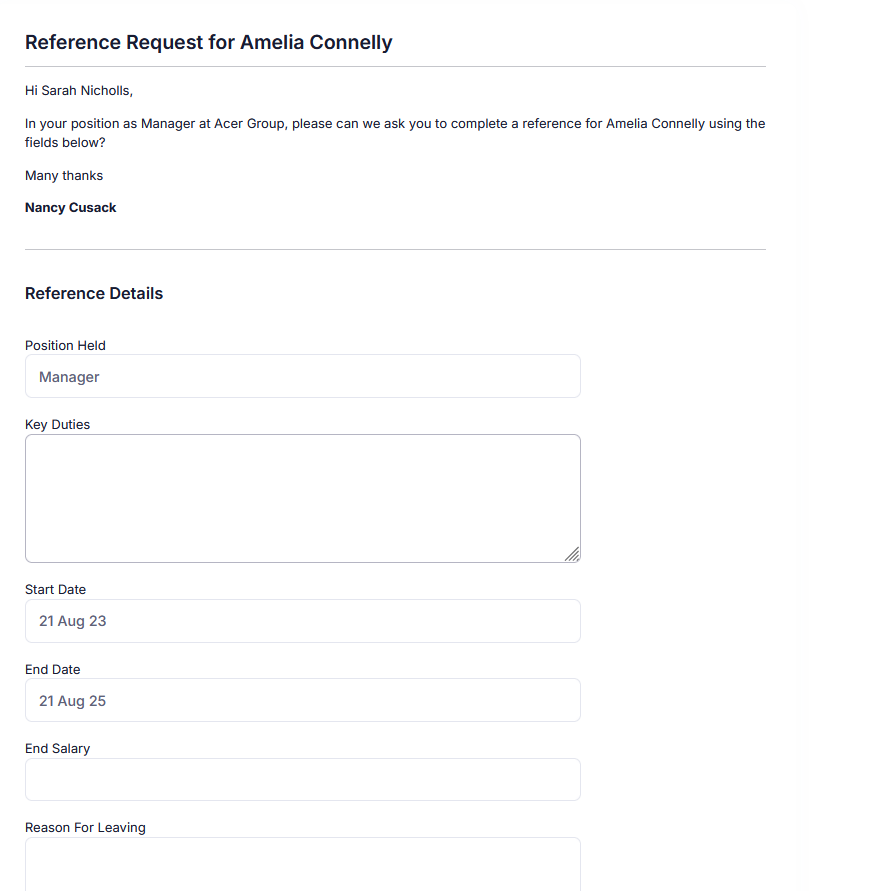
You can stick with the itris reference form, a link to which you’ll find in the system Template “Reference Request Email”. This link loads a web form reference for the referee to complete and keeps everything streamlined and ensures referees can complete their feedback directly within the system
Note: this link may need to be configured for your database (e.g. your company name will show in the URL), please speak to our Service Desk if this is not configured for you.
In addition to the standard details such as dates, position held, key duties etc, the form also lists drop down options for Professional Ratings (such as Reliability, Attitude, Time Keeping and more) and General Details (such as would you re-employ, disciplinaries etc).
Own Reference Form
Alternatively, if you prefer a more customized approach or have specific requirements, you can create your own Word or PDF form and attach it to a personalised email template. This gives you complete control over the questions you ask and the format of the responses you receive.
Sending References
Received References can be emailed to your itris Contacts.
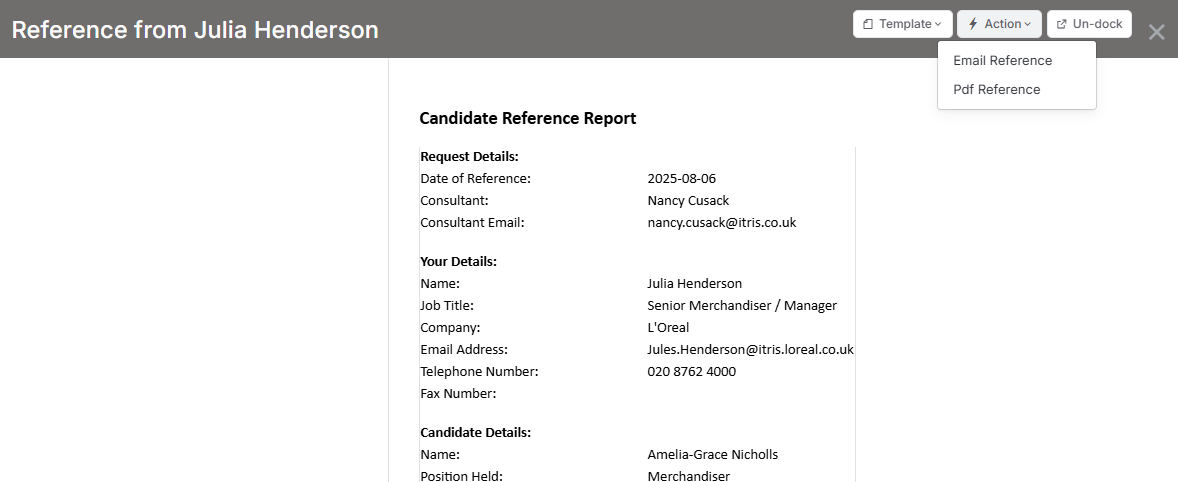
When clicking to View the Reference Report in the side panel you’ll have an Action button with the option to Email the Reference (or create it as a stand alone PDF). Emailing will open an email form with a PDF of the Reference Report attached.
Viewing Reference Requests
The Reference Request area within Tools & Settings gives you a complete overview of all your reference activity in one convenient place. You’ll be able to see everything you need about your references at a glance, including which candidate each reference is for, who the referee is, what company they’re from, and all their contact details.
See the article Tools & Settings | Reference Requests for more information.