
Introduction
The beauty of itris is that you can start sending emails from pretty much anywhere in the system. If you’re looking at a single record and want to send them an email, just open the email function directly from that record.
Sending email in bulk is also possible from a number of different starting points:
From various lists throughout the system after those records are selected the Action button will allow you to send bulk emails. Lists include (but not limited to:
- Record Views
- Target Companies list on a Job
- Shortlisted or Longlisted Candidates on a Job
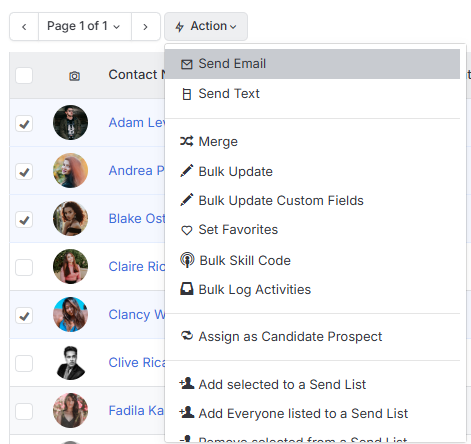
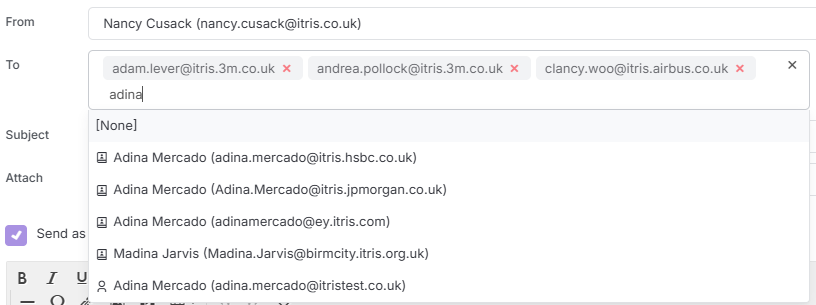
Alternatively, once the email form is open when sending to one recipient, additional recipients can be added.
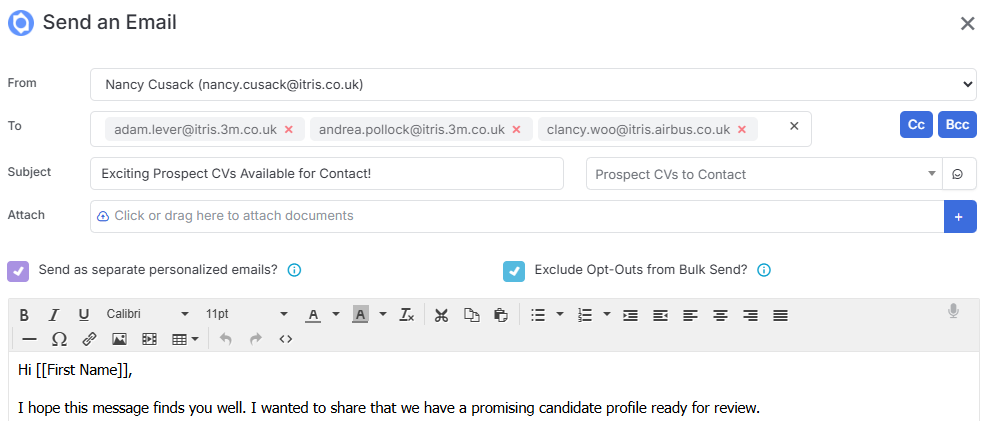
Email Form
Once you’re in the email form, you’ll see everyone listed in the To field.
The “Send as Separate personalized emails?” box will be checked, this ensures each recipient gets their own personal email. However, if you don’t want to split it out, for example its an email to contacts at the same company, you can untick this.
There are also CC and BCC options are available if you need.
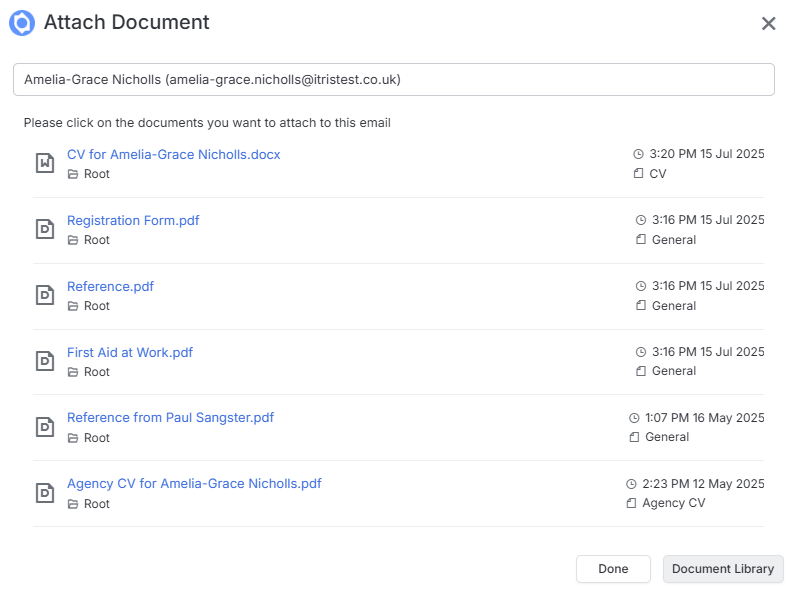
Adding Attachments
Attaching documents is really flexible in itris. You can pull documents that are already stored in itris, or upload something from your computer.
For documents stored outside of itris you can just drag and drop the file, or use the plus icon - whatever feels more natural to you.
For documents from itris records you can use the plus icon to find those records or attach from your Document Library.
Handling Opt-Outs
Also ticked by default will be “Exclude Opt-Outs from Bulk Send?” . If record has their email preference set to opt out , itris exclude them from the email It’s a nice way to stay compliant and respectful of people’s preferences.

Templates and Content Creation
If you want to personalise your email this is where Email Templates will come in handy, even if its a basic email template with just a simple “Dear [Name]” tag, which covers most of your personalisation needs.
There is the AI assist feature right next to the template dropdown to help you craft something that sounds professional but still personal.
You get all the usual formatting options too, so you can make your emails look exactly how you want them.
Post Email Workflow
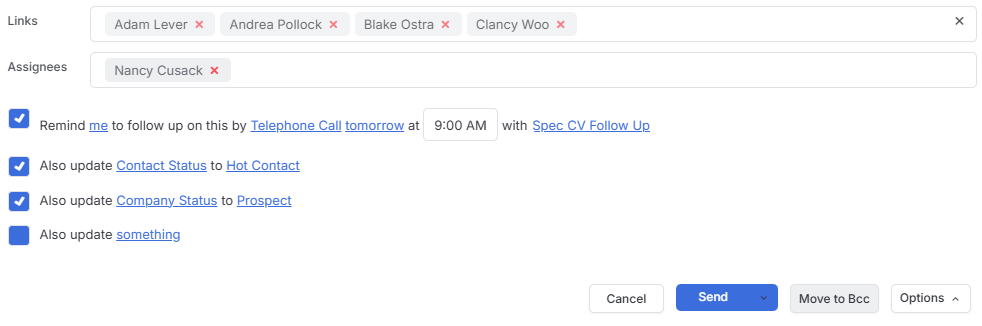
At the bottom of the form, you’ll see any linked records, which is handy for keeping track of relationships and context. You can also manage which users the email is assigned to - add people or remove them as needed.
Follow-ups and Automation
Here’s where itris really shines for busy recruiters. You can set up follow-ups right from the email form, so you don’t forget to chase that candidate or client. Even better, you can add auto-update options that can for example:
- Update statuses
- Change types
- Switch owners
- And much more
This automation can be a real time-saver, especially when you’re managing multiple candidates or clients.
Sending Options
You’ve got flexibility in when your email goes out too. Send it now if it’s urgent, or use the “Send later” option if you want to schedule it for a better time. There’s also an options button where you can request read and delivery receipts - useful when you need to know if someone’s actually seen your message.
Campaign Emails
If you’re planning to send bulk emails, itris has a separate campaign email system that gives you better management tools for that kind of communication. You can find out more in the Campaigns article.