Introduction
With the Agency Workers Regulations requiring you to provide equal treatment after 12 weeks, plus day-one rights from the start, you need to stay on top of qualifying periods, breaks, and entitlements.
itris can track these crucial dates and help to ensure you’re meeting your legal obligations without the headache of manual spreadsheets. It is designed to take the complexity out of AWR compliance while giving you the visibility and control you need to manage your candidates’ entitlements effectively.
Placement Record AWR Tab
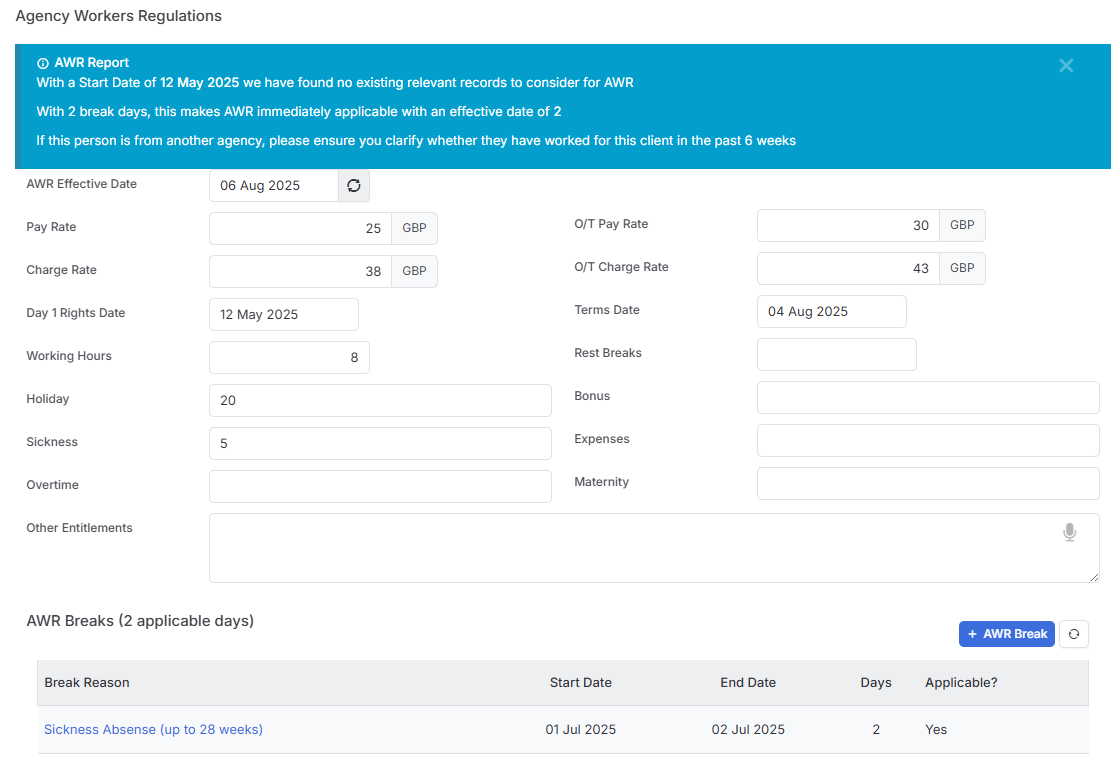
When you’re setting up or managing a placement, you’ll find the AWR tab is your control centre for all things AWR-related. This is where you’ll record the AWR applicable date and track all the related entitlements like pay rates, holiday allowances, and other benefits that kick in at different stages.
The system helps you manage several key dates and milestones:
AWR Effective Date - This handy button applies the 12-week qualifying period automatically, though remember that any AWR breaks might pause the clock along the way.
Day 1 Rights Date - This is straightforward - it refers to those entitlements your agency workers get right from their first day with a client. Essentially, this will just be the start date of their assignment.
Term Dates - These mark the important milestone when those enhanced 12-week rights kick in for that specific assignment. It’s a date you’ll definitely want to keep an eye on.
Breaks - Here’s where it gets a bit more nuanced. Not every break in an assignment pauses that all-important 12-week clock, but several important ones do. At the time of writing the following will pause the clock:
- Certified sickness absence - pauses the clock for up to 28 weeks
- Jury service - pauses the clock for up to 28 weeks
- Workplace shutdowns like seasonal closures or Christmas shutdowns
- Any break of 6 calendar weeks or less, provided your candidate returns to the same role with the same client
- Industrial action or strikes at the workplace
It’s worth noting that (at time of writing) the clock keeps ticking during pregnancy-related absences, maternity leave, paternity leave, and adoption leave.
Remember, the key principle here is that these 12 weeks don’t need to be consecutive. The qualifying period builds up based on the total time your candidate spends in the same role with the same client, which makes tracking much more flexible than you might expect.
To account for legislative changes, when setting breaks you can choose if the Clock is paused or not.
Dashboard & Alerts
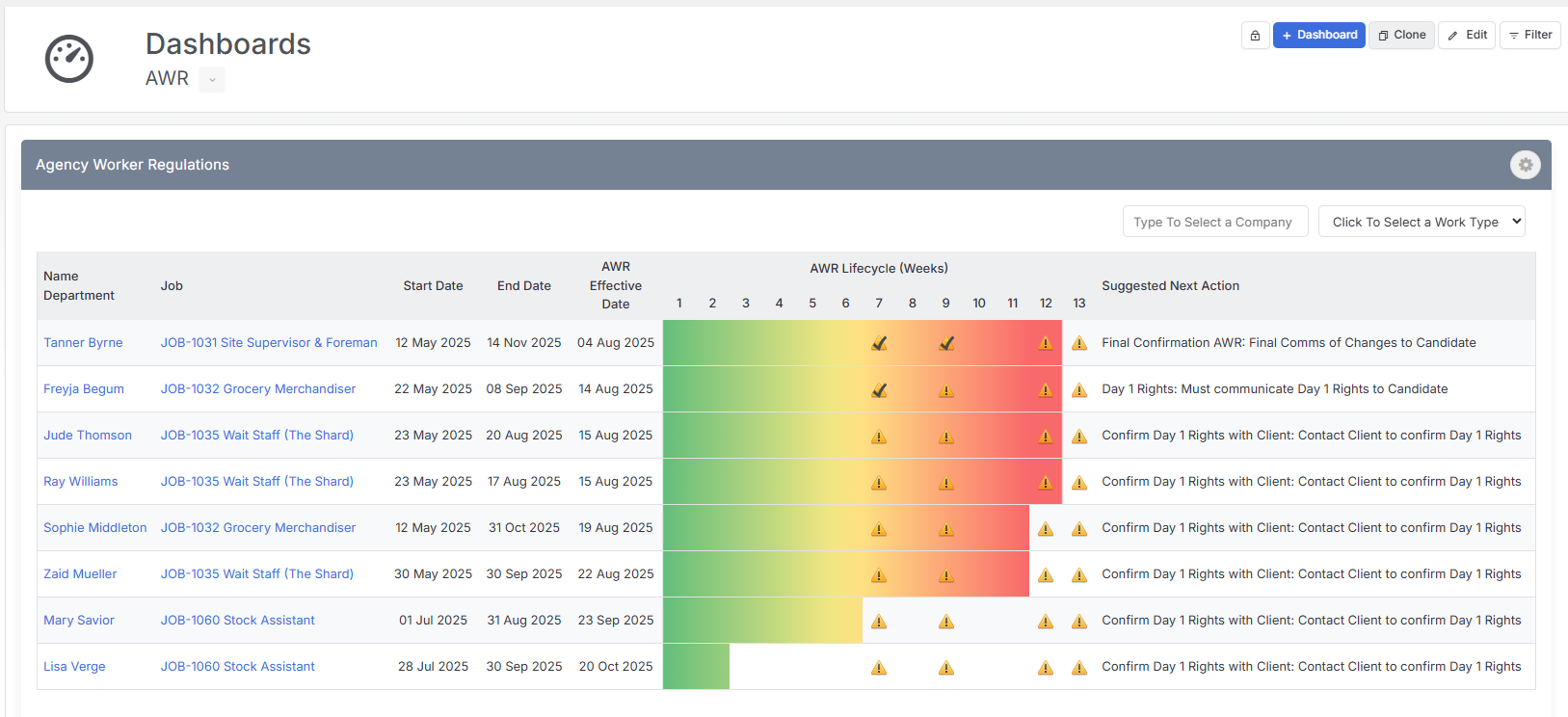
Within the Dashboard is the AWR Widget - this is where you’ll get your bird’s-eye view of what’s happening across all your active placements. The dashboard widget shows you placements that have an end date in the future and displays each candidate’s progress along their 12-week journey.
The alerts are particularly useful for staying proactive so that you can identify the crucial stages where action is needed. These alerts are configured via Tools & Settings | Candidate Settings. For example you could set alert for:
- When you need to contact clients to confirm what the enhanced rights will be at the qualifying period
- Reminders to communicate those upcoming changes to your candidates ahead of time
- Prompts to apply the new rates to the placement once they qualify
Once you have completed the steps required for an alert you simply tick it off and the Next Action will update.
Once an assignment reaches its end date or you mark the placement as completed, it’ll automatically drop off the dashboard, keeping your view clean and focused on active cases.
Reports
Should you wish you can also create AWR related reports via the itris Reporting area, please see the article Reports for more details.
Emails
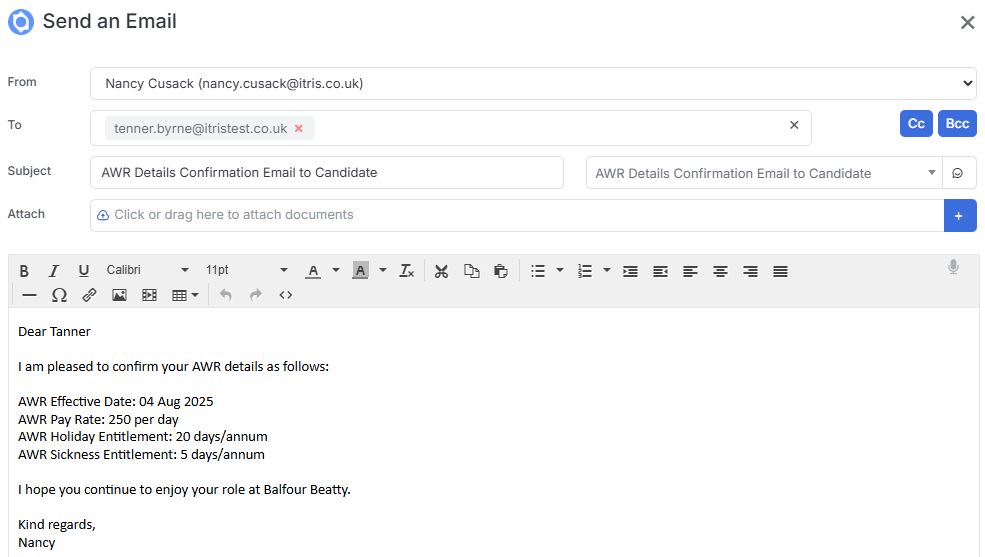
You can include AWR data in your placement-level emails, making it easy to keep all parties informed about entitlements, qualifying dates, and any changes that might affect the assignment.
You can create email templates with Tags to pull the AWR data from a placement record into an email, see the article Tools & Settings | Standard Templates for more details.