
Introduction
Activities can be created across all of the main record types and are a useful tool for tracking past, present and future communications. Recording activities provides transparency between consultants.
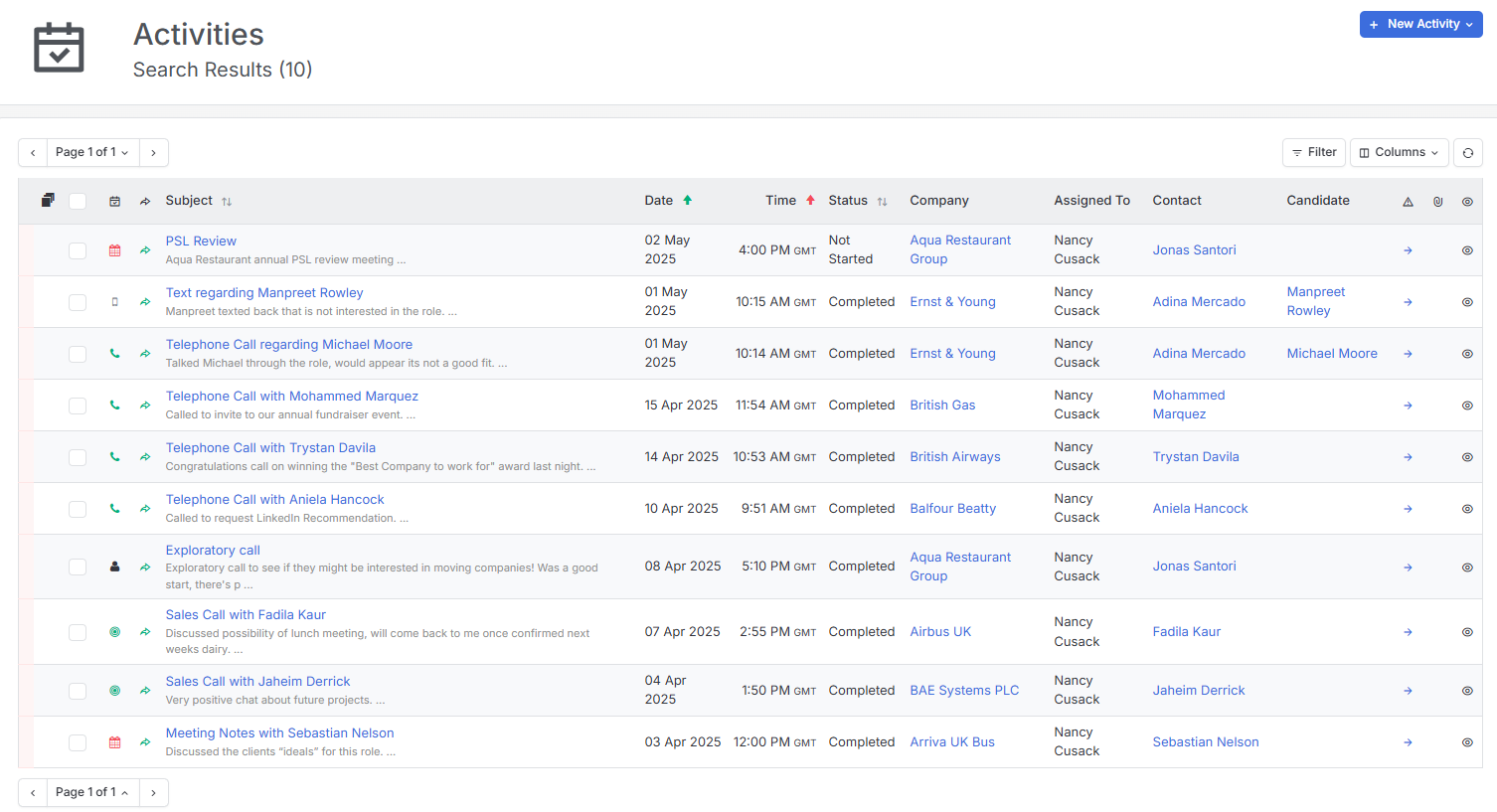
Activities are also included in the filters in Find Records, for example you can search for contacts whom have not been called or emailed since a certain time.
There are numerous places you can both view and create Activities in including on the records themselves, the To Do List and Activities pages. Activities can also be added to Dashboards.
Templates can also be set up for Activities, Please see the article see Tools & Settings | Display Settings for more details.
Create from multiple areas
Activities can be created and managed from a multitude of areas:
- Menu tab > Activities
- Menu tab > To Do
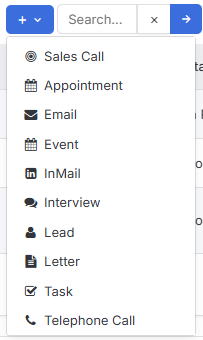
- Main Record (e.g Candidate, Company, Contact, Job, Placement) > Activities tab
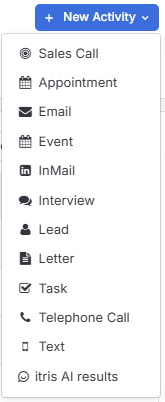
- Main Record (e.g Candidate, Company, Contact, Job, Placement) > Action Menu

Creating an Activity
When recording an activity you can choose from a number of system types, additionally custom activity types can be created by your company. Additionally both system and custom activity types can have targets set against them. Please see the article see Tools & Settings | Display Settings for more details.
If you are using Journaling your emails will automatically track against known records (e.g. where the email addresses match).
There are a number of fields you can complete in a New Activity form.
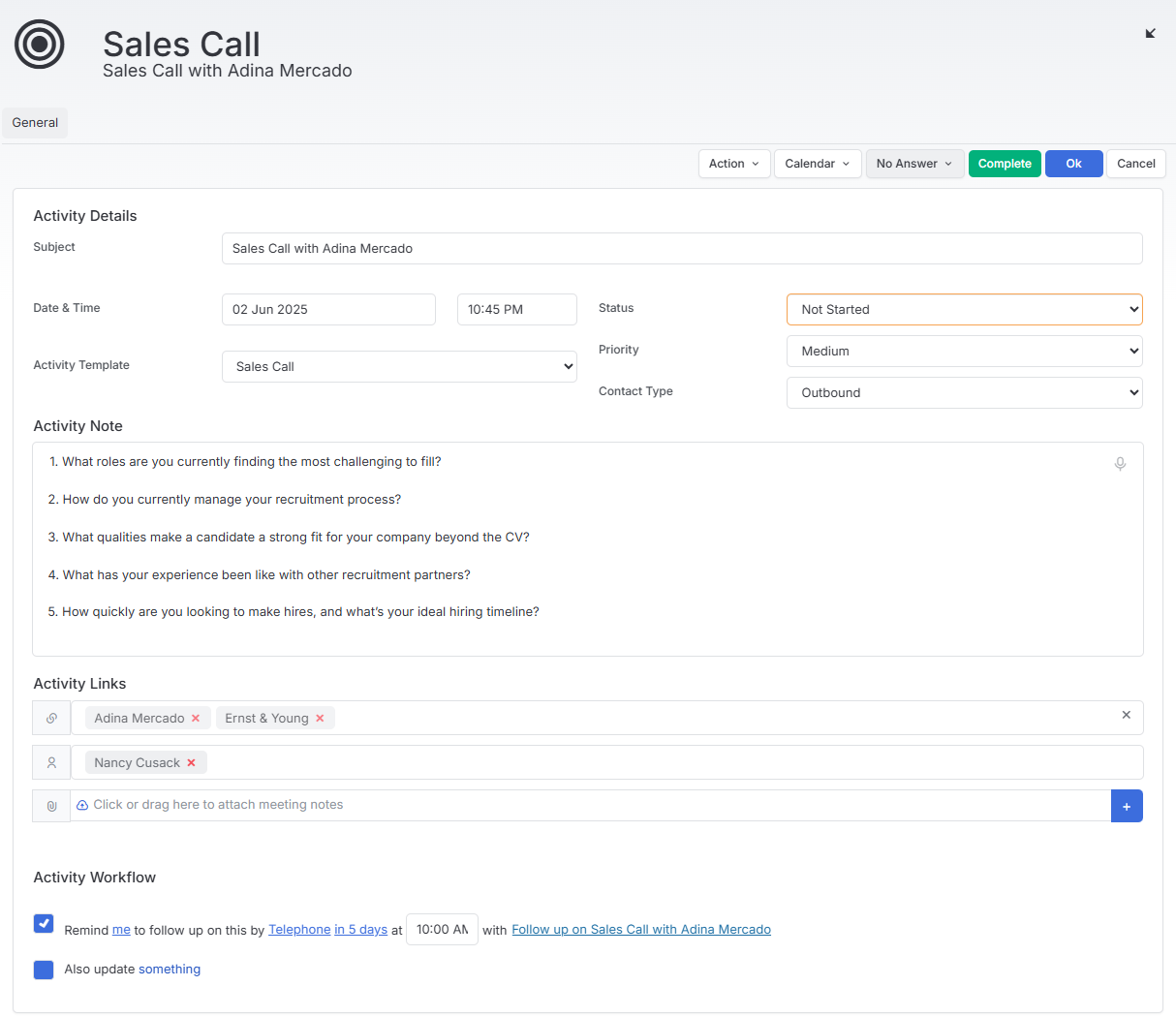
Subject Line - If you start the new activity from a main record, the subject line will prepopulate, otherwise you can type in here.
Location & Meeting Type - these will be available on relevant activity types and can be used to add the actual location, or note that it might be virtual such as via Zoom or Teams.
Dates & times - depending on the activity type there will either be one Date/Time or both start and end date/times
Activity Template - these can be created in the Tools and Settings area, they will populate the notes area and are useful as prompts for frequently used Activities. Please see the article Tools & Settings | Display Settings for more details.
Status - Statuses can be used to filter your Activities, for example to find those you need to action. Additionally, tasks and telephone calls with Not Contacted statuses will show in the** My To Do List** area (found under the Main Menu) in the Task and Telephone widgets respectively. See the section below Last/Next Activity & Last Contacted for further details on Statuses. Additionally, with appointments set as not started you will be alerted at the time of the appointment
Contact Type - Choose between Inbound (for example where a candidate initiated the activity) and Outbound (where you initiated the activity)
Notes - these can be populated via selecting an activity template, typing or by clicking on the microphone icon allowing you to dictate the notes, click on the icon again to stop dictation. This area allows for @ mentions for other users, whom will receive an onscreen alert.
Activity Links - if you have created the activity from a record, it will automatically be linked. You can also add links to other records and users here. Any tagged records will show this activity in their activity tabs. Attachments can also be added to the activity.
Activity Workflow - this is used to create a follow up for the original activity and/or update something such as record status. The follow up action and number of days can be adjusted as required. A default follow up time can be set via Tools & Settings | Display Settings, this can be overwritten if required, or simply added if it is blank. The text at the end of the follow up can be overwritten also to reflect the follow up activity. The follow up activity will show any notes from the original activity.
Actions and Calendar
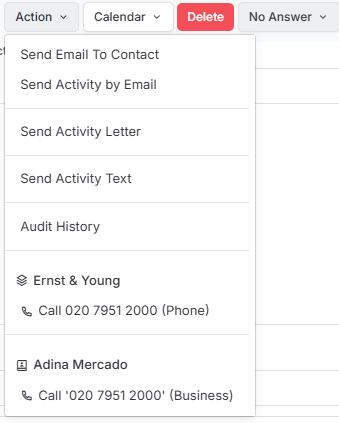
Via the Actions button you can send an email or the activity itself to the person the activity is logged against, see an audit history of that activity and use the click to dial options.
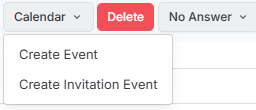
Via the Calendar button you can:
- Create an Event - this downloads an Outlook appointment
- Crate an Event Invitation - this downloads an Outlook Meeting
With either of these Outlook items you can edit them, such as creating Teams invites and send them to required attendees.
Saving the Activity
When you have entered all the relevant information on your activity you have options for saving it:
No Answer - will save the activity and reschedule for a later time/date.
Complete - will update the status to Complete and save the activity.
Ok - the activity will be saved with the status set in the status field.

If an activity is not saved as completed at this time, then opening it again once it is completed will allow you to change the status as such.
Working With Activities
As mentioned in the Introduction there are a number of places where you can view Activities, and there are various options to help you work with those lists as relevant to that area.
Activity Filtering on a Record
When viewing activities lists on a Record there are filters available to apply as follows:

Search - filter on the subject and notes
Timeline- filter to the last 30, 60, 90 days or everything
Activity Types - filter by one or more activity types. When individual activity types are selected and you wish to return to viewing all activities, there is an option for this at the foot of the list.
Include Outbound Marketing - this is relevant for Candidate and Contact records, and mirrors your “Show Outbound Marketing Activities” default setting in Tools & Settings > Display Settings, but you can override it here. This is handy when you do want to check marketing engagement for a specific Candidate/Contact without changing your global settings.
Bulk Log Activities
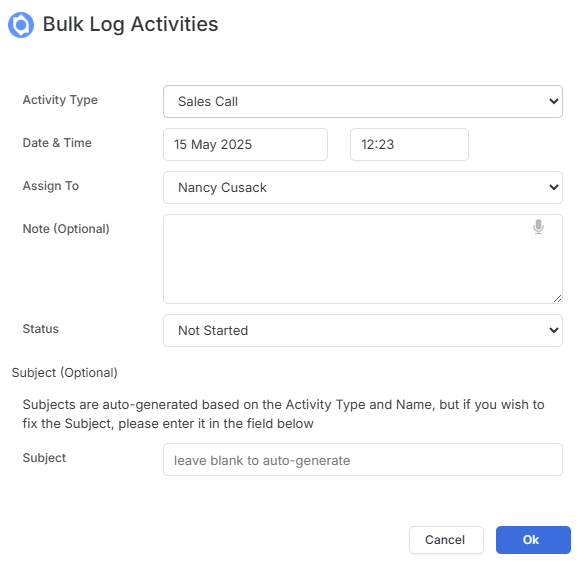
From a Job Longlist or from a Candidate or Contact Record View you are able to bulk log activities, for example record that a Voicemail was left for multiple people, or set an Activity for a future date to follow up.
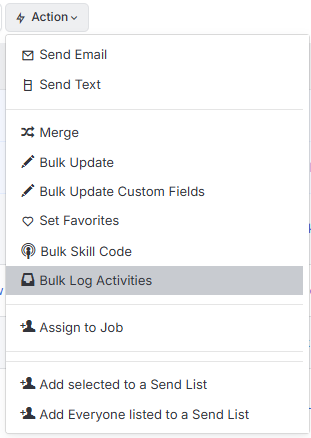
This will open a window for you to complete the details as relevant.
Bulk Updating Activities
From the Activities area (via the Menu tab) you are able to perform actions on one or more selected (checked) Activities via the Action button.
Bulk Update allows you to change the Status, Type, Assigned User and Date of the Activity.
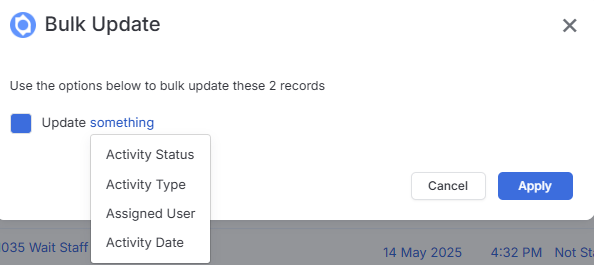
Bulk Update Custom Fields means that if you have Custom Fields created for your Activities you can update these in bulk.
Additionally, you can mark the selected activities as Completed or Delete them.
Quick Action Menu
The Activities area is highly useful for managing your outstanding and current activities in one place. To make this more pro-active, we have included a Quick-Action Menu within the list so that you can instantly call or email any of the parties related to the activity directly from the list.
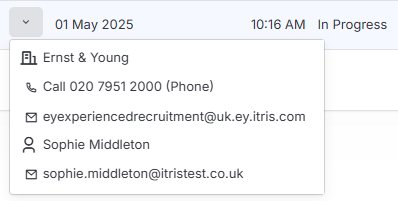
This means you don’t need to use either Quick-View or open the record in order to instigate communication.
To access the new Quick-Action menu, simply hover over the row in the Activities table where the menu button will appear. Clicking this menu button will present the telephone numbers and email addresses for each of the parties concerned. For example, an activity linked to a Client, Contact and Candidate will display the call details and email details held in itris for each person or Company.
Activities View
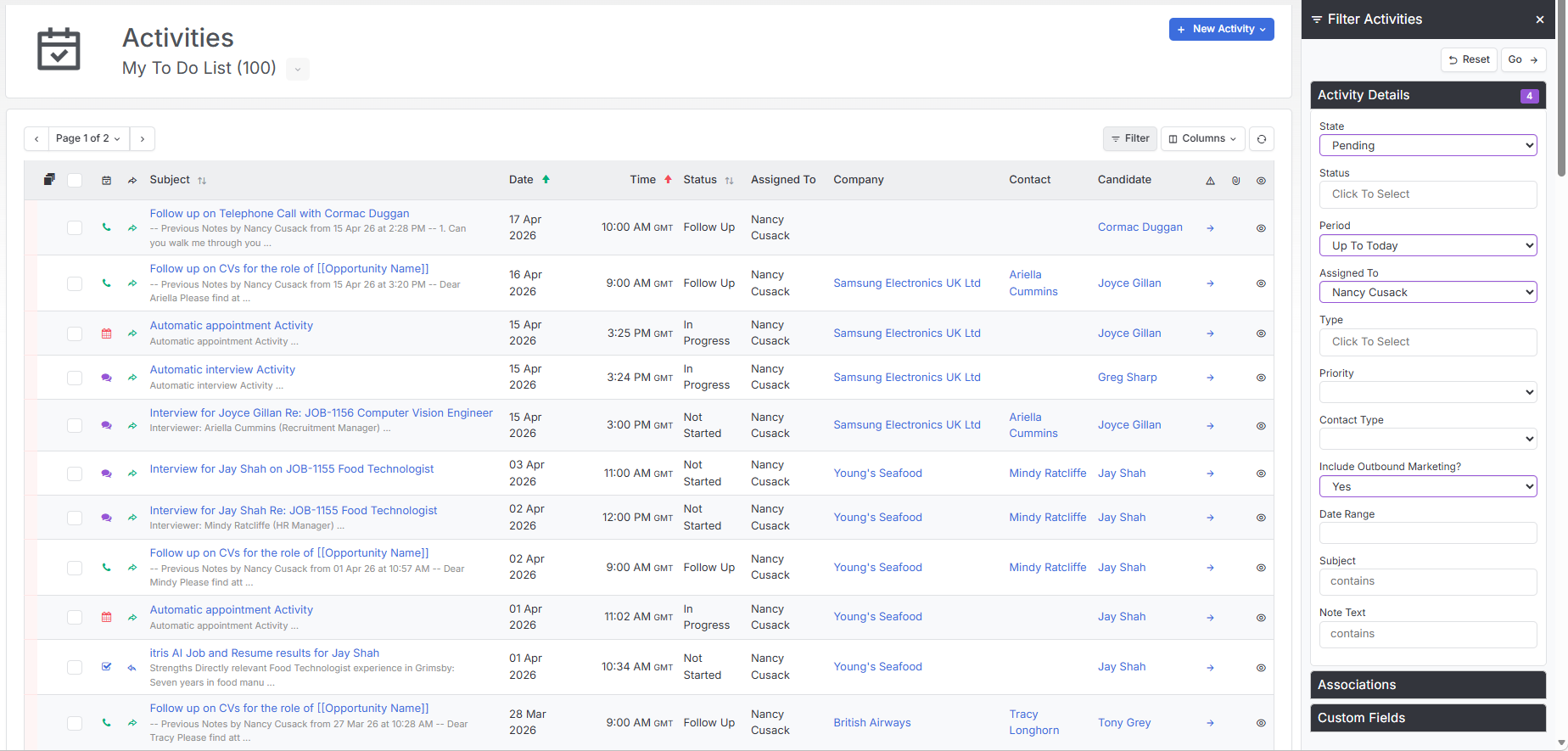
Under the Menu Bar > Home tab is the Activities View which is a compiled list of all Activities.
Here you can filter on Activities to produce a focused list, whether that is to follow up on workflow, track progress, and review the quality of comments being added.
You can create new activities from this area as well as bulk update or mark as completed.
Last/Next Activity & Last Contacted
The Status you apply to an Activity will have a bearing on whether it is recorded as Last/Next Activity and if the Last Contacted Date is updated.
The following Activity Statuses will update the Last Contacted Date, and will record it as a Last Activity.
- Completed
- No Answer
- Missed
- Left Message
The following Activity Statuses won’t update the last contacted date, and will record it as a Next Activity.
- Follow Up
- No Lead
- Deferred
- In Progress
- Waiting
- Not Started